


Participant
April 27, 2015
Answered

How do I apply a preset to multiple photos at once using Lightroom CC

  • April 27, 2015
  • 5 replies
  • 119300 views

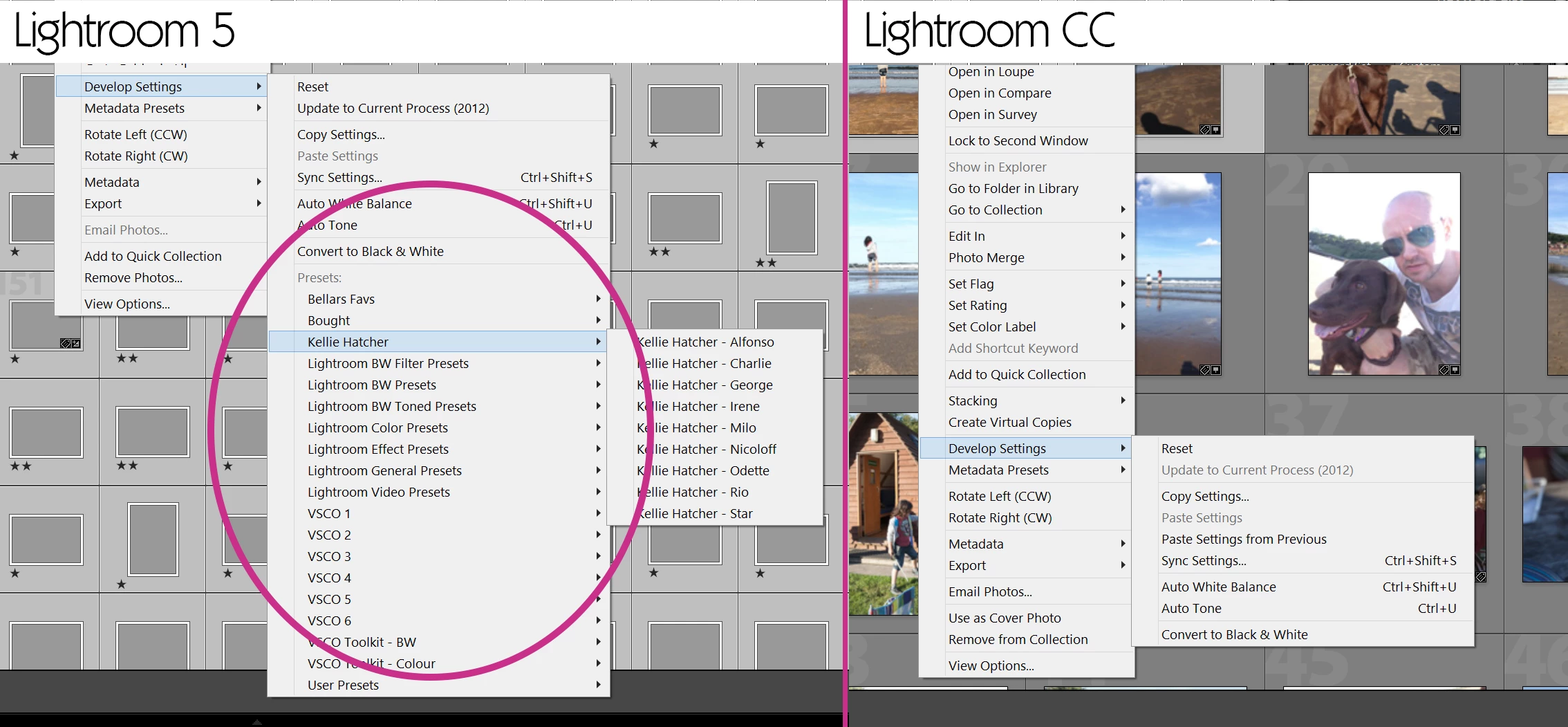
This is a feature I used to use a lot within Lightroom 5, in the grid view, I used to select all the photos I wanted to apply it to, right click, Develop, then find my preset and apply it.

This seems to either have moved or gone from Lightroom CC?

Here's a screenshot of what I mean...
If anyone can help I'd appreciate it.

P.S I don't want to use sync as that's not exactly what I'm after which other people have suggested.

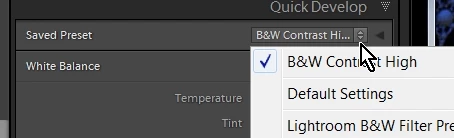
Correct answer Rob_Cullen

Select all images to develop (working in the library grid view),

In the Quick Develop panel, click the drop-down menu for "Saved Preset"

Choose your required preset.

Done!

5 replies

GiZ foto
Participant
December 11, 2018

Great! Exactly the same problem I am facing after updates. The Library grid + quick develop much more fun than preset + copy paste to other photos. Thanks!! WobertC

MehlPhoto
Participant
April 30, 2015

I have been using Lightroom since version 1. I will have to revert to the previous version of Lightroom. The new features in Lightroom CC are nice, but the fact that I no longer can apply a preset to multiple images render Lightroom CC useless. I shoot motorsport and I need to be able to batch add presets to 1000+ images after every race. I am so annoyed. Why in the H**L remove something that worked perfect

Rob_Cullen
Community Expert
Rob_CullenCommunity ExpertCorrect answer
Community Expert
May 4, 2015

Select all images to develop (working in the library grid view),

In the Quick Develop panel, click the drop-down menu for "Saved Preset"

Choose your required preset.

Done!

Regards. My System: Windows-11, Lightroom-Classic 15.0, Photoshop 27.0, ACR 18.0, Lightroom 9.0, Lr-iOS 10.4.0, Bridge 16.0 .
Michael J. Hoffman
Community Expert
Community Expert
May 4, 2015

You don't even have to open the Quick Develop panel - the preset selection dropdown appears in the panel header even when the panel is closed. Good catch, wobertc!

mh++

jacobd76609942
Participant
April 28, 2015

I really hope the reverse that decision. This is making it super annoying to batch process large photoshoots.

JP Hess
Inspiring
April 27, 2015

When you have multiple images selected, the Sync button will display in the lower right-hand corner of the develop module. There is the little switch to the left of that button that you can use to switch it to Auto-Sync. When that is turned on your preset will be applied to all images that are highlighted.

_MikeyBAuthor
Participant
April 28, 2015

Thanks for your reply - does this mean I have to apply the preset to one photo first then auto sync to the rest?

I work in software, and one thing that we swear by is NEVER to remove features from one version to the next....

99jon
Genius
April 27, 2015

When you installed LR CC 2015 did you upgrade your earlier catalog? Normally everything should transfer including presets but you may need to copy from your previous version if third party presets have not installed.

From LR CC 2015 click the menu:

Lightroom >> Preferences >> Presets (tab)

To show the system location click the button “Show Lightroom Presets Folder”

You can then double-click on Lightroom and again on Develop Presets. Drag your Kellie Hatcher folder into Develop Presets.

On Mac the default location is usually:

Macintosh HD\Users\User Name\Library\Application Support\Adobe\Lightroom

Windows – go to:

Edit >> Preferences >> Presets (tab)

Default location:

C:\Users\User Name\AppData\Roaming\Adobe\Lightroom

_MikeyBAuthor
Participant
April 28, 2015

Thanks for your reply - my presets are in the develop module and work great, it's the applying them to multiple photos feature that seems to have vanished.