


danielg50178951
Known Participant
May 27, 2017
Answered

Image in Lightroom Develop Module looks dramatically different than image in Library module or exported image. How do I fix this?

  • May 27, 2017
  • 12 replies
  • 25215 views

Forgive me, I know this has been discussed at length, but (partly due to my ineptitude) I'm unable to figure it out.

My issue is:

I work on an image in the develop module and when I become satisfied with it, I export it. The exported image loses clarity and becomes lighter. I am exporting the image as a Jpeg (I've tried other formats too) at 100% and have tried every color space variation but have gotten the same disappointing results. The exported image is identical to how the photo looks in the library module, not the develop module. This is very frustrating, because I want it to appear identical to the image on the develop module (since that's what I have control of). It seems pointless to put all this effort into editing the image to have the export look so different and then need to over edit your photo in hopes of making the library/export image look how you want it. It doesn't make sense.

I've read various, confusing things about how to remedy this.

The first photo is a screenshot of the Develop Module (How I want the export to look), the second one is the library (How the export actually looks). As you can see, the top one is darker and sharper.
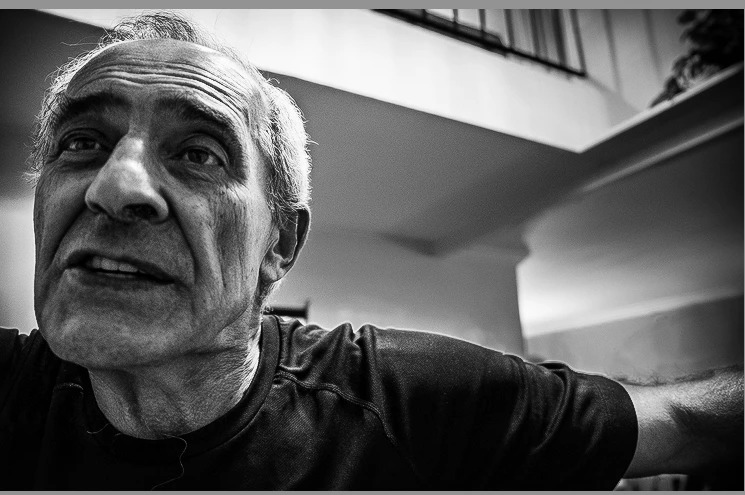
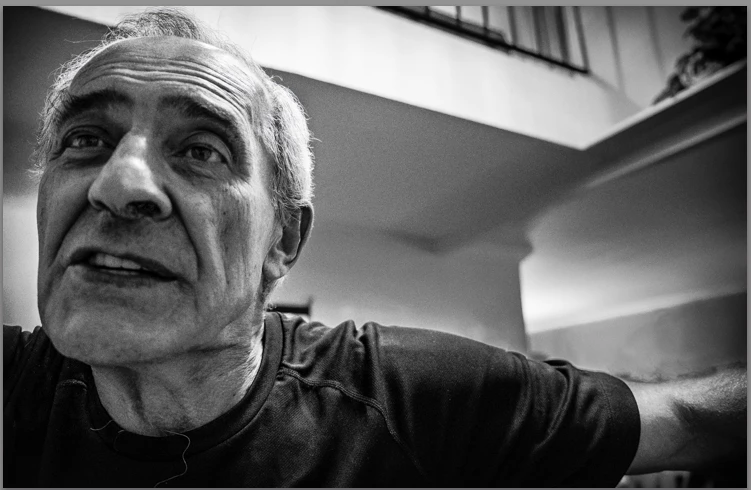
Some stuff I've read:

1. The library module uses a different color spacing than the develop module and for them to look the same, I need to properly calibrate my screen. I don't have Spyder or any external products to calibrate the screen but I did attempt to do it through my MacBook Pro's settings. I've tried many different variations of this but have never been able to have the develop image look the same as the library/export. Beyond that, it doesn't seem to make sense that calibrating the screen would fix this since I'm looking at these images on the same screen, no? Even if the screen is improperly calibrated, both images would be viewed on the same screen, so how would that cause a disparity in how they look?

Also, is there a way to adequately calibrate my screen without having to buy a pricey product like Spyder?

2. The library module and export will apply noise reduction which changes the appearance of the image. This seems to be true and I tried reducing the noise reduction in the develop module, in hopes of making the library/export image look the same, but I didn't achieve the results I was looking for.

3. People have pointed out that the Library and Develop module do look identical when both are viewed at 1:1 ratio. This is true, but it seems to be a moot point. They may be identical at a a 1:1 ratio, but the export isn't meant to be viewed that way. I'm putting these images on the web, so yes, theoretically the export will look identical to the develop module's image when magnified to 1:1, but nobody will be viewing it at that level of magnification.

Basically, I just want my exported photo to look like what I've worked for in the develop module. Is this possible? How? I'm at a loss here.

    Correct answer Todd Shaner

    I suggest also checking the Detail panel settings. If the image was shot at a high ISO setting noise in the image can cause the difference you are seeing between the Develop and Library module as well as Export files. Adjust the Detail panel Sharpening to Amount 50 or less and apply Luminance and Color setting to reduce noise in the image visible at 1:1 Zoom view setting. This should make the images appear virtually identical. The Develop module uses a simpler algorithm for creating the Loupe preview to prevent adjustment slider lag. The Library module creates a Preview file, which is created using the Bicubic algorithm (same as the Export module), which provides much more accurate interpolation. BTW- The most accurate view in the Library module are the pyramid Zoom settings 1:16, 1:8, 1:4, etc. rather than Fit of Fill. This is because a 2nd interpolation is applied to Fit and Fill previews, which may slightly soften the image detail. The 1:1 view is the most accurate, but of little value for most viewing purposes.

    12 replies

    Participant
    October 11, 2023

    Hello, I am experiencing this exact problem, and have tried all of the corrective measures outlined in this thread. I even went so far as to uninstall Lightroom and upgrade to Lightroom 6.5. When in "Develop" or "Edit" mode, the photo appears exactly as I want it, but as soon as I try to Export the photo, the color profile changes completely. In the Export Preview, the photo appears desaturated and I seem to lose all of the aqua tones, the purple tones turn grey, and I lose the overall vividness of the photo. 
    I have tried the following: 

    1. Under Details bumping the Sharpness down to 50 or below
    2. Calibrating my ASUS monitors, and setting the Default Profile to sRGB

    3. Uninstalling an older version of Lightroom and installing Lightroom 6.5

    4. Working in different color profiles within Lightroom 


    None of these measures fixed the problem. I would also like to note that this is a new problem that I wasn't experiencing previously. I've been a photographer since 2018, have edited in Lightroom for the duration of my career, and have never once encountered this issue. It just started happening yesterday, and I am at my wits end trying to find a solution.

    Any help would be greatly appreciated!


    Rikk Flohr_Photography
    Community Manager
    Community Manager
    October 11, 2023

    @default32841662ni0her  You’ve posted to an ancient thread. It is highly unlikely that the issue described in this thread, though not impossible, is the same one you are currently experiencing. Rather than resurrect an old thread that is seemingly similar, you are better off posting to a new thread with fresh, complete information, including system information, a complete description of the problem, and step-by-step instructions for reproduction. 


    If the issue is the same, we will merge you back into the appropriate location. 


    Thank you!


    Rikk Flohr: Adobe Photography Org
    Participant
    November 26, 2022

    I have the same problem but for me the solution is to right click the image I have just edited in Develop and "edit in Adobe Photoshop"...

    It preserves all the detail...

    Participant
    April 4, 2022

    This happened to me and I could edit anything cause of the noise and look really different. What I did was save all my purchases and image and everything important that I need in my hard drive and then factory reset my whole computer. Then re download everything and it fix the problem. I really hope it won't happen to me again. Hope this help 

    Participating Frequently
    October 15, 2022

    I tried everything above, for the most part, except for factory reset.   What finally worked for me is unclicking "Zoom to Fit" in the Develop Module under Image Settings.  

    Todd Shaner
    Legend
    August 21, 2020

    Sorry still no difference when clicking on each image in separate browsers tabs and then comparing them overlayed. Try renming the two separate files DSC_7379_Develop Screenshot.jpg and DSC_7379_Export.jpg and insert them in a new reply here or upload to a file sharing site.

    Also make sure you are viewing both the export fiile and the original raw file in the Develop module. Do they look the same or different.

    Todd Shaner
    Legend
    August 21, 2020

    I see no difference. It appears you inserted the same image file twice (DSC_7379.jpg). I see no difference.

    zimington
    Participant
    August 21, 2020

    Hi thank you. It is just that the images aren't side by side, and importing them here lowers the quality making it hard to see the difference. You can see the difference however. They are not the same images. Top image is slightly blotchy and bottom image is very clean. (Again, second one is a screen shot from the Developer Module)


    thanks

    zimington
    Participant
    August 21, 2020

    I am having I think the same issue but cant seem to understand. I think I get that it wont export exactly what I am seeing in the Develope module, but this is annoyingly extreme. I do not normally do this, but I have applied 65% NR, and 100% Color and Smoothness in Detail Panal. I am not sure if these imported images will give the resolution detail of what I am trying to explain, but the first image is the esported version and the second is a screenshot of the image in my Develope module. There is an extreme amount of blotchyness or bright and dark patches in the export. I am not referring to noise.


    Todd Shaner
    Legend
    July 29, 2020

    I would appreciate it if anyone here could run the test as I outlined at the below link to see if your system is affected. It should take more than one or two minutes. Please provide your LR Classic version and OS in a reply at the below link along with your results 'Follow' and 'Me To' vote. This will be helpful tin getting Adobe's attention. Thank you!


    https://feedback.photoshop.com/photoshop_family/topics/library-preview-zoom-interpolation-changed?topic-reply-list[settings][filter_by]=all&topic-reply-list[settings][reply_id]=20596408#reply_20596408

    Just Shoot Me
    Legend
    July 29, 2020

    Posted reply over at the Family forum.

    Todd Shaner
    Legend
    July 28, 2020

    Adobe has made some changes to the Library previews that can cause artifacts and an over-sharpened appearance in the image at 1:3 and lower Zoom view. Please see the below problem report for more details. I included a download file and procedure at that post to test if your system is affected. Please add any any comments, 'Follow,' and 'Me To' vote at the below post. Thank you.


    https://feedback.photoshop.com/photoshop_family/topics/library-preview-zoom-interpolation-changed

    themaneatingshark
    Participant
    July 27, 2020

    "BTW- The most accurate view in the Library module are the pyramid Zoom settings 1:16, 1:8, 1:4, etc. rather than Fit of Fill. This is because a 2nd interpolation is applied to Fit and Fill previews, which may slightly soften the image detail. The 1:1 view is the most accurate, but of little value for most viewing purposes."


    THIS answered and solved my viewing issue. Drove me crazy until I found THIS solution for viewing my results in a more "faithful" mannor; i.e interpolation during "Fit" and "Fill" in Library! Thank you so very much!

    Participant
    January 14, 2020

    I have tried all of the recomendations listed in a number of these posts. I can not find a solution to get my images to show correctly in the Develop module. Through my trials I have found that the deatil preview window in the develop module shows the image correctly. I still can not get the large image in develop preview correctly. I am runnin on a MacBook Pro with a BenQ, callibrated, display. I am currently running Lightroom Classic 9.1. The only place I see the "super" color is in the develop preview. Any insight woudl be appreaciated.