


Participant
November 10, 2014
Answered

Lightroom 5 importing photos in random order

  • November 10, 2014
  • 27 replies
  • 33934 views

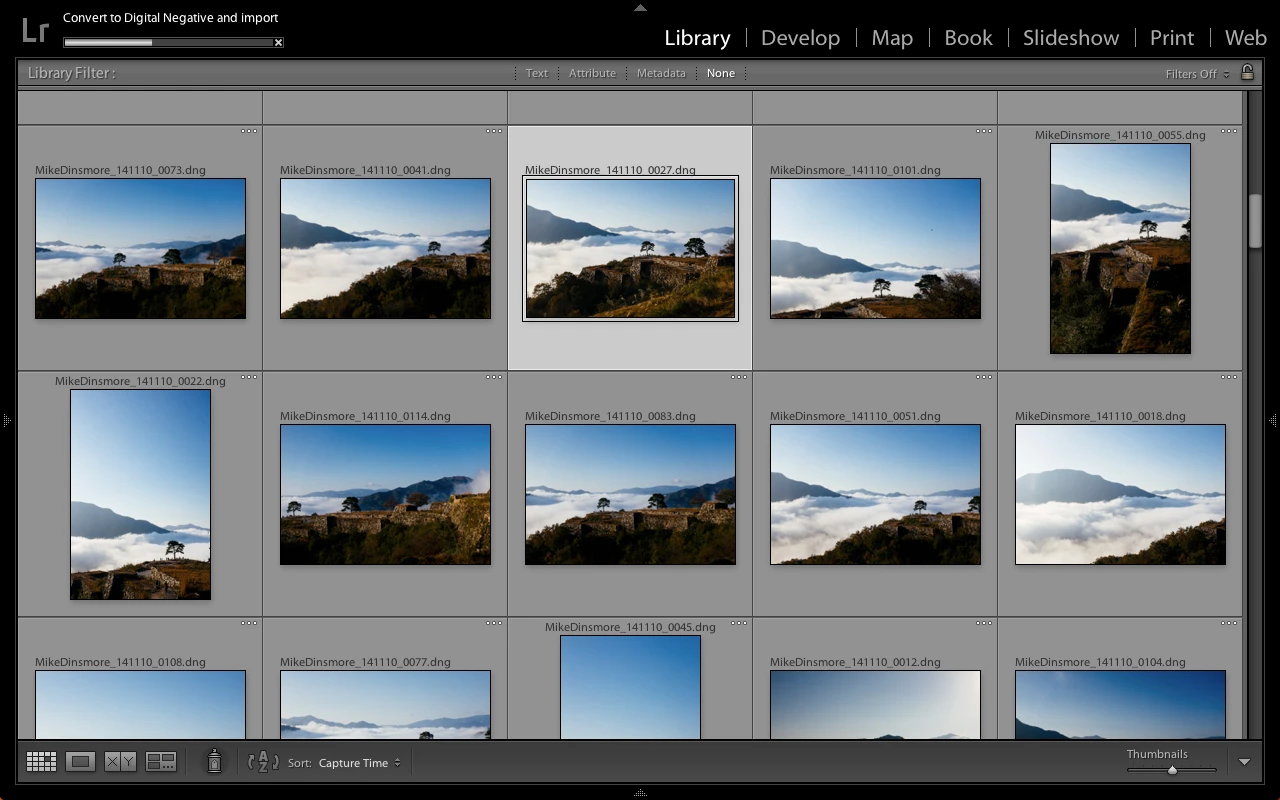
I have been using Lightroom 5 for some time and just recently my photos are importing out of chronological order. It will import photos from all over the card. They appear in chronological order but they are numbered according to which one was imported first. I can see them in chronological order on my computer but when I hit import through Lightroom the photos are imported and numbered in a non chronological order. This only started happening recently so I think it has to do with a recent update. I've tried formatting my card, using another card, and importing to another catalog, but nothing has changed yet.
Correct answer Vibrant_Walrus0D4B

When you click on import look at the bottom of Lr5, center and slightly right ... you should see a button titled "Sort", click on it and choose capture time.  That was annoying until I found the button.  Good luck.  James

27 replies

johnrellis
Legend
June 10, 2026

[View this post in your web browser. It contains formatting and images that don't appear in email.]


@Jessr26 This issue is currently happening to me now and has never been an issue until several months ago. 


LR 6 started imported images out of order, using multiple processors to speed up imports. Many people have complained ever since, and there’s a longstanding feature request (along with some workarounds):

https://community.adobe.com/feature-requests-676/p-import-renaming-sequence-should-be-assigned-by-the-order-shown-in-the-import-window-664745/index3.html?sort=oldestFirst#comments 


You’ve been lucky in not observing it until now.


It would be very straightforward for the developers to preserve the original ordering while processing the imports in parallel for performance. But they’ve never chosen to do so.

Jessr26
Participant
June 9, 2026

This issue is currently happening to me now and has never been an issue until several months ago. I’m assuming it was an update. They are in order visually before I click import and then as soon as I click import (either by capture time or checked state) they import completely out of order but are numbered in chronological order. I will delete the images and the DNGs and start all over WITHOUT changing a thing and then it imports just fine. This has to be a bug. Or something that needs to be clicked on but I am not sure where to even start. 

Known Participant
August 2, 2020

I'm going to toss this out here even thought it's an old thread because there's a lot of suggestions from people who obviously can't imagine why capture time would  matter. I bracket my shots specifically to be to batch process with Photomatix. This issue seems to come and go. Nobody seems to know why.

Participant
May 8, 2020

Thankyou sooo much. I had the same issue and now resolved!


Participant
July 29, 2016

I have a solution!


When you import from a media card reader (haven't confirmed from when you import from a camera) you need to NOT be in the DCIM level of the media card/camera. Point Lightroom to import from a higher level directory. For example, the exact directory that your files are in.

DON'T IMPORT FROM THIS FOLDER: (DCIM)

IMPORT FROM SOMETHING LIKE THIS FOLDER: (100EOS5D)

Now everything should import as you expect it to.

To be fair, someone gave this solution on page two, but it looks like everyone ignored that person, lol.

This has worked for me several times now.

Participant
April 25, 2016

Here's what I did and it seems to have solved the issue, at least for now. After selecting "import" under the "source" header select your media card or source and voila all the files are in chronological order....proceed as usual.

Participant
April 23, 2016

i have encountered this problem many times, as the viewing of photos from the import window arranged by the date is way more convenient than the sort method, the solution i find is something like this,

  • go down to the right side of the window to find the "destination"
  • then click on the triangle to get a view of photos according to the date
  • then tick on the date you want to import,
  • check the import window, all the photos taken on that date will be selected and ready to import
  • click import to all the photos on the particular date

Zephski
Participating Frequently
April 18, 2016

It seems if you Sort on Media Type you can get a properly ordered and numbered sequence of images or clips. Makes total sense right?

Known Participant
March 7, 2016

Same problem,  Never used to happen, and I can't pinpoint when it started but I wish they'd fix it.  I used to import the files with my own naming convention, but they would stay in order of capture time.  Now they import with my name but out of sequence time-wise.  It is very frustrating.

Participating Frequently
January 23, 2016

I'm also having the same problem, I have to restore to importing and then renaming in 2 steps