


Participant
November 10, 2014
Answered

Lightroom 5 importing photos in random order

  • November 10, 2014
  • 25 replies
  • 33708 views

I have been using Lightroom 5 for some time and just recently my photos are importing out of chronological order. It will import photos from all over the card. They appear in chronological order but they are numbered according to which one was imported first. I can see them in chronological order on my computer but when I hit import through Lightroom the photos are imported and numbered in a non chronological order. This only started happening recently so I think it has to do with a recent update. I've tried formatting my card, using another card, and importing to another catalog, but nothing has changed yet.
Correct answer Vibrant_Walrus0D4B

When you click on import look at the bottom of Lr5, center and slightly right ... you should see a button titled "Sort", click on it and choose capture time.  That was annoying until I found the button.  Good luck.  James

25 replies

Participant
November 11, 2015

This exact thing is happening to my files imported from canon 7d and 5d to Lightroom 5 cc on macbook pro.

The only things i changed recently was update to yosemitee and I from  lr4 to LR5 CC (which seems to be a common denominator in the comments above)

I cant sort them by name, capture time or even added order and some of them ARE FREAKING UPSIDE DOWN!!!  This is HORRIBLE because it has completely sabotoged being able to sync settings between poses on senior portrait and family shoots and even worse on sports when a series of images (like catching a football) is supposed to be together. 


Ive updated the firmware on both cameras and on the 7d i did a total camera reset, Neither has helped

Has anyone found a solution? I dont seem to see any above. And capture time doesnt work for me.  So frustrated

Screenshot below is sorted by capture time. Those two portrait images were off of the same card and i took them at the end of the game.  Theres 6 of them total randomly all over the shoot, along with all the action shots being jacked up.

KA Snure, www.livingshastaphotography.com


Participant
November 11, 2015

Well I guess I should have read page 2 of all the comments and replys before posting. Because importing by custom name/ original file number worked!  God I wish I would have came to this forum a month ago  

Participant
September 8, 2015

I was having this issue and realized that I was importing from my card at the DCIM folder level. When I directed Lightroom to the actual subfolder - 107ND600 in my case - it acted normally again. I don't know why this should be the case but check this if you have trouble. My photos were consecutive action photos and it was imperative they remain in the correct order.

ManiacJoe
Inspiring
September 9, 2015

To make sure your action photos are in the correct order, you need to make sure that you do NOT let Lightroom rename your files by removing the original file number from the name. Using the "import sequence number" is a bad idea. Otherwise, the order of import does not matter. You just need the correct sorting in the Library grid.

Zephski
Participating Frequently
September 12, 2015

This is ridiculous. I can order by Capture time or Image number on import and I still get a mess. I don't want to move things to the bathroom, then downstairs where I rename them, and then to my working computer so I can have a sequence of images with a numbering scheme I want and in the order they were shot in. Come on Adobe, wake up.

vandanacathy
Known Participant
July 14, 2015

I have this problem with the iPhone photos I import into LR.

Pain in the neck because they are shuffled...one of these, one of those, etc. Makes editing very difficult!

ManiacJoe
Inspiring
July 15, 2015

After you import the photos, in the Library grid what is your sort order (at the bottom of the screen)?

vandanacathy
Known Participant
July 26, 2015

I figured it out, thanks. I import the photos into LR according to time taken but when I plug my iPhone into the computer they are not sorted that way so it shows up as a big mess on the import screen.

I changed the sort order. All is fine

Participant
July 6, 2015

Since LR5 I have the same issue and it has continued to the latest build of LRcc2015.

What Does Not Work:

- Choosing sort order on import does not work.

- Completely deleting LR and installing with a fresh install does not work.

- This is an Adobe issue, not an OS X issue.

- Only happens when importing directly from a card.

What Is Working For Me:

- From card drag image folders to hard drive then import into LR.

- I am using ImageIngester to import photos and then adding to LR catalog.

Participant
June 24, 2015

I am having the same problem with the chaotic ordering of my imports in LR CC 2015 and wanted to share a couple things.

First off, the order of the import is very important for my workflow. This is not a problem that is fixed by resetting preferences. This is a bug.

Second, I am experiencing this on a Late 2012 iMac running 10.10.3. I believe it is hardware independent and occurring on all versions of OS X.

Third, I was able to get the import to go in sequence by changing my import from "Copy as DNG" to simply "Copy". I will try a couple other options to see if I can recreate the problem including importing as DNG again.

So for now, FOR ME, I was able to import correctly by sorting as Capture Time and choosing import method "Copy"

Participating Frequently
June 24, 2015

I never convert to DNG and always perform the "Copy" operation to get images from CF cards to my computer.

Participating Frequently
June 24, 2015

Here's an example of what I see during import. I had no develop settings, metadata changes, or preview generation being performed upon import (I meant to capture the top of the right panel but had scrolled down to double check that the images were going into the right folder and failed to scroll back to the top).

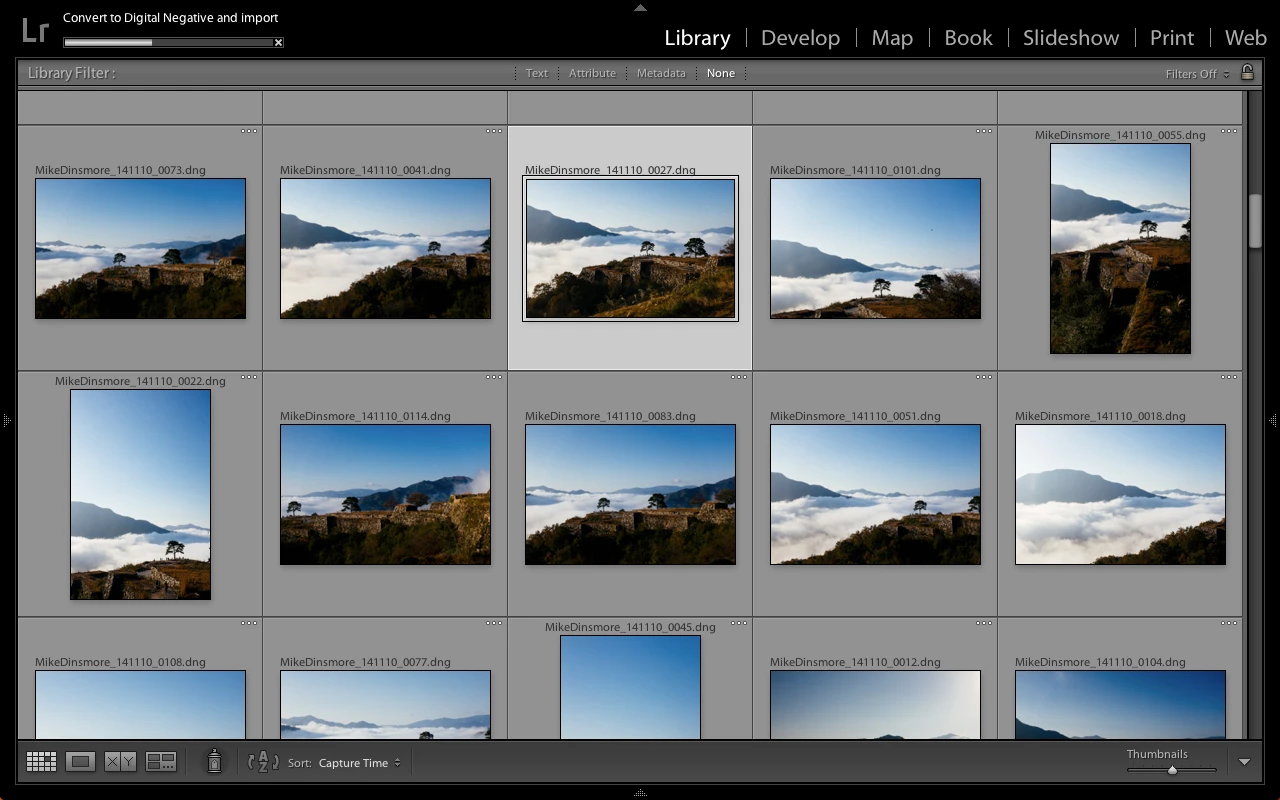
And here's the grid view in the library module showing intermediate progress of the import step.  The selected image was the first one read and displayed in the filmstrip upon import.  I waited until the grid view was fully populated before grabbing the screenshot.  Now, the filenames shown here are in order it can be seen that they are not strictly in filename order - there are a few gaps.  Images populate the grid in a completely random fashion.

Participating Frequently
June 14, 2015

I've had this happen with fresh preferences, so I doubt that's the culprit.

Todd Shaner
Legend
June 14, 2015

Each users situation is "unique" until the actual root-cause of the problem is identified. Your sort order issue may be caused by something entirely different. When unexplained things happen the first thing to try is resetting the LR Preferences file. It's easy, painless, and can be quickly restored if you rename the current Preferences file or save a copy to your desktop.

If you want to resolve the issue on your system we will need more information: OS version, LR version, Camera model, Raw/JPEG, and ALL Import module settings

Participating Frequently
June 14, 2015

Thanks for the recommendation for resetting the preferences.  I tried the shift-option startup method and reset the Lightroom preferences.  After resetting the preferences and importing images off of a CF card I'm finding that images are still importing in a random order.  I changed the sort order to "File Name" in both the Import dialog prior to clicking the Import button and in the Library module as images began to appear in the selected folder.   There's something else going on outside of the preferences file that is causing this to happen.

OSX 10.10.3

Photoshop Lightroom CC

Canon 7D MkII  (although problems seen in Lightroom 5 with both 7D and 7D MkII)

RAW and JPG show same behavior

Upon import I build Standard Previews and organize images into folders by date.  No file renaming or preset application is performed.

Participating Frequently
June 14, 2015

As far as I know this is just a serious bug in Lightroom. I get it all the time and it's ridiculously annoying. Just had it happen again today (happens a lot when I import from different cameras).

Quitting and restarting Lightroom helps most of the time. Import and sort order settings before and after quitting Lightroom are 100% identical so it must be a bug.

Participating Frequently
June 11, 2015

I have the very same issue and came upon this thread looking for a suggestion that might work for me as well.  For years whenever I'd import images from my CF cards they'd always come into Lightroom in filename order.  Now images are imported in completely random order no matter how I have the sort settings defined.

I just performed a test of reading 21 images off of a CF card into a new folder on my computer.  In the import dialog I made sure the sort order was set to filename before clicking the import button.  As soon as I clicked import the grid view in the Library module was displayed and images started showing up and the files came onto the computer in completely random order.  I always have the sort order set to filename but when I checked the View --> Sort menu item it always has "Added Order" selected during import.  It drives me nuts as this behavior is recent.  I've been using Lightroom since version 1 and it's never behaved this way until one of the late version 5 releases.  I'm using Lightroom CC/6 now and for the life of me I cannot find a way to make it stop behaving this way.

ManiacJoe
Inspiring
June 11, 2015

Do you really care what order the files are imported in?

Are you using the "import sequence number" as part of the file naming instead of  the "original file number"?

Resetting your library sort order gets you where you want to be after the import, right?

Participating Frequently
June 11, 2015

No, when you really get down to it I suppose there's really nothing incredibly important about the import order.  If I was really looking for a specific shot or sequence of shots I could always review the thumbnails and then only import the subset I was truly interested in at the time and then import the others later.  It just really bugs me that the import behavior is not what I've been accustomed after years of use of Lightroom.  This behavior just makes me suspicious.

Participating Frequently
March 7, 2015

I now have this exact problem and it's driving me CRAZY, also.  It always worked before but has just screwed up recently.  Maybe, like suggested earlier, it was Yosemite update that did it.  Setting sort to capture time DOES NOT solve them problem.  It does sort them correctly but the file names do not correspond.  They are numbered randomly now, even though the sort order is correct.

Has anyone figured this out yet?

ManiacJoe
Inspiring
March 8, 2015

What happens if you sort by file name, which should be the same as sorting by capture time?

Participating Frequently
March 9, 2015

Yup. exactly the same.

ManiacJoe
Inspiring
February 7, 2015

There are two separate sort orders that you need to deal with:

1. Sorting in the import dialog

2. Sorting in the Library module.

Updates to the software often reset these values.