
Participating Frequently
October 13, 2018
Question

Lightroom Classic Import Hangs Up - Freezes on the Import Screen

  • October 13, 2018
  • 12 replies
  • 29992 views

I installed the newest version of Lightroom Classic yesterday and now I can't import images. Before this everything was fine. I could import images with no issue. Now when I go to import the circle in the lower left hand corner spins 1ce and then the application freezes. I can't choose an external or internal device to import from, because the application just freezes. I can drag and drop using Windows Explorer and then synchronize the parent folder and it will import, but I can't use the import function.
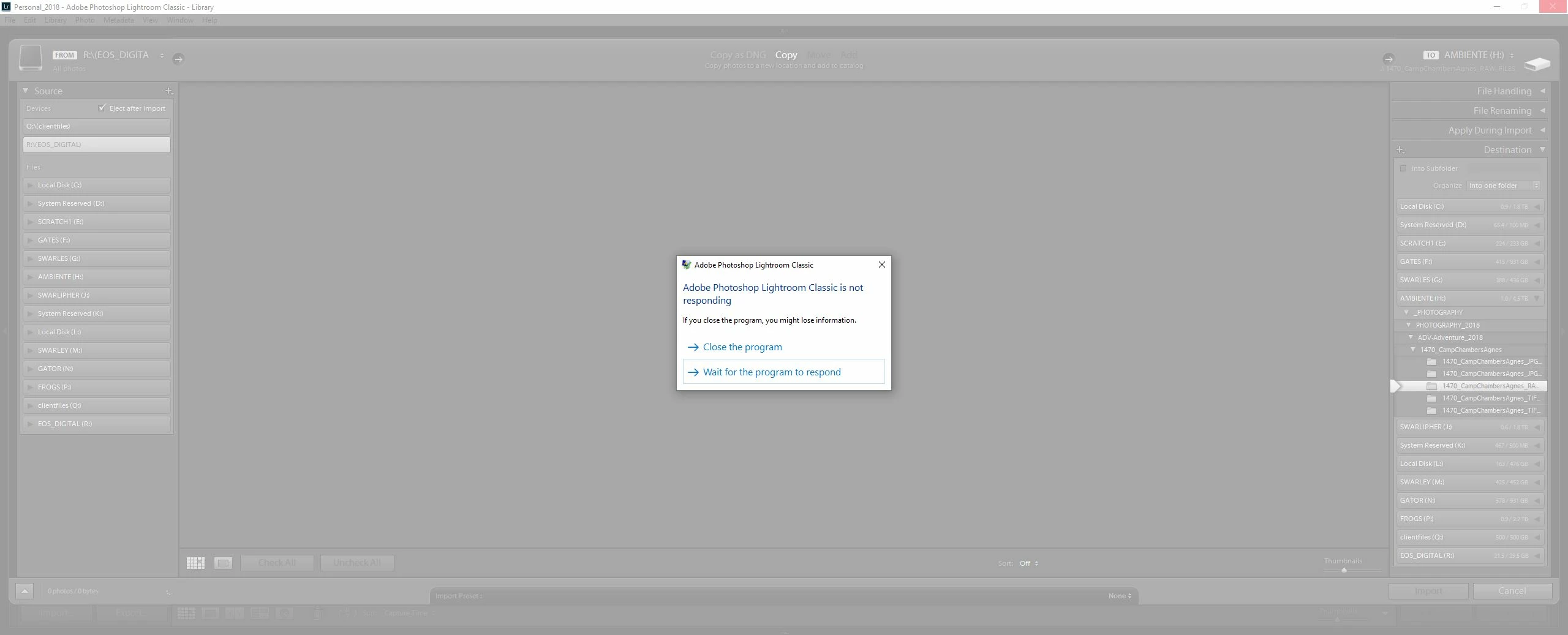
I have tried uninstalling, cleaning my registry, and reinstalling after a reboot. I've tried simply rebooting. I've tested the integrity of the catalog. I've created a new catalog. I've reset my preferences. I've killed all processes and restarted all Adobe. I've tried starting from the desktop shortcut, starting using the CC app, starting by clicking on the catalog, and starting as administrator. I've signed in and out of the CC app. Nothing has worked.

If I click on the program it grays out and says it's not responding and asks if I would like to wait or kill the program. I've left it waiting for an hour to no avail.

This wasn't an issue before, but I've now spent the better part of 2 hours on this issue. My specs are listed below. Nothing on my system has changed since the update. No additional drives have been used. The card I'm trying to import from is fine. I've tried other cards. Same issue.

Lightroom Classic version: 7.5 [ 1186149 ]

License: Creative Cloud

Language setting: en

Operating system: Windows 10 - Enterprise Edition

Version: 10.0.17134

Application architecture: x64

System architecture: x64

Logical processor count: 12

Processor speed: 3.3 GHz

Built-in memory: 24476.0 MB

Real memory available to Lightroom: 24476.0 MB

Real memory used by Lightroom: 5863.5 MB (23.9%)

Virtual memory used by Lightroom: 6836.8 MB

GDI objects count: 734

USER objects count: 2026

Process handles count: 2913

Memory cache size: 4710.0MB

Internal Camera Raw revision: 1001

Maximum thread count used by Camera Raw: 5

Camera Raw SIMD optimization: SSE2,AVX,AVX2

Camera Raw virtual memory: 1892MB / 12238MB (15%)

Camera Raw real memory: 1903MB / 24476MB (7%)

System DPI setting: 96 DPI

Desktop composition enabled: Yes

Displays: 1) 2560x1080, 2) 2560x1080

Input types: Multitouch: No, Integrated touch: No, Integrated pen: Yes, External touch: No, External pen: Yes, Keyboard: No

Graphics Processor Info:

DirectX: NVIDIA GeForce GTX 1060 3GB (23.21.13.9135)

This topic has been closed for replies.

12 replies

Sean H [Seattle branch]
Known Participant
April 5, 2023

Mine always locks up for a while then works as normal to show progress then lockes up again and so on until the import is complete:


2022 Mac Studio

20-core Ultra - 48-core GPU

128GB RAM

2TB internal SSD (56% full)

32" LG 32EP950 + 27" LG 27MU67 screens

MacOS Ventura 13.3 but has been happening for Ventura <13.3

Lightroom Classice 12.2.1 but happening on versions previous to this

I use various SD cards from a pool of 12. All are 64GB varieties of SanDisk Extreme Pro (95MB/s, 170Mb/s) and Lexar UHC-II and UHC-I. I've been using these for seveal years and not an issue until recent LR versions


I'm using a Lexar SD card reader a backside TB4 port using USB adapter, but the same issue happens when I use the built-in SD card reader on the front of the Mac Studio.


The import speed doesn't seem to be impacted. It's just that the UI totally locks up and beachballs. 

[ ◉&quot;]
Rikk Flohr_Photography
Community Manager
Community Manager
April 5, 2023

You’ve posted to a very old thread. It is highly unlikely that the issue described in this thread, though not impossible, is the same issue which you are currently experiencing. Rather than resurrect an old thread that is seemingly similar, you are better posting to a new thread with fresh, complete information including system information, a complete description of the problem and step-by-step instructions for reproduction. 


In the unlikely event the issue is the same, we will merge you back into the appropriate location. 


Thank you!


Rikk Flohr: Adobe Photography Org
Participant
January 10, 2021

This issue was solved for me once I unplugged my phone from my computer.

Participant
March 3, 2021

This issue is easy to solve... just remove your iphone, external drive, external card, etc... is trying to read from there and hence why it hangs, freezes, etc.

SZ Friedman
Inspiring
November 5, 2020

I came across this thread, trying to figure out why my desktop (Win10) would not import images after the LR Classic October 2020 upgrade. I tried everything. I tried it on my laptop, after upgrading to the October 2020 release, and it worked there! Then I started to notice that I was having trouble with the file tree browser function in Windows Explorer, and then system shutdown started taking over 10 minutes! I couldn't figure it out, but I suspected that maybe the LR issue was related to everything else. After trying many things mentioned in this thread to no avail, I disconnected my only peripheral drive, a Sony XQD/SD Card Reader. 


Just removing the card reader fixed every problem I described above. My suspicion is that I had an XQD card in the drive. The XQD card was disconnected, but maybe it was making intermittent contact to the reader, causing some interference. But, once I disconnected the drive, removed the card, rebooted, and went back into LR, everything worked fine.


BTW, I was also able to reconnect the card reader. So, I suspect that it was an intermittent contact issue.

Participant
January 3, 2021

This was my issue. Thanks!

Participant
February 16, 2020

Lightroom Classic 9.2 would not import after I had changed the Raw Defaults setting in Preferences of Camera Raw, Master to "Camera Settings" and checked the box Use Default Specific to Camera Model. When I changed the Master setting back to "Adobe Default" and unchecked Use Default Specific to Camera Model, Lightroom Classic 9.2 resumed importing as normal.

Participant
November 23, 2019

Having exactly the same issue. Since the latest update, lightroom "not responding"is the normal issue. You subsequently cannot close it down. I have rebuilt catelogues and performed everything I believed may have improved the situation to no avail. Adobe, you are getting a real pain in the arse on updates!! I really need to look for an alternative piece of software which gives value for my monthly subscription. I have tried a new PC, loaded software from scratch and still get thye issue. So I sympathise with your problem


Participant
January 6, 2020

Here's my discovery.  During the stall Hit ctrl alt delete, and bring up task manager. Now close the task manager window by selecting the x in the top corner. Do not select end process.   All of a sudden the Lightroom import starts working ok until all previous imports in lightroom are deleted and reimport is attempted. Looks like there is a problem with Lightroom talking to the Windows 10 version I am using.   I am using the latest Win 10 1909 update. 

Participant
April 11, 2019

I had the same issue and was able to fix it by temporarily moving all the .XMP files out from the folder which was being imported. Afterwards I moved them back and ran the [Metadata->Read Metadata from Files] command manually. Deleting the .agprefs file did not work for me. Hope that helps.

GoldingD
Legend
January 28, 2019

By the way, what was the previous LR version?

GoldingD
Legend
January 28, 2019

A few things noticed when going thru all the above comments.

1. Are your preview folders in the same place as your catalog? I noticed a drive H with just the lrdata not the lrcat. See tip 4 and 6 https://digitalphotographycourses.co.za/getting-more-speed-in-lightroom-classic-cc/

2. Apparently running LR thru a NAS is very problematic. Now, I understand you want to place the catalog and perhaps the previews on the NAS as to have access from another computer. But what if they were on a drive in or connected to (ext hdid) the computer?

3. Where are you keeping your Cameta RAW CACHE? This would only come into issue in develop. If that is on the NAS, not so great. No reason to share that. See tip 3 10 Tips to Improve Lightroom's Speed and Performance Without Additional Hardware. (Tip 8 no longer applicable)

4. Where do you keep your images. They can be internal hdd, external hdd,  probably on the NAS, but if on the NAS, perhaps using smart previews would help. And if on an external hdd smart previews as well in case the ext hdd is not connected.

——————————

searching via google, everything points to the catalog cannot be on a NAS, it has to be local, so, if I assumed you placed the catalog on a NAS, then that is wrong. If your previews are on the NAS, move them to local.

Participating Frequently
January 27, 2019

Hey, I got this nuisance fixed.  I reset preferences by going to users/user/AppData/Roaming/Adobe/Lightroom/Preferences/.  I then removed the file [Lightroom Classic CC 7 Preferences.agprefs] by dragging it to the recycle bin.  I shut down Lightroom and rebooted the computer and restarted Lightroom.  I clicked on import and got an immediate response with the import dialog boxes.  No freezes...

Participant
May 11, 2020

This actually worked!! Thank you so much!!! 

tomw72286743
Participant
January 18, 2019

I had a similar hang problem, and the only way I can get around it is to disconnect my external USB backup drives before selecting Import in LR.