November 25, 2025
解決済み

Lightroom Classic v.15.0.1, no se abre, se queda pensando

  • November 25, 2025
  • 返信数 3.
  • 345 ビュー

Hola, Tengo un problema con Lightroom Classic v.15.0.1, no se abre, se queda pensando. Lo he desinstalado y lo he vuelto a instalar y también he instalado una versión anterior pero continua haciendo lo mismo, no se abre. He mirado que no fuera la tarjeta grafica NVIDIA. Pero me dice que Lightroom Classic esta optimizado correctamente con la tarjeta. Alguien me podría ayudar a solucionar el problema.  

解決に役立った回答 AxelMatt

Do you get an error message? If yes, please post the exact message word-by-word.

Without any informations about your system all proposed solutions are a look into the crystal ball.


In a first step you should  try to reset the Lightroom preferences.

https://www.lightroomqueen.com/how-do-i-reset-lightrooms-preferences/

It's recommended to backup your preferences before you reset the preferences to the default settings:

https://helpx.adobe.com/lightroom-classic/kb/preference-file-and-other-file-locations.html


Another issue can be a faulty catalog. Hold the Ctrl-Key while starting LrC. This opens a catalog selection dialog.  
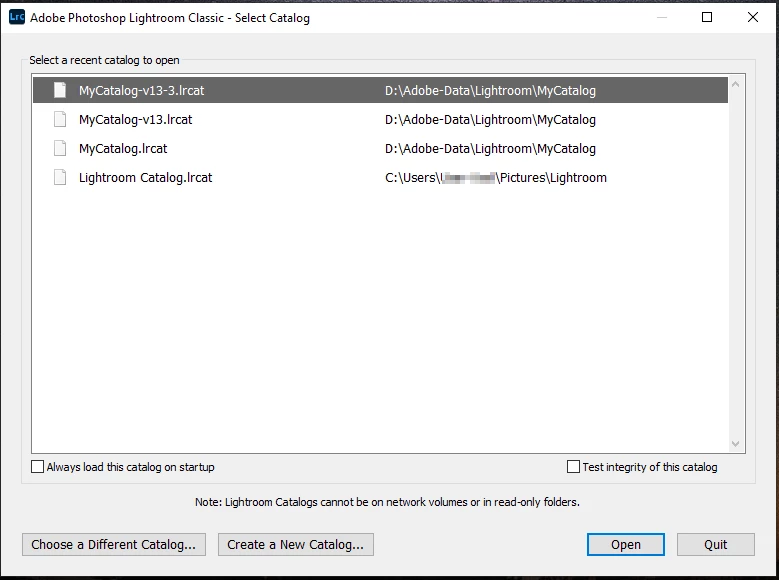
 

First select the appropriate recent catalog and let it check it – note the checkmark "Test integrity of this catalog" to check its integrity. If that doesn't help, try to create a new one and see if this catalog works.

If yes, you could then try to import your current catalog into the new one. Choose 'File - Import from Another Catalog' and then select your old catalog for import. In the import dialog choose all photos to import, but DON'T MOVE them. This will create an exact copy of your old catalog, but usually without the corruption.


Another alternative is to try to restore the catalog from a recent backup -> Disaster strikes - a corrupted catalog! | The Lightroom Queen


返信数 3

Jordi Carrió作成者
November 26, 2025

Problema resuelto, muchas garcias. Un saludo

Community Expert
November 26, 2025

@Jordi Carrió Great to hear that your issue has been solved. Can you please share the solution what has been worked for you. This can help others with the same or an similar problem. Thank you.


My System: Intel i7-8700K - 64GB RAM - NVidia Geforce RTX 3060 - Windows 11 Pro 25H2 -- LR-Classic 15 - Photoshop 27 - Nik Collection 9 - PureRAW 6 - Topaz Photo AI

dj_paige
Legend
November 26, 2025

@Jordi Carrió 

We have helped you, so now we need you to please help us and tell us which solution solved the problem.

dj_paige
Legend
November 25, 2025
AxelMattCommunity Expert解決!
Community Expert
November 25, 2025

Do you get an error message? If yes, please post the exact message word-by-word.

Without any informations about your system all proposed solutions are a look into the crystal ball.


In a first step you should  try to reset the Lightroom preferences.

https://www.lightroomqueen.com/how-do-i-reset-lightrooms-preferences/

It's recommended to backup your preferences before you reset the preferences to the default settings:

https://helpx.adobe.com/lightroom-classic/kb/preference-file-and-other-file-locations.html


Another issue can be a faulty catalog. Hold the Ctrl-Key while starting LrC. This opens a catalog selection dialog.  


First select the appropriate recent catalog and let it check it – note the checkmark "Test integrity of this catalog" to check its integrity. If that doesn't help, try to create a new one and see if this catalog works.

If yes, you could then try to import your current catalog into the new one. Choose 'File - Import from Another Catalog' and then select your old catalog for import. In the import dialog choose all photos to import, but DON'T MOVE them. This will create an exact copy of your old catalog, but usually without the corruption.


Another alternative is to try to restore the catalog from a recent backup -> Disaster strikes - a corrupted catalog! | The Lightroom Queen


My System: Intel i7-8700K - 64GB RAM - NVidia Geforce RTX 3060 - Windows 11 Pro 25H2 -- LR-Classic 15 - Photoshop 27 - Nik Collection 9 - PureRAW 6 - Topaz Photo AI

