
Participant
November 22, 2022
Question

Lightroom freezing on an image after removing image from lightroom

  • November 22, 2022
  • 2 replies
  • 122 views

When I'm culling images in lightroom, at random and often enough to be a major hindrance to workflow, the image currently selected will be frozen on the screen. In the bottom window, I can still delete images and toggle between images but the image that was there and deleted remains in the main window and work area. If I try to toggle to another module I get a pop-up error "an error occurred when attempting to change modules." 
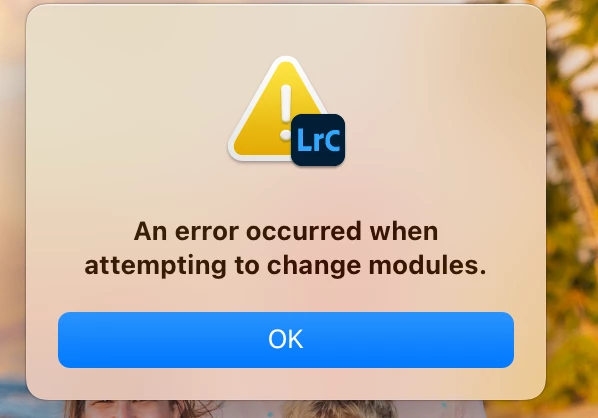
If I shut down lightroom and restart it, the problem is solved but this error recurs after just a few photos. It has been happening so often that a task that used to take a few hours now takes the better part of a day.

I've tried restarting the computer, Lightroom is up to date and the issue has persisted through an update. Reinstalling lightroom, did not work either.  

This topic has been closed for replies.

2 replies

johnrellis
Legend
November 22, 2022

If resetting preferences doesn't help, then try these steps:


1. Do the LR menu command Help > System Info to ensure you're running LR 12.0.1 -- if not, do Help > Updates.


2. Ensure you've granted Full Disk Access (not Files and Folders) permission to LR:


https://community.adobe.com/t5/lightroom-classic-discussions/quick-tips-how-to-give-full-disk-access-to-lightroom-classic-on-macos/td-p/12913413


3. Uninstall all Creative Cloud apps using the Creative Cloud Cleaner tool:

https://helpx.adobe.com/creative-cloud/kb/cc-cleaner-tool-installation-problems.html


and then reinstall LR.


4. Try the remaining steps in this Help article:

https://helpx.adobe.com/lightroom-classic/kb/error-changing-modules-lightroom.html


3. 

TheDigitalDog
Inspiring
November 22, 2022

Try resetting your Lightroom preferences:
https://helpx.adobe.com/lightroom-classic/help/setting-preferences-lightroom.html
Also see: https://community.adobe.com/t5/lightroom-classic-discussions/important-steps-for-manually-resetting-preferences-omitted-from-help-article/td-p/12972518

Quit Lightroom Classic.
macOS: Press and hold the Shift + Option keys.
Windows: Press and hold the Shift + Alt keys.
While holding down the keys, launch Lightroom Classic.
When asked, select "Yes". 

Author “Color Management for Photographers" & "Photoshop CC Color Management/pluralsight"