
dmshort
Known Participant
January 10, 2019
Question

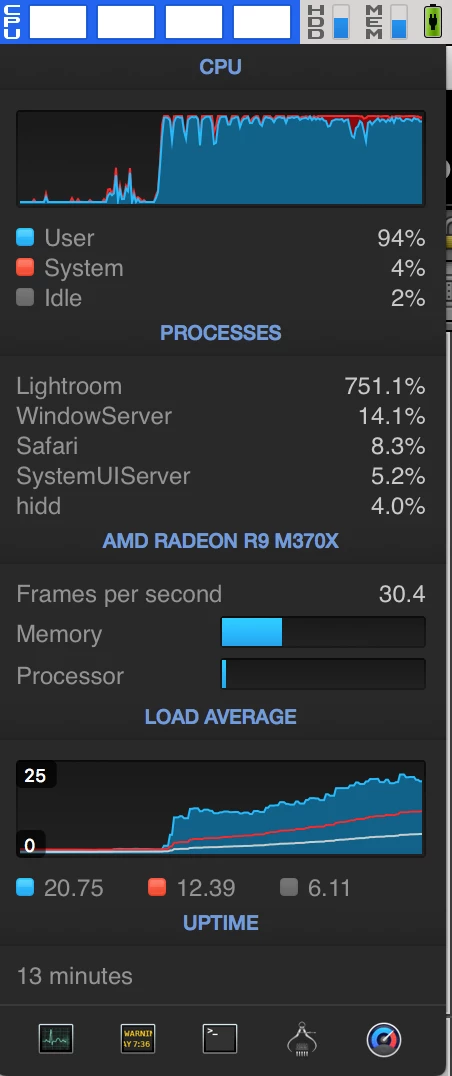
Massive CPU Usage from Lightroom Classic CC

  • January 10, 2019
  • 12 replies
  • 18248 views

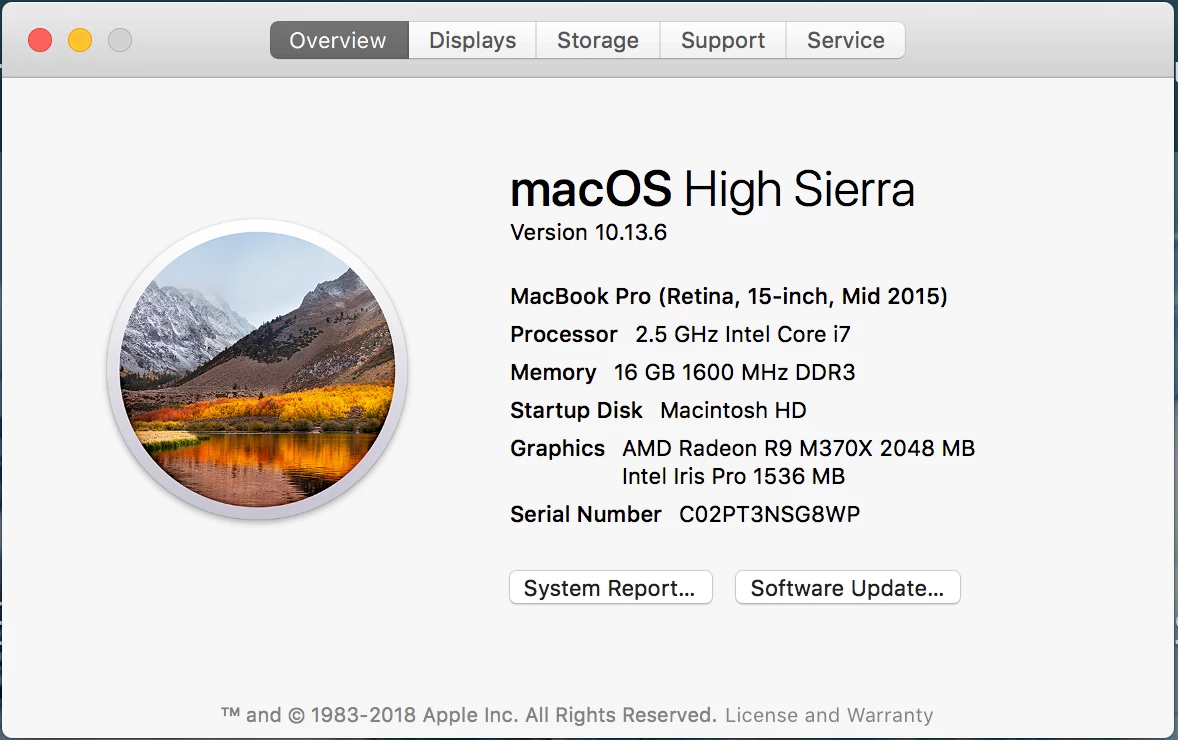
So this has been going on for quite some time starting with some version of Lightroom CC 7.x (I don't remember exactly which). Basically Lightroom is going to kill my computer and uses a massive amount of CPU power when doing things. My fans are always running at full throttle whenever I open and work in Lightroom and I haven't been able to find any solutions. I've cleaned my fans of all dirt, dust and debris and that didn't stop the fan problem. Still wouldn't explain the CPU usage problem. Anyway, it's getting ridiculous and I'm about fed up with it. But of course Adobe has me hooked and I'm not taking, nor do I have the time to try and learn another program and figure out how all of my presets I've created translate to that program.

Can anyone offer a solution short of wiping my entire computer and starting over from scratch?
This topic has been closed for replies.

12 replies

francescom93255314
Participant
January 13, 2020

I also have this problem with an iMac i9-40GbRam-RadeonRX580 ... I called the adobe and the technician made the changes that I highlighted with the screenshoot (sorry, the System Preferences / Security panel is in Italian)

Participant
April 4, 2020

Thanks man. Worked like magic!!!

Participant
January 1, 2020

I did a clean windows install on mine, I only open LR (latest version) and have no other 'sneaky' programmes running in the background and mine has the same issue with the CPU being hammered and the fan racing. I use an I7 vPRo laptop with 20Gb RAM and a 512gb SSD. 

ViaCaballero
Participant
September 24, 2019

I have 32 procesors and same issue, set Lightroom affinity to only use 1/2 your processor count and thats it! 


Yw.

francescom93255314
Participant
January 13, 2020

how do you do this? thanks!

cosimoo52908182
Participant
July 20, 2019

This is a ridiculous issue and by a matter of fact Lightroom is almost unusable. I’ve been having this issue since may 2018. If could go back i would never updated it. Don’t understand people saying this is how it should be/work as it was clearly not like that before the update even when editing and/or exporting

johnrellis
Legend
July 20, 2019

Make sure you add details of your issue to the existing bug report in the official Adobe feedback forum: Lightroom Classic: High CPU usage makes it unusable during export | Photoshop Family Customer Community . Be sure to include the first ten lines from the menu command Help > System Info. Be sure to click Me Too and Follow in the upper-right corner. That will make it more likely Adobe will prioritize a fix, and you'll be notified when the bug's status changes. Adobe product developers read everything posted there but won't see your feedback here.

Participating Frequently
July 8, 2019

Got the same observations in my PC (Windows 10) and LR Classic -- current version (8.3.1). The problem started around half a year ago when I updated Lightroom. Basically generating previews kills the computer and it becomes totally useless until the import ends.

Just to give you exmaple, today I was importing over 700 photos in single batch and generating 1:1 previews for all of them. My system was totally frozen, even Windows suggested I should end Lightroom process because it was unresponsive. I could not even minimize Lightroom window. It anyone tells me this is by design, then this is a really bad software design by Adobe. And no, my system does not belong to a class of slow systems: 14 core i9, 128 GB RAM, 2 x 1 TB NVMe SSD. The behaviour is the same regardless of the state of GPU acceleration option in LR preferences. Display resolution has nothing to do with it, it is totally irrelevant (and I'm running 1920x1200).

johnrellis
Legend
July 8, 2019

The problem started around half a year ago when I updated Lightroom. Basically generating previews kills the computer and it becomes totally useless until the import ends.

Originally, LR made poor use of multiple processors.  Starting a couple of years ago, Adobe started changing LR to use multiple processors for import and export, and it works OK for most people. But there have been a number of reports like yours where it's too aggressive.

To make preview generation more friendly, try these steps:

1. Make sure Catalog Settings > File Handling > Standard Preview Size is set at 1440 (no need to make it larger for your display).

2. In the Import window's File Handling, set Build Previews: Embedded & Sidecar.

3. Set the option Preferences > General > Replace Embedded Previews With Standard Previews During Idle Time.

4. Uncheck the option Preferences > Performance > Generate Previews In Parallel.

Participating Frequently
July 8, 2019

Thanks for response.

That's correct, older LR versions did not suffer that issue. Parallel operation were not that aggresive like today.

I need 1:1 previews to speed up my selection process and Adobe themselves recommend using 1:1 previews for performance reasons.

Obviously unchecking "Generate Previews in Parallel" helps, but at the same time it means wasting capabilities if the high-end processor with 28 CPU threads that I use. Today's systems are not single/dual core anymore.

Besides, the whole issue looks to me more or less like some bad scheduling, locking mechanism design inside LR. No other application, even when utilizing all 28 threads on my PC is as as unstable as Lightroom. Just to give you examples: Rendering with Cinema4d, h264 video enconding, multiprocess archiving, all can eat the whole 100% of 28 threads and the system always responds immediately. I think it is time for Adobe to do some serious optimization work.

GoldingD
Legend
June 12, 2019

To add to and reinforce comments by dj_paige  read: Optimize Lightroom performance

.

csgaraglino
Known Participant
June 11, 2019

I am and have for a couple of years the same exact issues on my mac.

I have created a simple video that shows the performance issues.

I also show my LR & Mac Specs.

This video is editing a simple RAW file with some basic color/light updates. The more spot removals, masks, etc I add the worse it gets.

dj_paige
Legend
June 12, 2019

As I stated above, this is a well known problem in Lightroom.

You can try the following. Generally, #1 is sure to help, the rest may or may not help

  1. Do the brushing in Photoshop
  2. Turn OFF the GPU acceleration (note: this may cause other actions to slow down)
  3. Set the monitor to a resolution of 1920x1080 and restart the computer.
  4. Do the brushing as the next-to-last step in editing, with the last step being turn on lens corrections and transforms
  5. Get a faster CPU
csgaraglino
Known Participant
June 12, 2019

dj_paige  wrote

3. Set the monitor to a resolution of 1920x1080 and restart the computer.

So this suggestion got me to thinking. While my main Mac is a 27" 5k Retina screen, my Thunderbolt Display is not - actually it is exactly 1/2 the resolution. I simply dragged LR from left to right and started my brush-work there and noticed a significant improvement in the lag/delay I was getting with the 5k. 

While it's sad that Adobe is lagging in the resolution department, at least for now I have a little reprieve.

Tony_See
Inspiring
April 14, 2019

Original Post title changed

Participating Frequently
April 13, 2019

I'm a wedding photographer and import over 5000 photos per photo shoot.

During export/import Lightroom uses so much CPU so I can't even type or check email. I have to until it finishes export/import or building previews.

It is unreasonable! I need any solutions.

dj_paige
Legend
April 13, 2019

This is how Lightroom is supposed to work on large imports and large exports.

Participating Frequently
April 14, 2019

2 years it was great but in 2018-2019 it "This is how Lightroom is supposed to work on large imports and large exports."
How to fix it?

GoldingD
Legend
January 11, 2019

To the OP, you may have noticed a lot of inquiry’s involving system information.

And, I have noticed a trickle of inquiry’s leading to partial answers to more inquiries.

This is an example of why other members, and yes, I am a pest on this, ask for the following, and can you please accomplish this:

In Lightroom, click on Help, click on System Information, click on Copy, paste results into your next reply.

All of it, we will just have to live and be happy with anything extra