

hyund39164868
Participant
April 1, 2024
Answered

P: (GPU) Develop/Edit view & Export artifacts after 14.4.1 Update (AMD-only) (affects Cr, LrC & LrD)

  • April 1, 2024
  • 139 replies
  • 100175 views

Hi,


Since just now, I've been experiencing a weird bug / crash in Lightroom Classic (on a Mac), where ALL my photos suddenly are fully covered in artefacts in the Develop module.
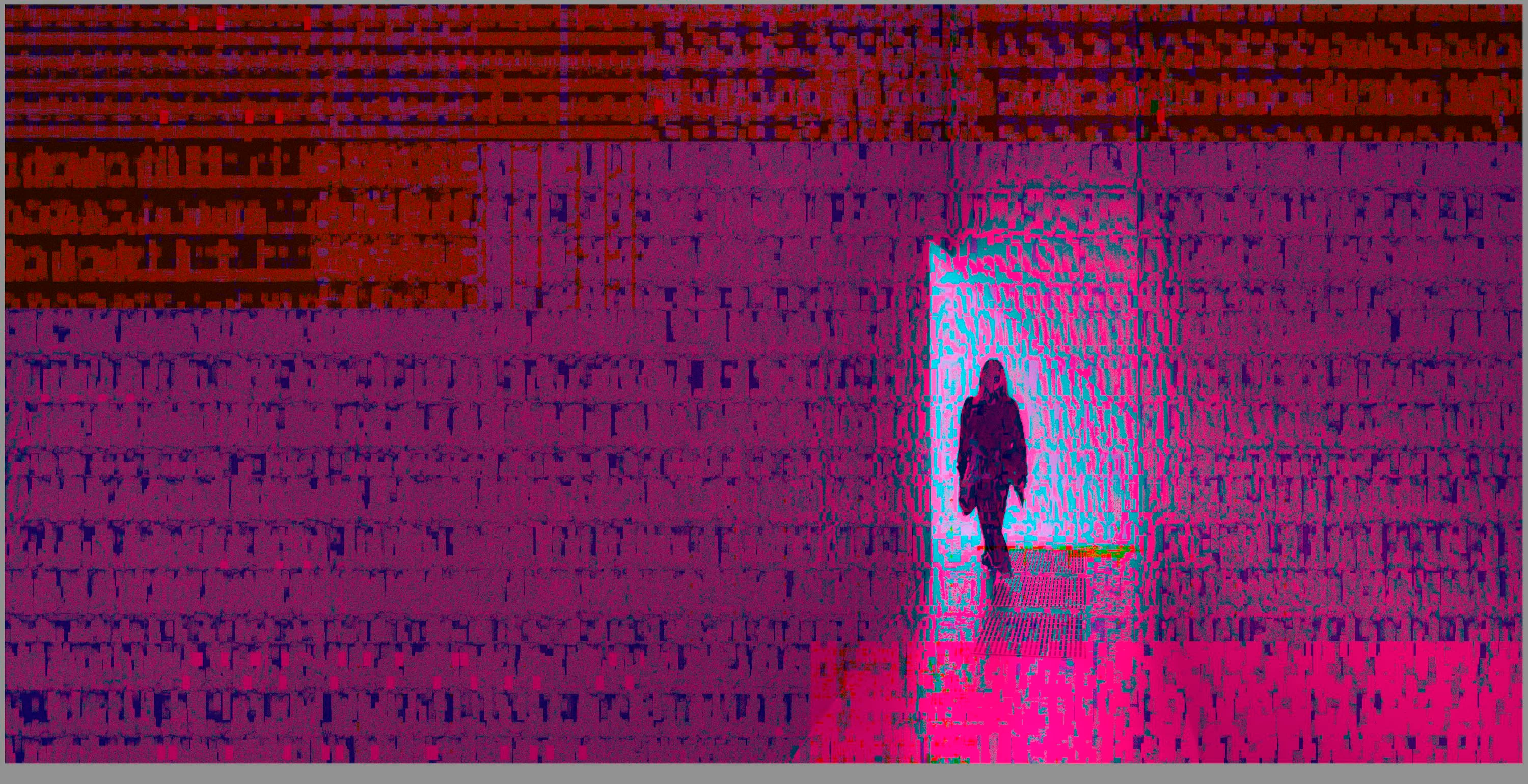
 

(Screengrab from the Develop module in Lightroom Classic)


When I check the linked RAW + JPEG source files in Finder, they all seem ok (they don't look corrupted, nor show any artefacts here), meaning the issue is within Lightroom.
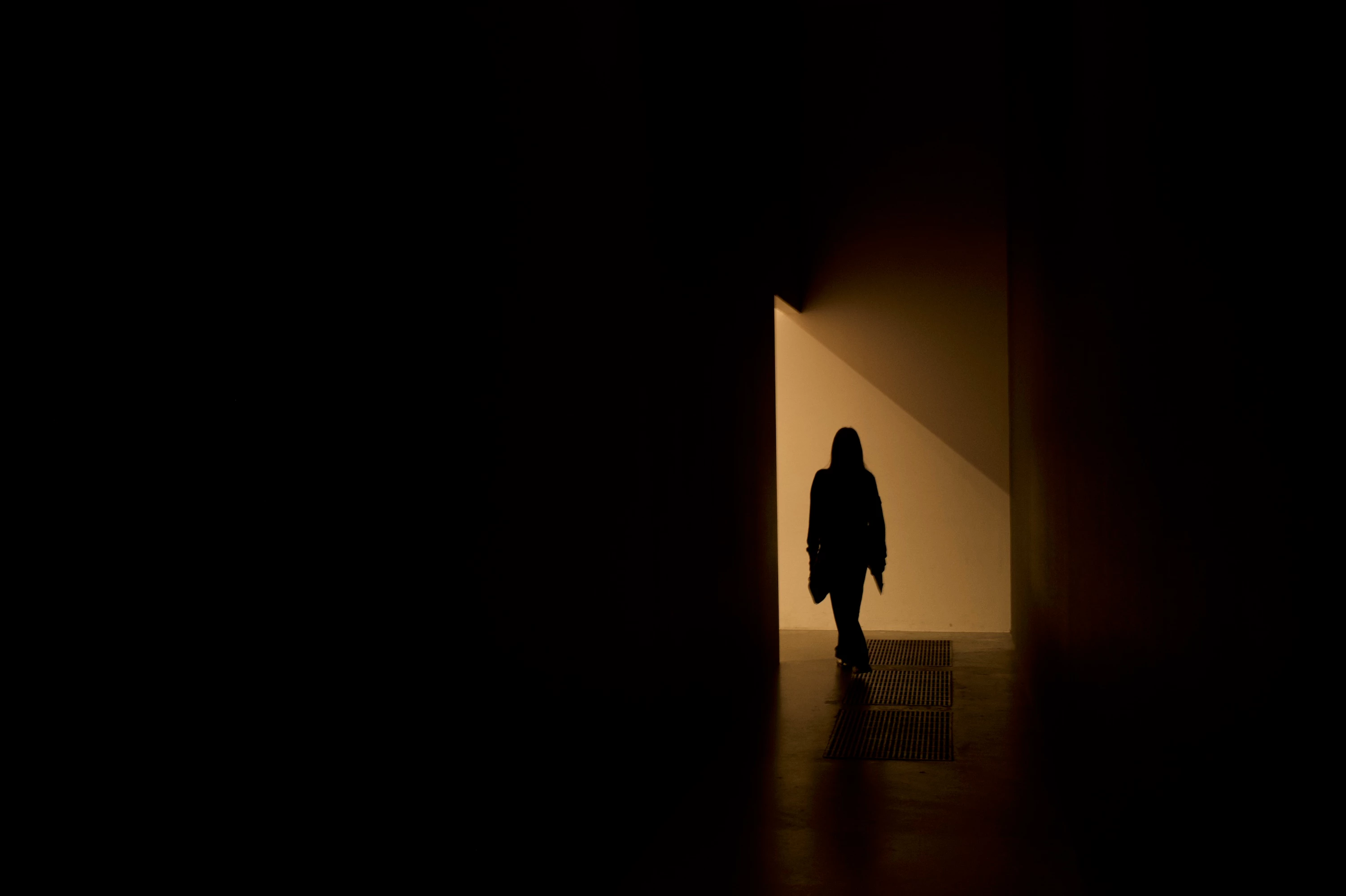
 

(Screengrab from the RAW source file in Finder)


When I export images out of Lightroom (with any setting, edited or even not edited), the artefacts are also present on the export files.
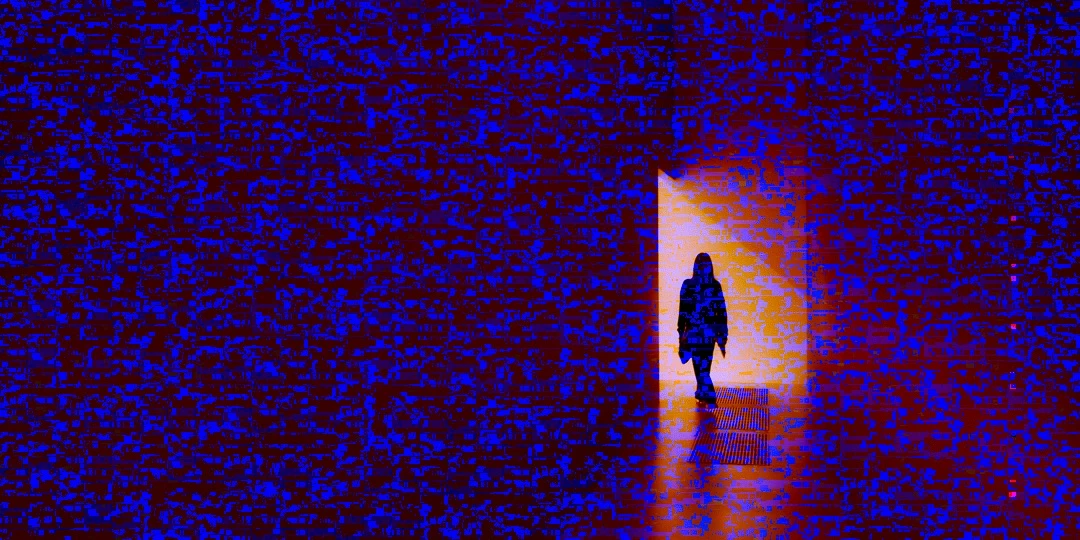
 

(Screengrab from the exported JPG image)


This problem started occuring soon after I applied the new AI noise reduction feature on just ONE (1) photo. 


I already tried:


  • Closing and re-opening Lightroom
  • Shutting down (fully), and restarting the computer after 1 minute
  • Switching the GPU accelrator setting in Lightroom on/off


MY SPECS

  • Lightroom Classic 13.0.1 - Build (202310121438-d2af310c)
  • Macbook Pro 16" - 2019
  • 2,3Ghz 8-core Intel Core i9
  • AMD Radeon Pro 5500M 8GB 
  • 32GB 2667MHz DDR4 memory
  • OS Sonoma 14.4.1


Any help would be greatly appreciated, because this makes the whole software unusable....

Thank you!

139 replies

Participant
May 7, 2024

Lighroom - performace > set graphics processor to custom and checking use GPU for display and restarting has worked for me.

Participant
May 6, 2024

Hello, when I using mask, any if them, Lightroom can't find any. For example I choose to select  people, sky or backround, lightroom writes that it can't find it, but earlier everything was Ok.

I also have issues with gliched images bug, I am using mac. I can work only with GPU turned of, but then some funcions are very slow

Ian Lyons
Community Expert
Community Expert
May 6, 2024

Please post  a copy of your 'System Info'. This can be obtained from the LrC Help > System Info menu item. The dialog that appears when you select this option includes a  Copy button.

Participant
May 6, 2024

Lightroom Classic version: 13.2 [ 202402141005-bf1aeb84 ]
License: Creative Cloud
Language setting: en-GB
Operating system: Mac OS 14
Version: 14.4.1 [23E224]
Application architecture: x64
Logical processor count: 12
Processor speed: 2,6GHz
SqLite Version: 3.36.0
Built-in memory: 32 768,0 MB
Dedicated GPU memory used by Lightroom: 2 238,1MB / 8 176,0MB (27%)
Real memory available to Lightroom: 32 768,0 MB
Real memory used by Lightroom: 3 673,7 MB (11,2%)
Virtual memory used by Lightroom: 45 885,4 MB
Memory cache size: 22,9MB
Internal Camera Raw version: 16.2 [ 1763 ]
Maximum thread count used by Camera Raw: 5
Camera Raw SIMD optimization: SSE2,AVX,AVX2
Camera Raw virtual memory: 772MB / 16383MB (4%)
Camera Raw real memory: 848MB / 32768MB (2%)

Cache1:
Preview1- RAM:23,0MB, VRAM:0,0MB, DSC_6799.NEF
Preview2- RAM:23,0MB, VRAM:0,0MB, DSC_6801.NEF
NT- RAM:46,0MB, VRAM:0,0MB, Combined:46,0MB

Cache2:
final1- RAM:352,0MB, VRAM:0,0MB, DSC_6801.NEF
final2- RAM:357,0MB, VRAM:0,0MB, DSC_6799.NEF
T- RAM:709,0MB, VRAM:0,0MB, Combined:709,0MB

Cache3:
m:22,9MB, n:76,2MB

U-main: 77,0MB

Standard Preview Size: 3584 pixels
Displays: 1) 3584x2240

Graphics Processor Info:
Metal: AMD Radeon Pro 5500M
Init State: GPU for Export supported by default
User Preference: GPU for Display Enabled

Application folder: /Applications/Adobe Lightroom Classic
Library Path: /Users/karolinabulake/Pictures/Lightroom/Lightroom Catalog-v13.lrcat
Settings Folder: /Users/karolinabulake/Library/Application Support/Adobe/Lightroom

Installed Plugins:
1) AdobeStock
2) Aperture/iPhoto Importer Plug-in
3) Flickr
4) Nikon Tether Plugin

Config.lua flags: None


Cristina@AMTL
Participating Frequently
May 5, 2024

I will give it a try. Thank you!

johnrellis
Legend
May 5, 2024

@Cristina@AMTL, "Metal: AMD Radeon Pro 5500M"


As suspected, your Mac also has an AMD Radeon Pro 5500M graphics processor, which is one of the culprits causing these symptoms. So you'll need to use one of the workarounds:

https://community.adobe.com/t5/lightroom-classic-bugs/p-gpu-develop-edit-view-amp-export-artifacts-after-14-4-1-update-amd-only-affects-cr-lrc-amp-lrd/idc-p/14591181#M52352

Cristina@AMTL
Participating Frequently
May 5, 2024

@johnrellis  Thank you for taking a look!


Lightroom Classic version: 13.2 [ 202402141005-bf1aeb84 ]
License: Creative Cloud
Language setting: en-US
Operating system: Mac OS 14
Version: 14.4.1 [23E224]
Application architecture: x64
Logical processor count: 16
Processor speed: 2.3GHz
SqLite Version: 3.36.0
Built-in memory: 16,384.0 MB
Dedicated GPU memory used by Lightroom: 130.6MB / 4,080.0MB (3%)
Real memory available to Lightroom: 16,384.0 MB
Real memory used by Lightroom: 1,238.0 MB (7.5%)
Virtual memory used by Lightroom: 44,208.2 MB
Memory cache size: 113.8MB
Internal Camera Raw version: 16.2 [ 1763 ]
Maximum thread count used by Camera Raw: 5
Camera Raw SIMD optimization: SSE2,AVX,AVX2
Camera Raw virtual memory: 193MB / 8191MB (2%)
Camera Raw real memory: 195MB / 16384MB (1%)

Cache1:
Preview1- RAM:97.0MB, VRAM:0.0MB, BB9A0479.CR3
Preview2- RAM:54.0MB, VRAM:0.0MB, BB9A0450.CR3
NT- RAM:151.0MB, VRAM:0.0MB, Combined:151.0MB

Cache2:
T- RAM:0.0MB, VRAM:0.0MB, Combined:0.0MB

Cache3:
m:113.8MB, n:222.1MB

U-main: 101.0MB

Standard Preview Size: 3072 pixels
Displays: 1) 3072x1920

Graphics Processor Info:
Metal: AMD Radeon Pro 5500M
Init State: GPU for Image Processing supported by default
User Preference: Off

Application folder: /Applications/Adobe Lightroom Classic
Library Path: /Volumes/Extreme Pro/Lightroom/Lightroom Catalog-v13.lrcat
Settings Folder: /Users/cristinaperkins/Library/Application Support/Adobe/Lightroom

Installed Plugins:
1) AdobeStock
2) Aperture/iPhoto Importer Plug-in
3) Flickr
4) Nikon Tether Plugin
5) Topaz Photo AI

Config.lua flags: None

johnrellis
Legend
May 4, 2024

@Cristina@AMTL, please do the LR menu command Help > System Info and copy/paste the entire contents here so we can see exactly which versions of hardware and software LR thinks you're running and important LR options that are set.

johnrellis
Legend
May 2, 2024

@ozulrike, "So far, the issue has not occurred again. "


Did you change the setting of Preferences > Performance > Use Graphics Processor or just restart LR?

Participating Frequently
May 2, 2024
I swtiched the GPU accelerator off.