


Participant
June 16, 2025
Answered

P: How do I batch edit Denoise (June Update) (LrC 14.4 & LrD 8.4)

  • June 16, 2025
  • 48 replies
  • 51983 views

Lightroom Classic versjon: 14.4 
Operativsystem: Mac OS 15


As of this new version I am not able to denoise a batch of photos, only individual ones. Can't find any guidance as to how this can be fixed. Hope you can help me, thanks.

Correct answer Ian Lyons

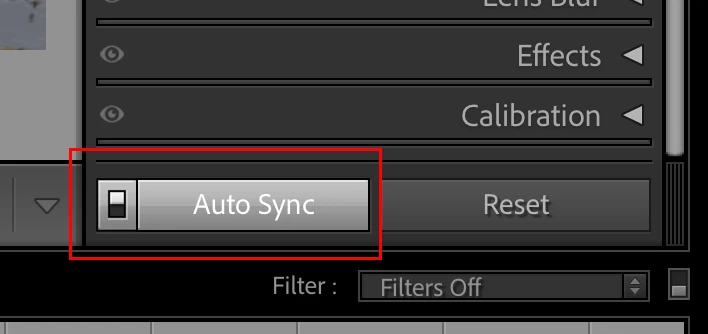
Select the images to be Denoised, enable Auto Sync, then click on the Denoise checkbox. You can use the slider below the Denoise checkbox to fine tune the amount of noise reduction applied to all or individual images in real time.


48 replies

Participant
June 26, 2025

La nuova versione non permette di regolare l'intensità del denoise se non in un secondo passo. Ciò richiede il doppio del tempo impiegato nella versione precedente. Un NOGO assoluto. Anzichè migliorare non avete fatto altro che peggiorare il tutto. Vi prego di ripristinare la vecchia versione, almeno per quanto riguarda il denoise di più fotogrammi contemporaneamente.

Participant
June 26, 2025

"Detail" in LRC has changed, is this an upgrade or an internal error. No more Denoise button, no more enhanced, no more newly created "enhanced NR.dng". I was using LRC for years and was really happy with the setup...LOL. was a change necessary?

Participant
June 25, 2025

I know this is an older thread sorry for bringing it back up to the top. However, LRC has been updated and the denoise feature has moved under Develop. How do we do batch processing now for denoise?

LeMarkD
Participating Frequently
June 25, 2025

It's supposedly now a copy paste option when you hit the gear by the copy paste button at the bottom, but when I tried it the feature was broken and didn't apply. I rolled back Lightroom to 8.3.1 in the creative cloud program 

Participant
June 25, 2025

Hi Adobe!

First of all, I want to say thank you for the non-destructive Enhance/Denoise update in Lightroom 8.4 - it’s a great idea and definitely useful for keeping file management simple.

That said, I’m really missing the ability to batch process images using the Enhance features like Denoise or Super Resolution. In previous versions, I could select multiple RAW files and apply these enhancements all at once. Now, having to manually enable it photo by photo through the Detail panel is significantly slowing down my workflow, especially when working with large sets of images.

Copying and pasting settings works to some extent, but it’s not as efficient or reliable as proper batch support. It would be amazing to have both options: the new non-destructive workflow and the possibility to batch apply Enhance across multiple photos — even if that means creating DNGs again.

Hope this is something you can consider bringing back. Thanks for listening!

Best regards,
Tiago

Legend
June 25, 2025

I did some batch Denoise testing (timing) in LrC 14.3.1 and 14.4 using the same set of NEF photos (from my Nikon D750).


Time to Denoise 100 photos:

LrC 14.3.1 took 21m 14.26s = 1274.26s or 12.7426s per photo

LrC 14.4 took 18m 5.63s = 1085.63s or 10.8563s per photo


So I now know which Denoise method is faster, on my PC at least. Roughly 15% faster.


However, this doesn't help the fact that LrC 14.4 is locked up while doing any Enhance (or for that matter setting Adaptive Color) or that adjusting the Denoise Amount slider for a selection of more than one photo is a complete disaster (extremely bad code design - BUG). These issues need to be addressed promptly.


Participant
June 24, 2025

How do I go back to the previous version of LR?  I’ll take a separate DNG vs 10X lost time due to the new "non-destructive enhance / denoise enhancement" in Version 8.4.  This is not ready for primetime.  It takes 2 hours to do 10 minutes worth of work.  "Denoising" the old way took 30 seconds max and that was ONE TIME!  The old denpoising has been traded for continuously refreshing / updating "AI Settings".  Exporting photos and you get a cryptic message that a photo “MAY” be exported down-res, which really means AI wasn’t refreshed prior to export.  And LR now locks up a lot and I have to KILL -7 (Force Quit).   Did a product manage think the benefits of not having to deal with a separate DNG was that big of a deal?  AND that the trade-off was going to be worth it?  I just deleted the RAW after running denoise and keep the DNG. Boom, problem solved. This tradeoff is BRUTAL and is not realistic. The application is LOCKED during an AI Refresh that takes FOREVER.  I’m running a MBP Apple M2 Max with 12 Cores, 38 GPU Cores, 96 GB Memory 8 TB eMLC SSD.   Refreshing “AI Settings” is a SERIAL process only?  And the refresh has to be initiated by the user ONE PHOTO AT A TIME and wait for iot to complete before moving on to the next photo?  Is there a way to do a multiselect in the square grid layout (like there was many other functions) such that more than a single photo’s AI settings be refreshed?  Is there a way to batch process refreshing “AI Settings” across many photos?

Jo_Gryniewicz
Participant
June 24, 2025

I've called them and been informed that the new update means that in many cases you need to update the drivers on your graphics card - I did but it doesn't seem to have helped. This said, I re-installed the previous version by going to my Abobe Creative Cloud window, clicking on the 3 dots next to Lightroom and you can choose to install a previous version - I had several thousands of pics to denoise so I was quite happy I could go back! 

Participant
June 24, 2025

I’m extremely frustrated with the recent change that removed the ability to apply the Denoise AI feature to multiple photos at the same time in Lightroom Classic. This has seriously disrupted my workflow. 

This update adds hours to my editing process and makes it much harder to deliver work on time.


Please reconsider this change and bring back the ability to apply Denoise to multiple images simultaneously. This feature was crucial for many of us who rely on Lightroom Classic for professional work.

Rikk Flohr_Photography
Community Manager
Community Manager
June 24, 2025

@helena_valverde2609  Please read the Pinned Post on this thread. It explains how to this. 

Rikk Flohr: Adobe Photography Org
Participant
June 24, 2025

Hello.

Avec la nouvelle mise à jour de Lightroom le débruitage par lot ne fonctionne plus, y a t-il une solution à ça svp?

Merci

JohanElzenga
Community Expert
Community Expert
June 24, 2025

Select all images, in Develop toggle the little switch to change 'Sync' to 'Auto Sync', then denoise the current image. Turn off 'Auto Sync' when you're done.


-- Johan W. Elzenga
Participant
June 24, 2025

Merci beaucoup, en effet j'avais oublié de mettre la "synchro",  ça fonctionne bien. Merci

Participant
June 23, 2025

Hello,


I have seen the recent update of Lightroom Classic and already found an issue.  With the denoise feature, I see that the "denoise all" button was removed.  Now when I "select all" photos and click denoise, it will only apply to the specific photo instead of all.  This is causing extra time to be wasted with the editing process going one by one without the denoise all button.  Can this please be resolved?


[Moved from ‘Bugs’ to ‘Discussions’ by moderator, according to forum rules. A ‘bug’ is not just a fancy word for any software problem! It’s defined as a coding error that makes the application behave in a way that was not intended by the developer.]

GoldingD
Legend
June 24, 2025

Right Panel, Bottom, do you have SYNC or Auto Sync selected?

Participant
June 22, 2025

I have the following weird problem with regards to batch denoise function since the latest update: I am following the workflow of denoising one picture, then copy/pasting the edit settings to several other pictures I want to denoise. Everything looks like it is working normally during processing, but at the end the denoised pictures look like several pictures have been combined during the process (layers of objects from different pictures appear like pasted into the processed one) and the colors are completely off. An error message tells me to "update AI settings" on every single "denoised" picture and after doing so by clicking on ok processing starts again and everything looks fine afterwards for that picture. No batch processing is possible this way because I end up fixing each single picture individually anyways afterwards, aboslutely anyoing..

Anyone knows what is happening here and how to fix it?

Using Lightroom Desktop v8.4 on Windows 11.