jaylynna16035582
Participant
August 21, 2017
Question

Trouble Importing

  • August 21, 2017
  • 4 replies
  • 510 views

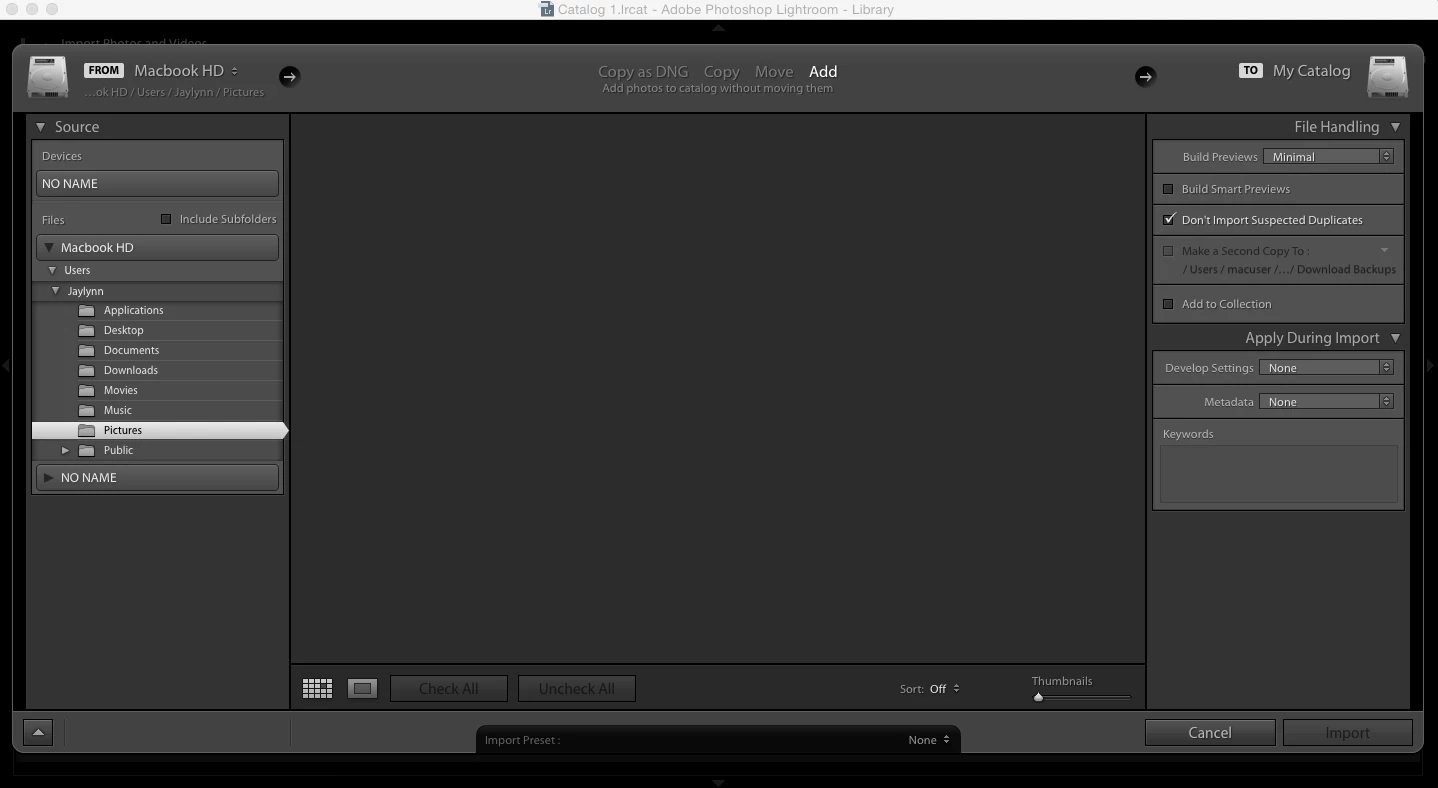
I purchased Lightroom yesterday and was able to see the files on my SD card just fine through the import option but i did not import any. Then when i went on this morning it was not available. I click on folders that i know for sure have photos in them but they wont show up in lightroom to even import. All it shows is this (pic) and i have tried turning on and off the subfolders but it doesn't help. ! !
This topic has been closed for replies.

4 replies

dj_paige
Legend
August 21, 2017

Click on Copy, then make sure the Destination panel on the right is present and expanded and has a valid folder selected. Then click back on ADD if desired.

Abambo
Community Expert
Community Expert
August 21, 2017

Don't import suspected duplicates is checked. If you did import the pictures, it is normal, that they do not show up as they are already in the LR database. No need to re-import.

And there is the possibility that at the directory you are looking, there are no pictures. I do not know the OSX equivalent, but on my PC when I go to a folder and I select with the right Mouse button, I get a popup menu, giving me the option to open that in Windows Explorer (the equivalent of finder). I would be a good choice to try this out. Sometimes one is persuaded to point to the correct directory but you are not.

ABAMBO | Hard- and Software Engineer | Photographer
dj_paige
Legend
August 21, 2017

Abambo  wrote

Don't import suspected duplicates is checked. If you did import the pictures, it is normal, that they do not show up as they are already in the LR database. No need to re-import.

If they have already been imported, they should show up in the Import dialog box, but greyed out and impossible to import.

Abambo
Community Expert
Community Expert
August 21, 2017

dj_paige  wrote

Abambo   wrote

Don't import suspected duplicates is checked. If you did import the pictures, it is normal, that they do not show up as they are already in the LR database. No need to re-import.

If they have already been imported, they should show up in the Import dialog box, but greyed out and impossible to import.

All depends on the buttons... but I do not know what happens if I would re-import the files shown in my second picture. I never tried it nor did I have the urge to do it.

ABAMBO | Hard- and Software Engineer | Photographer
Community Expert
August 21, 2017

jaylynna16035582  schrieb

I purchased Lightroom yesterday and was able to see the files on my SD card just fine through the import option but i did not import any. Then when i went on this morning it was not available.

Are you sure that you have really finished the import in Lightroom? You've wrote: ".... but I did not import any."

For me it looks like that you don't have import the pictues in your catalog. Connect the appropriate SD card again and try the import again. If the picture in the import dialog are not greyed out they never imported.

Axel

My System: Intel i7-8700K - 64GB RAM - NVidia Geforce RTX 3060 - Windows 11 Pro 25H2 -- LR-Classic 15 - Photoshop 27 - Nik Collection 9 - PureRAW 6 - Topaz Photo AI
Just Shoot Me
Legend
August 21, 2017

Put a check in the box next to Included Subfolders.

jaylynna16035582
Participant
August 21, 2017

Already did, did nothing

Rob_Cullen
Community Expert
Community Expert
August 21, 2017

Where are your photos stored?

Are there any in the   {  Users/jaylynn/Pictures }  folder?

What is the "No Name" device attached?

Regards. My System: Windows-11, Lightroom-Classic 15.3, Photoshop 27.5, ACR 18.3, Lightroom 9.3, Lr-iOS 10.4.0, Bridge 16.0.3 .