Participant
September 18, 2018
Answered

"Edit in Photoshop" is Grayed Out

  • September 18, 2018
  • 3 replies
  • 4212 views

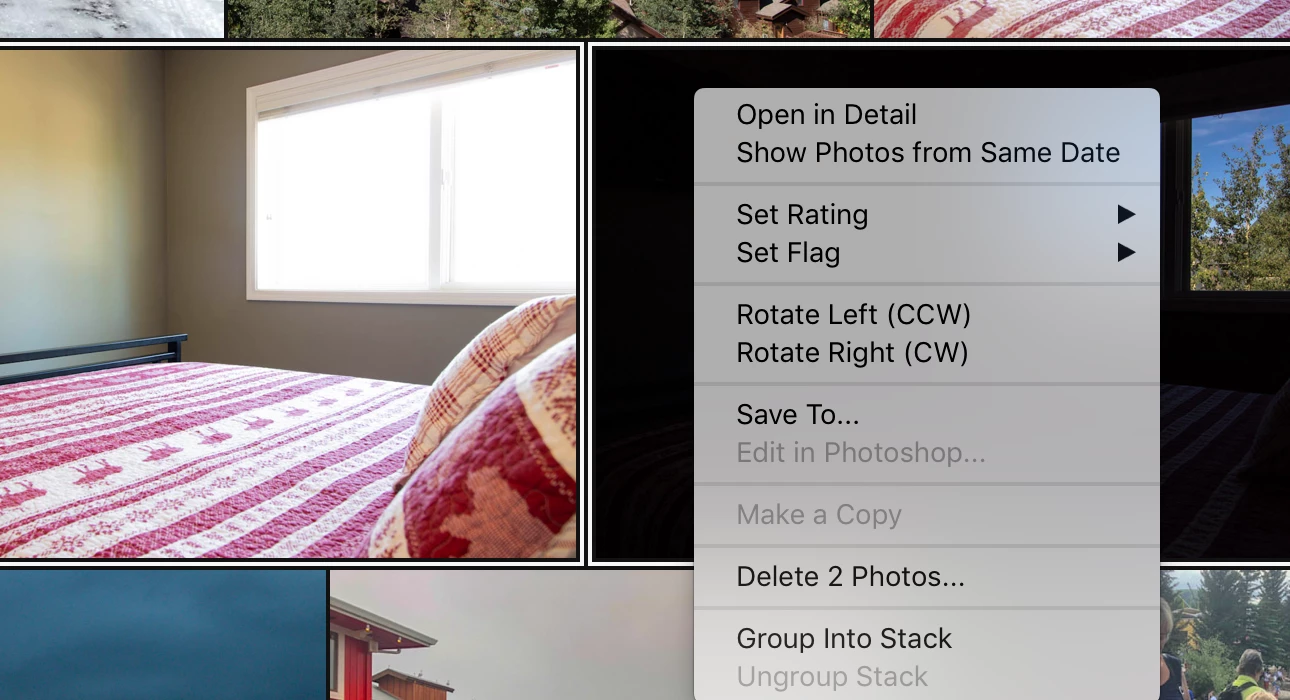
When I select two images, the option "Edit in Photoshop" is grayed out. When I select only one image, it works fine. What am I missing?

This topic has been closed for replies.
Correct answer 99jon

I think at present it’s only possible to open one at a time in PS. LR CC sends a tiff copy.  Open the first, then return to LR CC and open the second. Both tiff files will remain open in PS in separate tabs.

3 replies

Mohit Goyal
Community Manager
Community Manager
June 15, 2023

Hi all,


We apologize for the challenges you're having trouble sending files from Lightroom Classic to Photoshop for further editing. Please refer to the troubleshooting article below, which offers solutions to address the following problems: https://helpx.adobe.com/lightroom-classic/kb/troubleshoot-edit-in-errors.html?cgen=6JMR79DQ&mv=other


  1. The "Edit In" command is grayed out.
  2. The "Edit In Photoshop" command is missing.
  3. The "Edit In" command fails to open photos in Photoshop.


We hope the suggested solutions in the article will assist in resolving the issue.


Thanks,

Mohit

Participant
September 12, 2023

Hi Mohit,

That does not address the problem, it is Lightroom CC or Lightroom Mobile or Lightroom that cannot open multiple files into Photoshop. This issue is not addressed in the link.

Thanks

Gerard

Rob_Cullen
Community Expert
Community Expert
September 12, 2023

The reply from Mohit refers to Lightroom-Classic, and not Lightroom, (as is the theme of this thread).

Currently it is still not possible to 'Open as Layers' in Ps from Lightroom-Desktop.

Two work-arounds:

1) As in a previous post- Open each (one by one) as separate documents in Ps, then Copy&Paste, or Drag&Drop to stack into layers.

2) Select multiple files in Lr and 'Export' to desktop, then in Ps use the command: [File > Scripts > Load Files into Stack].


Regards. My System: Windows-11, Lightroom-Classic 15.3, Photoshop 27.5, ACR 18.3, Lightroom 9.3, Lr-iOS 10.4.0, Bridge 16.0.3 .
courtneyp18160633
Participant
April 22, 2019

99jon Do you know if this has been resolved? I noticed I am still unable to select multiple photos and bring them into Photoshop as layers.

99jon
Legend
April 22, 2019

It is still one at a time from Lightroom Cloud but you can copy/paste to create the layers once the files are open in Photoshop.

courtneyp18160633
Participant
April 22, 2019

I decided to switch back to Lightroom Classic so I don't run into the problem anymore.

99jon
99jonCorrect answer
Legend
September 18, 2018

I think at present it’s only possible to open one at a time in PS. LR CC sends a tiff copy.  Open the first, then return to LR CC and open the second. Both tiff files will remain open in PS in separate tabs.

daniel_IVAuthor
Participant
September 18, 2018

Thank you for quick answer.

Yes, I tried to open them one by one, but the problem is that in Photoshop I need them in stack (as opposed to in different tabs) - I have some masking and retouching to do...

99jon
Legend
September 18, 2018

Select the one you wish to composite. Then use Ctrl+A (select all) followed by Crtl+C (copy)

Move to the second tab and press Ctrl+V (you may need to scale if different sizes)

Both will be stacked and you can drag then up or down the layers pallet if necessary.