



🔎 How to use the new Remove Tool (Early Access) in Lightroom - Quick Tip

Generative Remove in Lightroom
Did you know that the new Generative Remove, powered by Adobe Firefly, lets you quickly and easily remove unwanted objects from an image? Also, with the Lightroom version (v7.3), the Heal tool has been renamed to Remove. You can try using the Generative Remove feature in Lightroom for mobile (iOS) and Lightroom for mobile (Android).
Here are some quick tips & steps to get started with Generative Remove and to get the desired results.
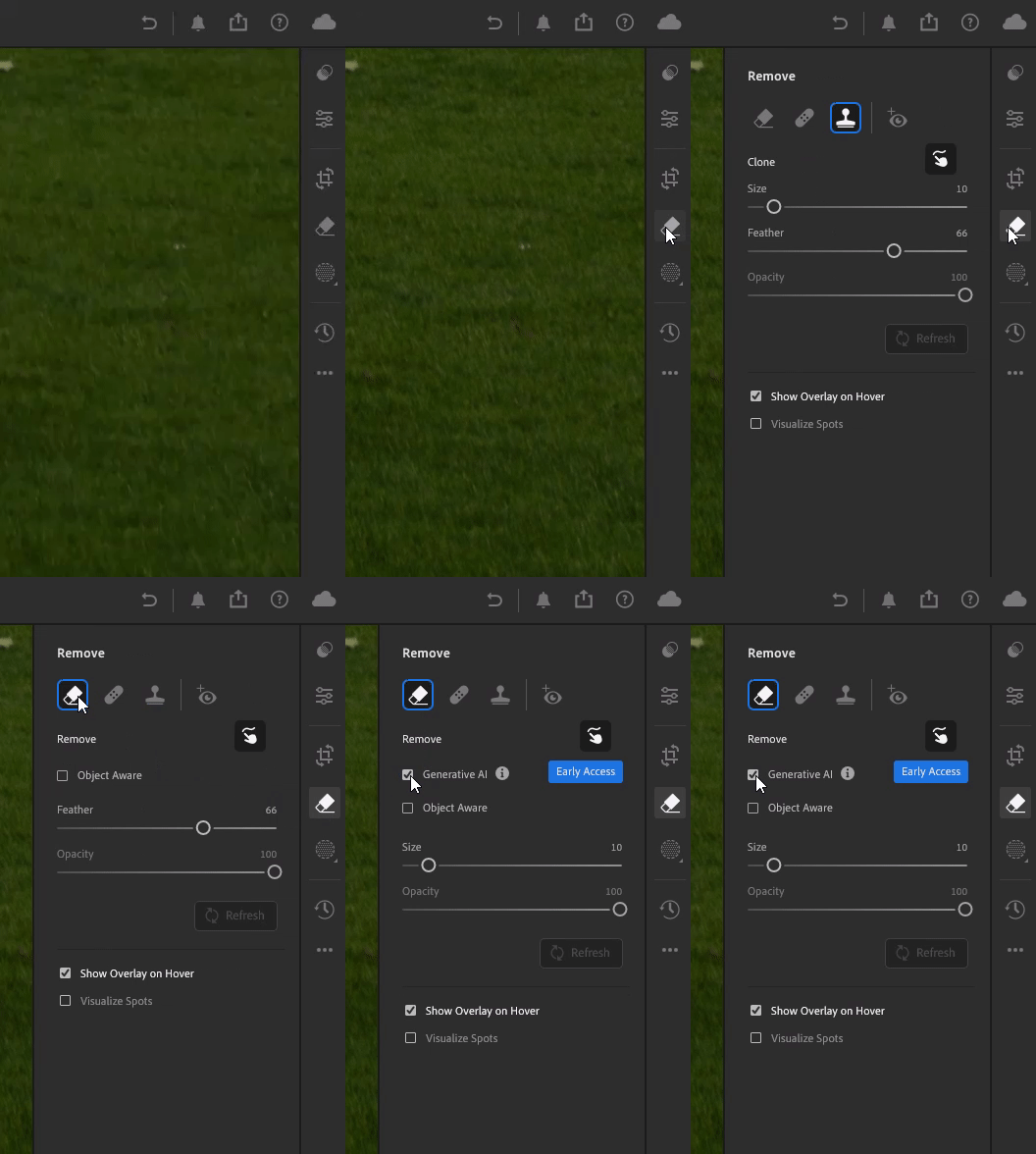
❶ Select the Remove (Q) tool from the toolbar, switch the mode to Remove from Clone or Heal, and enable Generative AI. Select (i) to learn more about Generative AI User Guidelines.
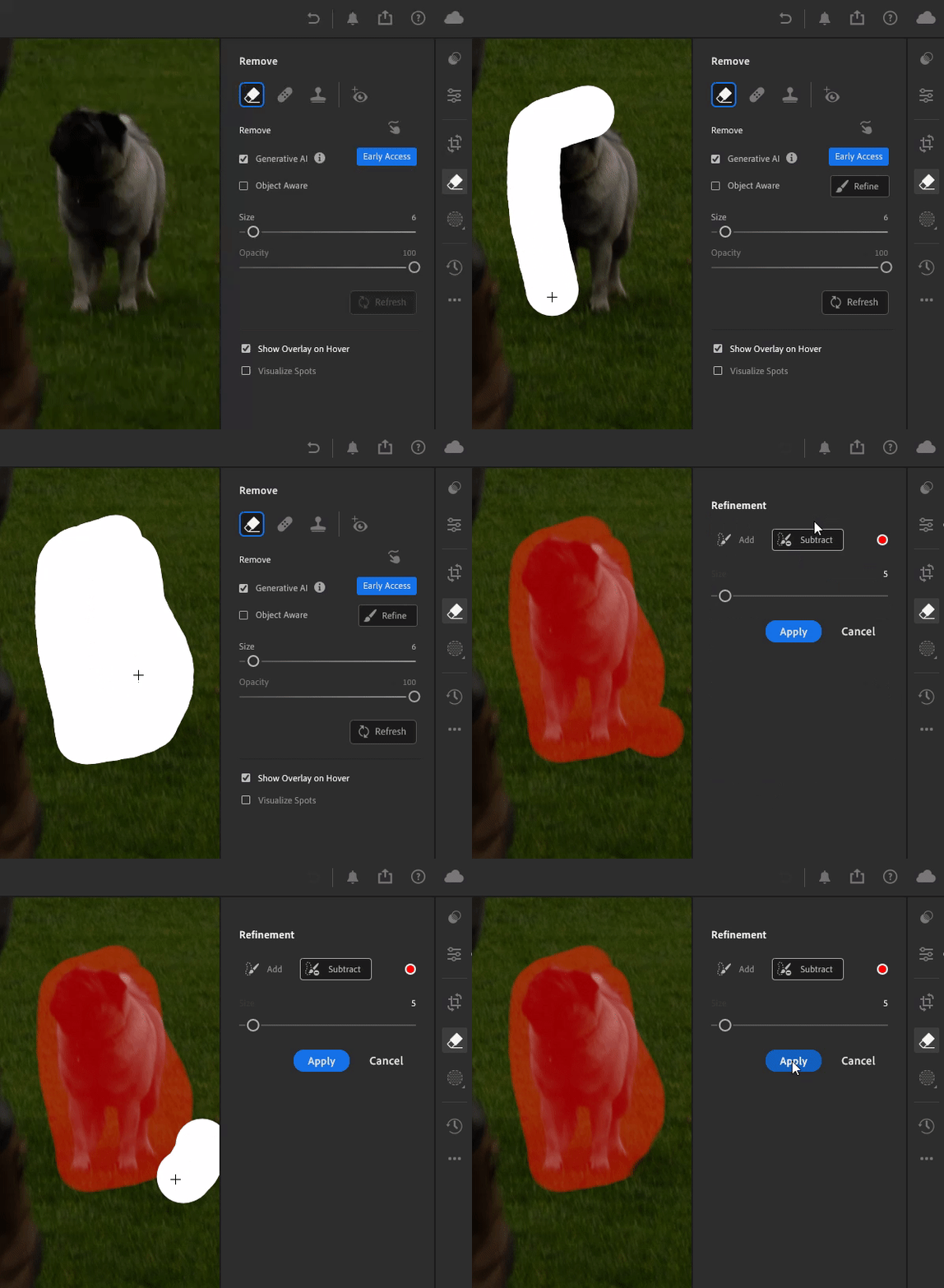
❷ Adjust the brush Size and the overlay Opacity to Brush over the object you want to remove. You can adjust the selection in Mask Refinement & then click Apply. Additional tips:
- Enlarge your selection - if your brush stroke is too tight, you will have unexpected results.
- Removing an object means painting over it, its shadow, reflection, and any non-contiguous pieces. If you leave behind a shadow, a reflection, or a disconnected piece (e.g., a hand on a shoulder), the AI will attempt to create something to cast the shadow, reflect, or complete the unbrushed discontinuous item.
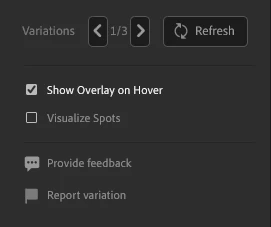
❸ Lightroom would now, using FireFly, develop three variations to pick from. You can click Refresh to develop three new variations. You can provide feedback on Generative Remove.
Head here for Best Practices and FAQs for Generative Remove
Stay tuned for more tips to come.
Others
Related links:
Quick Tips: Move and edit files between Lightroom and Photoshop Web


 AdChoices