
Participating Frequently
August 5, 2024
Question

Sync local files to the cloud

  • August 5, 2024
  • 3 replies
  • 486 views

I used to used LrC but moved to Lr to import all files about 3 years ago.  All my new files have the originals stored on the cloud. I have, however, a lot of old files which show on lightroom info Sync Status as having only a smart preview on the cloud.
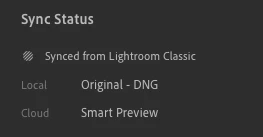
Is there any way to copy this file so that the original is in the cloud? I tried adding it again, but the interface wont allow me to as it shows as having been previously added.


I thought migrating a catalogue from LrC might move the files, but apparently it only stores a smart preview in the cloud.


This topic has been closed for replies.

3 replies

selondon
Community Expert
Community Expert
August 15, 2024

Check out Jim Wilde's reply here regarding Sync Status which may help you sort the issue:


https://community.adobe.com/t5/lightroom-ecosystem-cloud-based-discussions/lightroom-sort-by-sync-status/m-p/12364190


Participating Frequently
September 3, 2024

Well, this is helpful in identifying which are stored in the cloud and which are in LrC - what it still doesnt answer is how can i store all the originals all in the cloud.

 
selondon
Community Expert
Community Expert
August 9, 2024

Looking back at your original screengrab, I assume the Local is what Lightroom sees in it's Catalog (I.e not relating to Classic).


Therefore, I can't work out how a Smart Preview in the Cloud but a Local Original can be achieved.


The drag and drop trick used to work as I did it years ago with a Collection of mine.

The local being Original though, is why it won't import again. 

Be interesting to see what the solution is for this, who knows, maybe currently imported Originals aren't replacing Smarts in the Cloud.

Participating Frequently
August 13, 2024

So, if after you have migrated your library to the cloud you add any photos to LrC they are stored locally and only a smart preview is synced to the cloud. This is not made obvious in any documentation and I naively thought it didnt matter where I added from. Thus, some photos were added in Lr and some in LrC after the migration. This has given me an unholy hotchpotch of originals, some in the cloud and some stored locally.


My problem is how to sort this out and to get them all stored in the cloud.

selondon
Community Expert
Community Expert
August 5, 2024

Migrating a Catalog should upload all Originals to the Cloud, you can only migrate a Calaog once though from memory.


To get the Originals to the Cloud you can simply drop the Originals into Lightroom Desktop and this will replace the Smart Previews in the Cloud once synced.

Participating Frequently
August 6, 2024

Unfortunatey, you cannot drag and drop the files as the lightroom import interface recognises that the photos have already been imported and are greyed out. It will not let you import them again.


Also sadly, Yes, you can only migrate the catalogue once, you get an error message if you try to migrate it again.


I guess it might just be possible to create a new catalog in LrC by replicating my current catalog, deleting the images which are already stored in the cloud and then migrating the new catalog, but that will create a whole bunch of duplicate images and a nightmare.


What I am asking is does anyone know an easy (or indeed any practical) way to push 1000s of images to be stored not locally, but in the cloud on Lr?