

MeredithStotzner
Community Manager
Community Manager
May 23, 2023
Answered

Generative Fill in Photoshop Beta

  • May 23, 2023
  • 106 replies
  • 144293 views

Dream Bigger with Generative Fill - now in the Photoshop (beta) app 
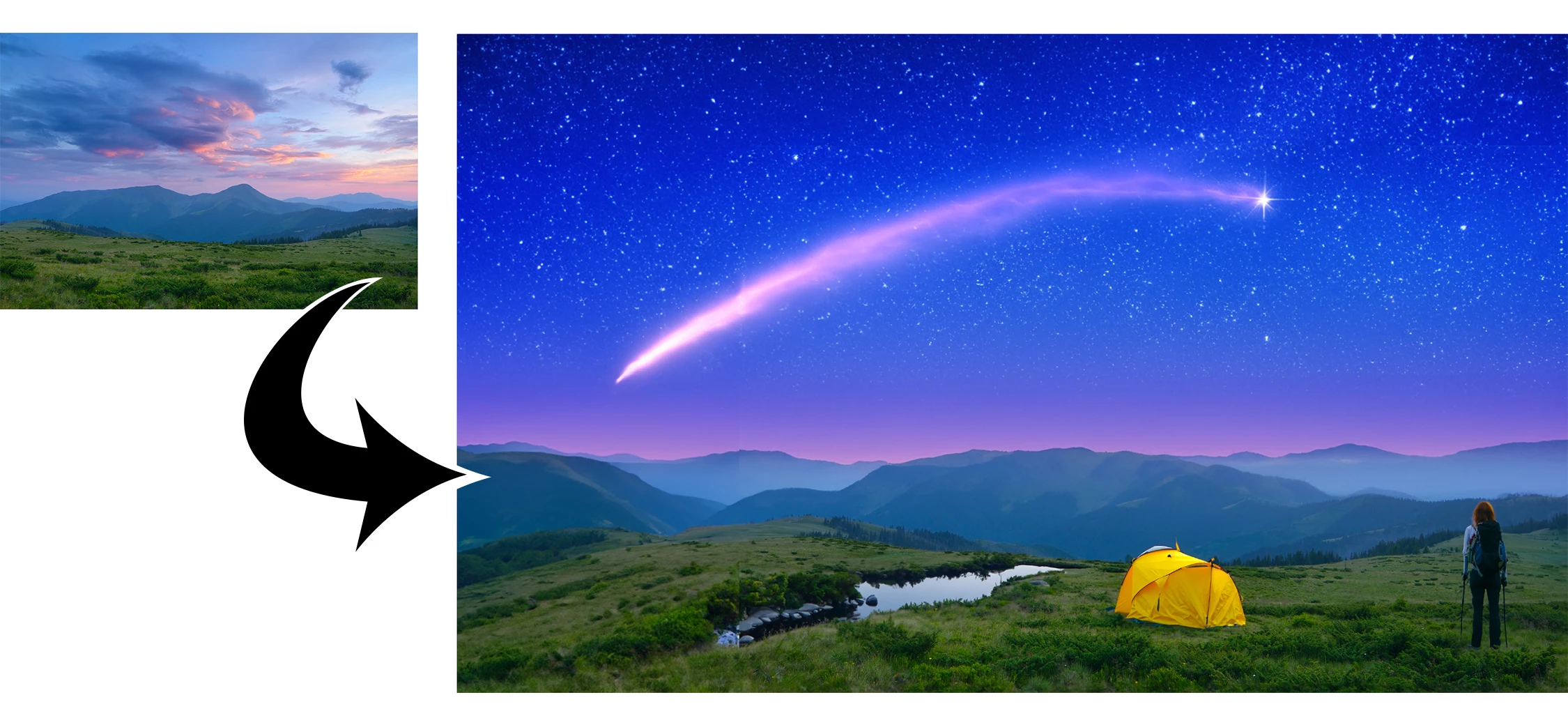
 

This under-construction, revolutionary new AI-powered Generative Fill allows you to create/generate new content in your image or remove objects like never before!

The process is simple: make a selection – any selection, then tell Photoshop exactly what you want placed there. The GenAI models will return an object or scene you described. You can:
 

Generate objects: Select an area in your image, then describe what you’d like to add.

 

Generate backgrounds: Select the background behind your subject, then generate a new scene from a text prompt.

 

Extend images: Expand the canvas of your image, then make a selection of the empty region. Generating without a prompt will create a seamless extension of your scene.

 

Remove: Select the area you want to remove, then let the GenAI technology make it disappear.
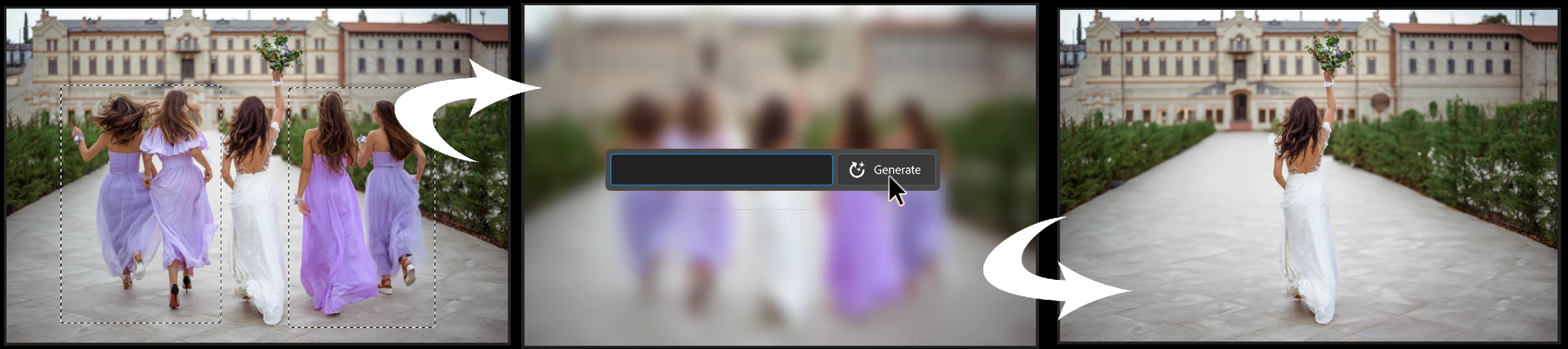
 

And more… Generative fill is incredibly versatile. Discover new ways to use this powerful feature.


How to use Generative Fill

Full instructions and helpful links are here:   https://helpx.adobe.com/photoshop/using/generative-fill.html


Rate the results!
Releasing this amazing new technology as a public beta allows Adobe to hear from you!

Let us know if the Generative Fill feature is meeting your expectations!
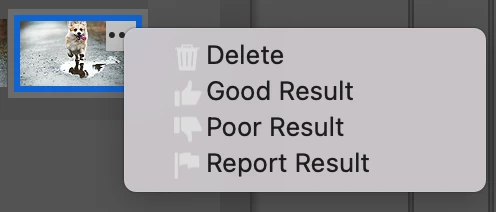
As you use Generative Fill, please rate each variation image.

Simply hover over the [•••] on the thumbnail and give it a thumbs up, or thumbs down, then follow the link to tell us more.


Report Result option
Prompts may also unintentionally generate problematic or offensive images; in such cases you can use the Report Result option to let us know.


Provide Feedback and help shape Generative Fill

If you would like to provide feedback on the overall experience, report any bugs, or suggest new features please let us know in this thread! If you prefer Discord, you can find us there too!


Helpful Tips

  • Use simple language
    Leave out commands like “add” or “remove” - Example: asking to "remove the red boat" will generate more red boats.
    Try using 3-8 words to describe what you want to see.
    Include a subject with descriptive language.. Example: A red barn in a field of flowers.
  • Select part of the original image when extending 
    Make sure you select part of the image along with the empty part of the canvas. This will give a better result that will blend in with the rest of your image.
  • Get inspired and inspire others
    Share what you create with the beta community!
    Check out the 
    Adobe Firefly Gallery to see what others have created with Adobe Firefly and Generative Fill. Click on an image to see the prompt that was used.


Related Links:

          Learn about and install Photoshop (beta) app

          Experience the future of Photoshop with Generative Fill

          Firefly FAQ

          Stock and Firefly FAQ

          Make selections in your composites

          Retouch and repair images


Correct answer Kevin Stohlmeyer

Try entering a basic prompt. We are seeing a high volume of failures for GF without prompts.

106 replies

Participant
July 27, 2023

I ran into this trying to use generative fill on some old industrial photos I had taken of a now demolished coke plant. Coke is a coal product made from heating coal without oxygen, similer to how charcoal is made from wood. It has no relation to the soft drink and the images were not of a Cocacola company facility. I started out being specific with my prompts and included this term, which resulted in a violation with each generation. The prompts all included coal, industrial, plant, etc. so it was not without context. It was not clear how or why I was violating guidlines. No guidence was given. When I began to suspect the word "coke" might be the culprit I eliminated it from the prompt and had no more issues.


This was a niche scenario, but the fact that real words are being blocked accross the board because they are also used by big brands is a serious issue. I can understand wanting to filter against recrating brand logos, but this should not be done by filtering out brand associated words regardless of context. The fact that this happens without any guidence as to what caused the "violation" makes it an even deeper issue.

Participant
July 22, 2023

On strange thing in generative fill is if I want to increase crop the image and add a missing arm or leg I get the not allowed message. I found a work around, just use the word suntan. Sometimes it gives a good result on the first try, then again it may take many. Sometimes it will only put a large sun hat in place of the limb. From distored grossly under or oversized to believable. Sometimes no matter how many times you try the results in bad, especially with feet. It wanted to put the sole up many times before it was right. 

Inspiring
July 22, 2023

Hello, I'm here to share ideas and suggestions for GenFill.

I work on complex psd files with lots of photos and layers, like sometimes 50/80 layers. I don't start from zero or from a simple image, I prepare and do a lot of images research and work on complex photomontages for video game background. All this to say that I used several sewing methods, including aware content, and now I also use GenFill in my work. And there's a slight problem with using it on psds when you're trying to do what I do. Let me explain.

To begin with, I'd like to remind you that content aware works on the specific layer selected. And that until now, GenFill works globally on the image, not on the layers. I find the 2 tasks interesting, depending of what is for. I've become accustomed to aware content and find that the fact that it works on a specified layer makes it quite noticeable and easy to use. The only thing is that it doesn't allow you to manage or generate randomized patterns. Improving it would reduce your genfill server load.

The fact that GenFill works on the overall image poses a number of problems in terms of quality of life.

The first thing is that it doesn't allow you to direct correctly on specific intentions. If, for example, you want to work on the background mountain only, which is on a specific layer, it will necessarily make the join of his choice not your with the rest. This obviously means disabling all layers to use only the specific object.

A second constraining factor is when certain layer adjustments such as color, level etc. are used.
The problem is that genfill takes a layer adjustment into consideration when it shouldn't, so it ends up applying it twice, once to the generated image + the layer adjustment that's still there. This generates serious chromatic problems, forcing all layer adjustments to be deactivated.

You'll tell me that it would be enough to display only the layer by alt-clicking on it and then alt-clicking again to display all the layers. But as genfill has generated a new layer, this handy function is not usable here. But I'm not a Photoshop expert, so maybe another solution exists.

In any case, the 2 combined are quite problematic. They make life difficult to use with many layers and when you're in the middle of work. An option to choose global image or specific layer would make things a lot easier.

Thanks for reading.

Participant
July 20, 2023

In an article on Photoshop (Beta) Generative AI I've just completd,  I provide seven Gen AI examples with prompt - all based on one photograph I took of F1 cars racing at the Canadian Formula1 Grand Prix in June and I analyze how effectively Gen AI interpreted the prompt. 


This is the original image I shot of the F1 cars coming out of the short straight just before the S curve where we were seated at the Canadian Formula 1 Grand Prix in Montréal in June. Two of the seven (total) AI Generative Fill images below are derived from this one. 

Here’s the prompt I used: “make cars appear to drive on water going through tropical forest.” I’m impressed! Gen AI did a great job suggesting reality in an unreal situation, the displacement and splashing of the water create a convincing sense of movement and speed in an entirely different medium of water. The color, leaves and contour on both sides of the forest look realistic.  In addition, the image shows one of Gen AI’s strengths - its ability to render nature well. Note the perspective, lighting and scale - excellent. A+


The prompt was to make it appear as if the cars were out in space driving through the solar system and the Starship Enterprise was in the background  - but I don’t have it verbatim.  I think I see the Starship Enterprise in the mid- right border but I think it’s a fun, fantasy of space, although the cars look as if they are floating rather than racing.  I suspect others have discovered a Must Fix in Adobe’s  next version that doesn’t exist in Beta - find a way to save the prompt with the image.  B+


petersmall11293010
Participant
July 19, 2023

I'm writing a book for authors using AI. Here is a pdf showing how I'm explaining Photoshop's generative infill in this book

[personal information removed as per forum guidelines]

https://community.adobe.com/t5/using-the-community-discussions/adobe-support-community-guidelines/td-p/4788157

Participant
July 12, 2023

It's incredible how good the AI is. It started from nothing, and this is the result. The AI knows itself what environment it is in, etc. Perfect.

Participant
July 11, 2023

Cuando pides, por ejemplo, que rellenes con un cartel en el que esté escrita una frase, la frase siempre aparece con caracteres erróneos, incluso entrecomillando.


En el ejemplo que envío quiero escribir "Come with Us" y lo cambia a "Come Wwiit UJS"


----

When you ask, for example, to fill in a sign with a phrase written on it, the phrase always appears with the wrong characters, even between quotation marks

In the example I send I want to write "Come with Us" and change it to "Come Wwiit UJS"

Kevin Stohlmeyer
Community Expert
Community Expert
July 11, 2023

Hi @ANTONIO31009072adxl Generative AI does not accurately convey text at this time - its an issue with ALL AI models available, not just Adobe. Its a limitation of the technology.

Graham24508943nobd
Known Participant
July 9, 2023

Hiya folks here's a few pics I've created and spent hours tweaking. Worth the effort though.


Maybe admin could move to the correct board if I'm in the wrong place ?


Graham24508943nobd
Known Participant
July 9, 2023

some more....


Graham24508943nobd
Known Participant
July 9, 2023

Finally this is Edinburgh castle. The original image had dozens of people & objects, delighted with the way this turned out 

Participant
July 7, 2023

In the previous version of the photoshop beta application, the productive fill generate was sufficient to complete the human body. However, in the last update, the human body complement feature works problematic.

Graham24508943nobd
Known Participant
July 7, 2023

it's a lot worse now than it's been. It's horrible seeing faces so mutated

Participant
July 6, 2023

I wanted to add a "zepplin" in the sky and that gave a violation of guidlines. Seems like I mispelled the word (it should have been "zeppelin" but then I got a plane...). AI should regognise that it is a spelling mistake and either generate what asked for or suggest the correct spelling (like MS Word does e.g.) 😕😕 Seems like Adobe really needs to work on this (generate the right image + allowing/correcting spelling mistakes) if they want to catch up with AI...