




Pete.Green
Community Manager
Community Manager
February 24, 2024
Question

Hover layer bounds is now in Photoshop beta!

  • February 24, 2024
  • 39 replies
  • 20392 views

Hi Photoshop beta friends!


We have just added a new feature for the Move tool called "Hover layer bounds" to the Photoshop beta, and it is available to you now!


What does it do?

This new feature adds the ability to mouse over an object on your canvas and show an outline of that layer. Additionally the corresponding layer will be highlighted in the layers panel. It also has additional function with layers with masks that display both the shown and hidden pixel data.
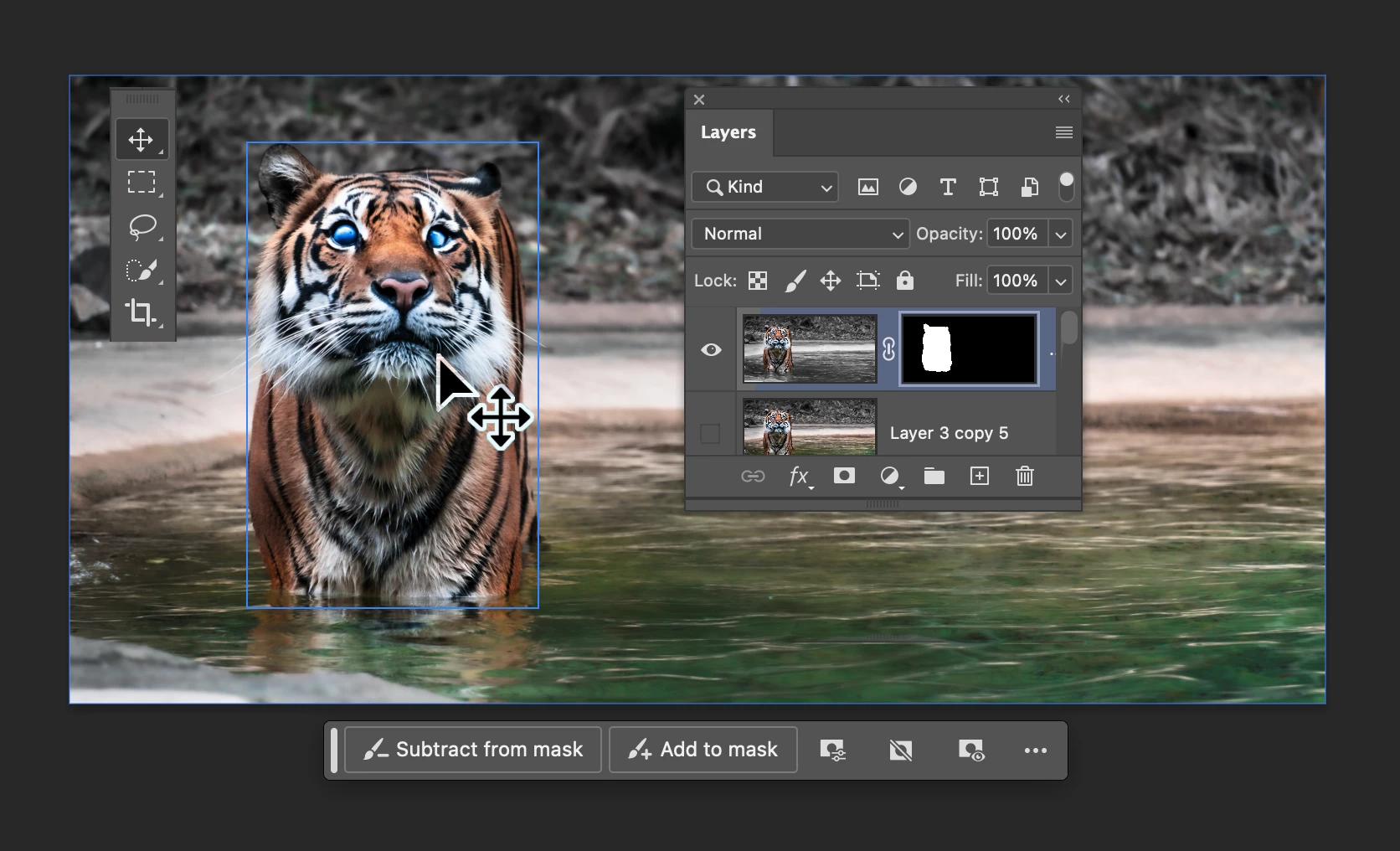
 

Hover layer bounds also works in the reverse direction as you mouse over layers in the Layers panel.


Hover layer bounds is very customizable;

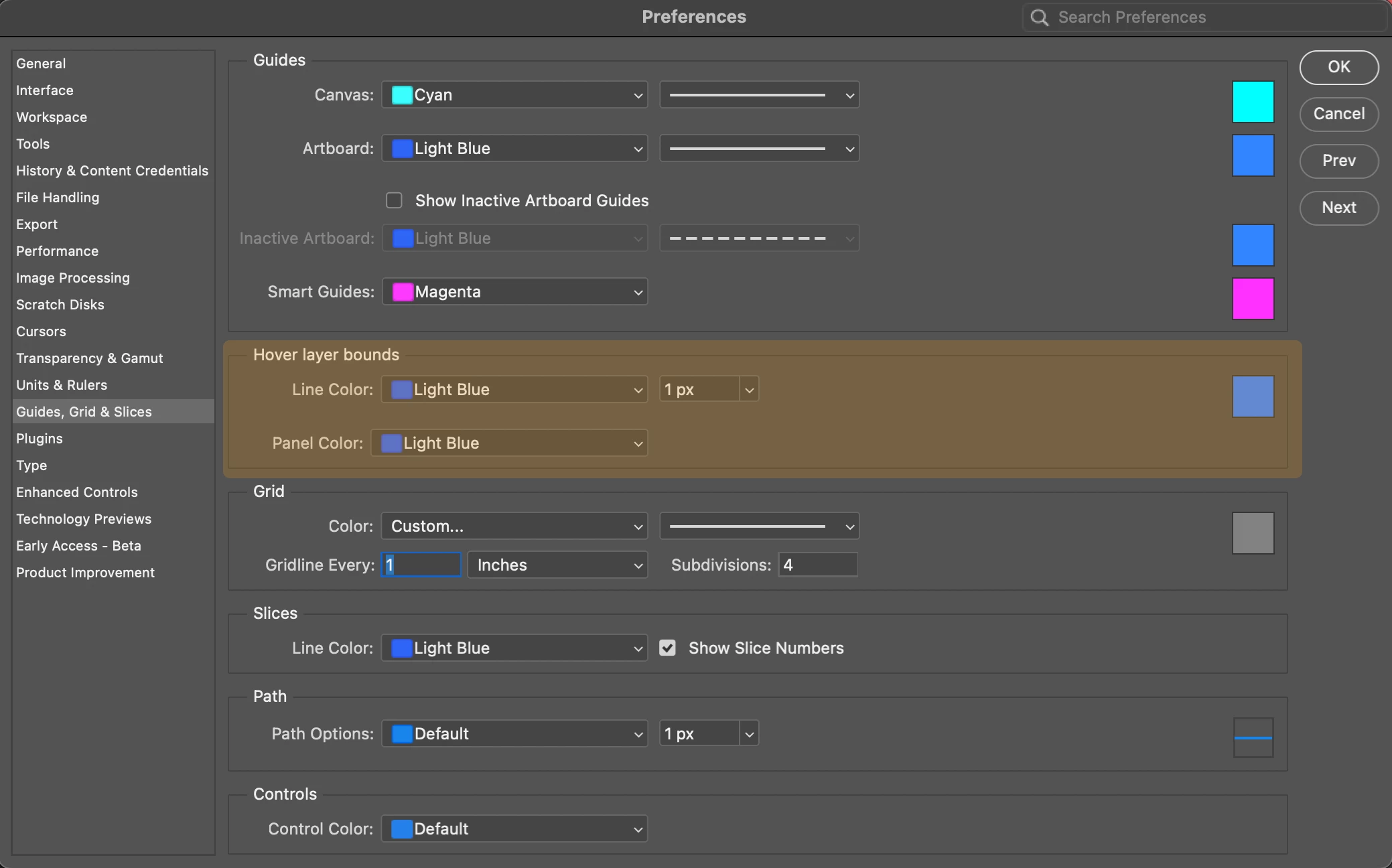
  • You can customize the colorthickness, and the Layers panel highlight color in Preferences > Guides, Grid & Slices
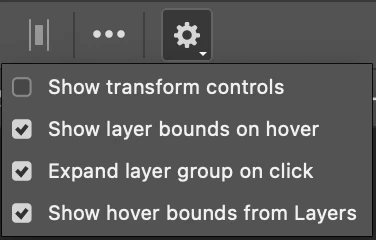
  • and customize the behavior in the new Move tool gear menu in the Options bar.
 

We would love for you to give hover layer bounds a try!

Please let us know what you think and how we could make improvements to this feature.


Thank you!

39 replies

Participant
April 29, 2024

This feature is awful. I am not sure who is designing this software interface and userablity anymore. Adobe take note of how many people are trying to figure out how to turn this feature OFF.


Trevor.Dennis
Community Expert
Community Expert
April 29, 2024
quote

This feature is awful. I am not sure who is designing this software interface and userablity anymore. Adobe take note of how many people are trying to figure out how to turn this feature OFF.


By @Jon370693626cfd


Do you use Smart Guides?  HLBs is no more intrusive than SGs, and incredibly useful for people whose projects end up with a lot of layers.  If that isn't you, then it is super easy to disable them.  With the recent changes top the UI with more functionality in the Properties panel and Contextual Task Bar, people are going to need to get back up to speed with those changes, so it's not like folk won't know how to set things up to their liking.


@Pete.Green  I wonder if the state of Hover Layer Bounds and other UI settings can be saved with Custom Workspaces?

Participant
April 29, 2024

If you press command and click on a layer it will selects the layer's contents automatically. Or if you press Option + Layer it will hide all laters except for the one selected. It’s a much easier to way to see the contents of a layer. I find this new blue frame invasive visually and inaccurate if you are trying to see the exact contents of a layer. To each their own. If people find it helpful, then great. I had to disable it immediately.

Known Participant
April 29, 2024

@Pete.Greenfinding a bug in this feature, version 25.7.0 (not beta), should I post here or start a new topic? Thanks!

Participant
April 29, 2024

I find this feature tremendously annoying. To each their own, but the first thing I did when I noticed it was Google how to turn it off.

Participant
July 2, 2024

same especially as the usual trained behaviour (in other apps) would be to select that layer which this does not.. ends up just being flashing squares as you move around your artwork

Participant
April 25, 2024

For an illustrator, this feature can be quite annoying, especially during the illustration process. My layers constantly blink here and there, which is very distracting.


Thank you for providing the option to hide it. Please keep that option available!

rossg27902624
Participant
April 24, 2024

This is unneccessary and annoying. 

Participating Frequently
April 16, 2024

This is good, but it would be GREAT if there was an option to see a tooltip of the layer name when pointing at the content in that layer (in addition to showing the bounds and highlighting it in the layers panel). Sometimes I just need to know the name of the layer. Right now I have to right-click with the move tool enabled to see it.

Participant
April 3, 2024

It was useful for me, but Now i think I have better options with AI 

specially adobe creative ai 

Participant
May 6, 2024
Pete.Green
Community Manager
Community Manager
April 2, 2024

New behavior for Hover layer bounds is now available in the latest beta build! m.2568 and later
You can now navigate through the layers that share pixel coordinates by using the [ (next layer down) and ] (previous layer up) while the Move tool is over objects on the canvas. If Auto-select is enabled, you'll be able to click and interact with the layer who's boundaries are being displayed.


  • If your keyboard does not have [ and ] keys, you can customize this keyboard shortcut to your preference in Edit > Keyboard Shortcuts > Shortcuts for [Tools]


Note: The default directional hover cycling behavior follows the behavior of Opt+[ and Opt+] to change the selected layer. Curious if the direction of the keys makes intuitive sense? or should it be reversed in both instances?


Thanks to our Prerelease testers for sharing working PSD files to help describe the challenges of using Hover layer bounds on more complex documents!


Hopefully this adds a bit more functionality and usefulness for more complex documents.

Let us know if you have any feedback on this new behavior.

Regards!

Trevor.Dennis
Community Expert
Community Expert
April 2, 2024

Julieanne Kost has just put up a four minute video explaining this feature.  It basically demonstrates what Pete has already told us, but is still well worth watching.

Participating Frequently
April 1, 2024

I personally hate this in my own workflow, but see how it could be incredibly useful for many. I found this post because I was desperately searching for how to turn it off! Good feature overall, and easy to disable once you know about it. Thanks!

Participating Frequently
April 1, 2024

Coming back to add to this – I really like that you can separately disable "show layer bounds on hover" and "show hover bounds from layers". After disabling the former, I realized the latter was still happening, and for my workflow, that is actually much more helpful.


Everyone's work is different, and I appreciate how customizable the feature is!

Danny51
Inspiring
April 26, 2024

Can you tell me where to disable it? I thought command+H turned it off for me, but for some reason it always turns itself back on after I transform or make edits to a layer.