


Participant
January 17, 2018
Answered

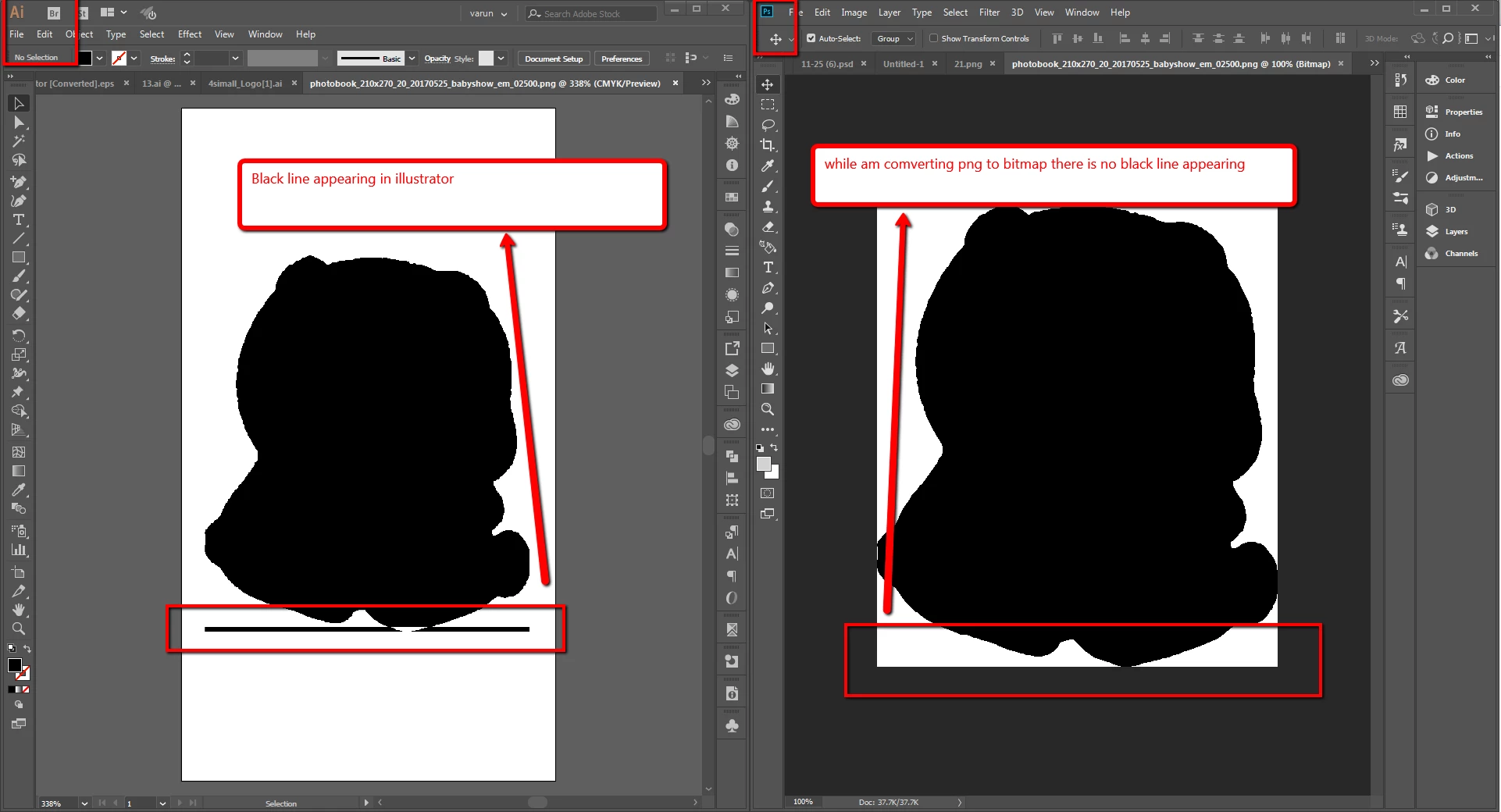
Black Line in the bottom of the png while saving the bitmap to png format

  • January 17, 2018
  • 2 replies
  • 3963 views

i convert the png elements to bitmap by followings steps

first i open the png file and change the mode to bitmap and again save the bitmap file to png format so that i can change the color of the png element in illustrator, while am donig this procedure am facing a thin black line under the png file, the black line is not visible in photoshop when i open the png in illustrator the black line appearing
    This topic has been closed for replies.
    Correct answer Theresa J

    I’m not sure why the black line is happening, but I recommend saving as bitmap tiff file instead of png. I’ve always used bitmap tiff files to color in Illustrator and I’ve never seen this happen.

    2 replies

    floramc
    Community Expert
    Community Expert
    January 17, 2018

    varuns22037280  wrote

    i convert the png elements to bitmap by followings steps

    first i open the png file and change the mode to bitmap and again save the bitmap file to png format so that i can change the color of the png element in illustrator,

    I too do not really understand why you choose this procedure, please, can you be so kind and share files and an explanation for the conversion?

    Participant
    January 18, 2018

    i cant share the file because its confidential and why am choosing this procedure means i want a png file as editable, if i convert the png file mode to bitmap and then save as png, the final png can be recolored in the illustrator, am facing this issue in the recent update of cc but there no issue in the same procedure while am using the photoshop 2017 earlier version.

    i can do one thing i can share the png file and try the below procedure steps you will face the issue and then you can get a better idea

    (use the latest 2018 version illustrator and photoshop)

    1) open the png in photoshop

    2) then change the color mode to grayscale

    3) and slightly adjust the levels for better black areas

    4) and then change the color mode to bitmap (50% threshold)

    5) finally save the file as (save as png (large file))

    1) open the saved png in the illustrator

    you will see the black line appearing in the png.

    cmgap
    Community Expert
    Community Expert
    January 17, 2018

    Can you share the files? Why are you changing the file to bitmap? You can change the color in either application without converting to Bitmap.

    Participant
    January 18, 2018

    i cant share the file because its confidential and why am choosing this procedure means i want a png file as editable, if i convert the png file mode to bitmap and then save as png, the final png can be recolored in the illustrator, am facing this issue in the recent update of cc but there no issue in the same procedure while am using the photoshop 2017 earlier version.

    i can do one thing i can share the png file and try the below procedure steps you will face the issue and then you can get a better idea

    (use the latest 2018 version illustrator and photoshop)

    1) open the png in photoshop

    2) then change the color mode to grayscale

    3) and slightly adjust the levels for better black areas

    4) and then change the color mode to bitmap (50% threshold)

    5) finally save the file as (save as png (large file))

    1) open the saved png in the illustrator

    you will see the black line appearing in the png.

    Theresa J
    Community Expert
    Theresa JCommunity ExpertCorrect answer
    Community Expert
    January 18, 2018

    I’m not sure why the black line is happening, but I recommend saving as bitmap tiff file instead of png. I’ve always used bitmap tiff files to color in Illustrator and I’ve never seen this happen.