Participant
May 12, 2019
Answered

Brush presets won't use textures anymore

  • May 12, 2019
  • 4 replies
  • 7420 views

Just recently I started having this problem:

I try to use a brush preset that uses a texture (for instance, a halftone brush). This has worked for over a year, but just now the brushes have just stopped working with those textures. They just seem to reset or something right after I select them.
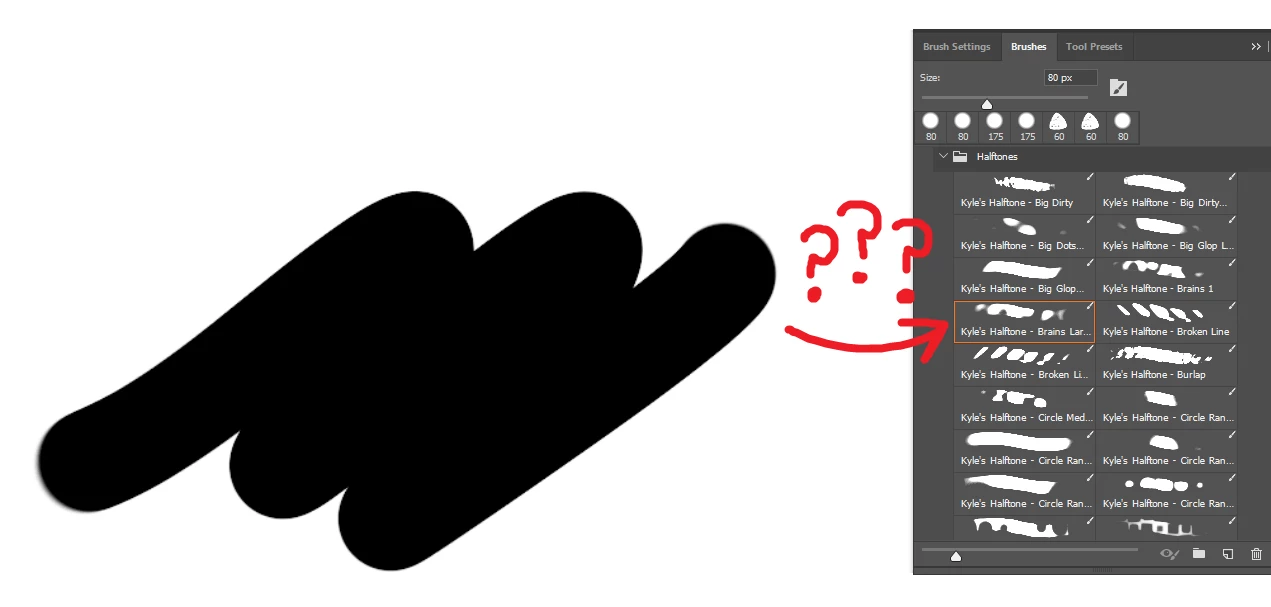
I have absolutely no idea how to solve this, anyone got any ideas?
    This topic has been closed for replies.
    Correct answer Trevor.Dennis

    Have you tried resetting Preferences?  

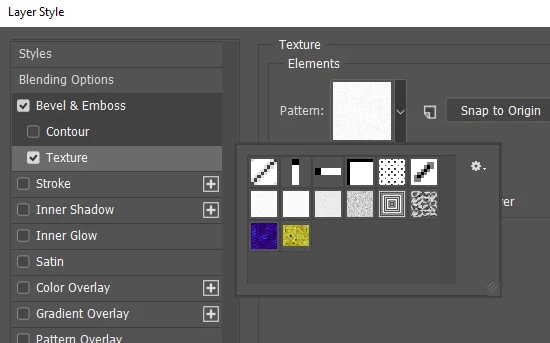
    What do you see in  Layer Style > Bevel &  Emboss > Texture?

    These are the same textures that the brush preset uses.

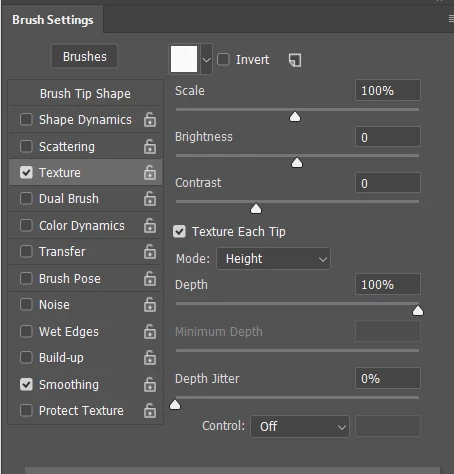
    It would be more useful if you showed us the Brush Settings panel with Texture checked and selected

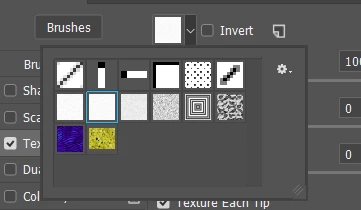
    What do you see if you use the drop down?

    4 replies

    Trevor.Dennis
    Community Expert
    Trevor.DennisCommunity ExpertCorrect answer
    Community Expert
    May 12, 2019

    Have you tried resetting Preferences?  

    What do you see in  Layer Style > Bevel &  Emboss > Texture?

    These are the same textures that the brush preset uses.

    It would be more useful if you showed us the Brush Settings panel with Texture checked and selected

    What do you see if you use the drop down?

    Participant
    May 12, 2019

    Okay, so I feel real dumb about not resetting preferences, but it worked! Thank you!

    Inspiring
    May 12, 2019

    have you added a new pen, a new tablet - ANY sort of a change - this is going to be your problem. The problem is on your end, not with Photoshop. Just saying, because I have been through this a million times and even up until this very day, I suffer all these kinds of problems with this wacom tablet of mine

    This is going to end up being some sort of a change you have made to your system very recently, whether it be a pen, a mouse, a .config change to your input hardware, etc.. think of any changes you have made

    Inspiring
    May 12, 2019

    hello this is eek, Gang-eek, to be exact

    This problem might be a problem in your textures folder. Check our folder where your textures are. Ensure there has been no file activity (delete, write, overwrite, etc) in that folder as of recent times. I know this reply might seem trivial, but most often, these sorts of problems ARE trivial - and it's a simple fix. It's like when you call your internet service provider and the first thing they ask is - "is your modem plugged in?" and the first thing you want to do is punch them in the face if you could.

    At any rate - let me offer some more advice, based on your screenshot - it looks like your pen tablet has lost its pressure sensitivity (assuming you are using a pen tablet?)

    If this is the case, what you want to do is stop the service entitled "Wacom Professional Service". Unfortunately at this time I can't tell you where this is or how to do it - but if you cancel this service, and then re-start it, then your pen tablet will re-start. Next, you will close Photoshop and re-start it. At this point, your pressure sensitivity should be restored. It looks to me right now that this is your problem: your tablet has lost its pressure sensitivity. This happens to me on a daily basis, many many times. Hopefully you can work with this semi-useful information.

    Inspiring
    May 12, 2019

    ok I think I have found out how to do this:

    -click on the START button

    -in the search bar, type     msconfig

    -click on msconfig.exe  that shows up

    -in the System Configuration' window that pops up, click on the 'services' tab

    -Scroll down to 'Wacom Professional Services' - its checkbox should currently be checked ON - now, click on it so it is now unchecked

    -click 'Apply', then click 'OK'

    -it will ask you to re-start. Click 'exit without restart' and then close any other programs you have running. When you are ready, re-start your system.

    -when your computer re-boots, you should not have access to your tablet - so you need to use your mouse here.

    -repeat all steps from the first step above - but this time when you scroll down to  'Wacom Professional Services' - the checkbox should be turned off. If this is the case - then click it so it is check ON. Then click Apply, then click OK. Re-start your system if asked to do so.

    -When your system re-starts, your tablet should have its pressure sensitivity restored and your brush textures should work again

    is this a long-winded solution? Hell yeah. Will it work? Hope so. I have automated this entire solution into one step, but I won't get into that since it's way too complicated. But your same problem happens to me all day long, and it's usually due to me turning on/off my Cintiq while other monitors are also running - do you have multiple displays? This is likely the issue if you do.

    Hopefully this helps you out.

    c.pfaffenbichler
    Community Expert
    Community Expert
    May 12, 2019

    Please post a complete screenshot including the pertinent Panels like Toolbox, Options Bar, Brush Settings Panel etc.

    Participant
    May 12, 2019

    Is this alright?

    c.pfaffenbichler
    Community Expert
    Community Expert
    May 12, 2019

    What happened when you click the Texture checkbox?