
Participant
October 18, 2017
Question

Can't Make Adobe Photoshop CC 2018 Default Application in macOS Sierra

  • October 18, 2017
  • 27 replies
  • 31012 views

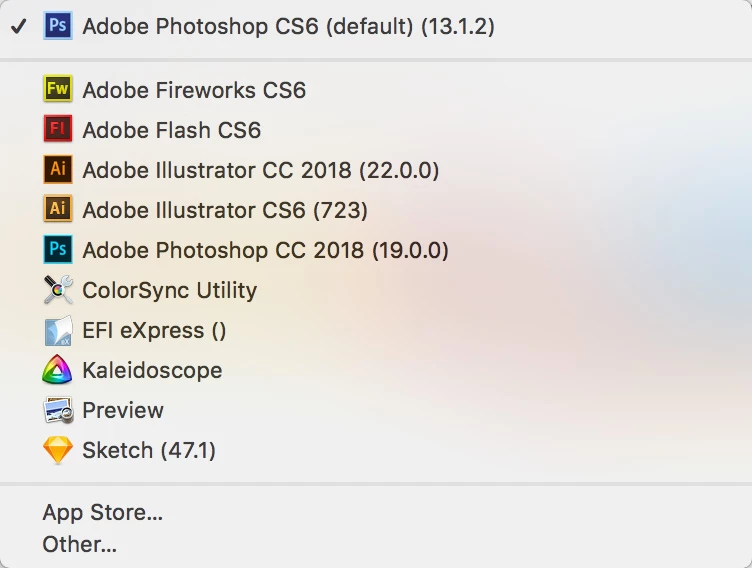
Just updated from CC 2017 to CC 2018 today. Prior to the update, CC 2017 was my default application for all PSD, JPEG, GIF, PNG, etc. files. I still have CS6 installed on my Mac and it's now the default application for these files. I can change it to Adobe Photoshop CC 2018 (19.0.0.) individually for each file, but I can't to a system wide change through Finder.

When I right-click a file and choose Get Info and change Open With to Adobe Photoshop CC 2018 (19.0.0.) and click Change All it immediately reverts back to CS6 as the default. But I can do the above steps on a file-by-file basis and it will stick for each file.

I restarted and zapped PRAM but it did not fix the issue. Haven't tried uninstalling CS6, but the point is I had CS6 installed along side CC 2017 and CC 2017 had no trouble being assigned the default status.

Did I find a bug in CC 2018?
    This topic has been closed for replies.

    27 replies

    bellevue scott
    Inspiring
    October 24, 2017

    I have a similar issue that I think is related. I just upgraded from PS 2017 to PS 2018, (mac sierra 10.12.6) and as soon as I did that, PS started misbehaving. I have some actions that I've made into droplets. I use them every day. Now, if I drag a tif file onto one of those droplets, the droplet tries to open GIMP. I checked to see if the default application for TIF files is PS 2018, and it is.

    Upon further fiddling around, I've found that the droplets work fine AS LONG AS PS 2018 IS OPEN. If PS 2018 is closed, those PS droplets try and open GIMP.

    My take: go back to 2017. I need to find instructions on how. 2018 is buggy as hell. healing stamp is slow and I've got other issues. Something is amiss with this version.

    Participating Frequently
    October 24, 2017

    I'm having the same problem. MacOS Sierra. Keeps defaulting to CS6 and unable to change it to set ALL PSD files to 2018. Even more annoying it does this for NEW PSDs you create with 2018 also. It doesn't matter if it is something created with 2018 or earlier -- it always defaults to CS6.

    can change it file-by-file but not universally. In other words, I can right-click a PSD file, then hold down the Option key (so the fly-out menu changes to say "Always Open With"), select PS CC 2018 and it will open 2018, then continue opening with 2018. It also shows 2018 as the default for that SPECIFIC file if I do a "get info" on it. But the second I try to change ALL the PSD files to default to 2018, it reverts it back to CS6 again as the default.

    For now, I'm having to right-click and select 2018 to open a file --- annoying. I hope they come out with a fix soon.

    Participant
    October 24, 2017

    TheGeekGoddess  wrote

    can change it file-by-file but not universally. In other words, I can right-click a PSD file, then hold down the Option key (so the fly-out menu changes to say "Always Open With"), select PS CC 2018 and it will open 2018, then continue opening with 2018. It also shows 2018 as the default for that SPECIFIC file if I do a "get info" on it. But the second I try to change ALL the PSD files to default to 2018, it reverts it back to CS6 again as the default.

    Yes, this behavior was delineated in my original post.

    Participating Frequently
    October 24, 2017

    I have this same problem, only I am using macOS El Capitan (10.11.6) and the default application for my PSD files reverts to CC 2017. The only installed Photoshop is the new one, CC 2018. This issue is only occurring with PSD files. TIF, JPG and others will use CC 2018 as the default.

    Participating Frequently
    October 24, 2017

    OK...so after reading more thoroughly through these posts, I ended up going through my Applications folder and decided to delete all of the old Photoshop folders. Even though they should have been inactive, something was forcing the file association for PSD files to use older versions. After trashing the old folders... I can now assign CC 2018 - and more importantly KEEP the assignment - as the default application for PSD files.

    Participating Frequently
    October 24, 2017

    hey , its that means its appears in select default folder ? instead of LR ?

    Participating Frequently
    October 23, 2017

    This is an ages old problem with the Adobe installer that they have apparently decided not to fix. The solution DOES NOT involve wasting a lot of time doing de-installations, re-installations, etc.  The solution is to edit your registry and change one character if you are upgrading from CC2017 to CC2018 on Windows 7.   Just change the 7 in 2017 to an 8 at the proper position in the registry and you will be good to go.  Editing the registry sounds scary, but I am no tech guy and I was able to apply the fix quickly.  What is the fix? It can be found in the discussion below that started at least 5 years ago that describes the detailed steps for editing the registry and changing the character.  Come on Adobe installer team, get your act together.

    I cannot associate files with Adobe Photoshop CC

    Participating Frequently
    October 23, 2017

    Most people experience this issue using macOS Sierra at the moment.

    MDahmenAuthor
    Participant
    October 23, 2017

    I ended up uninstalling Photoshop CS6 and Finder (macOS Sierra) immediately assigned CC 2018 as the default. Not sure why that was necessary this time around (it wasn't necessary in CC 2017), but I don't use Photoshop CS6 anymore so it wasn't a big loss to me.

    katys15030138
    Participant
    October 22, 2017

    I'm having the exact same problem with CC 2018.  At first, it kept trying to open CC 17, and then would come up with an error that the program didn't exist, and turns out when it had uninstalled CC 17, it left a file behind.  So I deleted that file, and… Now opening files wants to open CS3 instead.

    I've also tried uninstalling and reinstalling Photoshop CC 18, but that didn't make a difference.

    gener7
    Community Expert
    Community Expert
    October 22, 2017

    Have you uninstalled cs3?

    gener7
    Community Expert
    Community Expert
    October 21, 2017

    CC 2017 was the default after installing CC 2018, so I removed all previous versions, but opted to keep the settings. I did this using the uninstaller in the respective folders being sure I kept my preferences.

    I also had 2015.5, but for some reason the 2015.5.app was not removed during uninstall, I had to drag it to the Trashcan.

    That made CC 2018 the default. Then I reinstalled CC 2017 and CC 2018 stayed the default.

    Inspiring
    October 21, 2017

    It seems that the most recent Photoshop will be the default. I had 2017 as the default, tried uninstalling that version to see if it would default to 2018 but now it just used the 2015.5 version as the default.

    Yours

    Vern