


Inspiring
June 14, 2017
Answered

Canvas Size/Transform Tool

  • June 14, 2017
  • 2 replies
  • 2384 views

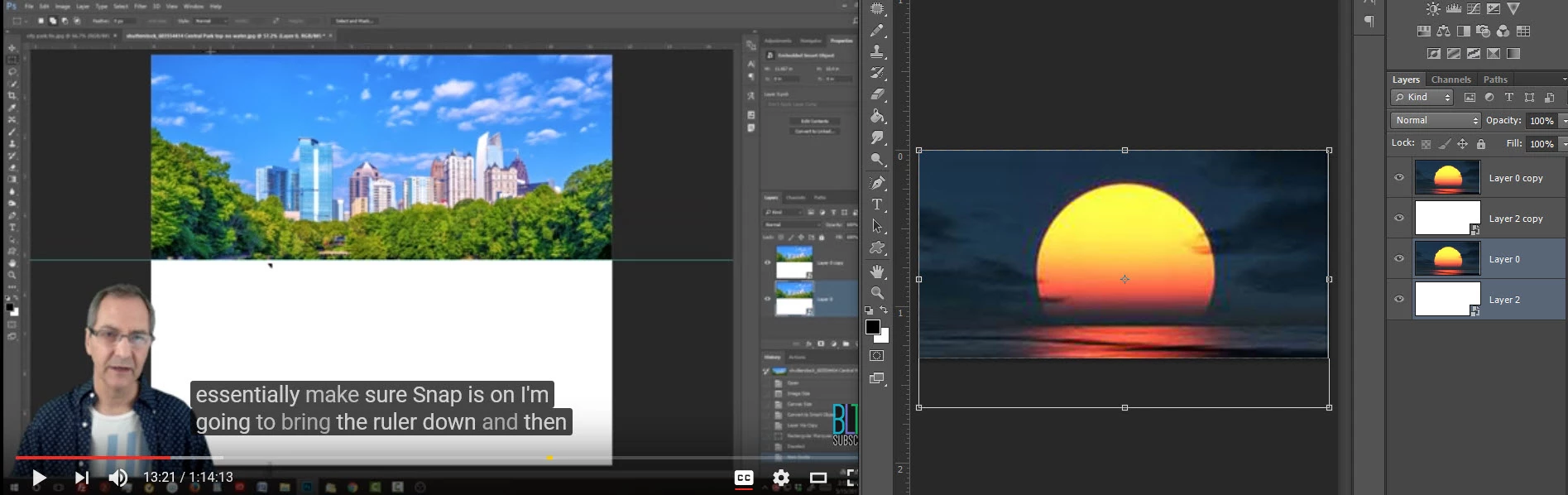
I am doing a tutorial on water reflection. There is a slight variation in menu selection between the Photoshop version that I have that I have worked around. Image on the right (sunset) is gray at bottom; tutorial image (left) is white?
This topic has been closed for replies.
Correct answer davescm

From the snapshot I can't see what steps you have taken prior to that point, but the main difference at the point of time you are showing is that the tutorial is showing two layers. Your own layers panels shows four layers. 
You need to step back through the tutorial and see what step/s you missed/ carried out differently.

Dave

2 replies

Inspiring
June 14, 2017

Oh Pooh, right off it says to crop image. Not sure if I did it correctly; the tutorial image shows it in Layer panel as Background.

If I save my image it winds up with a white border, Layer 0:

When I follow the instructions for Image/Canvas Size this is what I wind up with:

Image on left from tutorial, my image--white is missing?

OMG, the tutorial's Image dialogue box differs from mine, I have never used the Crop tool before, but there are a couple of other things I have learned from this tutorial already.

davescm
Adobe Expert
June 14, 2017

You can use the crop tool to extend the canvas. Just drag the bottom edge downwards

Dave

Inspiring
June 15, 2017

Opening image from tutorial:

Image after he crops:

My image after crop shows Crop Preview in Layer panel with white border; drop down is transparent?

davescm
davescmCorrect answer
Adobe Expert
June 14, 2017

From the snapshot I can't see what steps you have taken prior to that point, but the main difference at the point of time you are showing is that the tutorial is showing two layers. Your own layers panels shows four layers. 
You need to step back through the tutorial and see what step/s you missed/ carried out differently.

Dave