

Participant
July 19, 2019
Answered

cmyk pdf opens as grayscale in Photoshop

  • July 19, 2019
  • 4 replies
  • 4163 views

I scanned a photo to pdf. In preview I see color, but when I open it in Photoshop it is grayscale. How do I edit my color photo?

{Thread renamed by moderator}

Correct answer c.pfaffenbichler

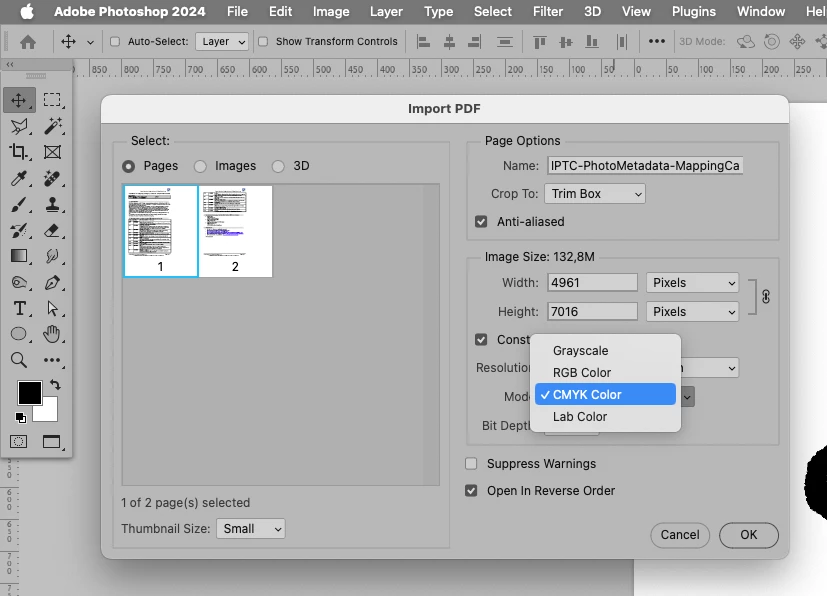
When one converts pdf pages to pixel images in Photoshop one can set the Color Mode for the resulting image in the dialog. 

Or what are you talking about exactly? 
4 replies

Participant
December 12, 2023

It sounds like the issue might be related to how Photoshop is interpreting the PDF file. Sometimes, when a PDF is scanned, it might contain grayscale information rather than preserving the original color. Here's what you can try:

  1. Check PDF Settings: Sometimes, the scanner might default to grayscale or black-and-white settings. Ensure your scanner settings are configured for color scanning.

  2. Open in Different Software: Try opening the scanned PDF in another software or viewer to verify if it's in color. If it displays in color elsewhere, the issue might be with how Photoshop is interpreting it.

  3. Color Mode in Photoshop: When opening the PDF in Photoshop, check the color mode settings. Go to Image > Mode and ensure it's set to "RGB Color" for color images. If it's grayscale, you can switch it to RGB.

  4. Convert to RGB: If the file is in grayscale mode in Photoshop, you can convert it to RGB to restore the color information. Go to Image > Mode > RGB Color.

  5. Export or Save As Image: Once the color mode is corrected, you can save the edited image as a high-quality JPEG, PNG, or TIFF file to retain the color information without relying on the PDF format.

If the scanned image still appears grayscale in Photoshop and you're certain it should be in color, the original scan might not have captured color information. In such cases, re-scanning the image using color settings on the scanner could solve the problem.

c.pfaffenbichler
Community Expert
Community Expert
December 12, 2023

If one scans to pdf (why? – edit: I guess automatic multi-page scanners will probably need to output to a multi-page format) then one should naturally not »open« the Pages in Photoshop but the contained Images

Participant
December 14, 2023

You're right! When scanning to PDF, to edit individual images, open the contained images within the PDF rather than the entire document in Photoshop. This way, you can access and edit each image separately.

Participant
December 12, 2023

Same weird problem. I tried Image > Mode > Set to CMYK

Did not work for me. Realized I was working in PS 2023. Exit, Open .pdf With PS 2024

Hope that works for you, It worked like a charm for me.

c.pfaffenbichler
Community Expert
c.pfaffenbichlerCommunity ExpertCorrect answer
Community Expert
December 12, 2023

When one converts pdf pages to pixel images in Photoshop one can set the Color Mode for the resulting image in the dialog. 

Or what are you talking about exactly? 

Sahil.Chawla
Adobe Employee
Adobe Employee
July 19, 2019

Hi there,

To add to what Norman has suggested, you may also try resetting the preferences of Photoshop: Preferences in Photoshop

Note: Make sure that you back up all your custom presets, brushes and actions before restoring Photoshop's preferences. Migrate presets, actions, and settings

Also, what version of Photoshop and the operating system are you working on?

Does it happen with all PDF files or some specific files?

Regards,
Sahil

Norman Sanders
Legend
July 19, 2019

Is Image > Mode set to Grayscale rather than RGB or CMYK?