Known Participant
October 23, 2020
Answered

Content-Aware Tracing Tool not showing up, despite enabling and restarting.

  • October 23, 2020
  • 3 replies
  • 11309 views

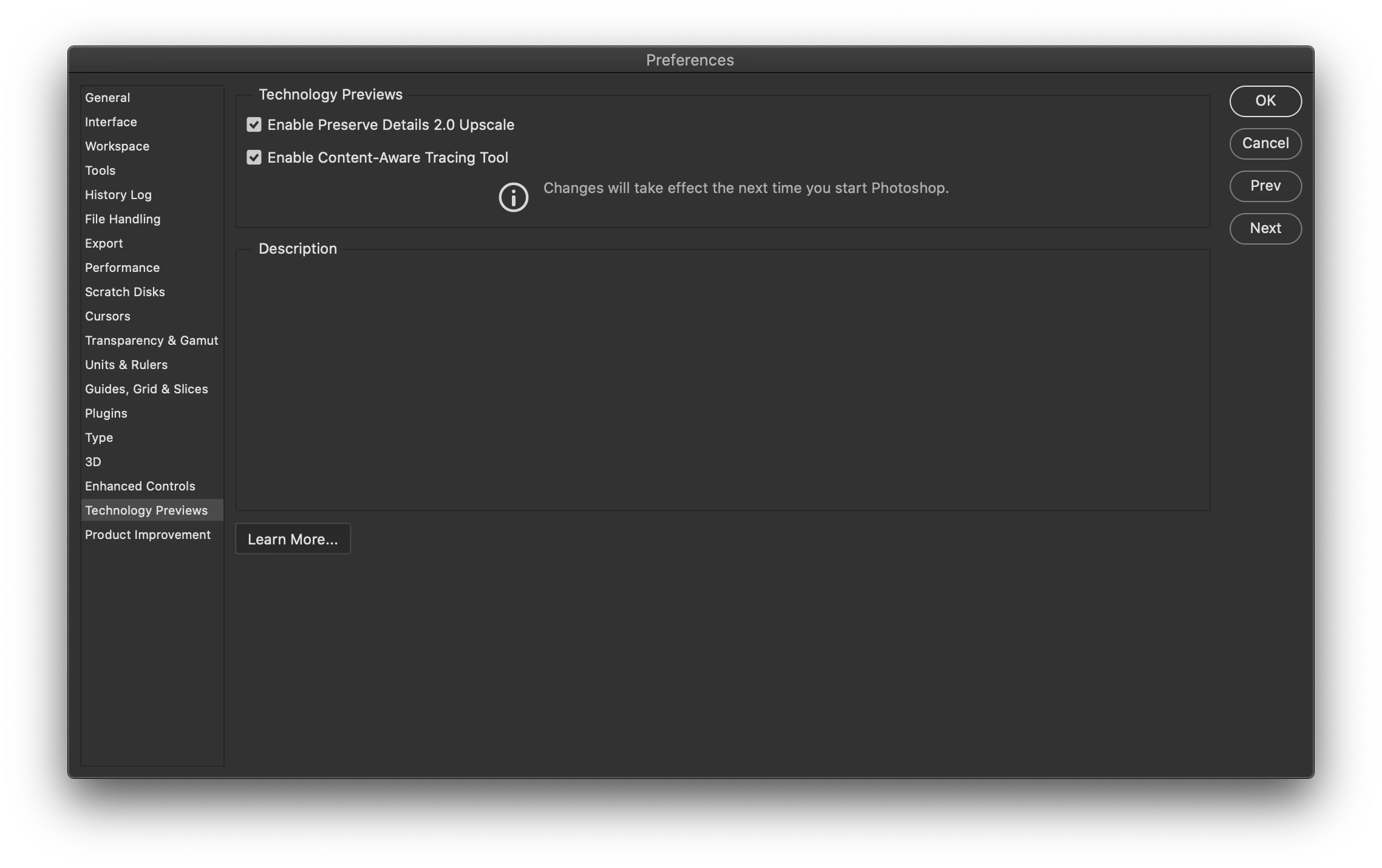
I've followed the steps outlined in the help files (Enable Content-Aware Tracing Tool in prefs, restarting Photoshop) three or four times, but the new tool just won't show up for me. 
Correct answer JJMack

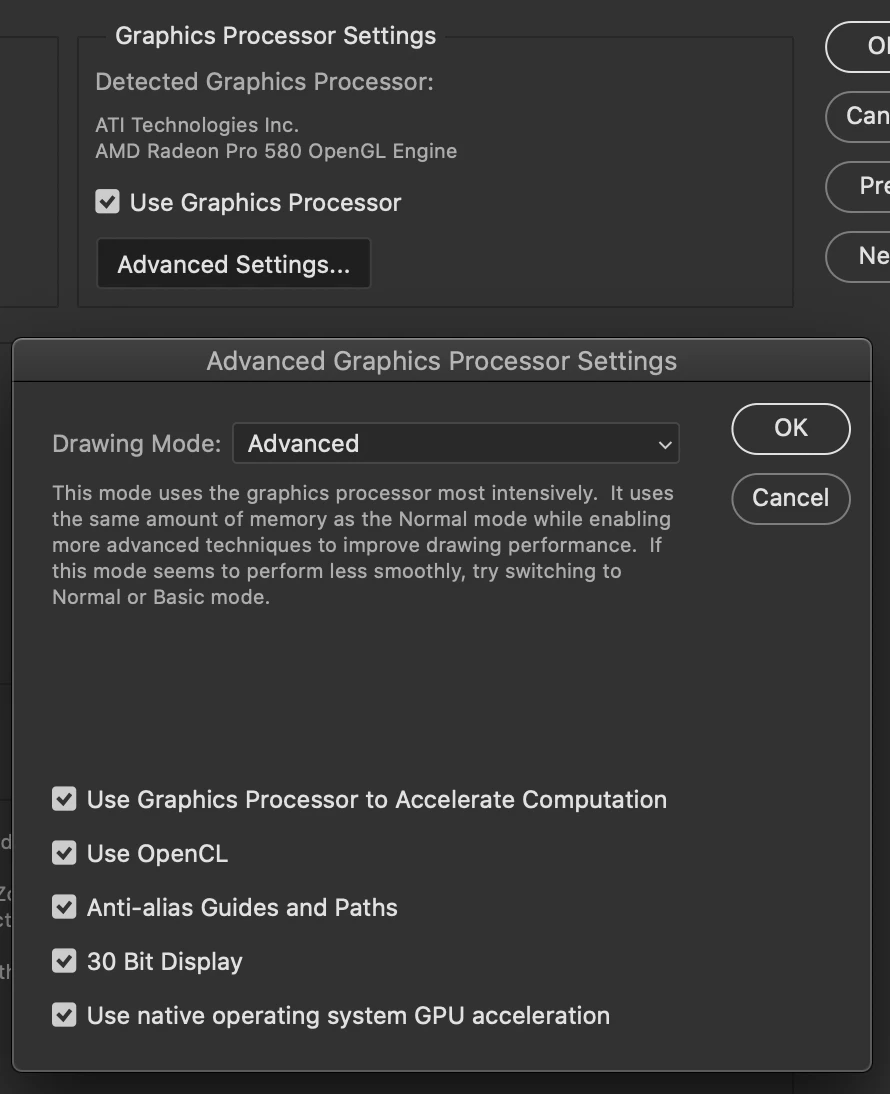
Here's my GPU info, and the screenshots in my original post show that I've enabled the tool. I've restarted PS multiple times with no results. I'm using the version 10.15.7 of MacOS Catalina.


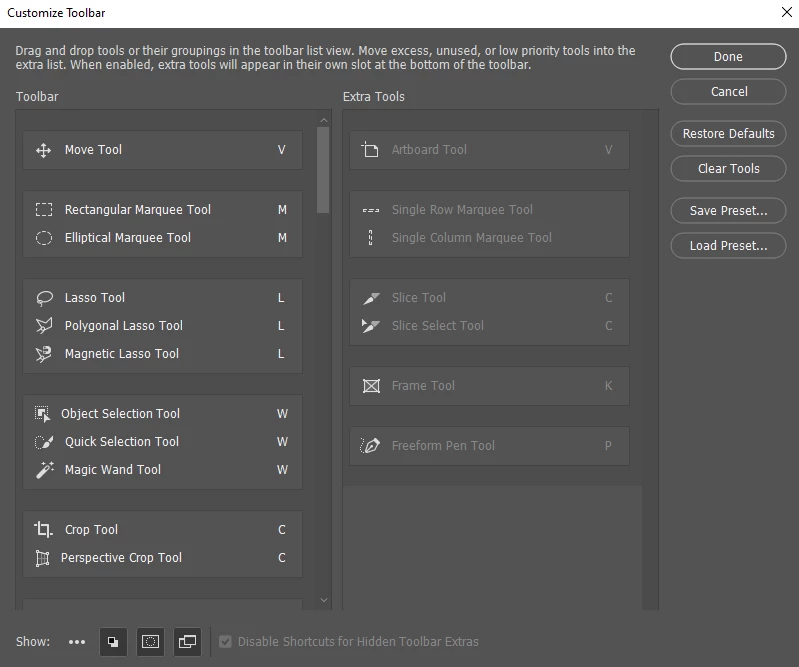
Try  unchecking use native operating system GPU acceleration and restart Photoshop also Edit Toolbar and restore defaults.

3 replies

Inspiring
July 20, 2022

This doesn't work for me either... I'm wondering if it's because I'm on an M1 MacBook Pro?

Participating Frequently
October 23, 2020

im having the same problem have you managed to sort this out?

davescm
Community Expert
Community Expert
October 23, 2020

Without any system information (GPU and OS),  confirmation that you have both enabled the tool in Preferences and added it to your toolbar, we are limited in how how we can help you.


Dave

Participating Frequently
October 23, 2020

ok thank you for your reply, so what information do i need to give.... but bare in mind im not great on tech speak and knowledge, and bit peed off tbh that something like this took seems to be complicated to get onto my system. 

ive got a dell windows 10

sorry how do i get GPU info?

JJMack
Community Expert
Community Expert
October 23, 2020

JJMack
Known Participant
October 23, 2020

JJMack, did you not even read my post?

Participating Frequently
November 8, 2022

You don't necessarily have to reset your toolbar for you to get it.
Edit - Toolbar... and see Extra Tools.
Then you can just drag in where you want it for those that have a customised toolbar like myself.