Participant
April 18, 2020
Answered

Creating Shapes with Shared Sides

  • April 18, 2020
  • 2 replies
  • 535 views

Hello, I am simply trying to make a geometric design, with shapes that share one side. However, I need them to be on seperate layers and treated as seperate shapes so I can fill/mask/or otherwise modify them. I have been making custom shapes using the pen tool, but is there anyway to duplicate the shared side or have photoshop recognize it as two distinct shapes? Attached is an example of what I'm looking for, with each section being able to be masked on its own.

This topic has been closed for replies.
Correct answer Semaphoric

You can do it like this:


Start with a closed Shape. With the Direct Selection tool, select the Shape (so you see all the points as hollow squares), and then select the edges you want to connect, either by selecting the edges themselves, or the control points. Selecting a control point will also select its associated edges, so you should not select the two end points, only the edges. Shift+clicking will allow you to select multiple edges. Copy these to the clipboard.


Make a new Shape layer, but leave it open. This can even be just a single point, but you need to have a separate Shape layer.. Paste the copied edges, and use the Pen to connect the ends of the drawn path and the pasted path. Click on one point, and you should see "Pick Up Path" in the history. Click on the other, and you should see "Join Paths".


As long as the Shape has not been closed, you can continue to copy, paste, and connect from any other previously made Shapes. Note that the shapes are independent, so if you decide to move a vertex in one, the edges will no longer be shared.


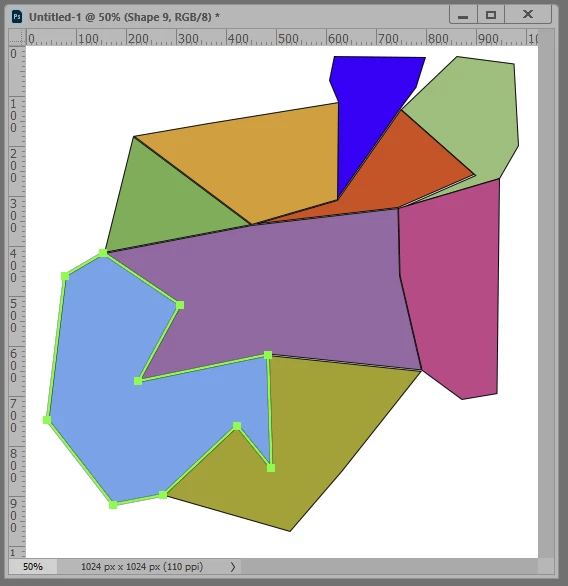
I hope that all makes sense. Here you can see the results:


2 replies

Semaphoric
Community Expert
SemaphoricCommunity ExpertCorrect answer
Community Expert
April 18, 2020

You can do it like this:


Start with a closed Shape. With the Direct Selection tool, select the Shape (so you see all the points as hollow squares), and then select the edges you want to connect, either by selecting the edges themselves, or the control points. Selecting a control point will also select its associated edges, so you should not select the two end points, only the edges. Shift+clicking will allow you to select multiple edges. Copy these to the clipboard.


Make a new Shape layer, but leave it open. This can even be just a single point, but you need to have a separate Shape layer.. Paste the copied edges, and use the Pen to connect the ends of the drawn path and the pasted path. Click on one point, and you should see "Pick Up Path" in the history. Click on the other, and you should see "Join Paths".


As long as the Shape has not been closed, you can continue to copy, paste, and connect from any other previously made Shapes. Note that the shapes are independent, so if you decide to move a vertex in one, the edges will no longer be shared.


I hope that all makes sense. Here you can see the results:



ZetaprimeAuthor
Participant
May 10, 2020

Perfect! Thank you so much!

c.pfaffenbichler
Community Expert
Community Expert
April 18, 2020

First of I hope you created those Shapes with closed Paths. 

Secondly I suspect that you might be better off using Illustrator for this. 


But in Photoshop I think you should use Groups with Layer Masks based on Selections created without Anti-aliasing to avoid the mixed edge pixels. 


And please post images on the Forum directly …

