Participant
April 24, 2025
Answered

Error in photoshop when enlarging the file to 300 cm

  • April 24, 2025
  • 3 replies
  • 267 views

Hi!

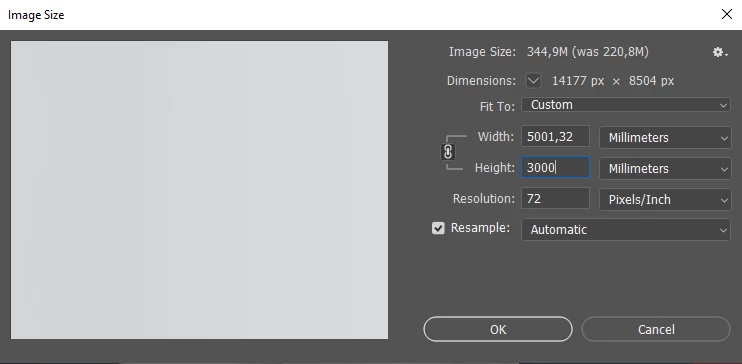
When trying to enlarge the image to 300 cm, I encounter an error: The "Image Size" command cannot be executed: the result may be too large.

Previously, this size was regularly used without errors.
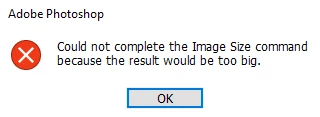
Has anyone encountered this? Did you find a solution?
System Parameters: WIN10, Photoshop: 24.7.1
Correct answer владимирб53587655

I tried @AxelMatt methods, but it didn't solve the problem.

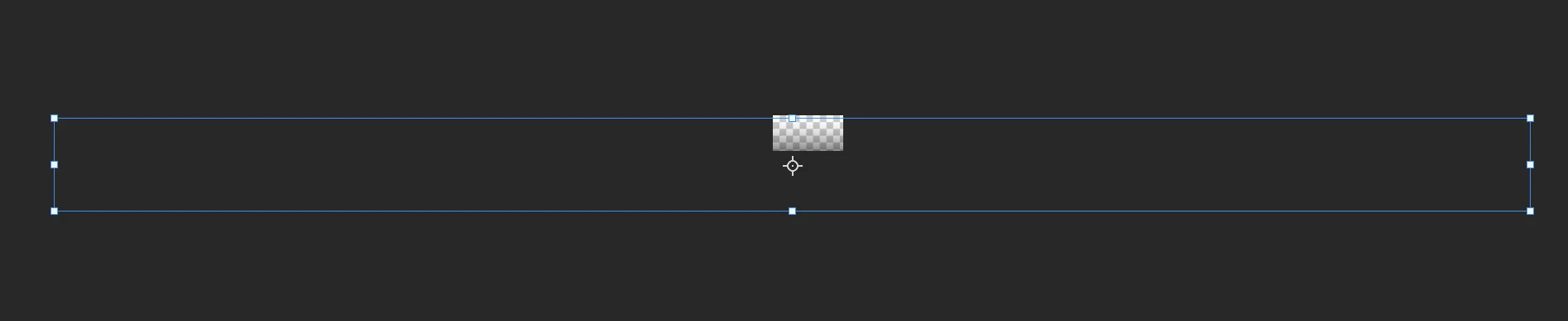
But you've suggested that the problem may be in the file itself. And indeed! One layer turned out to be problematic — the fill with a mask. Apparently, at some point during the editing, the borders of the mask turned out to be too large. By bringing them to normal values, the problem was solved. Thanks!

3 replies

владимирб53587655AuthorCorrect answer
Participant
April 24, 2025

I tried @AxelMatt methods, but it didn't solve the problem.

But you've suggested that the problem may be in the file itself. And indeed! One layer turned out to be problematic — the fill with a mask. Apparently, at some point during the editing, the borders of the mask turned out to be too large. By bringing them to normal values, the problem was solved. Thanks!

Anshul_Saini
Community Manager
Community Manager
April 24, 2025

Hi @владимирб53587655 — thanks for flagging this!


Please try the suggestions shared by @AxelMatt.


Additionally, this error can sometimes happen if the final document size exceeds Photoshop’s internal limits. A few things to try:

  • Switch from cm/mm to pixels when resizing, to get a better sense of the actual image dimensions.

  • Lower the resolution temporarily and see if it allows the size change.

If the issue still occurs, would you mind sharing the PSD file with us? We’d be happy to test it on our end to confirm and help with it.


Best,

Anshul Saini

AxelMatt
Community Expert
Community Expert
April 24, 2025

Restart you PC (cold boot) and then try again.


Another try is to reset the preferences of Photoshop using the steps described here:

https://helpx.adobe.com/photoshop/using/preferences.html#reset-preferences

It's recommended to backup your settings before resetting the preferences.

See here:  https://helpx.adobe.com/photoshop/using/preferences.html#backup-photoshop-preferences


My System: Intel i7-8700K - 64GB RAM - NVidia Geforce RTX 3060 - Windows 11 Pro 25H2 -- LR-Classic 15 - Photoshop 27 - Nik Collection 8 - PureRAW 6 - Topaz Photo AI