
How do I ensure multiple artboards have consistent image placement and text appearance?
I have a set of artboards which will be used, hopefully, to output a set of thumbnails:
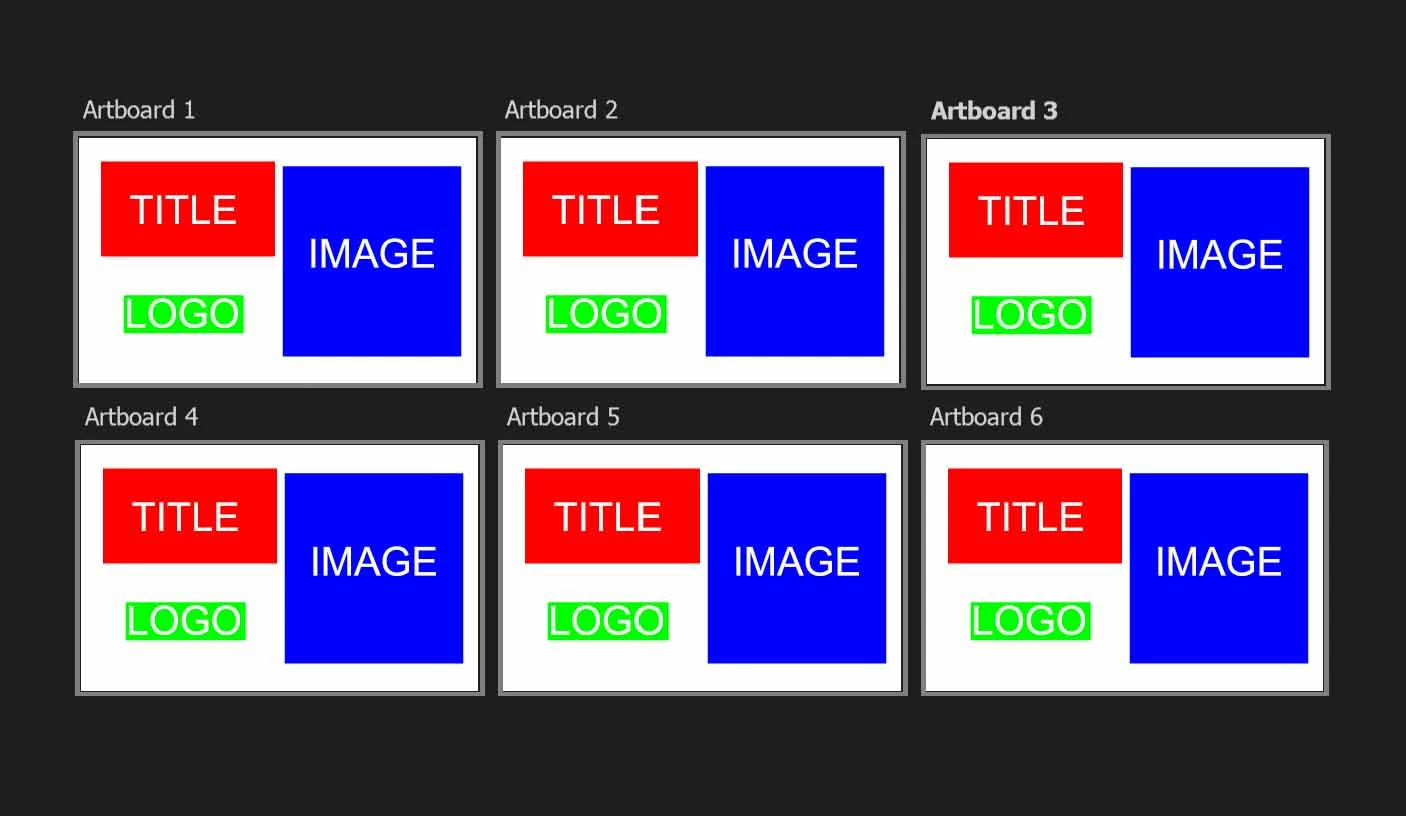
I want to set up these artboards so that I can make adjustments and have them apply to all artboards so that the images that are exported will be uniform.
1. In the title area, I want to be able to set it up so that the font, text color, and layer effects will update for all if I update one, or update some kind of source template. The title text content is different in each artboard.
I believe this should be possible with libraries, but when I try to create library items by dragging the title into the library windo, it seems that either the text content gets included and can't be edited. Or, if I try to only save individual properties like font or color, they are saved into multiple library items that I don't seem to be able to apply to anything. My expectation is that when I drag a font from my library onto some text, that text will take the font. Instead, what happens is a new "lorem ipsum" text is created and placed in the image.
Can I not set up some kind of bundle of properties so that I can have an overall title look that, if edited, is applied across all artboards?
2. The logo is an image. If the client asks me to move it slightly to the left, how can I make sure its position will be the same in every single artboard?
3. The image is a clipping mask attached to a picture that can be different in each artboard. How do I set it up so that if I move or resize the clipping mask layer, it will be updated across all artboards?
Thanks for any help.
 AdChoices