
(How-to Question) Disable Rubber Band
Hello. I'm on Photoshop 2024, and sorry if this is a newbie question but i didn't have this issue before (maybe it was disabled with me before) and online searches only gave me outdated solutions that didn't work anymore.
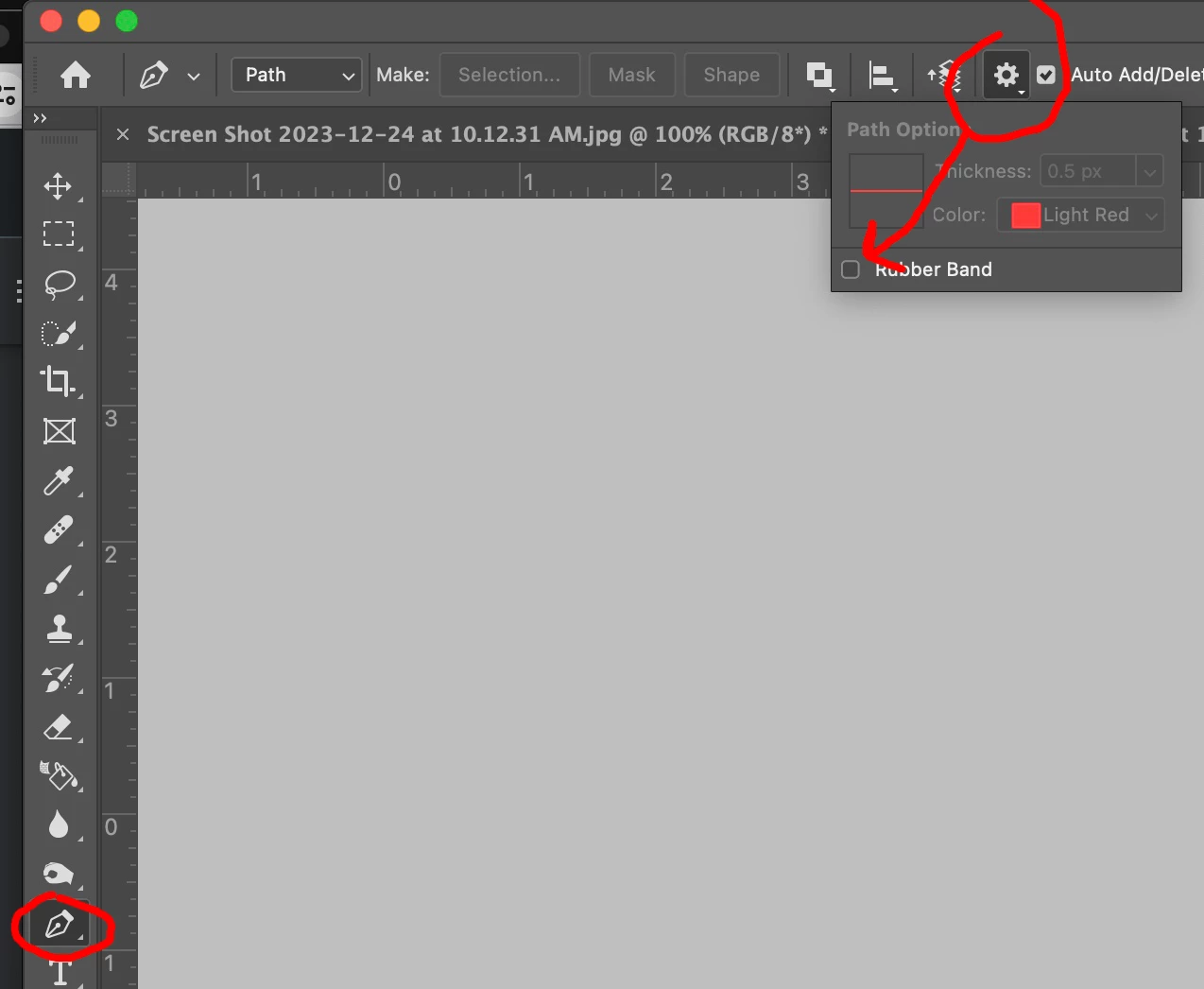
In Photoshop, while making a straight line either with a brush tool or a pen tool, after using shift+click, when i try making a second line, i'm having a follow up line from the end point of my previous line to the beginning of my new line. I'm guessing this is called rubber band (as explained on an illustrator post here https://community.adobe.com/t5/illustrator-discussions/turn-off-pen-tool-guide-line-rubber-band-illustrator-cc-2014/m-p/6368141).
However none of the solutions online about disabling this is available on my interface. I don't have a settings icon (gear icon) on the top menu that displays "Rubber Band" to uncheck it. My gear icon there only shows smoothing options, none of which are related to this.
Sorry, it's just drove me nuts I thought asking wouldn't harm.

 AdChoices