tomm52138006
Participant
August 21, 2017
Answered

How to select and reshape an object

  • August 21, 2017
  • 4 replies
  • 2236 views

Hello,

I am new to photoshop and am having trouble selecting and manipulating an object in an image.

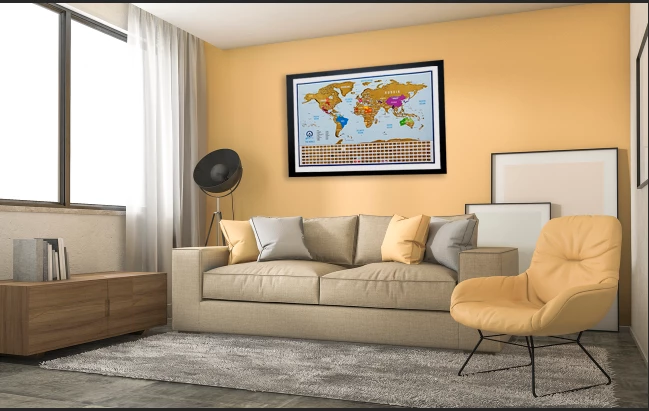
I want to select the framed map in the below picture, and move and resize it. I have tried using the Quick Selection tool to select it, but when I then try to move it it doesn't move. Can anyone provide me with step by step instructions to move and resize it?

Many thanks.

    This topic has been closed for replies.
    Correct answer Abambo

    To follow this on a Mac, use Command instead of CRTL!

    Use the Polygonal lasso tool to select the object. Be sure to include the shadow.
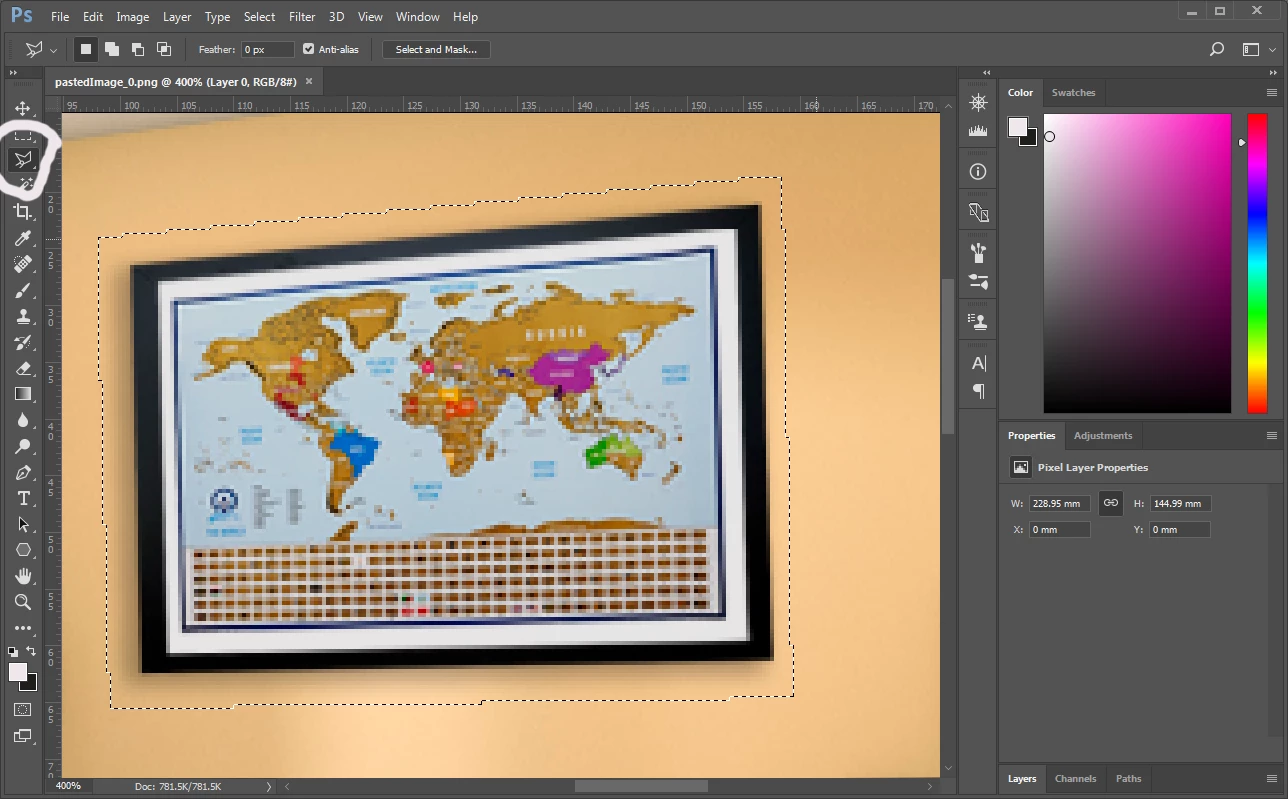
    Copy and paste to a new layer. (CTRL C - CTRL V):

    Getting rid of the image on the background layer now!

    Reselect your selection by CTRL-clicking Layer 1 (this selects according to the layer's transparency!). Click the eye-icon on Layer 1, this makes layer 1 invisible for the moment. Click Layer 0 to select that layer. Choose "Edit->Fill" and push OK.
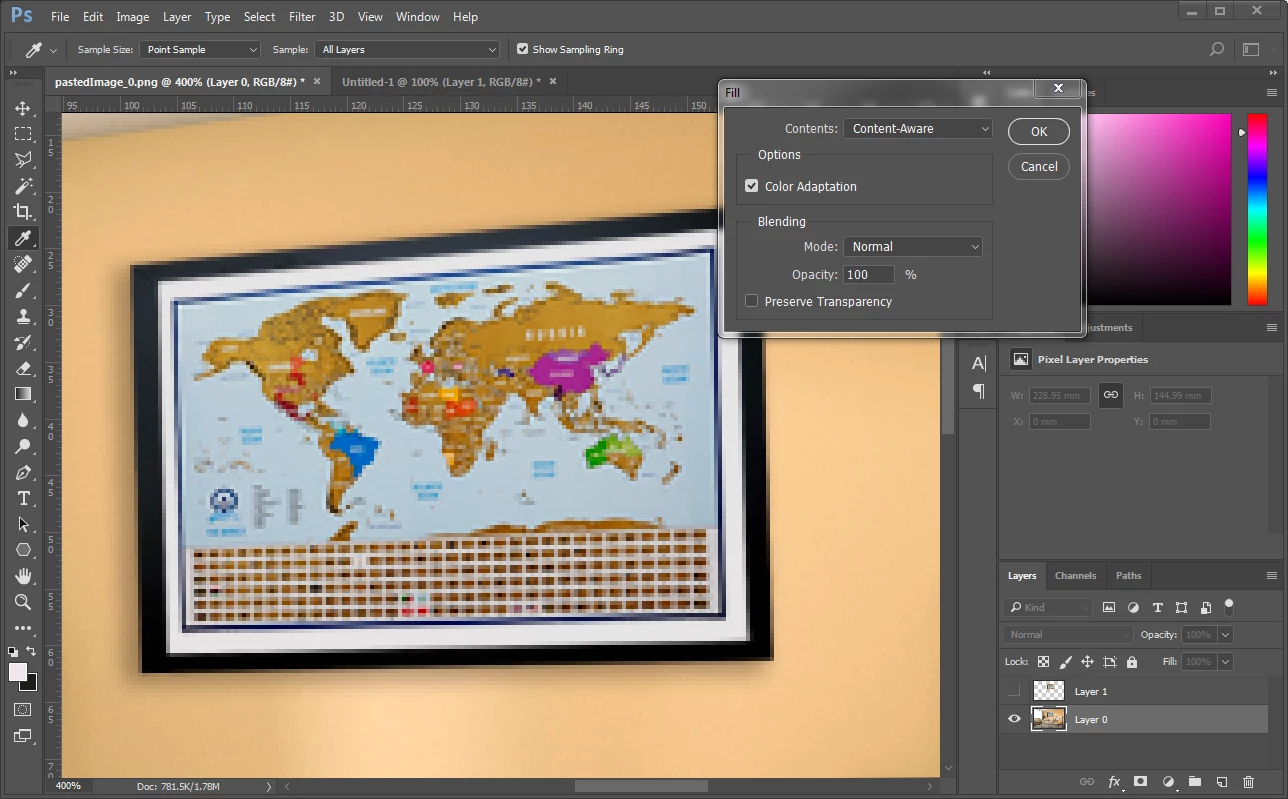
    Your (background image should now look like this:
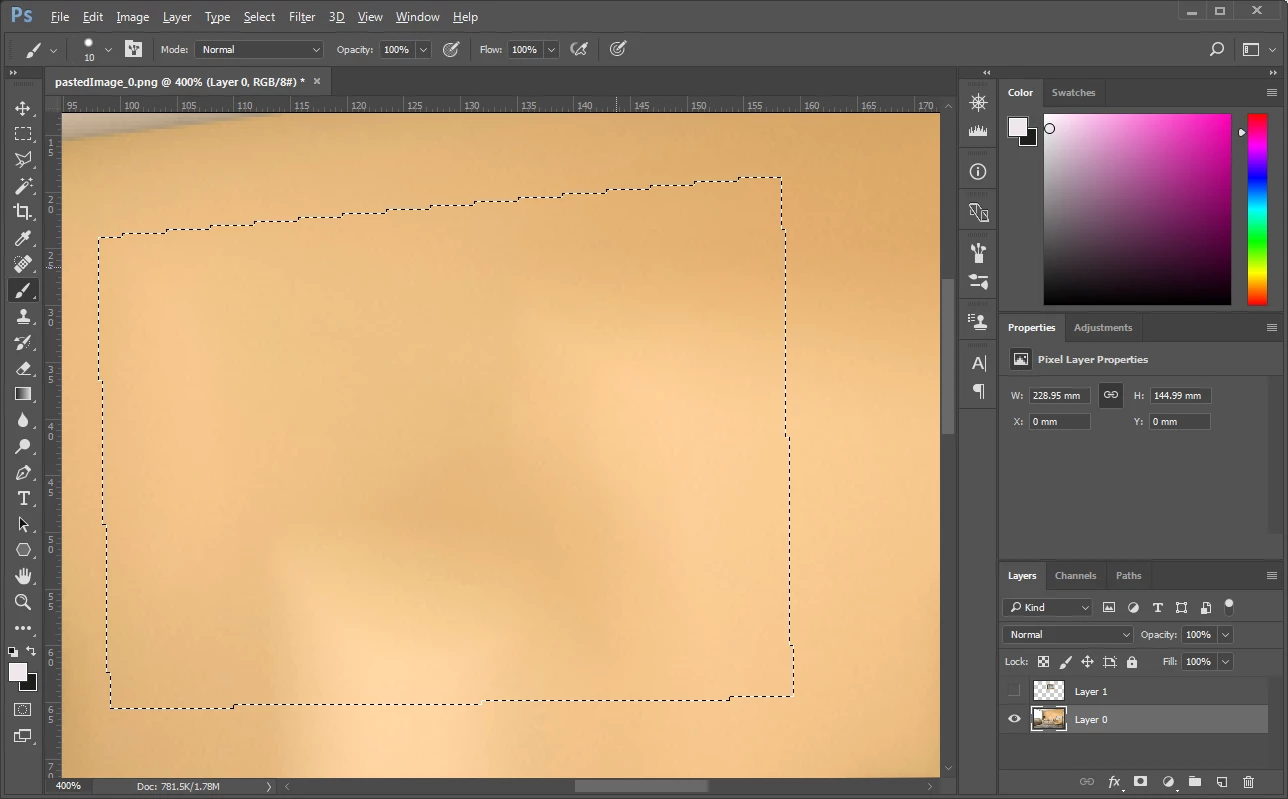
    Ctrl-D deselects and when you click the eye-icon again, Layer 1 is again visible.

    The Cross-icon in the tools (or V) will allow you to move the current layer around. So select Layer 1, and type V.

    You can now move the world map to any spot you like.
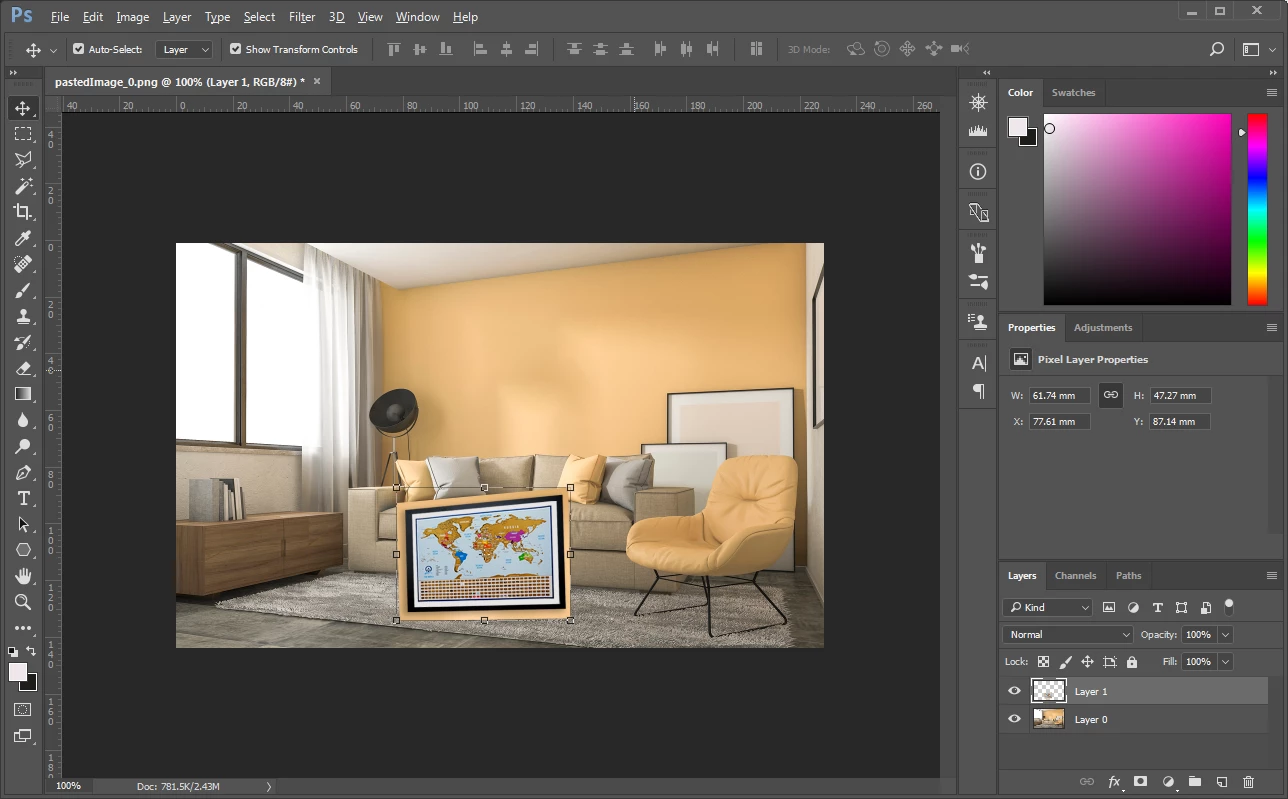
    You should, however, refine the cutout to get rid of the orange wall colour. You can do that in different ways, I would either use the eraser tool (E),  the Lasso tool to select the image frame, then invert the selection and delete the wall part or create a mask on for Layer 1.

    All depends on the complexity of the object and how the image should be treated afterwards. I would also refine the wall so that the manipulation  (content aware fill) would not be so obvious.

    Please note that on the Edit-menu you will find the transform tool to resize the image and to adjust the perspective. And to be perfect, you could also add a shadow, either on a different layer or Layer 1. I would, however, suggest for manipulations like this to work extensively with layers.


    4 replies

    Norman Sanders
    Legend
    August 22, 2017

    Image 1: Original

    Image 2: the wall was roughly selected and placed on a separate layer so that the Edit > Fill > Content Aware command (losing the framed map) would not select areas for reference that were not the wall. This was followed by a Gaussian Blur to smooth the wall surface.

    Image 3: The result.

    Image 4: Selection of the framed map without the shadow which, as cp pointed out, was inconsistent with the lighting and would have to be reconstructed.

    Image 5: Shows the new position and rotation of the framed map. (Note the guides)

    Image 6: Final. Note in the Layers panel that a new framed map shadow was created.

    Abambo
    Community Expert
    AbamboCommunity ExpertCorrect answer
    Community Expert
    August 22, 2017

    To follow this on a Mac, use Command instead of CRTL!

    Use the Polygonal lasso tool to select the object. Be sure to include the shadow.

    Copy and paste to a new layer. (CTRL C - CTRL V):

    Getting rid of the image on the background layer now!

    Reselect your selection by CTRL-clicking Layer 1 (this selects according to the layer's transparency!). Click the eye-icon on Layer 1, this makes layer 1 invisible for the moment. Click Layer 0 to select that layer. Choose "Edit->Fill" and push OK.

    Your (background image should now look like this:

    Ctrl-D deselects and when you click the eye-icon again, Layer 1 is again visible.

    The Cross-icon in the tools (or V) will allow you to move the current layer around. So select Layer 1, and type V.

    You can now move the world map to any spot you like.

    You should, however, refine the cutout to get rid of the orange wall colour. You can do that in different ways, I would either use the eraser tool (E),  the Lasso tool to select the image frame, then invert the selection and delete the wall part or create a mask on for Layer 1.

    All depends on the complexity of the object and how the image should be treated afterwards. I would also refine the wall so that the manipulation  (content aware fill) would not be so obvious.

    Please note that on the Edit-menu you will find the transform tool to resize the image and to adjust the perspective. And to be perfect, you could also add a shadow, either on a different layer or Layer 1. I would, however, suggest for manipulations like this to work extensively with layers.

    ABAMBO | Hard- and Software Engineer | Photographer
    c.pfaffenbichler
    Community Expert
    Community Expert
    August 22, 2017

    The image seems to have been digitally inserted (notice the direction of its shadow) – ideally you should use the original layered image.

    As the image has relatively sharp straight edges I would recommend using the Pen Tool to create a Path and use it as a Vector Mask on a Smart Object.

    Silkrooster
    Legend
    August 21, 2017

    What version of photoshop do you have? Content aware move is a recent feature.

    You will find the content aware move tool in the spot healing brush fly out.

    The example above was just a quick example to show that it can be done in the latest version. I also use the content aware fill to get rid of the artifacts. Several other tools would be more accurate.