
Known Participant
June 30, 2021
Question

Image looks completely different when it opens in Camera Raw

  • June 30, 2021
  • 12 replies
  • 22961 views

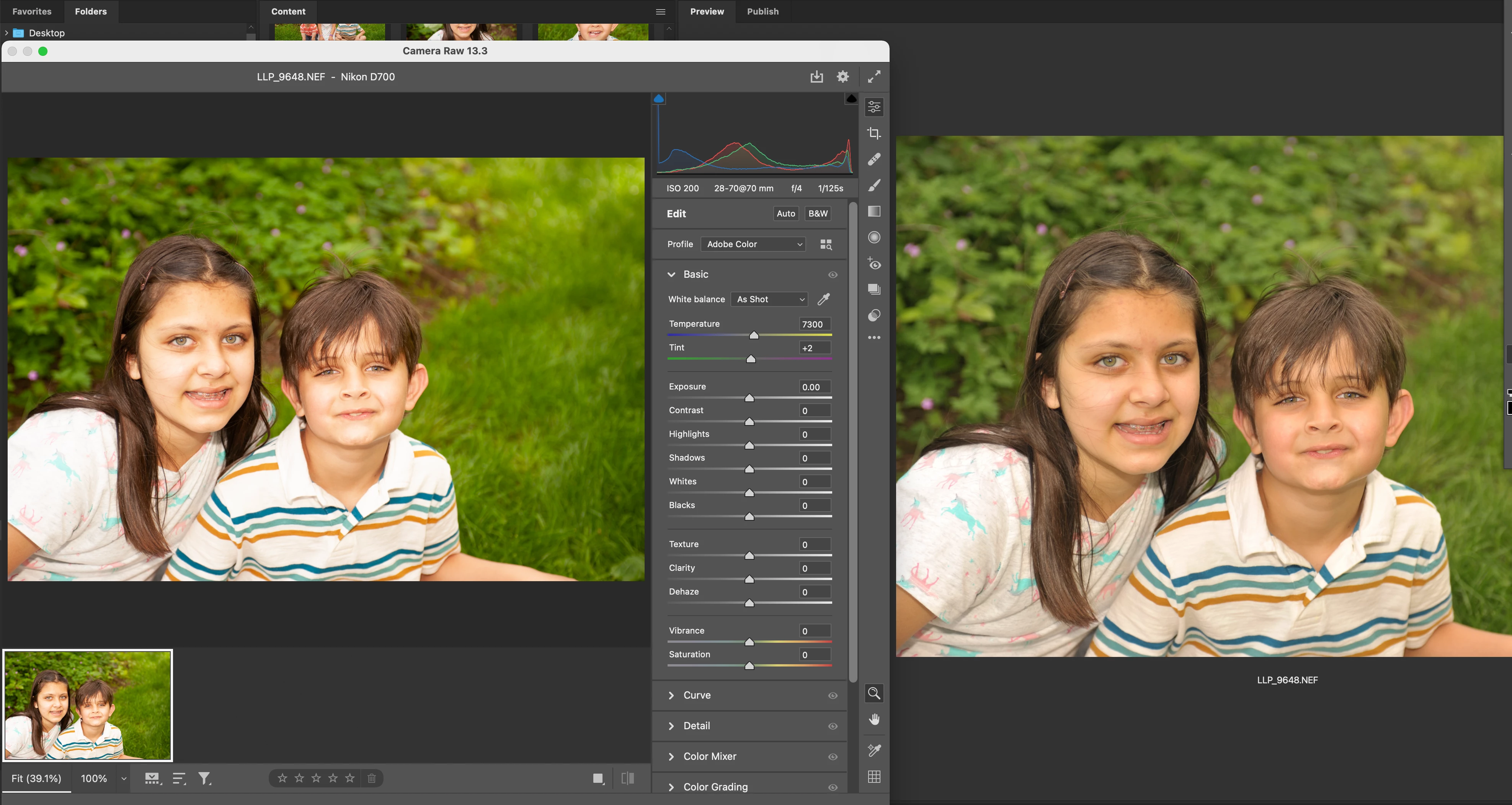
Can anyone help me understand why my image looks completely different in camera raw? I'm fine with how it's shot, then I open it, it opens in camera raw, and looks terrible!! All blown out and contrasty!! And that's the way it stays when I open it in Photoshop. What's going on? I'm attaching a sample... Camera Raw is on the Left, Bridge view (and how it looked on the back of my camera), is on the Right.

Shooting with a Nikon D700 and using the latest versions of PS and CR. Thanks!
12 replies

New Participant
May 17, 2024

I think I found a solution! I believe it has to do with the "Raw Default Settings" in the Camera Raw Preferences. If you do not want the profile to automatically open up as an Adobe profile (such as "Adobe Color" or "Adobe Standard") then you need to set the Global Raw Default to "Camera Settings" instead of "Adobe Default." 


To do this:

  • Open an image in Camera Raw
  • Open the Camera Raw Preferences dialog box by either:
    • Clicking on the gear-shaped icon* in the top right of the window - SEE Settings Icon.png*
    • Using the keyboard shortcut (Command+K on a Mac)
  • Go to the "Defaults" section* of Preferences (It should be the 4th one down) - SEE Camera Raw Preferences.png*
  • Go to the "Raw Defaults" sub-section
  • Click on the drop-down menu next to "Global:"
  • Select "Camera Settings" instead of "Adobe Default"
  • Click OK to solidify the setting change.


Once you do this, every image should open up automatically in the profile settings of your camera rather than the Adobe default profiles, such as "Adobe Color" or "Adobe Standard."


I've included screenshots to show where the icon is and where the sections are within the Camera Raw Preferences. 


I hope this helps!

Stephen Marsh
Community Expert
May 18, 2024

https://helpx.adobe.com/camera-raw/kb/acr-raw-defaults.html


My understanding is that Adobe make their own best guess/interpretation of OEM "camera settings", it's not as if Nikon or Canon etc. provide Adobe with their secret special sauce to make raw files look like camera JPEG files.

Nathaniel Huard
Participating Frequently
August 25, 2023

Hello everyone, I had Adobe support helping with this and my RAW files now look much better! Try going into Lightroom Preferences -> Performance, and purge the cache in the section: Camera Raw Cache Settings


Then choosing the image I want to work with, and setting the Profile, to the one from my camera (see screenshot) fixed the problem.


I have asked to agent who helped me to update this post with instructions just in case I'm missing something else he might have done.


Does this work for you ?


New Participant
August 25, 2023

This did not help me. I appreciate the input though. Is there away to clear the Photoshop cache? Hopefully, the person who helped you comes in an updates the thread. 

Nathaniel Huard
Participating Frequently
August 25, 2023

Did you restart your app, even try restarting your computer, and see if it works.

Nathaniel Huard
Designer Graphique

[PII removed]

New Participant
August 25, 2023

I've had the same problem for the past 3 years so I'll be glad if this is resolved one day. 

New Participant
August 24, 2023

As of today, I'm having the same issue. My photos look terrible once I open them in Photoshop. Same camera settings, no changes that I've made to my Photoshop settings. I can't work with these and have no idea what to do.

Participating Frequently
July 31, 2023

I just spoke on the phone with a senior photoshop tech support woman. I let her have remote control of my PC to check the settings were all as they should be on my device and on Lightroom. She couldn't find any reason why this would be happening. She said that the 'blown out' looking photos in Camera Raw and Lightroom are actually the raw photos, and the ones viewed on the computer image viewer are previews which have a darker overlay on them, and dragging the exposure down in LR will bring them to my desired look. So I suppose the final solution here folks is to take less bright photos if we don't like the way they look. 

D Fosse
Community Expert
July 31, 2023

A fact that people tend to miss in these situations is that it's exactly the same sensor data. It's exactly the same camera exposure.


It's not really lighter or darker! It's just different processing.

New Participant
August 25, 2023

A fact that people tend to miss in this thread is that most of the people with this issue DO understand RAW images. We know that using a different processing option will change things, and selecting a different color profile and settings when initially working with the RAW image in Photoshop can result in the image we want.

The issue is that in the past, using the exact same settings and even the exact same RAW images, the default result with no editing, using the default Adobe Color profile, the image was close to resembling the JPG copy that we saw when we snapped the photo and what see when we preview the photo. It required little work to obtain the result we wanted.

Then suddenly, with no changes made, Photoshop decided that when importing RAW images from the same camera, same camera settings, same Photoshop settings, everything! That the photo would look like ass. Now instead of opening the raw image, making small minor adjustments, and being happy, we have to change the profile and make lots of changes to get the result we wanted. 

Yes, RAW images can be interpreted many different ways, and the photo is not actually "lighter," but the work we need to achieve the photo we want just tripped out of nowhere for no reason.

To further my point on the inconvenience of the issue, nobody wants to snap pictures with a camera after spending the time getting the settings right to achieve close to the look that you want, just to have to do a ton of work in Photoshop to get back to that look!? It doesn't make sense. There's a reason why before this spontaneous change, Photoshop interpreted the RAW images with default settings in a way that matched the JPG, because it makes sense. 

Nathaniel Huard
Participating Frequently
July 7, 2023

I'm having the exact same issue in both lightroom and Camera Raw, did you find a solution ?

I just uploaded my portraits and all was good for a second there, but now the colors don't feel rich and contrast is completely blown out. I would have to reduce hilights and whites way down to get a result that is barely descent...

I checked my camera settings = sRGB, then I tried going into lightroom to "Profile" - "Browse" - and switched to "Camera Matching" there are options available there, the result seems better but still not great...

Going into the Creative Cloud app, I see that Lightroom is up to date, I'm updating Photoshop right now, and will update the Mac operating system to see if it fixes the issue...

Let me know if anyone has found a solution,

Thanks !

New Participant
July 2, 2023

Has this been solved? I agree that all of the comments here are not understanding/addressing the actual issue. 


I have been working with Photoshop for years, and this just happened to me today. Previously I would shoot raw, and I would pull up all my JPG images and choose which ones I wanted to edit. Then I would open my .CR2 (RAW) image and it would look almost identical to my JPG; however, I would have much more editing capabilities.


I was shooting shoes today, and I edited the first picture I took this way, and it worked fine. After that, I took more pictures (I didn't change any camera settings or photoshop settings) later, I go to edit the photos, and this started happening. You can see the JPG looks good, and the CR2 (RAW) looks good in the file preview, but when I open the image, it completely changes and gets all washed out and super bright. 


I understand I can change the color profiles and get the photos to a better, more accurate starting point, or I can edit them to be closer, but why has this randomly changed? I used to open RAW images, and they would almost match my JPG's with all default settings, letting me fine-tune them quickly. Something is wrong in a photoshop setting and I don't know what. I know its photoshop and not the camera because the original photo I edited earlier today is doing it now but was not doing it earlier. 

Participating Frequently
July 3, 2023

Unfortunately I havent found a solution. My friend and I have the exact same camera and lens, so we went through and made our settings match exactly, then took the same photo. It looked washed out in my adobe camera raw/photoshop but fine on his. This leads me to believe it's defo not a camera settings issue. We were both running the same version of PS. Regretably we didnt have time to spend matching up all our PS settings to see if we could find the problem there. 

New Participant
July 3, 2023

I actually had the same thing happen to me in Premier Pro about a year ago. Everything looks fine, even when editing and then exporting it's all washed out. I know it's a setting issue in PS or Premier for sure. Just not sure where it is. For now, I'm using the "Camera Faithful" profile until a real solution can be found. Super disappointing though., as Photoshop is a staple in my work and this is quite annoying. 

davescm
Community Expert
June 30, 2021

Hi

A few things have come up in this thread.

1. Opening in camera raw does not match the camera preview. 

It is not supposed to. Opening camera Raw, is just a starting point from which you adjust the controls. Adjust them well and you will get a much better result than the camera preview. You can set a default profile that is close to the camera but that does not matter, it is still just a start point. Note though that those camera raw 'profiles' are completely different and do a different job to the ICC color space profiles embedded in an RGB document - see below.

2. You mention your camera is set to sRGB. That is irrelevant to raw and only applies to jpegs from the camera and any jpeg saved with the raw file. For the raw conversion it is ignored totally.

3. When you have adjusted your raw file using the camera raw settings then it opens in Photoshop and uses the colour profile that you set in camera raw preferences. It is in those camera raw preferences that you choose whether to open in sRGB or the wider Adobe RGB color space, or the much wider Pro-Photo.

4. The warning that a document has an embedded profile that differs from your default working space is just that - an informational warning. Just use the embedded document profile and carry on.


Dave

Known Participant
June 30, 2021

I'm used to my images coming out very nicely when I shoot. This is a completely differnt (obviously). My tones should be even and not look over saturated and blown out in areas. Again, this is the first time I've had these issues. Normally, the image comes out looking great... on the back of my camera, in Bridge after downloading, and in CR. I rarely have to make any adjustments...

D Fosse
Community Expert
June 30, 2021

How much initial difference you see depends on the type of image. Again, these are completely different processing engines, and they are not supposed to match. And you are not supposed to just accept the initial rendering in ACR. The sliders are there for a reason. Use them.

Inspiring
June 30, 2021

As I understood in the past the back of  your camera shows the embedded jpg and camera-raw the real RAW.

D Fosse
Community Expert
June 30, 2021

That's right. This has nothing to do with color profiles or color settings.


This is the difference between the embedded camera-generated jpeg, and ACR's initial, default value rendering. You're supposed to use the sliders in ACR to get the result you want.


These are two completely different processing engines, so they will always be different.

Known Participant
June 30, 2021

I've been shooting with this camera for years, and the settings haven't changed. What has changed is the various upgrades to Photoshop. I don't understand why this is 'all of a sudden' happening. It was never the case in the past 20 years for me...

I appreciate your feedback.

Community Expert
June 30, 2021

An obvoìously double check or reset camera raw settings.

Known Participant
June 30, 2021

How do I reset Camera Raw settings. I don't see an app for Camera Raw. It's within Photoshop. I'm on a mac btw.

It's weird. I've been doing photography for 20 years, using Camera Raw, and this has never happened to me B4.

War Unicorn
Community Expert
June 30, 2021

You can access Camera Raw settings either directly within Camera Raw (via being invoked in another app like Bridge) or using Photoshop (Edit on PC) > Preferences > Camera Raw on the menu bar.


Something's up with your flow. Usually, Camera Raw opens RAWs with your camera's settings, but a profile from Adobe is being applied. (i.e., It shouldn't be "Adobe Color.") For example, any of my untouched Fujifilm RAWs open up with the standard "Provia" setting (this is Fuji's own built-in RAW profile). I forgot what it was from Nikon but they definitely have their own.