
Participant
January 28, 2019
Question

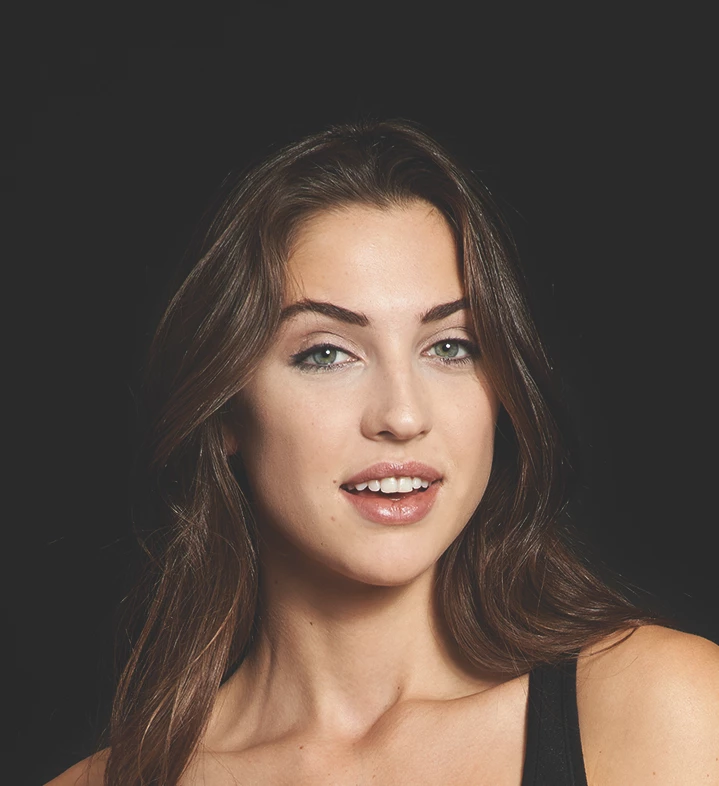
Isolating dark brown hair from a black background.

  • January 28, 2019
  • 3 replies
  • 5034 views

Im having issues isolating dark brown hair from a black background. I've tried 3-4 techniques at this point but Im having issues with the hair blending into the black background making it impossible to properly select the models hair. Select and mask is impossible to use on Photoshop CC as he can't detect the difference between the hair and the background. New photography at this point is impossible so I have to remove this background. Anyone have any pointers on how to get this done well and quickly?

Thanks!
This topic has been closed for replies.

3 replies

Stephen Marsh
Community Expert
Community Expert
January 29, 2019

Which gets one something like this as a start point after a few apply image steps and curves:

The rest probably comes down to more manual work...

Brief Description:

  • Duplicate file
  • Assign Pro Photo RGB ICC profile (optionally increase vibrance or saturation)
  • Convert to Lab mode
  • Target the “a” channel and use apply image to increase contrast as a start point, before making further refinements to the mask
  • Apply this mask channel data to the original file, again possibly making refinements and perhaps “faking” the hair edges where necessary (when done correctly nobody will know what the original looked like anyway so be pragmatic)

P.S. Depending on CMYK profiles with different GCR, you may find the CMY vs. the K channel to possibly provide the required contrast to help in making a mask.

Good luck! I can describe the rationale behind this method if it is not obvious.

Trevor.Dennis
Community Expert
Community Expert
January 29, 2019

Like Dave says. It is such a difficult selection, you are just not going to get a good, acceptable result.  You'll either have those horrible ropey looking artefacts on the periphery, or you'll remove so much of the hair it will be obvious.  The only way to save this sort of situation is by painting hair back in.

This was as close to an edited original as I could get, with a view to making a selection.  This was with Calculations and levels

Select & Mask gave me this using the above layer to make the selection, and adding a layer mask to the original with that selection in place.  It has that thick ropey look in a couple of places, and hair is missing.  Not acceptable.

This is the start of the process of adding new hair.  I'd expect to spend 30 minutes to do a proper job.  I use the Hair and Skin brushes by Castrochew, as well as one pixel fully hard brushes set to Fade, on layers set to 50% opacity or less.

jane-e
Community Expert
Community Expert
January 29, 2019

Trevor.Dennis​, that’s brilliant!

davescm
Community Expert
Community Expert
January 28, 2019

Well that is about as difficult as it gets. Do you know what background it is to be used against? A dark to mid shade background with "busy" features will require less work than a bright smooth white and on the latter you may need to resort to painting in manually some lost edge hair.

I would start with the red channel and see what can be extracted from there - then combine it with other techniques as required.

Dave

Sahil.Chawla
Adobe Employee
Adobe Employee
January 28, 2019

Hi Joannac,

Could you please check these two tutorials and see if it helps?

Cutting Hair using Dis-Saturation method - PART 1 - YouTube

Select and Mask Subjects in Photoshop - YouTube

Regards,
Sahil