


Khaleesima
Participant
August 31, 2018
Answered

Lining out text in photoshop

  • August 31, 2018
  • 3 replies
  • 775 views

Dear forum members,

I am creating a logo that exists out of pure text. See the screenshot that I attached to this post.
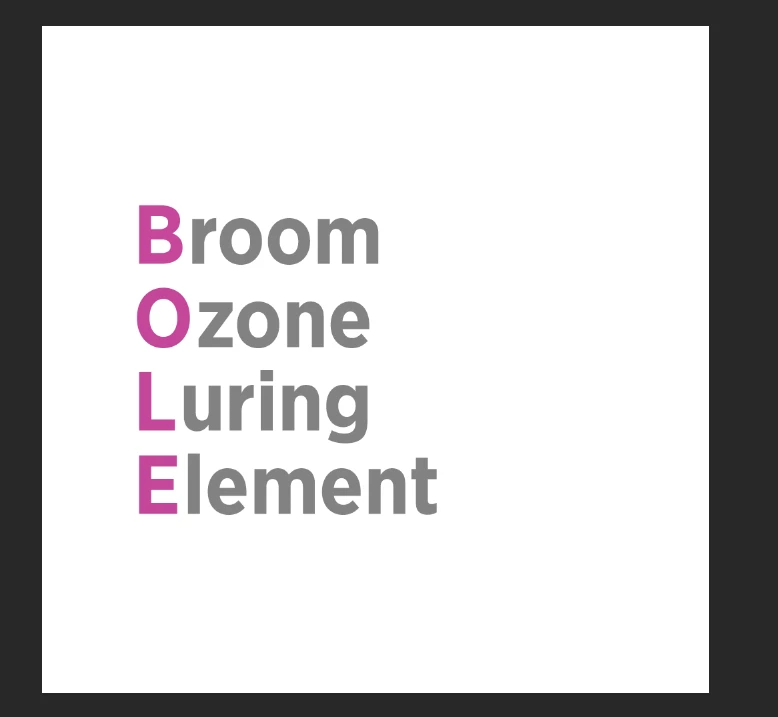
Now, as you can see, I want this:

Broom

Ozone
LuringElement

BOLE would be vertical, bold and in another color compared to the remaining parts of the words.

BOLE, would be - most important of all - lined out so that:

room

zone

uring

lement

Would all start from the same position, as they do in the above 'plain' text.

I tried everything I could think of, but I just can't get it to line out properly.

Does anyone that knows what I want (my apologies if I'm rather vague-ish), how I can get what I want?

Is this even possible, at all?

Cheers,

G

    This topic has been closed for replies.
    Correct answer Ronald Keller

    Two ways.(maybe someone knows even more possibilities)

    1 make two separate words instead of one so you can place the "b" separate from the "room" (use guides to be able to position accurately)

    2 Place your cursor between the first en second letter, then use Alt + left/right arrow keys to change the kerning

    3 replies

    Legend
    August 31, 2018

    You may find it helpful to look through the information here, especially the section on line and character spacing.

    Photoshop Help | Photoshop User Guide

    Jeff Arola
    Community Expert
    Community Expert
    August 31, 2018

    Unless i'm missing something in your description, it looks like you could just type the text normally and then change the colors of the text.

    That is, type Broom, hit return/enter, type Ozone, hit return/enter, etc for the rest.

    Then using the Type Tool cursor to highlight parts of the text and change the color like highlighting the B and changing the color to lavender.

    Khaleesima
    Participant
    August 31, 2018

    Dear Jeff,

    As you can see, the r, z, u and l are not aligned. I think mostly due to the 'O' being wider than other letters in the whole thing.

    Perhaps what I'm asking for is absolutely impossible, but perhaps it is with spacing, lining out things, or some other option we're not aware of?

    If anything is or remains not clear, please let me know and I'll try to eleborate.

    Jeff Arola
    Community Expert
    Community Expert
    August 31, 2018

    Something like this?

    Ronald KellerCorrect answer
    Legend
    August 31, 2018

    Two ways.(maybe someone knows even more possibilities)

    1 make two separate words instead of one so you can place the "b" separate from the "room" (use guides to be able to position accurately)

    2 Place your cursor between the first en second letter, then use Alt + left/right arrow keys to change the kerning

    Khaleesima
    Participant
    August 31, 2018

    Going to give this a try. Thank you!