
Participant
September 25, 2018
Answered

Liquify Tool Black pixels after MOJAVE OS

  • September 25, 2018
  • 66 replies
  • 40915 views

Just updated my Mac to Mojave today.

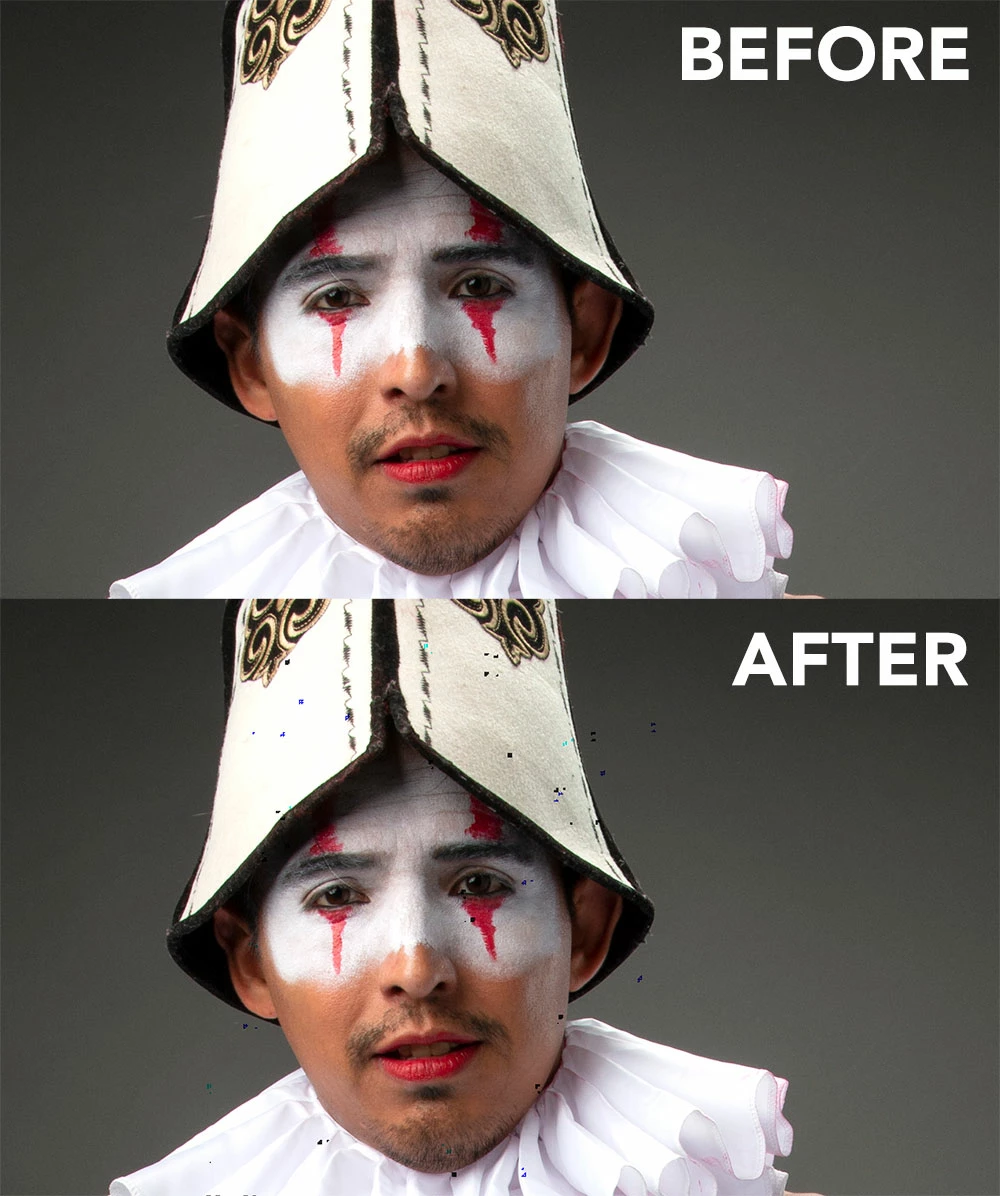
Liquify is creating black pixels when used.

I have tried to optimize performance but I still get the same error.

I have a super fast machine, so is not a RAM error. Liquify was working normally before Mojave OS.

In the image below, I have slightly adjusted the smile of the subject.
This topic has been closed for replies.
Correct answer Jeff Arola

This doesnt work for me.


Apple has just released the 10.14.1 Mojave update so install that and see if the Liquify issue is solved.

66 replies

Participant
February 2, 2019

I get the same issue. It's very frustrating because i used the OPT+click workaround to create a gif and it worked. No pixels were created. I just reopened that file again to edit it, add more frames to my gif, and it added liquification to all the previous frames in my gif!!!

Participant
January 31, 2019

It is depressing. What to do, besides to change something in the system?

Participant
January 29, 2019

Because Adobe can't do anything already 4 months from Mojave release or how to resolve problem yoursef.

Mackbook pro 15 (mid 15) resolving

Painless rollback from not working 10.14.3 to working 10.14.1 Mojave, if you haven't 10.14.1 time machine backup. How I did it today.

About an hour of work.

I found on the internet 10.14.1 Mojave file. Not simple update file. Normal full macos distributive. (it was a bit difficult because you cannot download this version direct from apple link. From apple you can find 10.14.1 update file or 10.14.3 distributive) You can pick my distributive or find it yourself - ( macOS 10.14.1 Mojave.dmg — Yandex.Disk  )
You need to download it.

I think that you need to create full time machine backup just in case.

Turn off your automatic system update in system preferences.


Then you need to create bootable USB with this distributive.
Open the downloaded macos file(double click) then drag "Mojave installation" program to your applications (like another program). After that you can create bootable USB like in this tutorial: https://www.macworld.co.uk/how-to/mac-software/bootable-mac-install-drive-3575875/ with small changing. Read below

  1. Plug in an external drive with at least 8GB space (preferably 12GB) as that’s how much the installer will require.
  2. Launch Disk Utility (press Cmd + spacebar and start to type Disk Utility).
  3. Before this next step - if you are running High Sierra you will need to click on the View drop down below the close minimize buttons. Choose Show All Devices from the options. Now you will see the external root drive in addition to the volume below it.
  4. Select the root drive in the sidebar (the next step won't with if you only select the volume).
  5. Click on Erase.
  6. Choose Mac OS Extended (Journaled) as the Format.
  7. Choose GUID Partition Map as the Scheme.
  8. Your drive will be called Untitled by default, you could give your drive a name such as "USB". (Note you just need to replace the term USB in the Terminal command with the name of your drive).
  9. Click on Erase.
  10. Wait while Disk Utility creates the partition and sets up the drive (this can take a few minutes).
  11. Then click Done.
  12. Open Terminal (the easiest way is to press cmd+space bar and then start typing Terminal). Copy the following text into Terminal for :
  13. sudo /Applications/Install\ macOS\ Mojave.app/Contents/Resources/createinstallmedia --volume /Volumes/USB --nointeraction  (i already changed command for Mojave)
  14. Click Enter.
  15. Terminal will ask for a password. This is your user password. Note you won’t see characters appear as you type it in, that’s fine. After typing in your password, press Enter.
  16. Terminal will warn that it is about to erase the drive (so make sure there wasn’t anything important on it!). Ifyouwanttocontinue press Y and then Return. The process can take a while, you'll see “Erasing Disk: 0%… 10%… 20%… 30%…100%…
  17. Now Terminal will spend a few minutes copying the installer file to your drive. "Copying installer files to disk… Copy complete" and so on will appear in the Terminal window.
  18. When Terminal has finished copying the installer you will see the words Copy complete and Done appear.
  19. Now you have the installer on the external drive you can use that to install multiple copies of macOS. Plug the external drive into the Mac that you want to install the macOS on.
  20. Start up the Mac, holding down the Option/Alt key while it is booting up.
  21. Your Mac will display the Startup Manager, click on your external drive and select Install macOS.

Then you can simply install this version from your USB over the top of 10.14.3 on your system hard drive without format your data. (i don't know why, but it worked in that case) All your data and settings will survive like after simple system update.

Now you have working 10.14.1 Mojave, (i hopefull that) have a nice day!

JohnnyPixel
Participant
January 24, 2019

Hi, i have updated Mojave to 10.14.3 and photoshop to the last update, but the problem with the pixel in liquify is still there.

I have see that if i switch off the graphic acceleration the problem there is't.

What we can do?

Thanks.

Participant
January 23, 2019

I am Upgrade mojave.

10.14.3

Same problem.

Participant
January 22, 2019

IMac  late 2014 10.14.3

fluid is not working correct.

Known Participant
January 22, 2019

Working real fix!

If you copy all kexts "starting with AMD" from System/Library/Extensions from a Mac with 10.14.1.

You can then use a free program for kext installing found online to put the working 10.14.1 AMD drivers into your not working 10.14.2 or 10.14.3!

Adobe moderator decided to remove my previous post from the forum probably because I mentioned another program?

So cant tell you what program to use for the install of the AMD kext from 10.14.1 or have a tutorial with images which is incredibly frustrating...

But this really works!

You just use the program to put 10.14.1 AMD drivers that worked back into your 10.14.2 or 10.14.3 system.

The reason you need a program is because you cant just drag and drop the old drivers in the newer system...

But if you do this you don't need to roll back the entire system but just the drivers.

Should work for all builds that had a working liquify tool on 10.14.1 that had the artifacts return in 10.14.2.

And I tested it on My 2013 MacPro.

Participating Frequently
January 22, 2019

Thanks for that solution.

However changing the kext files/graphics drivers is not something i want to do. There are other programs besides adobe's and those rely on current drivers and i don't want to compromise those.

Given that this solution works, it's even more clear where the problem lies.

Apple has updated their drivers and OpenGL to newer standard, but photoshop is still using outdated libraries and routines for the gpu.

The fact that these artefacts show up, is possibly caused by adobe using OpenGL drawing routines that were not intended for compute work, but only for graphics display. (display routines don't need to be error proof, nobody will notice a small artefact in one frame when there are 30/sec.) OpenCL should be used for using the gpu for compute routines.

Known Participant
January 23, 2019

The 10.14.1 AMD drivers work perfectly fine within a 10.14.2 or 10.14.3 system.

It is a solution to a mayor workflow problem and still have some of the benefits of the newer system.

If you should encounter a problem with any other software you can just as simple reinstall the 10.14.2 or higher drivers within the time it takes to do 1 reboot.

Known Participant
January 17, 2019

honestly scared to do the update in case it screws up something else. enough compromises for now!

i still have to toggle graphics processor off and on for liquify, and i have to only have rulers on when I need them, otherwise I cant use spot heal or clone. *rolls eyes*

CarlosGordillo
Known Participant
January 18, 2019

In order to make the things easy for now:

1.- make two little actions to enable and disable de graphics processor and assign them to shortcuts

2.- with graphic processor ENABLED (of course) make your liquify work normally and click OK

3.- make undo (Command + z)

4.- run your action to DISABLE graphic processor

5.- make Control + Command + f

6.- run your action to ENABLE graphic processor

NOTE: This don't work with the Face-Aware Liqufy tool due this USES graphic processor, but works ok for the other Liquify features. Good luck!

graphicvibeinfo@gmail.com
Participant
January 18, 2019

I'm using it like this but I hate Mojave, it's slow and I get the spinning wheel all the time. My mouse is slow to respond and even though I downloaded new drivers to my graphics tablet so it works it is super slow and sometimes nonresponsive. Also, my photo files on my external hard drives are hard to access slow response time has forced me to sort and upload photos with my old mac book pro that I AM NOT putting Mojave on. This system sucks! It has made my MAC feel like I am working on a crappy PC. thanks for the help --- I'm supper disappointed with Apple right now.

On Thursday, January 17, 2019, 4:46:37 PM PST, CarlosGordillo <forums_noreply@adobe.com> wrote:

Liquify Tool Black pixels after MOJAVE OS

created by CarlosGordillo in Photoshop - View the full discussion

In order to make the things easy for now:

1.- make two little actions to enable and disable de graphics processor and assign them to shortcuts

2.- with graphic processor ENABLED (of course) make your liquify work normally and click OK

3.- make undo (Command + z)

4.- run your action to DISABLE graphic processor

5.- make Control + Command + f

6.- run your action to ENABLE graphic processor

NOTE: This don't work with the Face-Aware Liqufy tool due this USES graphic processor, but works ok for the other Liquify features. Good luck!

If the reply above answers your question, please take a moment to mark this answer as correct by visiting: https://forums.adobe.com/message/10876774#10876774 and clicking ‘Correct’ below the answer

Replies to this message go to everyone subscribed to this thread, not directly to the person who posted the message. To post a reply, either reply to this email or visit the message page:

Please note that the Adobe Forums do not accept email attachments. If you want to embed an image in your message please visit the thread in the forum and click the camera icon: https://forums.adobe.com/message/10876774#10876774

To unsubscribe from this thread, please visit the message page at , click "Following" at the top right, & "Stop Following"

Start a new discussion in Photoshop by email or at Adobe Community

For more information about maintaining your forum email notifications please go to https://forums.adobe.com/thread/1516624.

This email was sent by Adobe Community because you are a registered user.

You may unsubscribe instantly from Adobe Community, or adjust email frequency in your email preferences

Participating Frequently
January 16, 2019

still not fixed with 20.0.2 update. WTH!

CarlosGordillo
Known Participant
January 18, 2019

Apparently it is more up to Apple to solve this problem. Urges a new Mojave update

January 16, 2019

Still the same Problem - even with Mojave 10.14.2

March 26, 2019

Finally fixed with Mojave 10.14.4

raybonstudio
Participant
March 26, 2019

No problems found? Mojave 10.14.4