Participating Frequently
August 3, 2010
Answered

Move Tool does not move layer when dragging with Wacom tablet

  • August 3, 2010
  • 39 replies
  • 107432 views

I am using the trial version of CS5 (probably going to upgrade at the end of the trial), and I've only found one thing about it that I don't like more than CS3. This is VERY VERY annoying, and I'm not sure if it's a glitch, or just a preference that needs to be reset:

  When using the move tool, I will move something and it will just snap back to where it originally was. When it snaps back, it might move a few pixels over in the direction I was dragging, but it is definitely not moving to where I want it to go. The only way to get things to move the way I want to is by Free Transform...but it's annoying, when you're trying to design a layout, to have to free transform every element you want to move, first.

I'm guessing that this is a glitch because sometimes it happens and sometimes it doesn't...it's pretty random. I've tried turning Snap on and off, and nothing changes. Any idea how to fix/change this?

~Mike

Message title was edited by: Brett N
    This topic has been closed for replies.
    Correct answer numeroeins

    Hello,

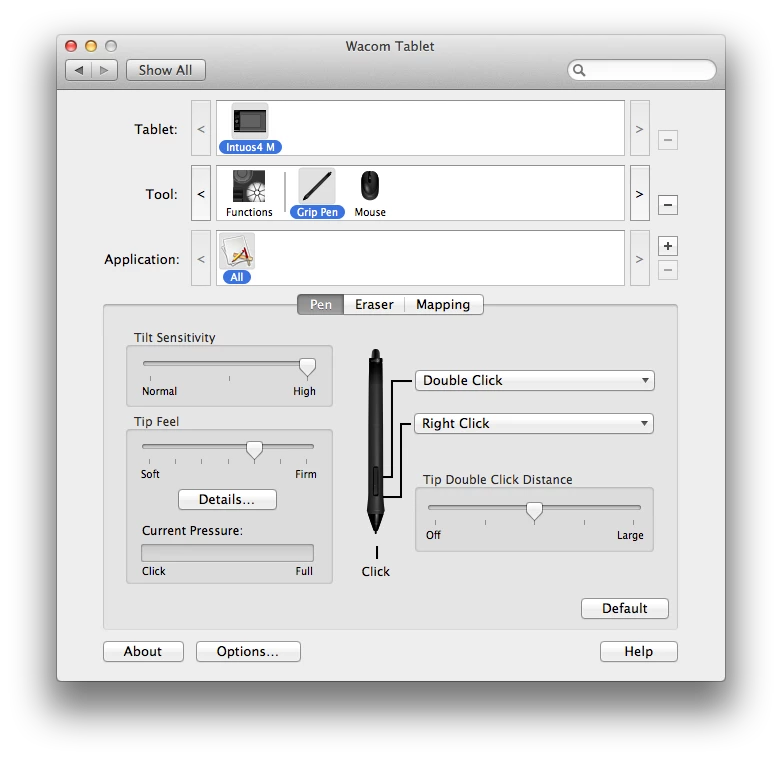
    I think I may have found the culprit. I started using Adobe PS CS 5 Extended the same day I received the Wacom Intuso 4 (about one year ago) and NEVER had a problem until last month when I added Adobe PS CS5 into the application section, see below.

    This is the ONLY change that I made to my wacom settings beside the typical button layout.

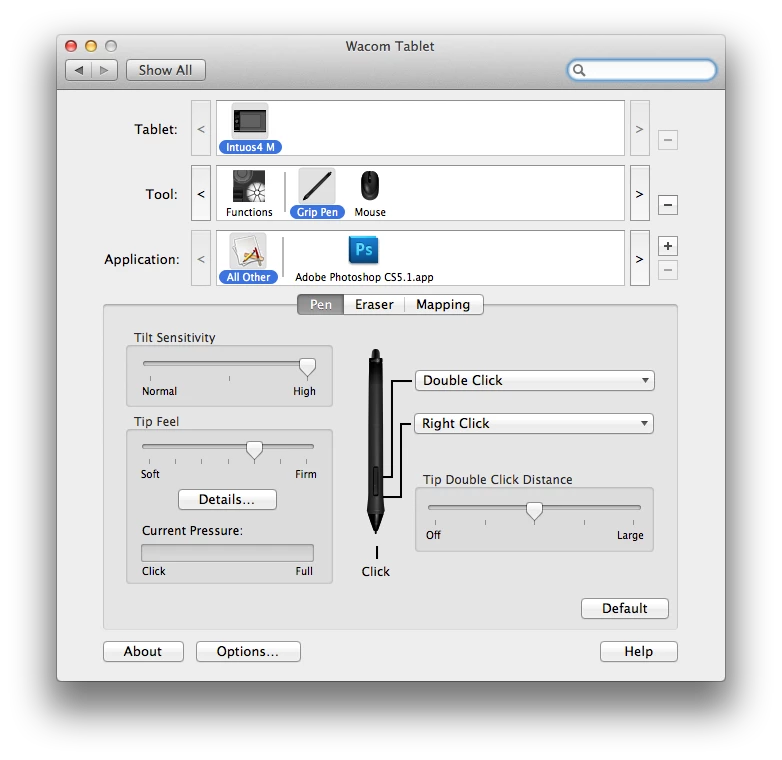
    I just tested this out. I removed the Adobe Photoshop CS5 from the field Application field and restarted Photoshop WITH the tablet plugged in. Now, I can use both the track pad and the tablet. See below:

    Just to test my finding, I readded the application BACK to the application field (Photoshop was shut down; pen and mouse three feet away) and modified my settings like I wanted, then I started Photoshop.

    At first, I was able to use the track, but as soon as I used the pen, the track pad stopped functioning properly and the "jump back" problem started again.

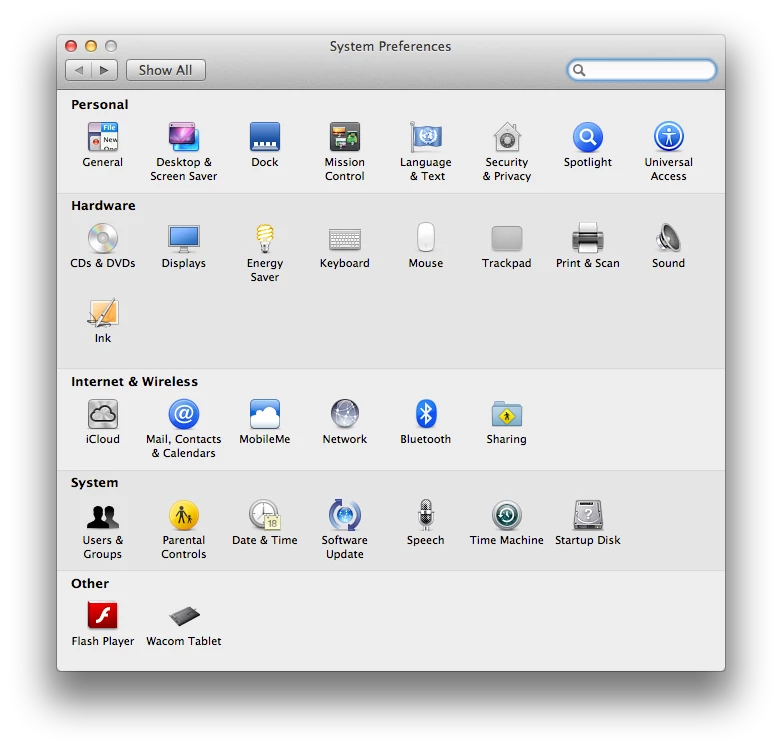
    I only have Flash Player and Wacom in the other field on System Preferences, see below.

    In this case it doesn't matter weather the pen is sitting on the tablet or not. Once Photoshop is removed from the Application field of the Wacom settings, the track pad and tablet work in harmony.

    I hope this works out for you and helps Adobe/Wacom find a solution/fix to the problem.

    Regards,

    Brandon

    Message was edited by: numeroeins

    Message was edited by: numeroeins

    39 replies

    Participant
    May 27, 2020

    Hey,

    I know this is an old post but apparently that thing is still there to me and to my coworker.
    I have PS CS5.1 but apparently this happens with new versions as well.
    I havea Cintiq 16 and I changed in Windows settings Cintiq's screen scale to 100% from recommended 150%. And the problems began.
    The problem was solved when I changed the screen scale back to recommended. 
    Not sure if it is applicable to everyone but for me it was helping.

    Participating Frequently
    September 23, 2016

    Sorry to post on an old thread, especially one that has been "answered" but this odd behavior just occurred for me in Photoshop CS5 and even though I got rid of it by quitting and restarting Photoshop, I still don't know for sure what caused it and if it will come back.

    The odd thing is, I uninstalled all my Wacom software and drivers recently, when I purchased a cheaper Monoprice drawing tablet (and installed the recommended Huion drivers for it.) So, I don't think the Wacom preferences could be affecting it, since they are no longer in effect. I supposed the new drivers could be doing it, but I don't know why they didn't show up until just now, and I never set any for specific applications like Photoshop anyway.

    As of now, quitting and restarting seemed to work, but may not in the future, so I would like to find a more permanent solution.

    Participant
    June 18, 2015

    You can Transform (command + T) the object that needs to move and then drag it to its new location. It's a pain but that's my work around.

    Participant
    April 21, 2015

    I never added Ps to my Intuos preference pane, but am experiencing the snap back problem still. I'm running the latest versions of Ps CC 2014 and the intuos drivers. Any other suggestions people have tried that solved the issue?

    Participating Frequently
    October 2, 2014

    I have the snapback issue as well.

    Started happening to me only recently, Photoshop CC 2014. Random occasions. Using a pen on my Wacom Intuos 5.


    When it happens:

    - Doesn't happen using my trackpad.

    - Does happen using my pen.


    Looks like a processing power thing as well:

    - When moving a layer/group, and keep it in the new position for a few seconds before releasing it, it does stay in that new position.

    - Releasing the layers right after Photoshop renders them in the new position is too early. I then get the snapback problem.

    Participating Frequently
    December 13, 2013

    3 years and this problem still exists? I too have been suffering from the snap back bug for a long time.

    I'm running OSX 10.9, Wacom Intuos 5 with latest driver, Photoshop CS6 with most recent updates.

    After reading all these responses, I decided to look a little more into what exactly is happening.

    I was trying to drag a group with several layers and the entire group snaped back. So I tried moving a layer within the group and it worked fine --there is NO issue with the way Wacom tablet is working. I went back to the  group and tried again and it snapped back again. I then went and tried to move each layer within the group and found a single layer that would snap back (all other layers worked correctly). This offending layer was the only one with a layer mask. The layer mask was locked. Once I unlocked the layer mask or deleted it, the layer itself and also entire group would move freely as expected with no snap back.

    Participating Frequently
    August 14, 2014

    Started happening to me on my home computer. Luckily not happening here.

    I am using a intuos 2 tablet (I know it is old but still does what I need it to do so upgrade for me) and CS5 (which is in the same boat as the wacom. It does what I need).

    Tried every suggestion in this thread and nothing works. I have no layer masks on the files. Curious thing is when I move the layers they snap right back but not in the exact location. I really like how the two companies are pointing their fingers at each other and years later no solution. Very professional.

    Legend
    August 14, 2014

    Do you have any extensions installed? iCopy and other extensions can cause this problem.

    Re: Move Tool in CS5

    Participant
    June 13, 2012

    OK, so I definitley found out that by reading some of these post. Yes Menu tab items do cause an issue. Friendly Facebook which is one that runs in the background on my MAC is the one to cause the problem of not being able to move the layer around. Check your Menu iTems on the top.

    Participating Frequently
    June 13, 2012

    ocean_alexander, what do you mean by Menu Tab Items? I'd like to investigate further.

    -Liam

    Participant
    June 13, 2012

    So on my Mac on the top you have a grey bar all the way across from led to right. I thought that was call the menu bar and some of the items I downloaded from the app store run on that bar. Such as friendly Facebook or logmein. That is what I was talking about. I'm not sure if it the menu bar that gives the issue or the particular software. But I know for sure that "friendly facebook" is not so friendly to Photoshop CS5 :-)

    Participating Frequently
    April 17, 2012

    Here's hoping for a quick reply!

    Participant
    May 17, 2012

    I had this problem with CS5 and couldn't fix it. I installed CS6 and the same problem persists in this version as well. My tablet is the Cintiq 24HD so I can't very well unplug the tablet, it's my monitor as well. Photoshop isn't even installed in the Wacom control panel apps list.

    hirshmonAuthor
    Participating Frequently
    March 9, 2012

    I'm not sure if this is the solution or not...though I really, really want it to be. I checked my settings, and I didn't have any application specific settings enabled. I enabled them, and then disabled them, and then restarted Photoshop...and both worked well! Though, are you sure that it's not just restarting Photoshop that fixed the problem? Also, why did it occur on my system, where no application specific settings were set?

    Either way, both are working together now, which is a very nice change of pace. I'm wondering if the effects will continue to last after a few restarts (hope they do!).

    Also, even if this is the solution...Adobe or Wacom really needs to address this. Users shouldn't have to decide between two useful functionalities.

    Participating Frequently
    March 10, 2012

    No, I don't believe it was the restart. Ever since I removed Photoshop from the applications specific settings, I left it running with the tablet connected to my Mac. The track pad and the tablet were both flawless for well over 6 hours and this morning. --I'm in Kuwait.-- Everything was connected and runing all night.

    Did you test them both when you enabled them? I see that your wrote, "enabled them, then disabled them."

    Here are the exact steps I took to test my finding:

    Shut down Photoshop, tablet  should be connected, enable the application specific setting under Wacom, make a change to the tilt or anything other than the default settings used on all applications (like I did by adjusting my tilt), start photoshop (leave everything connected), open an image, drag something on top of that image, use the track pad to move layer one (if named so), then use the pen to move the item, and finally try the track pad again. It should jump back to the same spot.

    My drivers are up to date. Software is up to date.

    As another test, since you mentioned restarting Photoshop, I left Photoshop running this time and added the application specific settings.

    Here are the exact steps: Photoshop running, tablet and pen connected, pen is about 2.5 inches from the tablet, added Photoshop to the application specific settings, made a change to the tip pressure and tilt (anything than the default settings), closed the system preferences window, returned to photoshop, opened two images, used the track pad to drag an image onto the other (creating a new layer), then I used the track pad to move it around from top to middle to bottom and back, no problems, I then used the pen to move the image to the middle and that was it, and finally tested the track pad again just to find out I have the jump once again.

    In order to remove the jump, of course I have to remove the application specific settings, then restart Photoshop. Just removing the settings alone, will not clear the jump.

    Please note that I'm being thorough in my steps due to the fact that one slight deviation could make a huge difference in the outcome. That is why I'm asking you about the "enable them, disable them" steps you mentioned.

    Anyways, I'm glad it is working for you please do let us know if it stops working again.

    To: Adobe Employees.  Have any of you tested this out in house?

    Brett N
    Adobe Employee
    Adobe Employee
    March 12, 2012

    I'm currently in communication with some folks from Wacom. We are able to reproduce the issue (both at Adobe and Wacom) and are currently investigating.

    numeroeinsCorrect answer
    Participating Frequently
    March 9, 2012

    Hello,

    I think I may have found the culprit. I started using Adobe PS CS 5 Extended the same day I received the Wacom Intuso 4 (about one year ago) and NEVER had a problem until last month when I added Adobe PS CS5 into the application section, see below.

    This is the ONLY change that I made to my wacom settings beside the typical button layout.

    I just tested this out. I removed the Adobe Photoshop CS5 from the field Application field and restarted Photoshop WITH the tablet plugged in. Now, I can use both the track pad and the tablet. See below:

    Just to test my finding, I readded the application BACK to the application field (Photoshop was shut down; pen and mouse three feet away) and modified my settings like I wanted, then I started Photoshop.

    At first, I was able to use the track, but as soon as I used the pen, the track pad stopped functioning properly and the "jump back" problem started again.

    I only have Flash Player and Wacom in the other field on System Preferences, see below.

    In this case it doesn't matter weather the pen is sitting on the tablet or not. Once Photoshop is removed from the Application field of the Wacom settings, the track pad and tablet work in harmony.

    I hope this works out for you and helps Adobe/Wacom find a solution/fix to the problem.

    Regards,

    Brandon

    Message was edited by: numeroeins

    Message was edited by: numeroeins

    PECourtejoie
    Community Expert
    Community Expert
    March 9, 2012

    Hello!

    Since the behaviour is fixed by changing settings in the Wacom Driver, and that Photoshop only acts on the information he receives from the driver, I strongly suggest to post this info on the Wacom forums as well...

    Participating Frequently
    March 9, 2012

    Hi!

    This is the first forum that I came accross. Do you happen to have a link for the main Wacom forums?