Participating Frequently
August 3, 2010
Answered

Move Tool does not move layer when dragging with Wacom tablet

  • August 3, 2010
  • 39 replies
  • 107432 views

I am using the trial version of CS5 (probably going to upgrade at the end of the trial), and I've only found one thing about it that I don't like more than CS3. This is VERY VERY annoying, and I'm not sure if it's a glitch, or just a preference that needs to be reset:

  When using the move tool, I will move something and it will just snap back to where it originally was. When it snaps back, it might move a few pixels over in the direction I was dragging, but it is definitely not moving to where I want it to go. The only way to get things to move the way I want to is by Free Transform...but it's annoying, when you're trying to design a layout, to have to free transform every element you want to move, first.

I'm guessing that this is a glitch because sometimes it happens and sometimes it doesn't...it's pretty random. I've tried turning Snap on and off, and nothing changes. Any idea how to fix/change this?

~Mike

Message title was edited by: Brett N
    This topic has been closed for replies.
    Correct answer numeroeins

    Hello,

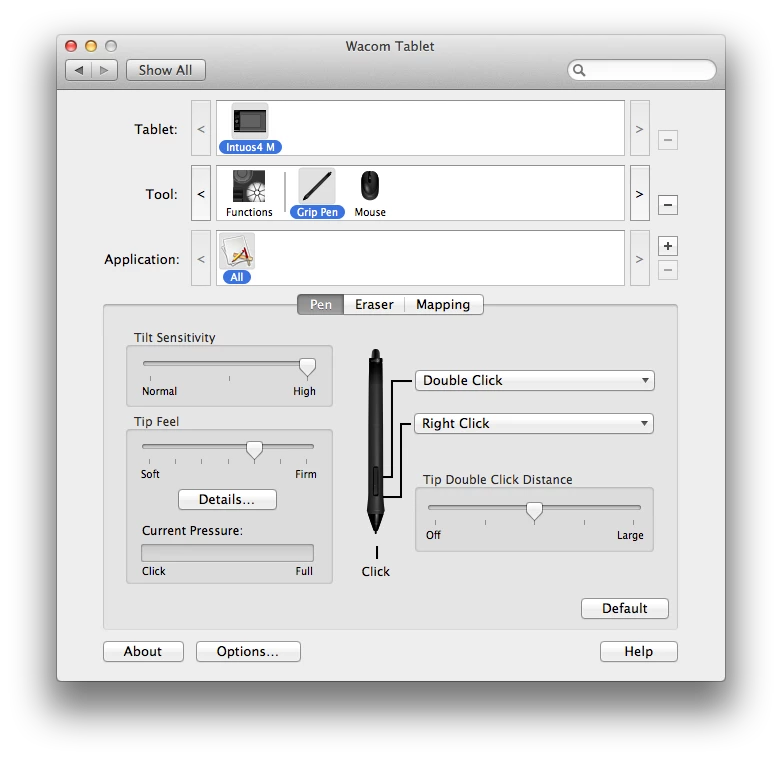
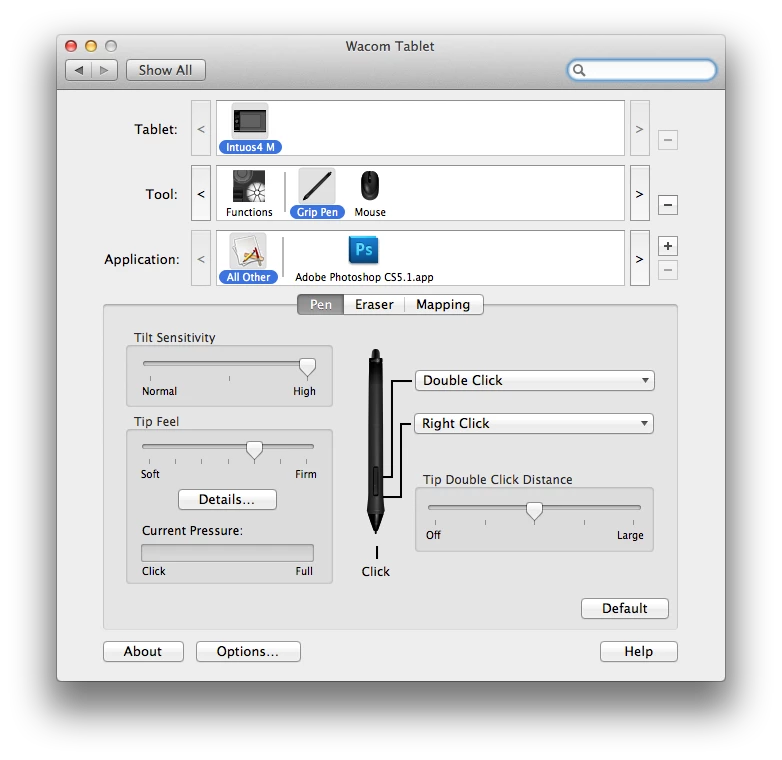
    I think I may have found the culprit. I started using Adobe PS CS 5 Extended the same day I received the Wacom Intuso 4 (about one year ago) and NEVER had a problem until last month when I added Adobe PS CS5 into the application section, see below.

    This is the ONLY change that I made to my wacom settings beside the typical button layout.

    I just tested this out. I removed the Adobe Photoshop CS5 from the field Application field and restarted Photoshop WITH the tablet plugged in. Now, I can use both the track pad and the tablet. See below:

    Just to test my finding, I readded the application BACK to the application field (Photoshop was shut down; pen and mouse three feet away) and modified my settings like I wanted, then I started Photoshop.

    At first, I was able to use the track, but as soon as I used the pen, the track pad stopped functioning properly and the "jump back" problem started again.

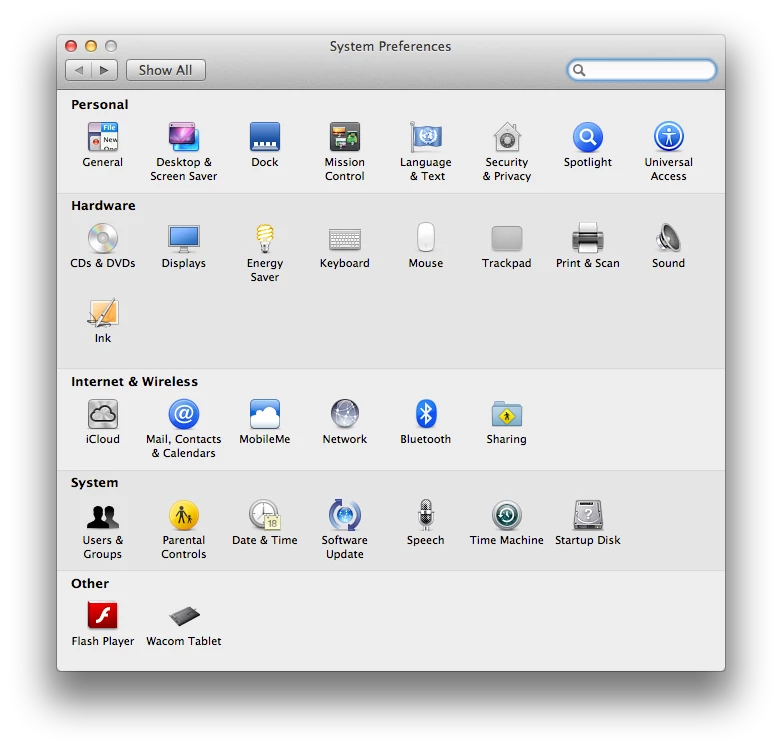
    I only have Flash Player and Wacom in the other field on System Preferences, see below.

    In this case it doesn't matter weather the pen is sitting on the tablet or not. Once Photoshop is removed from the Application field of the Wacom settings, the track pad and tablet work in harmony.

    I hope this works out for you and helps Adobe/Wacom find a solution/fix to the problem.

    Regards,

    Brandon

    Message was edited by: numeroeins

    Message was edited by: numeroeins

    39 replies

    Inspiring
    June 11, 2011

    I also have the problem. No iCopy or Candelair. But I do use an Intuos 4.

    Move tool snaps back and brush tools (brush, clone, eraser, etc) can only make dots, not paint continuous. I guess because the tool is also unable to move or is snapping back to place.

    I work with an external keboard, external monitor and the tablet, not using the trackpad.

    MacBook Pro

    10.6.7

    PS 12.04

    Latest Wacom Driver

    Topaz Detail

    Topaz Denoise

    Lightroom

    Firefox

    Safari

    Entourage

    Restarting PS gets a temporary fix.

    Participant
    June 10, 2011

    I use CS4, works perfectly

    hirshmonAuthor
    Participating Frequently
    June 8, 2011

    While the problem has still not been fixed, I think I have some new insight on to what is causing it. Hopefully, this will be useful for you Adobe people who are (I pray!) trying to fix this bug. So:

    -I have Photoshop open, with an illustration I've been working on. The tablet is plugged in, and I've been using the stylus to draw everything. As usual, when I try to use the trackpad (because it's more convenient than putting the mouse back on the tablet and using the mouse) to move an element, it snaps back. But also, I can't use the trackpad to draw a line with the brush tool. I click and drag but nothing appears. In Photoshop's history, it reads that I've used the brush tool, but still, no line. It's the same as with the dragging: the click and drag registers, but it doesn't take effect. The only difference is that with the drag tool, you can see the action reversing on itself and going back to where it was. With the brush tool, you see nothing.

    -This problem occurs with all of the brushes: burn/dodge, blur, eraser, stamp, etc. It also occurs with the move, lasso, and Quick Selection tools.

      However, it does not occur with a lot of the non-brush tools: marquee, pen, shapes, crop, type, paintbrush.

    -When I unplug the tablet, I still can't draw a line with the trackpad or move anything. But if I reboot Photoshop with the tablet unplugged, the problems are gone (but then they immediately return when I plug the tablet back in and do something with the mouse or stylus).

    This problem does ever not occur in Illustrator: this is a Photoshop-specific problem.

    Conclusion: it's not the move tool that's broken. It's a lot of things, and it's only Photoshop.

    I hope this information helps. I also hope that knowing it's more than the move tool bumps it up your priority list, too. When you charge a ridiculous amount of money for software, it should be perfect (or at least address known issues more quickly).

    Participant
    June 10, 2011

    I've been using CS5 with a Wacom Intuos 3 for a while with none of these issues, however today got a Cintiq and it started happening right away. A full reboot made it go away momentarily, but not for long. I'm getting the snapping issue as well as the brush not being able to draw with the trackpad.

    It's been almost a year since this problem came up, please fix this!

    Moving an object WILL work when you hit cmd+t and it's under Transform. It will also move an object when in a Mask.

    hirshmonAuthor
    Participating Frequently
    April 27, 2011

    I just want it on the record that this is still a really, really annoying problem that affects my work every day. Please, Adobe, keep investigating.

    Participating Frequently
    April 27, 2011

    I echo this sentiment

    Legend
    April 27, 2011

    Hirshmon and The Flash, your issue is not related to iCopy? Do you have any other system utilities/drivers installed?

    sameerchavan-FCi6xP
    Participant
    April 17, 2011

    Same issue with me. I am on Mac OS with photoshop CS5 . The issue is due to iCopy app and disabling the drag mouse checkbox stopped this problem. Its big confusion.

    Participant
    April 9, 2011

    Just solved this problem! It's because of the wacom pen tablet driver i closed it in the activity monitor and the stupid snapback disapeared. down side is that the tablet won't work for obvious reasons i sugest we demand a solution from wacom on their forums.

    hirshmonAuthor
    Participating Frequently
    April 10, 2011

    That's not really a solution...that's just kind of another way of demonstrating the existing problem: Wacom's and Adobe's products are not playing nice together. There has never been an issue when the tablet is not plugged in, and ending that Wacom process from the Activity Monitor basically does the same as unplugging the tablet.

    hirshmonAuthor
    Participating Frequently
    March 11, 2011

    Same... no new apps for me

    Participant
    March 10, 2011

    Hey everybody, if you're having this problem, check your menu bar items. I ran into this problem today and couldn't make heads or tails of it -- unplugged the tablet, quit Photoshop, restarted, reset settings, everything. Nothing worked. Then I remembered that I'd installed a new menu bar item (in my case, iCopy) since I'd last used Photoshop. I quit that program, and the issue completely went away. I'm guessing UI elements of certain menu items interfere with Photoshop, and I'm guessing iCopy isn't the only culprit.

    Reynolds__Mark_
    Inspiring
    March 10, 2011

    I've also seen this. Next time i will try the suggestion of quitting every other app running on the machine.

    Participant
    February 11, 2011

    Just wanted to throw my hat in the ring... I'm having the same problem.  I also use a Wacom tablet but I brought my laptop hom

    e and started doing some work without the tablet attached and the move problem is happening... very frustrating!!  Please help.

    I do have the latest update 12.0.2 and using Snow Leopard... also have my older version of CS4 still on laptop as well.

    Let me know if you need anymore info.

    Thanks!

    Participating Frequently
    January 4, 2011

    I had the same problem with the "move tool snapping back to the original spot" with my BAMBOO Tablet. So, I consulted with our computer experts on how to resolve that problem along with some other problems I was having with my machine. Going to the extreme here, the consultants cleaned off my hard drive, installed a new operating system "snow leopard", reinstalled all my programs and now all my issues have been resolved including the CS5 move tool snapping back to it's original place.

    Since I had CS3, CS4, plus CS5 installed on my machine (in which CS3 was deinstalled at one time), the consultants thought that the deinstall on CS3 left ruminants on my hard drive and that might have been creating some of my issues including the CS5 move tool. I was also having other problems in CS5 and the consultants thought that by updating my operating system CS5 would work more efficiently. CS5 in my older operating system ran much slower and now I'm running CS5 in snow leopard and my machine is running extremely fast now.

    Since cleaning off my hard drive, updating my operating system to snow leopard, updating my wacom and intuos drivers, and reinstalling all my programs, all my issues have been resolved.  I now LOVE working in CS5 and my computer is running extremely fast!

    Good luck and hope you don't have to go to extreme measures like I had too!

    p.s. I have an Intuos Tablet at home and it behaved the same way. Then my hard drive finally blew up a couple of months ago.  I got a new computer with the latest operating system and resintalled all my programs and updated my Intuos Wacom tablet driver and haven't had any issues since. What operating system are you running for CS5...Just a thought.