im trying to change the ppi of an image that is suppose to be at 1200 but reads as 72. I open the image in Mac and resolutions reads 72 even thought the originator said its suppose to be 1200. I then open it in PS, go to image, size and change to 1200ppi & resample then save as. Yet image is still at 72. How do I get art to stay & save at 1200?
Which file format did you save to? The image you uploaded is GIF. I don’t think the GIF standard has any way to store ppi resolution, so it will be missing. Any application that opens a GIF might just assume a default such as 72 ppi, just to put something in the resolution field. One reason GIF can’t remember resolution information is that ppi resolution only matters for print, but GIF was never intended for print.
Photoshop format does save ppi resolution metadata, so when I view a Photoshop document I saved at 1200 ppi, Apple Preview and other applications correctly report that it is 1200 ppi.
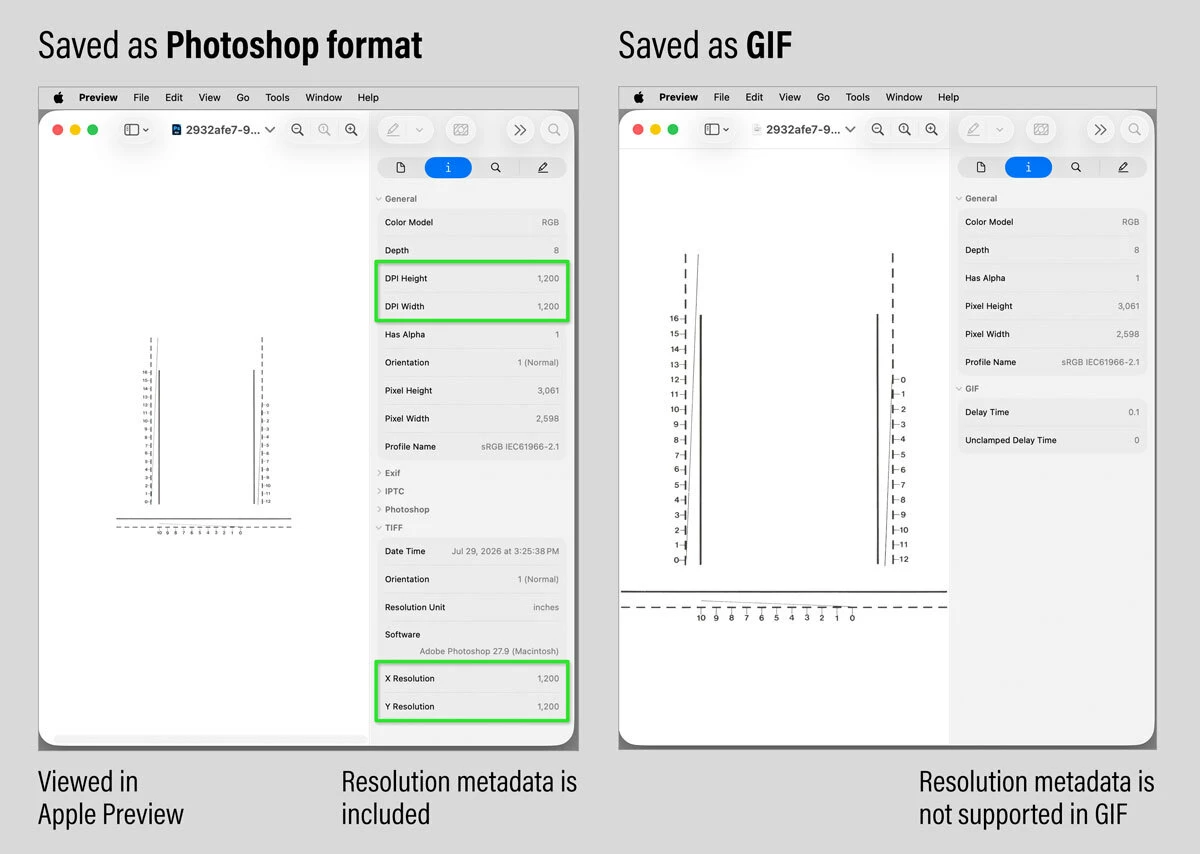
The picture below shows the difference between Photoshop format and GIF, when viewing them in Apple Preview with its Info panel open. You can see that the Photoshop format file does include ppi resolution metadata, but the GIF file has no place to store ppi resolution metadata.
If you need to save the image in another format, pick a format that can include ppi resolution metadata. For example, JPEG can include ppi resolution: Choose File > Save a Copy, then choose JPEG for the format.
(There are other ways to export a JPEG, such as through Save for Web. But be careful, because if the image is exported using an option that strips metadata, resolution information will be stripped along with it.)
OK. Photoshop has a built-in measurement scale feature, so that’s a good feature for you to try. It combines the Ruler tool with a Measurement Scale which you can calibrate to a known dimension in the picture.
The picture below is an example of when I wanted to mock up the sizes of my picture frames against a picture of a wall at a show, which I measured in real life. In Photoshop, I calibrated the Ruler tool to use a custom Measurement Scale, and that’s why the Ruler tool options bar readout at the top reports that the length (L1) of the measurement line I drew with the Ruler tool is about 25 inches, which is the length in real life.
To learn how to set this up, go to this Adobe help article:
I think it has something too to d with canvas size too. If I put subject stamp in PS and increase canvas to 105%, then drop the 72ppi onto it, the scale is correct size
You’ll probably get a better answer if we talk more specifically about why the image file needs to be 1200 ppi, because changing Canvas Size should have nothing to do with the solution in any way. Which of these goals are you trying to achieve?
You want the stamp to print at its real world size.
You want the stamp to appear in Photoshop on screen at its real world size.
You want to be able to measure the stamp using an on-screen ruler that’s calibrated to the stamp’s real world size.
(Something else?)
The reason for asking is that each of those goals has a different solution in Photoshop, so we want to make sure we’re answering the right question.
Not all file formats hold resolution metadata. Either size the image for print output outside of Photoshop so that the effective resolution is 1200ppi - or save into a format which does include resolution metadata.
Which file format did you save to? The image you uploaded is GIF. I don’t think the GIF standard has any way to store ppi resolution, so it will be missing. Any application that opens a GIF might just assume a default such as 72 ppi, just to put something in the resolution field. One reason GIF can’t remember resolution information is that ppi resolution only matters for print, but GIF was never intended for print.
Photoshop format does save ppi resolution metadata, so when I view a Photoshop document I saved at 1200 ppi, Apple Preview and other applications correctly report that it is 1200 ppi.
The picture below shows the difference between Photoshop format and GIF, when viewing them in Apple Preview with its Info panel open. You can see that the Photoshop format file does include ppi resolution metadata, but the GIF file has no place to store ppi resolution metadata.
If you need to save the image in another format, pick a format that can include ppi resolution metadata. For example, JPEG can include ppi resolution: Choose File > Save a Copy, then choose JPEG for the format.
(There are other ways to export a JPEG, such as through Save for Web. But be careful, because if the image is exported using an option that strips metadata, resolution information will be stripped along with it.)
Interesting - I do remember the c/s rep doing something with the color in PS with it as a .gif. I just opened it on Mac as .gif and exported it to Mac as .jpg and it turned into a black image….
Are you actually resampling 72 ppi to 1200 ppi - ?
I was told the image was at 1200 , but I see 72 when open on Mac. Info reads 2598 x 3061. Ive tried changing in PS to 1200 and resampling and not resampling.
The PS C/S did it for me , but I didnt save it. Im using it as an overlay and my layer 0 image is at 1200 so this has to be 1200 too. If I drag and drop it on the image it does not work. But if I copy it and paste it , it does. So im trying to get it to be the same size as my images I measure.





 AdChoices