
Participant
Oct 22, 2023 2:44 PM UTC
Question

No matter what I do Photoshop keeps painting outside my selection

I have put up the hardness in everything, tried inverseselect and delete, but the borders in my selection keeps being feather by photoshop. I just want to have a hard edge, no feathering or anything when I paint. I cannot understand why this is even an issue, as this is default in Paint, but in Photoshop I need to go through some complicated details. 


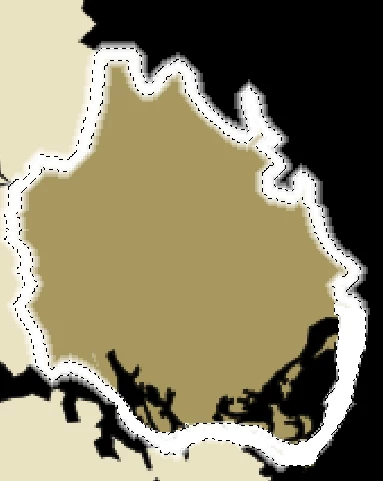
So this is my selection, I do not want any pixels to be "half tranparent" or anything, just a hard border where the selection ends. I have feather at 0, hard pencil tool, I have tried to set Quick Mask at "Selected Areas", but still PS keeps painting outside of the selection. Why does PS do this and how do I stop it?
 

This topic is closed to new replies. Start a new post to keep the conversation going.

6 replies

Participant
Oct 12, 2024 12:40 AM UTC

Youre not going to believe this...

you're using select>colour range, right? don't use 200% fuzziness, use 100% fuzziness max. boom. fixed.


Good luck with your Paradox Mod.

Translate
Participant
Oct 12, 2024 12:26 AM UTC

Pulling my hair out at the idea that this is basically impossible in photoshop. I have no idea how this is the case. No wonder Adobe is going down the sewers.

Translate
PECourtejoie
Community Expert
Community Expert
Oct 23, 2023 10:02 AM UTC

Hi, the problem is that the marching ants do not indicate the end of a selection, but its 50% area.
I just posted a feature request to have a view similar of ACR/Lightroom with two different colors for the start and end of a mask/selection, you can vote on it here: https://community.adobe.com/t5/photoshop-ecosystem-ideas/add-0-limit-to-the-50-shown-in-marching-ants-like-acr/idi-p/14179072#M19349

Translate
Trevor.Dennis
Community Expert
Community Expert
Oct 23, 2023 9:56 AM UTC

Is this there a layer mask involved?  If so check mask properties for feathering.


How did you create the selection?  If you Ctrl (Cmd) clicked and object to load it as a selection, then did that object have soft edges?  If Feather is set to zero in the Options Bar, then I can't think how it was introduced other than at the ctreating stage.


I like Jeff's idea of using Quick Mask.  You can see visually.  The QM below is half fully hard, and half has a 10 pixel feather


Applying levels or curves directly, you can take the feather out as Jeff said, but note I have not bought the sliders fully together so as to leave just enough anti aliasing to avoid jaggies.


Translate
Bojan Živković11378569
Community Expert
Community Expert
Oct 23, 2023 7:25 AM UTC

Try this: create selection then go to Edit > Stroke, set Stroke parameters and fill it inside, center or outside, experiment to see what results you get. 

If above suggestion is not satisfactory use @Jeff Arola suggestion or paint on separate layer then create layer mask and reduce feathering using Image > Adjustments > Levels, for example.

Translate
Jeff Arola
Community Expert
Community Expert
Oct 22, 2023 9:30 PM UTC

How did you make the initial selection?


With the selection active in Quick Mask Mode you can try Image>Adjustments>Levels and move the Highlight and Mid point sliders all the way to the left to take out the feather.

Translate