
kathyv29656185
Participant
March 13, 2023
Answered

P: Photoshop 24.3 Strobes in Black and White when Opening files

  • March 13, 2023
  • 200 replies
  • 504680 views

when attempting to open a photo in Photoshop on my HP Laptop, details below, the photo appears in the layers tab bottom right, but not in the workspace /desktop: It is a constant Black / White strobe. The desktop /workspace flashes Black and white

.
Processor Intel(R) Core(TM) i7-8550U CPU @ 1.80GHz 1.99 GHz
Installed RAM 16.0 GB (15.9 GB usable)

System type 64-bit operating system, x64-based processor

Edition Windows 10 Pro
Version 21H2
Installed on ‎24/‎03/‎2021
OS build 19044.2604
Experience Windows Feature Experience Pack 120.2212.4190.0
Correct answer Ged_Traynor

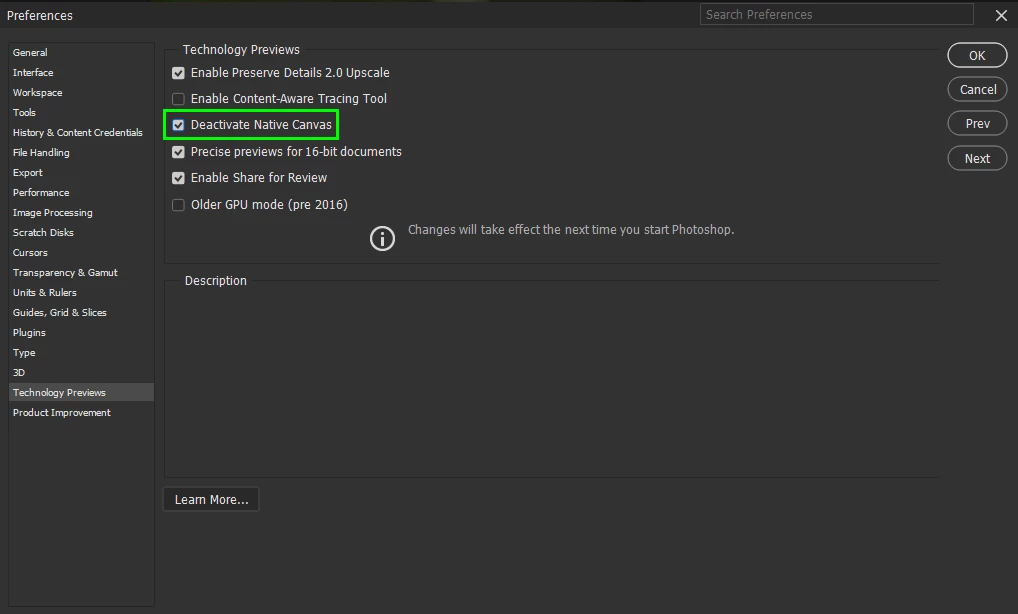
@Elisa29995820fb2q go to Edit > Preferences > Technology Previews and enable this option, then restart Photoshop

200 replies

Participant
April 27, 2023

I installed the Beta version to test the new advanced features. All appearsto be ok until an image file is opened and he main work frame for the image file flashes rapidly between black and white sceen and never displayes the image. hheh image files are RAW from a Z6 Nikon camera. Trying JPG files produce the same results..  My computer in an MSI that works well with the release verion of Photoshop  and Lightroom normally
Windows 10, 
Thank you
Stan

[personal information removed as per forum guidelines]

Participant
April 27, 2023

Regardless of which image I want to open, the screen flickers endlessly. I made a screen recording of the problem. 

kglad
Community Expert
Community Expert
April 27, 2023

@Roland26482689peya 


open photoshop>edit>preferences>technology preview>check "disable native canvas"

then restart photoshop

Participant
March 23, 2023

My project is having a black & white seizure, and so am I. As you can see it just does that, flashing white and black indefinitely. I reset the settings and everything but its still like this. Help. watch video)

Participant
April 26, 2023

Hello. After I updated my Photoshop to the latest version I am encountering a serious problem, that prevents me from using the application. Whenever I create a new file to work on, after the ui loads with all the menus and toolbars - the white canvas starts blinking from black to white thus making the use of the application impossible.

Hello. After I updated my Photoshop to the latest version I am encountering a serious problem, that prevents me from using the application. Whenever I create a new file to work on, after the ui loads with all the menus and toolbars - the white canvas starts blinking from black to white thus making the use of the application impossible. Also when I switch from full screen to windowed the canvas stops blinking and just turns black. I have attached a gif displaying the problem that occurs.

AxelMatt
Community Expert
Community Expert
April 26, 2023

Goto to "Preferences" > "Technology Previews" and enabling "Deactivate Native Canvas".

Restart Photoshop and check.


My System: Intel i7-8700K - 64GB RAM - NVidia Geforce RTX 3060 - Windows 11 Pro 25H2 -- LR-Classic 15 - Photoshop 27 - Nik Collection 8 - PureRAW 5 - Topaz Photo
Participant
April 25, 2023

Photoshop v 24.4.1 neu installiert, Wenn ich ein Foto lade, (egalwelches Format) dann blinkt das Bild nur sehr schnell weiß. Sonst passiet nichts.

Bei Photoshop CS6 passiert das nicht.

Bei meinem Laptop habe ich alle Treiber aktuallisiert.


Win 10 Ver 22H2

HP Laptop 17-by0xxx

Participant
April 25, 2023

Every files I open in Photoshop make the monitor blink until I close the file. 
Version 24.4.1
Windows 64 bits

AxelMatt
Community Expert
Community Expert
April 25, 2023

Goto Edit > Preferences > Technology Previews and enable  the option "Deactivate Native Canvas",

then restart Photoshop.


My System: Intel i7-8700K - 64GB RAM - NVidia Geforce RTX 3060 - Windows 11 Pro 25H2 -- LR-Classic 15 - Photoshop 27 - Nik Collection 8 - PureRAW 5 - Topaz Photo
Participant
April 25, 2023

Will adding a new graphics card with direct x 12 support, 2gb GPU ram also fix this problem instead of the onboard Intel graphics ?

NB, colourmanagement
Community Expert
Community Expert
April 24, 2023

This info from Adobe may help you I hope:

Pete.Green

Adobe Employee Mar 22, 2023


Hi All,


Apologies for the flashing/strobing you're experiencing when opening files, this tends to affect older graphics cards (GPU) that don't support all of the aspects of DirectX 12.


For Windows:

  1. Enable the Older GPU Mode option in Preferences > Technology Previews > “Use Older GPU Mode (pre 2016)"
  2. Check if there's a GPU driver update available and update if so


For macOS:

  1. Update to a newer or latest macOS version (to update the GPU driver which accompanies macOS updates)
  2. Uncheck "Automatic graphics switching" found in System Preferences > Battery > Battery


If you're still having issues after trying these troubleshooting steps, the next recommendation would be to look into updating your graphics card (GPU) to something a bit more modern.


Regards,

PG


https://community.adobe.com/t5/photoshop-ecosystem-discussions/p-photoshop-strobes-black-and-white-when-attempting-to-open-a-photo-in-24-3/m-p/13671396/page/5#M717961


neil barstow, colourmanagement net  - adobe forum volunteer - co-author: 'getting colour right'

google me "neil barstow colourmanagement" for lots of free articles on colour management

NB, colourmanagement
Community Expert
Community Expert
April 24, 2023

Perhaps try a thorough reset of Photoshop preferences?

(read this entire post before acting please)

Resetting restores Photoshop's internal preferences, which are saved when Photoshop closes.

If they become corrupt then various issues can occur.


Here’s some info on how to do that:

https://helpx.adobe.com/photoshop/using/preferences.html

Manually removing preferences files is the most complete method for restoring Photoshop to its default state: 

https://helpx.adobe.com/photoshop/using/preferences.html#Manually


Note re macOS: The user Library folder is hidden by default.

To access files in the hidden user Library folder, see here for how to access hidden user library files.

https://helpx.adobe.com/x-productkb/global/access-hidden-user-library-files.html


Unexpected behaviour may indicate damaged preferences. Restoring preferences to their default settings is a good idea when trying to troubleshoot unexpected behaviours in Photoshop. check out the video

https://helpx.adobe.com/photoshop/using/preferences.html#reset_preferences


Learn how to access and modify Photoshop preferences and customise per your frequent workflows

https://helpx.adobe.com/photoshop/using/preferences.html


And here’s an earlier forum discussion as an aid to understanding

https://community.adobe.com/t5/photoshop-ecosystem-discussions/quick-tips-how-to-reset-photoshop-preferences/td-p/12502668


You may want to backup your settings and custom presets, brushes & actions before restoring Photoshop's preferences.

Here is general info about that:  https://helpx.adobe.com/photoshop/using/preferences.html#BackupPhotoshoppreferences


Before you reset your preferences

in case of future issues, I suggest you make a copy as Adobe may need one to check problematic references. 

Quit Photoshop.
Go to Photoshop's Preferences folder

Preferences file locations: https://helpx.adobe.com/photoshop/kb/preference-file-names-locations-photoshop.html\


  [on MacOS see: Users/[user name]/Library/Preferences/Adobe Photoshop [version] Settings

  Note for those on macOS: - be aware that the user Library folder is hidden by default on macOS.

  https://helpx.adobe.com/x-productkb/global/access-hidden-user-library-files.html

  In the Finder, open the “Go” menu whilst holding down the Option (Alt) key.

  Library will now appear in the list - below the current user's “home” directory. ]


Now you can drag the entire Adobe Photoshop [Version] Settings folder to the desktop or somewhere safe as a back-up of your settings.


Note for those on macOS:

Preference preservation is affected by macOS permissions,

you’ll need to allow Photoshop ‘Full Disk Access’ in your Mac OS Preferences/Security and Privacy


If that doesn't fix the issue:

Go to Preferences > Performance... and uncheck Multithreaded Compositing - and restart Photoshop.

Still hanging? 

Go to Preferences > Performance... click Advanced Settings... and uncheck "GPU Compositing" - then restart Photoshop. 

Still got problems?


It may even be time to reinstall Photoshop.


It’s recommended that you use the Adobe CC cleaner tool to remove all traces first.

(See above about preserving preferences though! It’s worth preserving them unless they are corrupted.)


https://helpx.adobe.com/creative-cloud/kb/cc-cleaner-tool-installation-problems.html

Uninstall Photoshop BUT make sure to choose the option “Yes, remove app preference”.


Once that process finishes, start the installation process and look into the “Advanced Options”. Uncheck “Import previous settings and preferences” and choose to “Remove old versions”.


I hope this helps

neil barstow, colourmanagement net :: adobe forum volunteer

google me "neil barstow colourmanagement" for lots of free articles on colour management

NB, colourmanagement
Community Expert
Community Expert
April 24, 2023

This might help: 

Pete.Green

Adobe Employee Mar 22, 2023


Hi All,


Apologies for the flashing/strobing you're experiencing when opening files, this tends to affect older graphics cards (GPU) that don't support all of the aspects of DirectX 12.


For Windows:

  1. Enable the Older GPU Mode option in Preferences > Technology Previews > “Use Older GPU Mode (pre 2016)"
  2. Check if there's a GPU driver update available and update if so


For macOS:

  1. Update to a newer or latest macOS version (to update the GPU driver which accompanies macOS updates)
  2. Uncheck "Automatic graphics switching" found in System Preferences > Battery > Battery


If you're still having issues after trying these troubleshooting steps, the next recommendation would be to look into updating your graphics card (GPU) to something a bit more modern.


Regards,

PG


https://community.adobe.com/t5/photoshop-ecosystem-discussions/p-photoshop-strobes-black-and-white-when-attempting-to-open-a-photo-in-24-3/m-p/13671396/page/5#M717961


I hope this helps
neil barstow, colourmanagement net - adobe forum volunteer - co-author: 'getting colour right'
google me "neil barstow colourmanagement" for lots of free articles on colour management

Participant
April 24, 2023

Beta version not working,
When an image (any format) is opened,
the window where the picture is starts flashing black and white and is very annoying to the eyes, like a flash.