
Participating Frequently
April 25, 2025
Answered

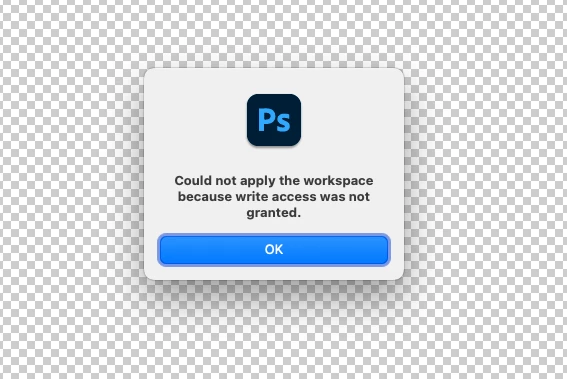
Photoshop 2025 v26.6 Bug - cannot read/write workspaces

  • April 25, 2025
  • 12 replies
  • 994 views

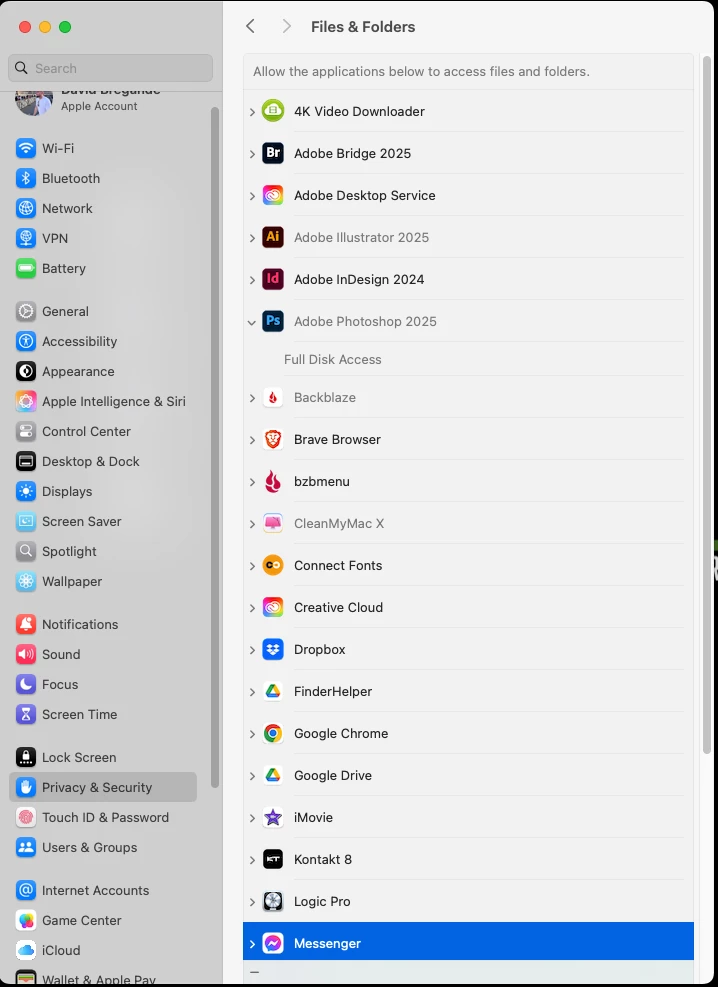
After experiencing the "black canvas" bug and working around it, I am not stuck on not being able to use my workspaces - a pretty important piece for my workflow. Not sure why, but the newest updates to Photoshop and Illustrator are grayed out in my Security settings. I reverted to Indesign 2024 because 2025was a nightmare of bugs.


I assume full disk accesss has been granted, but it is grayed out, and there is no "+" button to re-add it. In fact, I can't remove it either. I have no abilityt to do anything.
 

Mac OS Sequoia 15.4.1

Correct answer sprinklr-integration-user

Hi @usedave,

Thank you so much for reaching out! 

Could you please share the workaround you used for fixing the Black Screen issue? It's possible that the workaround might have caused the workspaces to not show up. Also, was the full disk access not greyed-out in the previous update?

While we wait for your reply, you can try these steps to see if they help:

  1. Reset Photoshop Preferences: Before you do this, please back up your preferences by referring to this Helpx article on Preferences in Photoshop. https://adobe.ly/44IHUKS

    • Press and hold Option + Command + Shift while Photoshop is starting.
    • This will delete your current preferences and create new ones on the next startup.
  2. Turn off the GPU: You can refer to this link for detailed steps. https://adobe.ly/3Gqp9C1

I hope these suggestions help! Please let us know how it goes.

Best, Noel

12 replies

Participating Frequently
October 12, 2025

I have attempted just about everything from reinstalling to deleting preferences and using the keyboard start-up shortcut. But it all fails. I was getting the lock to work for a while till I updated the camera raw. Now it's down again. 

AxelMatt
Community Expert
Community Expert
October 13, 2025

@davidb74643188  Unfortunately you haven't given us any information about your system. Therefore, all proposed solutions are a look into the crystal ball


Do you get an error message? If yes, please post the message word-by-word.

What has been changed on you system before the error occur?

What were you trying to do when the error occurred?


Is your system up-to-date? Do you have installed all recent updates and patches for the operating system and the device drivers, especially the graphic driver. If you have a NVidia graphic card installed, make sure that you are using the recent Studio version of the driver, not the Game Ready version.


Please provide a copy of your 'System Info'. This can be get from the LrC Help > System Info menu item. There's a copy button in the System Info dialog. Press this button and paste the info into your next forum post.


My System: Intel i7-8700K - 64GB RAM - NVidia Geforce RTX 3060 - Windows 11 Pro 25H2 -- LR-Classic 15 - Photoshop 27 - Nik Collection 8 - PureRAW 5 - Topaz Photo
Participating Frequently
October 13, 2025

Mac powerbook M1 64GB Tahoe 26.01 photoshop 2025.11.0 


no error message simply dumps the custom workflows every time I restart. I have been working with every version of the program since the first and this one is a puzzler.  

Participant
May 5, 2025

I thought that I did... but I just did it once again, and this time I saw the confirmation popup, and it resolved the issue! Thank you! 

AxelMatt
Community Expert
Community Expert
May 5, 2025

@ingenieurin Do you have tried to reset the prefrences as @sprinklr-integration-user wrote in step 1 of his post?


My System: Intel i7-8700K - 64GB RAM - NVidia Geforce RTX 3060 - Windows 11 Pro 25H2 -- LR-Classic 15 - Photoshop 27 - Nik Collection 8 - PureRAW 5 - Topaz Photo
Participant
May 4, 2025

Any updates on this bug? It's already May 4th, and I'm experiencing the same issue. I disabled GPU, but now the Liquify face filter refuses to work without it. My work is blocked. By the way, the GPU compatibility screen shows that everything is fine. 

usedaveAuthor
Participating Frequently
April 25, 2025

Eventually I was able to allow full access, but the problem persisted. I just now erased all prefences and started from scratch. Luckily I was able to import my brush and tool presets. It appears that the workspace preferences were corrupt and there was no going back.

AxelMatt
Community Expert
Community Expert
April 25, 2025

@usedave  Make sure that Photoshop has full access on your system.


Learn how to give full disk access to Photoshop on... - Adobe Community - 12889716


My System: Intel i7-8700K - 64GB RAM - NVidia Geforce RTX 3060 - Windows 11 Pro 25H2 -- LR-Classic 15 - Photoshop 27 - Nik Collection 8 - PureRAW 5 - Topaz Photo
usedaveAuthor
Participating Frequently
April 25, 2025

It seems lthat somple things like "Hide Exctras" doesn't stick even without quitting and relaunching. Open one document, select "Hide Extras" close document. Open another. Extras visible again.

usedaveAuthor
Participating Frequently
April 25, 2025

No commands involving workspaces are honored.


usedaveAuthor
Participating Frequently
April 25, 2025

Also, when I try to create a new Workspace and save it, it seems like it's working, but nothing happens. I click "OK" and it simply disappears like nothogn ever happened.

usedaveAuthor
Participating Frequently
April 25, 2025

In fact, every time I quit and launch Photoshop, what appears in the workspaces menu is a roll of the dice.


I have also uninstalled and reinstalled Photoshop with no luck.