


Participating Frequently
September 30, 2020
Answered

Photoshop Color settings (SHIFT CTRL K)

  • September 30, 2020
  • 2 replies
  • 1611 views

Hi all,

I have a problem with the color profile of my images in Photoshop


If I select the menu: EDIT-Select Profile, Photoshop shows : "No color management for this document", although my camera is set to ADOBE RGB.


I made a few changes to the color settings (SHIFT CTRL K) : Intent "Perceptual", disabled dithering 8 bits channel images.  Also I changed RGB to : Adobe RGB 1998.

Please help, I do not know much about these things, I got the settings from school and we need to stick to them.  

I am working on a MAC

Thanks in advance, kind regards !

Marjo
This topic has been closed for replies.
Correct answer D Fosse

OK, but still this is odd, because other students don't have this "problem", if they check the file profile in the MENU by selecting : EDIT-SELECT PROFILE, the system shows the correct file profile. Something is not right i.m.o  .....


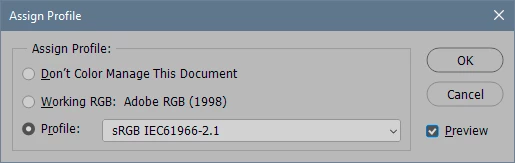
Edit > Assign Profile has "no color management" as an option. Just ignore that option.


As long as the status bar indicates a profile, that profile is there and embedded.


BTW there is nothing called Edit > Select Profile in the English version. It's either Convert to Profile, or Assign Profile. The latter is only used if there is no profile, or you know for a fact that the presently embedded profile is the wrong one.

2 replies

D Fosse
Community Expert
Community Expert
September 30, 2020

Assuming you shoot raw files: The camera setting is irrelevant, just ignore it. A raw file does not have a color space, until it is encoded into one in the raw converter (ACR). You set your choice for color space in the ACR workflow options:


This profile is then embedded in the image as it opens into Photoshop. Don't change any color settings in Photoshop! This is important. You need to have color management policies set to "preserve embedded profiles". This is the default, don't change it. With this setting, all incoming profiles will be honored and override the working space.

Participating Frequently
September 30, 2020

Hi, thanks a lot for your help. Yes I shoot Raw files. Let me show you my settings 

1. In camera Raw

2. In Photoshop (SHIFT CTRL K - settings = colorsettings)

My camera Raw settings are about the same, except for the 16 Bits/Channel, I should change 8 bits into 16 bits then right? I also add my Photoshop settings. The settings are in Dutch but "preserve embedded profiles" has been activated from the beginning. Please take a look at my screenshots and thanks a lot for your help. Very much appreciated !


D Fosse
Community Expert
D FosseCommunity ExpertCorrect answer
Community Expert
October 2, 2020

OK, but still this is odd, because other students don't have this "problem", if they check the file profile in the MENU by selecting : EDIT-SELECT PROFILE, the system shows the correct file profile. Something is not right i.m.o  .....


Edit > Assign Profile has "no color management" as an option. Just ignore that option.


As long as the status bar indicates a profile, that profile is there and embedded.


BTW there is nothing called Edit > Select Profile in the English version. It's either Convert to Profile, or Assign Profile. The latter is only used if there is no profile, or you know for a fact that the presently embedded profile is the wrong one.

c.pfaffenbichler
Community Expert
Community Expert
September 30, 2020

Please set the Status Bar to »Document Profile« and post a meaningful screenshot. 

Participating Frequently
September 30, 2020

I am "new" here, I don't know how to change the subject line...  I posted the settings as an attachment, what more info should I attach please ? (sorry...)

c.pfaffenbichler
Community Expert
Community Expert
September 30, 2020

I want to see if your image has an embedded profile or not so please set the Status Bar to Document Profile« and post a screenhot.