February 24, 2022
Question

Photoshop exported photos are oversaturated incl correct colour profile

  • February 24, 2022
  • 6 replies
  • 6904 views

Hi guys, I am here as a last resort. I have been with this issue for a year, searching high and low. I am totally lost and hopefully am able to find a solution here.

I am working on a Dell XPS 15, 4k res (not OLED), 100% aRGB supported. My screen is also colour calibrated with my own hardware device.

Working in photoshop, I always work in the aRGB colour profile and I dont export to sRGB because my personal projects are not meant for public. When I finish a project and export it to JPG (100% quality), all my photos are MEGA oversaturated when I embed color profile. When I uncheck it, it is still oversaturated but not as much. When assigning the correct colour profile, the colours dont change.

I am working with the latest version of Adobe, windows 10.


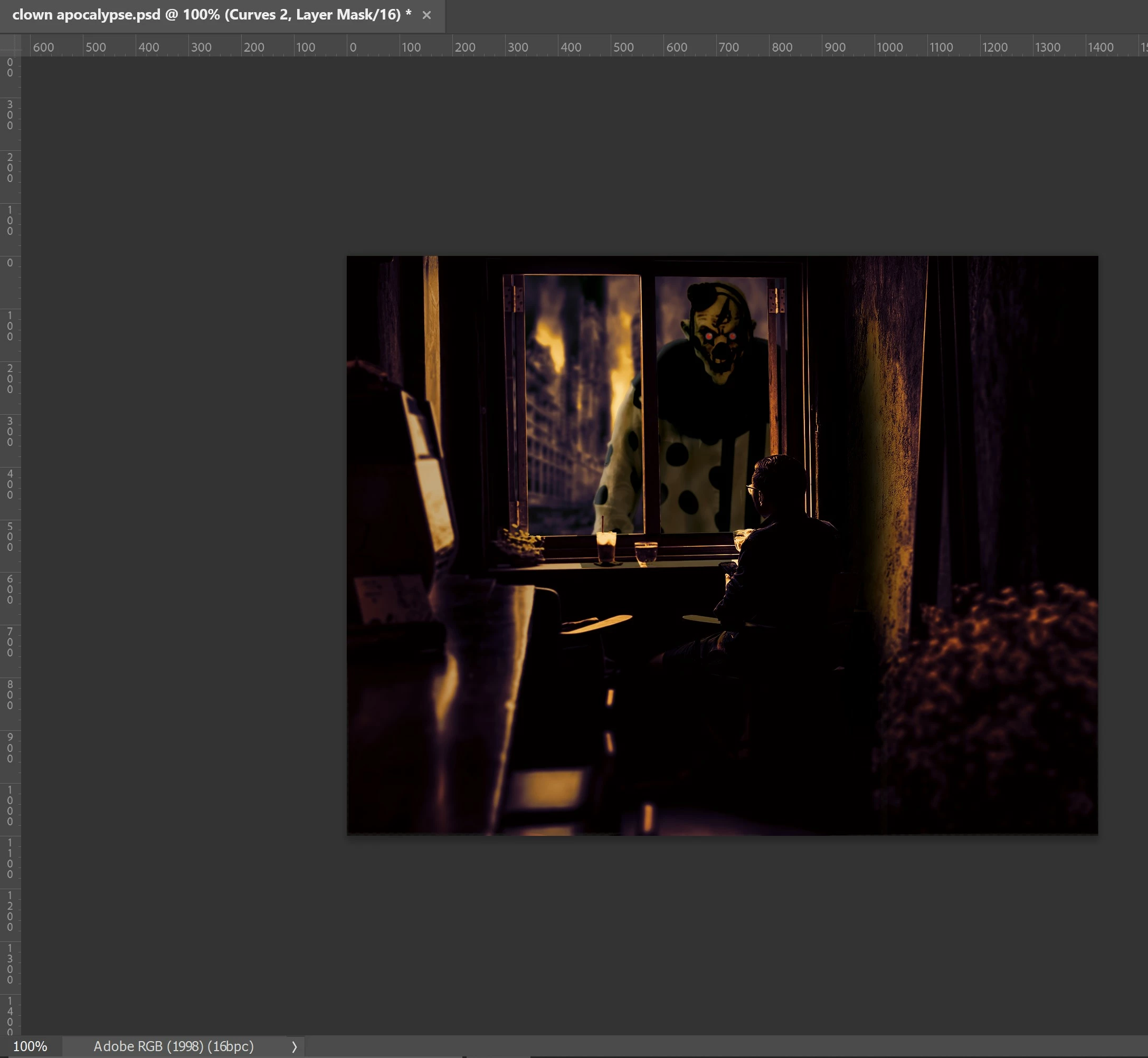
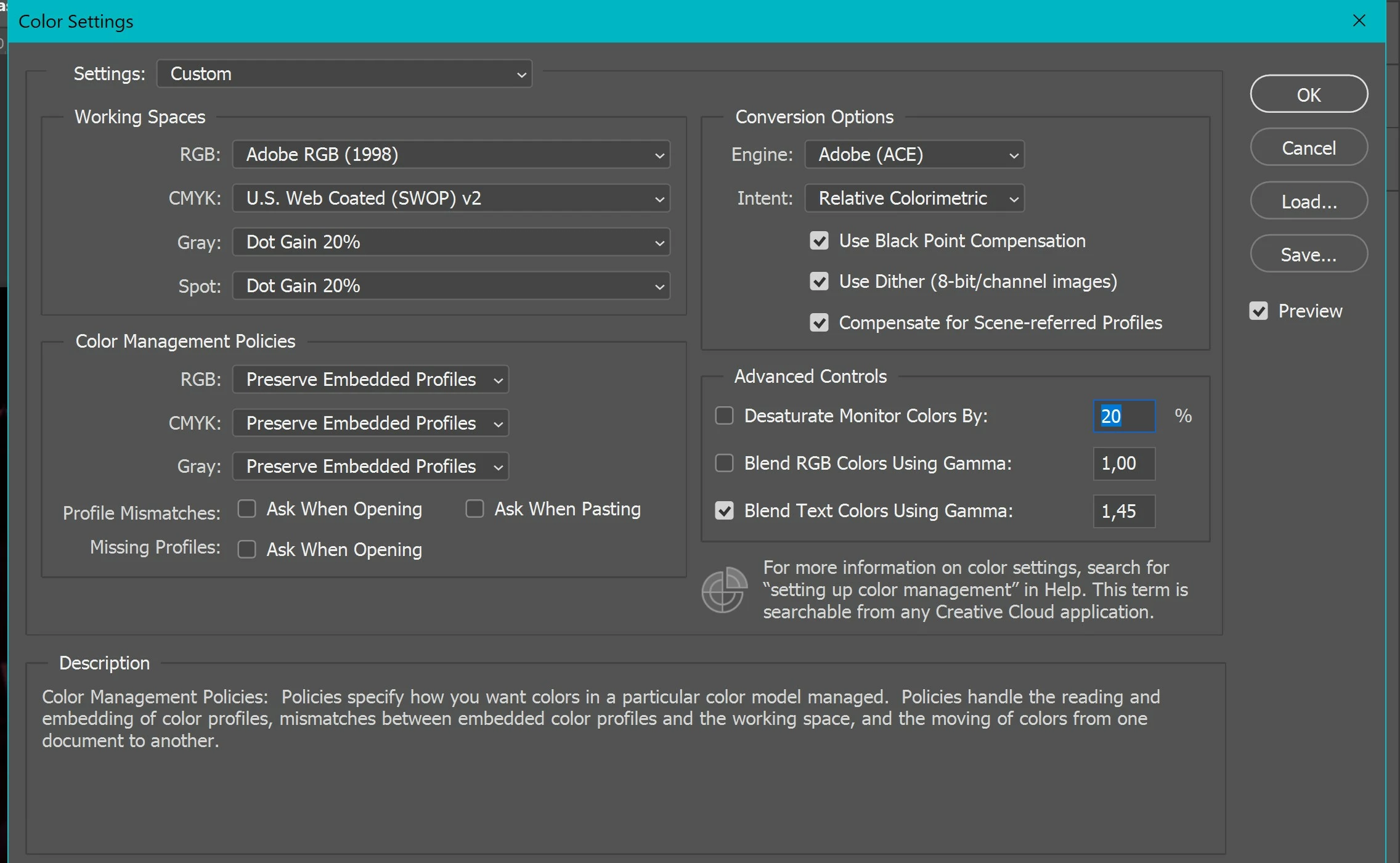
Photo 1: settings
photo 2. Exported 100%, embed color profile checked, sRGB unchecked)
photo 3. Exported 100%, embed color profile UNchecked, sRGB checked)
photo 4. Screenshot from PS, this is the most accurate... Showing the correct colour profile too



This topic has been closed for replies.

6 replies

TheDigitalDog
Inspiring
February 26, 2022

This could also be a GPU issue affecting color managed app's; that was an issue with another Windows user in the forums the other day.

First, try disabling GPU in the preferences (Preformance tab). Any better?
If turning OFF GPU works, it's a GPU bug and you need to contact the manufacturer or find out if there's an updated driver for it.
Also see: https://helpx.adobe.com/photoshop/kb/acr-gpu-faq.html

Author “Color Management for Photographers" & "Photoshop CC Color Management/pluralsight"
NB, colourmanagement
Community Expert
Community Expert
February 25, 2022

Windows display profile, display profile issues on Windows

Here's something to try
It'll only take a few minutes and is good troubleshooting.

At least once a week on this forum we read about this, or very similar issues of appearance differing between colour managed applications.
Of course you must not expect accurate colour with programs such as Windows "Photos", because colour management is not implemented there, so such programs are incapable of providing accurate image display.

Unfortunately, with Microsoft hardware: Windows updates, Graphics Card updates and Display manufacturers have a frustratingly growing reputation for automatically installing useless (corrupted) monitor display profiles.
I CAN happen with Macs but with far less likelihood, it seems.]

The issue can affect different application programs in different ways, some not at all, some very badly.

The poor monitor display profile issue is hidden by some applications, specifically those that do not use colour management, such as Microsoft Windows "Photos".

Photoshop is correct, it’s the industry standard for viewing images, in my experience it's revealing an issue with the Monitor Display profile rather than causing it. Whatever you do, don't ignore it. As the issue isn’t caused by Photoshop, please don’t change your Photoshop ‘color settings’ to try fix it.

To find out if the monitor display profile is the issue, I recommend you to try temporarily setting the monitor profile for your own monitor display under “Device” in your Windows ‘color management’ control panel to “sRGB IEC61966-2.1”. (If you have a wide gamut monitor display (check the spec online) it’s better to try ‘AdobeRGB1998” here instead as it more closely approximates the display characteristics).

Click ‘Start’, type color in the search box,
then click Color Management. In the Devices tab, ensure that your monitor is selected in the Device field.

You can click to ADD to add “sRGB IEC61966-2.1” (or AdobeRGB1998) if not already listed there.
Again - IF you have a wide gamut display I suggest trying “AdobeRGB1998”

Once it’s selected, be sure to check “Use my settings for this device” up top.
And click on “set as Default Profile - bottom right


Screenshot of Color Management Control Panel

Quit and relaunch Photoshop after the control panel change, to ensure the new settings are applied.

Depending on the characteristics of your monitor display and your requirements, using sRGB or Adobe RGB here may be good enough - but no display perfectly matches either, so a custom calibration is a superior approach.

If this change to the Monitor Display profile temporarily fixes the appearance issue, it is recommended that you should now calibrate and profile the monitor properly using a calibration sensor like the i1display pro, which will create and install its own custom monitor profile. The software should install its profile correctly so there should be no need to manually set the control panel once you are doing this right.


Still got problems?
Perhaps try resetting Photoshop preferences?
Resetting restores Photoshop's internal preferences, which are saved when Photoshop closes. If they become corrupt then various issues can occur.

Here’s some info on how to do that:

https://helpx.adobe.com/photoshop/using/preferences.html
And
https://community.adobe.com/t5/photoshop-ecosystem-discussions/quick-tips-how-to-reset-photoshop-preferences/td-p/12502668

You may want to backup your settings and your custom presets, brushes & actions before restoring Photoshop's preferences.
Here is general info that:  https://helpx.adobe.com/photoshop/using/preferences.html#BackupPhotoshoppreferences

Also take a look at the following article and check if that helps: 
https://helpx.adobe.com/photoshop/using/printing-color-management-photoshop1.html

Preferences file location: https://helpx.adobe.com/photoshop/kb/preference-file-names-locations-photoshop.html


It may even be time to reinstall Photoshop.

Its recommended that you use the Adobe CC cleaner tool to remove all traces first.
Uninstall Photoshop BUT make sure to choose the option “Yes, remove app preference”.
 
Once that process finishes, start the installation process and look into the “Advanced Options”. Uncheck “Import previous settings and preferences” and choose to “Remove old versions”.

I hope this helps
neil barstow, colourmanagement net :: adobe forum volunteer
google me "neil barstow colourmanagement" for lots of free articles on colour management

Per Berntsen
Community Expert
Community Expert
February 25, 2022

@NB, colourmanagement 

Windows Photos has been color managed for some time now, and should display correct colors.


@17172908 

It's very strange that Adobe RGB isn't listed as installed on your system.

I did a search for it on my computer, and found four instances.

See if you can find it in C:\Program Files (x86)\Common Files\Adobe\Color\Profiles\Recommended

and copy it to C:\Windows\System32\spool\drivers\color


March 4, 2022
quote

@NB, colourmanagement 

Windows Photos has been color managed for some time now, and should display correct colors.


@17172908 

It's very strange that Adobe RGB isn't listed as installed on your system.

I did a search for it on my computer, and found four instances.

See if you can find it in C:\Program Files (x86)\Common Files\Adobe\Color\Profiles\Recommended

and copy it to C:\Windows\System32\spool\drivers\color


By @Per Berntsen


So this is what I see in both URLs. You want me to copy the aRGB from the left window and copy it to the right one?


NB, colourmanagement
Community Expert
Community Expert
February 24, 2022

So, you have definitely embedded the icc profile?

May I ask why you "export" when save as is straightforward and easy to understand?


Are you viewing the image in Photoshop after you've "exported" it? 

If not maybe Windows images? Its no good viewing in non colourmanaged applications especially if you have a large gamut screen. Could it be that the Dell XPS 15, 4k is Adobe RGB (1998) gamut? 


I hope this helps
neil barstow, colourmanagement net :: adobe forum volunteer:: Co-Author:Getting Colour Right
google me "neil barstow colourmanagement" for lots of free articles on colour management


February 24, 2022

After viewing the photo via windows viewer, I open the photo into PS, I manually assign my colour profile to the image and nothing changes.

I export photos because sometimes I do export for Insta or for the public and then I have full control over the file size, quality and so on + I can convert to sRGB. But, even when converting to sRGB (as shown in the top with the 3 photos), it still oversaturates the original photo quite hard.

D Fosse
Community Expert
Community Expert
February 24, 2022

sRGB or Adobe RGB means nothing if that profile is not used in a color managed display pipeline. Not all applications support that! That's why we keep asking where you're viewing the exported file.


An application without color management support just sends the RGB numbers straight to screen. Then it displays according to the characteristics of your monitor, which can be anything at all, and so it can look like anything at all.


In a color managed application the numbers are converted from the document profile into your monitor profile. Assuming the monitor profile is accurate, this ensures that the image appears correctly on screen. That's how the image really looks!


The document profile should be embedded the whole time. Make sure it's embedded when you save the file. You shouldn't need to assign profiles later - it should be there the whole time.


If the image doesn't display correctly in Photoshop, the usual reason is a defective/broken monitor profile. Bad profiles from the manufacturer are quite often distributed through Windows Update.


D Fosse
Community Expert
Community Expert
February 24, 2022

Or the image has been Exported without an embedded profile.


In any case, the underlying cause of this mismatch is the same: the original color profile isn't honored.


February 24, 2022

In the photos that i have provided at the top of this post, you can see that I have exported one image using the 'embed color profile' checked... That one is the worst of all exports :s

Earth Oliver
Legend
February 24, 2022

you're probably viewing the image in a un-managed application like Windows Viewer, right? 

February 24, 2022

Yes, but windows viewer does show my exported LR photos 100% perfect. So, I don't see why PS would be any different.

Earth Oliver
Legend
February 24, 2022

because you're not managing you color correctly. Are you exporting sRGB from Lr or AdobeRGB? Save from Ps as sRGB and export from Lr as sRGB... your images will look the same. Do the same with AdobeRGB and they'll be the same.

Per Berntsen
Community Expert
Community Expert
February 24, 2022

In what application are you viewing the exported image?


"When assigning the correct colour profile, the colours dont change."

Please clarify what this means.

Are you opening the exported image in Photoshop, and assigning Adobe RGB?

February 24, 2022

So, after exporting the an image without embed color profile, I then grab the image and open it into PS and then I would manually assign my colour profile. This is a test to see if the image would change or not to the correct colours.

It doesn't...

I have an application where I can hit spacebar to open a preview of the image (just like on a mac).

With my exported photos from LR, the photos are always perfect. But from the moment I export them via PS, the saturation goes crazy.

Per Berntsen
Community Expert
Community Expert
February 24, 2022
quote

I have an application where I can hit spacebar to open a preview of the image (just like on a mac).


This application,whatever it is, is obviously not color managed, and applications without color management will inevitably display images over saturated on a wide gamut monitor (which is what you have).

Windows Photos is color managed, and should display the same as Photoshop.

There are also third party color managed viewers, like ACDSee and FastStone.

The latter requires that you enable color management in Settings.


If your source files are in Adobe RGB, and you want to export in Adobe RGB, you can uncheck Convert to sRGB, and check Embed profile. I wasn't sure if this would work, but I tried it, and it seems to work.

All major web browsers are color managed these days, so they should honor the Adobe RGB file.

But only viewers with wide gamut monitors will be able to see colors that are outside the sRGB gamut.