
Inspiring
July 29, 2021
Question

Photoshop levels adjustments do not show accurate previews

  • July 29, 2021
  • 6 replies
  • 4015 views

Hi all,


I don't think my problem can be helped, but here it goes anyway. I already read through the forum for similar issues and tried those ideas. I contacted Adobe support, who were friendly and helpful, and he ran me through some things, but nothing fixed this problem. 


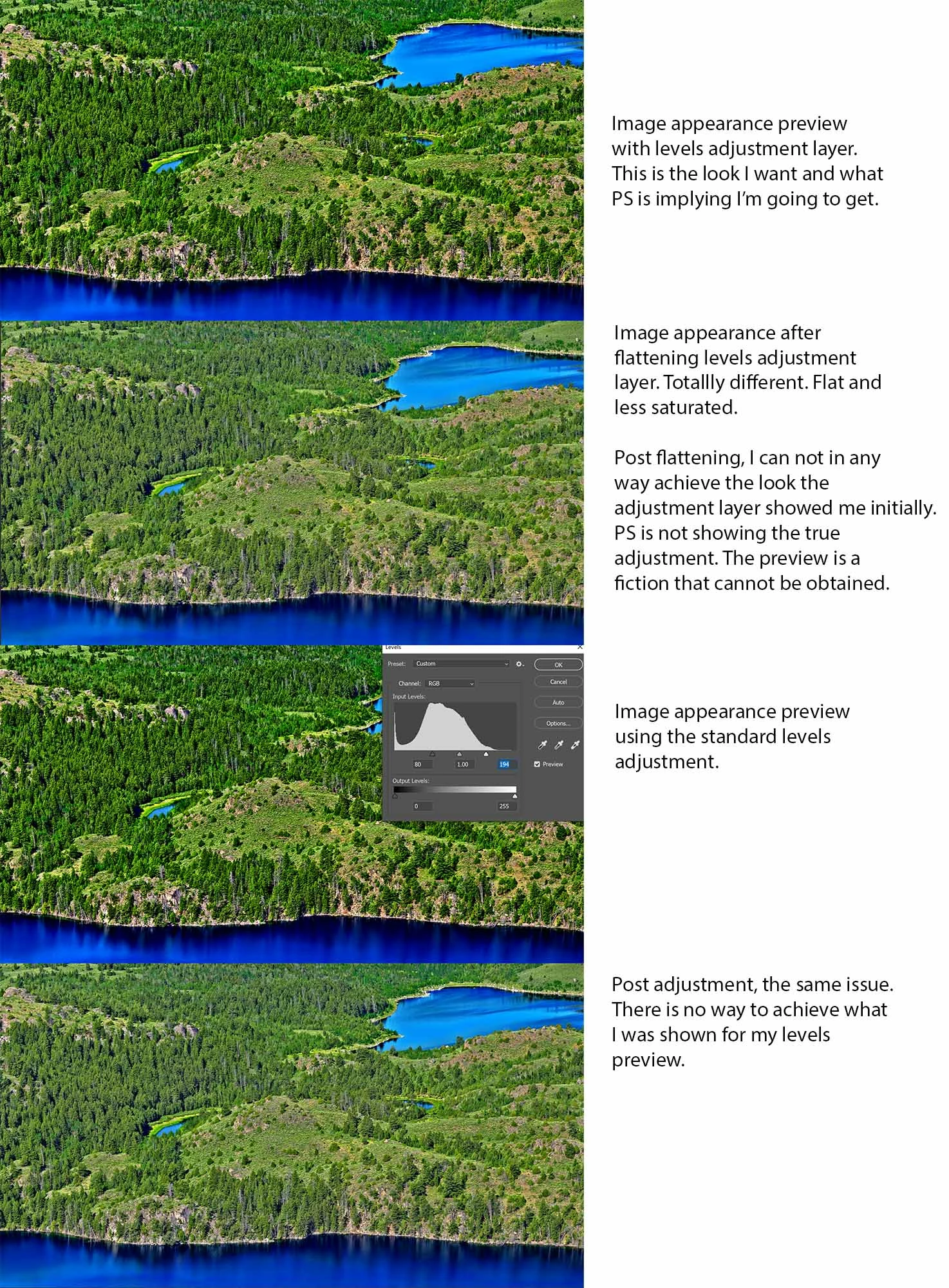
When I use adjustment layers for levels, or the preview of the standard levels adjustment, the preview of either one is a fiction. Once the image is flattened or adjusted with the standard levels, then the image is way off from the levels preview.


It is not accurate, and the preview PS gives me cannot be obtained post flattening using any other adjustments. I can add saturation, or double adjust the levels, but it still does not give me what the original levels preview showed. It is driving me nuts and stopping my work. Now I can't trust any of my dozens of adjustment layer levels I've made over the last few months when I go to finalize and flatten my projects.


Different gpu's don't help. My PC is updated in every way, including the gpu. I've tried every color profile, and other things with no change in this phenomenon, save the one below.


The ONLY time the various types of levels previews did not differ from the flattened image is if I convert to 32 bit prior to adjusting. Then it stays the same. However, as soon as I convert back to 8 bit, then I get the same flat colors image and not the colorful levels preview image I like. Is the levels preview showing me a 32 bit representation or something?


At this point I don't believe it can be fixed, but again, I figured I would put this out there just in case someone has an idea for me. Please see my attached image below for an example. 


Also, I realize that zooming in to 100% gives you the true image representation, but I work on gigapixels and I cannot adjust massive images levels and curves at 100% view. I need an accurate representation of what I'm working on when zoomed out. Heck, even with a regular sized photo I still have the same trouble. And the real problem anyway, is when zoomed out, the levels adjustment preview is an unobtainable fiction.


Thank you for any help!


In the image below the problem does not seem as dramatic since this image is very small, but in the full size gigapixel it's a huge difference. The levels preview is bright and crisp, the flattened image is dull and flat. I want the look levels preview tells me I should get. 
 

This topic has been closed for replies.

6 replies

Participant
March 11, 2024

Hey there, did you ever get resolution on this?


I'm searching around trying to find answers for a similar issue. The logo was gray, with emboss effect shadows and highlights. Went to adjust the gray to match the door behind it and this happened. No amount of undo reverted the edit, and that level histogram is what PS claims that layer is, but it's clearly not.


c.pfaffenbichler
Community Expert
Community Expert
March 11, 2024

Could you please post screenshots taken at View > 100% with the pertinent Panels (Toolbar, Layers, Options Bar, …) visible, not just a snippet? 

Participant
March 11, 2024

Can't really, due to NDAs. but why would all those panels requested contribute toward that screwed up histogram? As a production person, I just cussed, shrugged and started over. If it happens again I'll be sure to take notes of everything including the color socks I'm wearing


Deven15D5Author
Inspiring
July 30, 2021

I believe this is my final update on this issue. After much more testing, it is for certain something in how the GPU renders sharpness artifacts when zoomed out for the level's previews, adjustmet layers or otherwise.


If I Gausian blur to 1 and flatten, then it reduces the contrast/saturation problem shown in the example image earlier. If I blur say clear up to Gausian blur 6 then my levels preview matches the flattened image exactly. Like I said earlier, blurring one's image isn't the best solution, but given my project parameters it is my only solution, at least using a Gausian 1 blur as a compromise.  


Hope this helps someone who finds themselves with the same strange issue. I didn't upload further photos as I believe the above explains it well enough. 


Deven15D5Author
Inspiring
July 29, 2021

Update.


I continued with the idea of sharpening artifacts. I had tried Gausian blur of 1 radius to tamp down the sharpness and no change. However, a blur of 2 radius and now I am getting an accurate levels preview I think, but not a sharp picture when zoomed in. Trade offs I guess.


The adjustment layer levels and flattened results now seem to be the same. I will keep testing. 

Deven15D5Author
Inspiring
July 29, 2021

Further update. 


The blurring did help to some degree, but again, now my image is blurry which was not desired. Also, when trying the blur idea on my full gigapixel and then flattening post level adjustments, the preview is still off from the end result, but not as much post adding blur. So, the problem is still present. I will post some images later in the afternoon if anyone has interest. 

Deven15D5Author
Inspiring
July 29, 2021

Does anyone know if an Nvidia Quadro might remedy this problem since I'm using a consumer card? 

D Fosse
Community Expert
Community Expert
July 29, 2021

I think the screen resampling does happen in GPU driver code, not Photoshop code. So theoretically I assume it's possible. But with the current prices, that could be a very expensive experiment. My gut feeling is that it shouldn't matter. A 3090 is already high-end.


c.pfaffenbichler has an excellent point and I agree absolutely with what he says. Previously, it was possible to set cache levels to 1 in preferences, thereby forcing all previews to be generated on the full image data, pixel for pixel. That would bypass the whole problem. But this is no longer possible for unknown reasons.

D Fosse
Community Expert
Community Expert
July 29, 2021

I don't think this has anything to do with color spaces.


This looks like screen resampling artifacts, possibly sharpening artifacts, and it happens when you are not viewing at 100%. Any adjustment preview must be assessed at 100% view. You should press ctrl+1 automatically when judging an adjustment, it should be muscle memory.


100% in Photoshop has nothing to do with size. It means that one image pixel is represented by exactly one screen pixel.


The problem in all this is that adjustment/blending previews are calculated based on the on-screen version (for performance reasons). If the image is zoomed out, the calculations are not performed on the actual pixel values, but on a lot of intermediate blurred pixels.


When you commit the adjustment, however, the math is done on the full pixel data. And the result may be different (but this time correct!)


Press ctrl+1 and try again.

Deven15D5Author
Inspiring
July 29, 2021

Thanks for replying D Fosse,


I mentioned I understood the 100% already. My trouble is, you can't adjust the broad levels look of disparate massive gigapixel images glued together zoomed in at 100%. But, say you do it that way, so now you zoom back out, well, you can't tell what your adjustment really was zoomed out because the preview is not accurate at all.  


The other trouble is I would like the look that levels preview gives me to be obtainable and it is not and probably for the reasons you mentiond.


Deven15D5Author
Inspiring
July 29, 2021

Also I tried blurring the image to make sure it was not over sharpening artifacts but there was no change after flattening. 

Mylenium
Legend
July 29, 2021

None of your descriptions mentions anything about actual color management and your statement about only 32 bit looking correct furthers this point: It simply shouldn't. It should be the other way around, as high-gamut color spaces more or less mandate CM and typically produce wacky results when not using profiles or LUTs. the rest is probably somewhere in the Bermuda triangle between hardware acceleration issues, inconsistent source profiles/ develop settings and a wrong monitor profile, but since you haven't offered any exact technical info this is impossible to determine.


Mylenium

Deven15D5Author
Inspiring
July 29, 2021

Thanks for your response Mylenium,


Here's a bit more info.

Win 10 all updates

RTX 3090, all updates

Xeon Gold

Capture One raw converter exporting Nikon D850 14bit raw to 100% jpg quality, using sRGB IEC to render in stitching software, and then to PS. 

8K Samsung LED


I've continued to figure out what's going on, and I think it may be just a preview thing with image viewing software. For instance, I loaded up the same image in Faststone image viewer and PS. Faststone also gave me a false reading of extra colors, brighter and more constrast in levels preview. Once Faststone processed the image, then it as well had the flat and dull image. 


Capture One shows very nice colors and contrast after my adjustments to raw files, but as soon as I export to PS, then it's back to dull and flat again. So, C1 must be showing me previews also which when flattened do not look near as good.


I'm starting to think it's just the nature of the beast and there is no resolution. However, if our previews are not WYSIWYG, then why have previews at all?