


Inspiring
July 9, 2019
Question

Photoshop question: Templates locking up

  • July 9, 2019
  • 1 reply
  • 855 views

Hi,

I have this template I'm trying to modify and add my own text but it seems like the whole screen is locked.  I even want to change the background picture but it's locked also.  How can I unlock it put my own in?
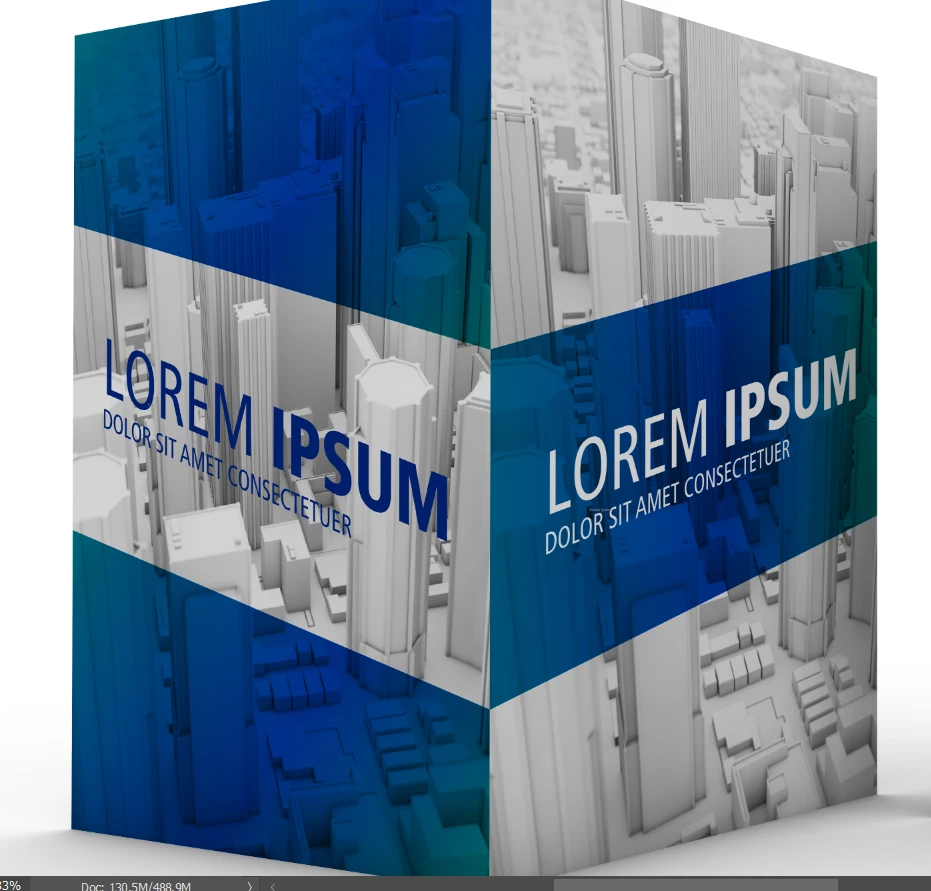
{Thread renamed by moderator}

    This topic has been closed for replies.

    1 reply

    Sahil.Chawla
    Adobe Employee
    Adobe Employee
    July 9, 2019

    Hi Jerry,

    Not sure if I understand this correctly, could you please share some screenshots of the image opened in Photoshop, so that we can see the Layer panel as well?

    To unlock a Layer you just have to click on the Lock icon.

    Let us know if it helps.
    Regards,
    Sahil

    Inspiring
    July 9, 2019

    I do not see a background layer.  Even the text section is not allowing me to edit.

    Inspiring
    July 10, 2019

    In the screen capture no layer is targeted. Which layer is locked? I do not see any in you layers palette the indicate the layer is locked. However two of your layer groups are collapsed so we can not see the layers within  cover and inside.

    Also I feel for you Product Mockup Template you need to use smart object layer so you can give sone of your objects the correct perspective and rotation so when the Smart Object content is replaced the replacement will be transformed to the correct perspective.

    There are many examples on the web.

    https://www.google.com/search?q=brosure+mockup+template&oq=brosure+mockup+template&aqs=chrome..69i57j0l5.13102j0j7&sourc…


    I see the examples but they are not part of  Adobe, unless I'm missing something.

    Also, I cannot target anything because I can't see any layers even if I click on anything, I can't type or delete anything.