Participating Frequently
June 27, 2023
Answered

Photoshop tool icons are missing

  • June 27, 2023
  • 124 replies
  • 41122 views

Recenlty my Photoshop tool icons simply do not appear on the toolbar. they function fine but it is troublesome to find the right tool. The only way I could solve this is to reinstall photoshop but I cannot possibly do that every day.

Correct answer Sameer K

Hey, @Stefan31701036zdnm. Welcome to the Photoshop Community. I'll help you figure this out.

What version of Photoshop are you working on? Moving this to discussions for now.


Try this:

  • Go to the following location on Windows 10/11: Users/[user name]/AppData/Roaming/Adobe/UXP/PluginsStorage/PHSP
  • Press Windows + R & type this is the Run Window - %APPDATA%\Adobe\UXP\PluginsStorage
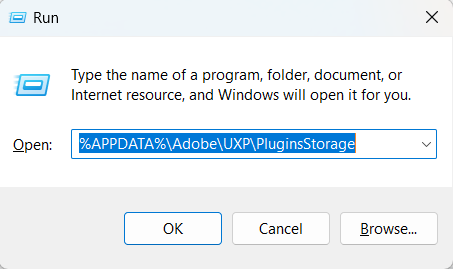
    image.png


  • In the PHSP Folder, rename the 26 folder by adding a .old at the end. ('26' > Rename > '26.old')

These changes will give a refresh to panels in Photoshop. Let me know how it goes.

Thanks!

Sameer K

124 replies

yamato713108855
Community Expert
Community Expert
August 18, 2026

Please check this thread.


Participant
August 17, 2026

I have the same problem. I have stopped counting how many times I’ve resetted the preferences.

I also de-installed PS including the preferences files. On re-installation the problem remained with the current version (v27.9.1) and 2 previous versions (v27.8 and v27.7).

In addition and even more annoying: the window “Adjustments” remains empty; no icons visible and the tools are not there.

I’d appreciate any suggestions to fix these issues.

Participant
August 18, 2026

Cleaning out those deep AppData cache directories completely fixed the broken user links toolbar issues

Ged_Traynor
Community Expert
Community Expert
August 5, 2026

@AlphaArslan have a look at the correct answer in this thread to see if it helps


Participant
August 5, 2026
Greyed Toolbar

Hi everyone,

I'm experiencing a strange issue with Adobe Photoshop 27.9.1 on Windows. My Creative Cloud account is properly licensed and signed in, but Photoshop is still not working correctly.

Photoshop Version:

  • Adobe Photoshop Version: 27.9.1 20260803.r.1 65900e1 x64 (Final Release)

Issue

  • Photoshop either fails to open properly or, when it does open, the interface is broken.
  • The toolbar appears empty, and when I hover over the tools, only the tool names are displayed instead of the actual icons.
  • The issue persists every time I launch Photoshop.

Troubleshooting I've already tried

  • ✅ Verified that my licensed Adobe account is properly logged in.
  • ✅ Used the Adobe Creative Cloud Cleaner Tool to completely clean the installation.
  • ✅ Uninstalled and reinstalled Photoshop.
  • ✅ Reset Photoshop preferences.
  • ✅ Checked and enabled Use Graphics Processor in Preferences.
  • ✅ Created a new workspace and reset the workspace layout.
  • ✅ Updated Photoshop to the latest available version.

Unfortunately, none of these steps have resolved the issue.

Has anyone experienced the same problem or found a solution? Any suggestions would be greatly appreciated.

Thank you!

jane-e
Community Expert
Community Expert
August 5, 2026

@AlphaArslan 


Did you try the steps in this post, marked as correct in this thread?

https://community.adobe.com/questions%2D712/photoshop%2Dtool%2Dicons%2Dare%2Dmissing%2D1183294?postid=4842421#post4842421


Jane


Ged_Traynor
Community Expert
Community Expert
July 3, 2026

@Rahul Kumar38269966wkze have a look at the correct answer in this thread to see if it helps


Participant
July 3, 2026
Tools icons invisible


AgDeuCerto
Participant
June 27, 2026

Olá, @Stefan31701036zdnm. Bem-vindo à Comunidade Photoshop, vou te ajudar a resolver isso.

Se a sua versão do Photoshop for v27.8 siga os próximos passos.


Experimente isto:

  • No Windows 10/11, acesse o seguinte local : Usuários/[nome de usuário]/AppData/Roaming/Adobe/UXP/PluginsStorage/PHSP
  • Pressione Windows + R e digite o seguinte para abrir a janela Executar: %APPDATA%\Adobe\UXP\PluginsStorage

     
  • Na pasta PHSP, renomeie a pasta 27 adicionando ".old" ao final. ('27' > Renomear > '27.old')
Participant
June 22, 2026

has anyone found a solution to this? I am dealing with this regularly. I’m running the latest version.

yamato713108855
Community Expert
Community Expert
June 12, 2026

Have you tried resetting the preferences file and reinstalling the app?

https://helpx.adobe.com/photoshop/desktop/get-started/settings-and-preferences/reset-preferences.html

Participant
June 12, 2026

I’ve done that twice, and even renamed folders so photoshop makes new ones

Participant
June 12, 2026

shutting down photoshop and reopening it a bunch of times until it works, it’s become a major issue with my professonal workflow.


