Pattie-F
Legend
December 18, 2019
Question

Quick Steps! Create a color stamp brush

  • December 18, 2019
  • 15 replies
  • 34201 views

          How to create a colored stamp brush from an image


If you like creating posters, newsletters, or other projects that include a repeating graphic, you might consider turning it into a brush. Here are step by step instructions to create a color brush.


 Launch Photoshop and create a new document

  • Launch Photoshop your desktop and create a new document by selecting file-new from the menu 

    (shortcut: Ctrl/Cmd N)

  • A new window will open with options. Set the desired file size of the file in pixels based on the maximum size you want your brush to be. Mine are usually between 200 and 400 pixels.

  • Be sure to scroll down to Background Contents, select Transparent  and click OK. This will ensure you don’t have a solid box around your brush


Create the brush content

  • Now, you can paint, use shapes, or copy a selection from a photo to create the content of your brush

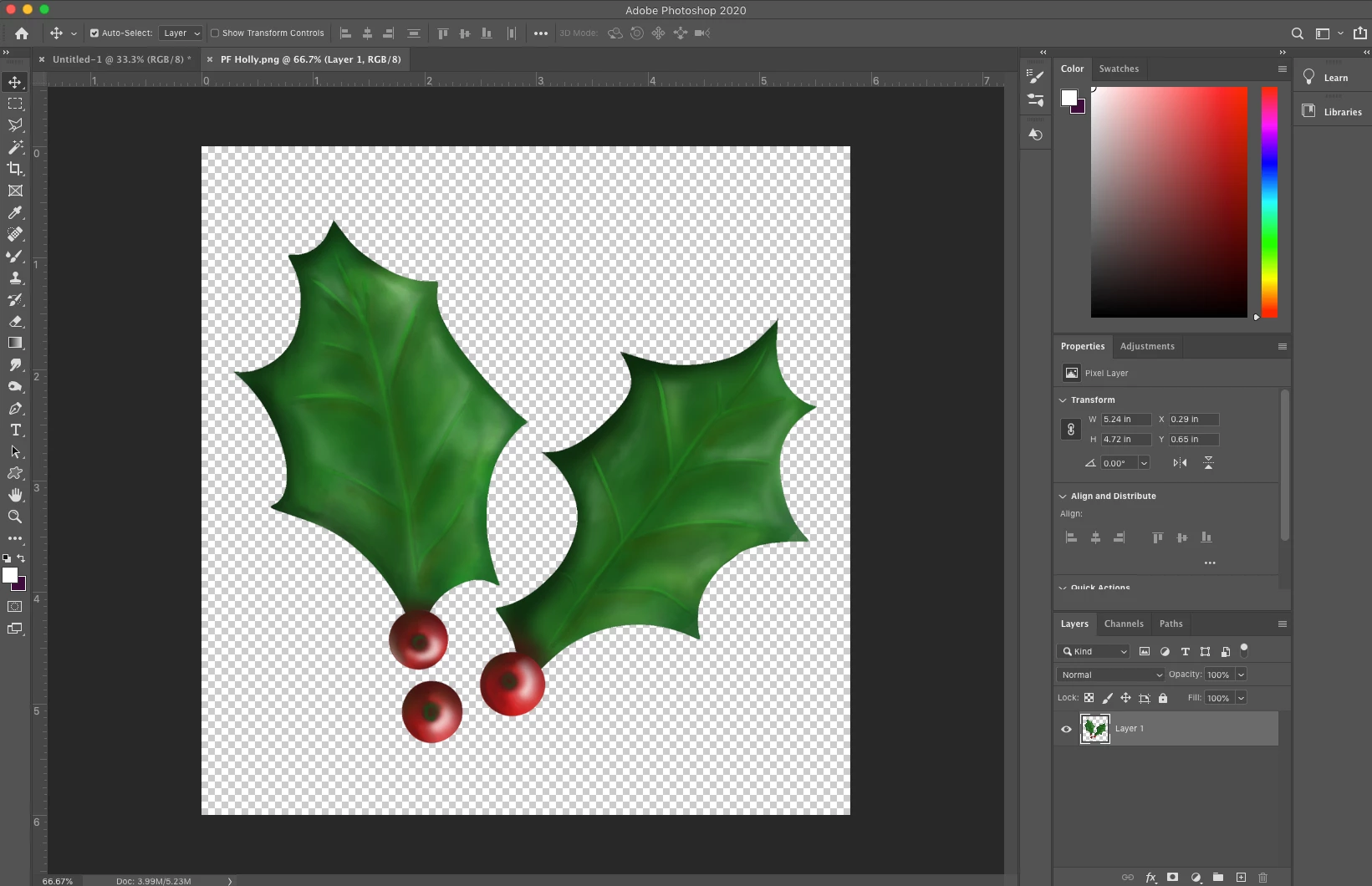
  • I painted some holly to use for my brush. Remember to keep the background transparent.


❸ Select the Mixer Brush Tool

  • Long-Click on the brush tools to bring up the flyout and choose the Mixer Brush Tool from the options
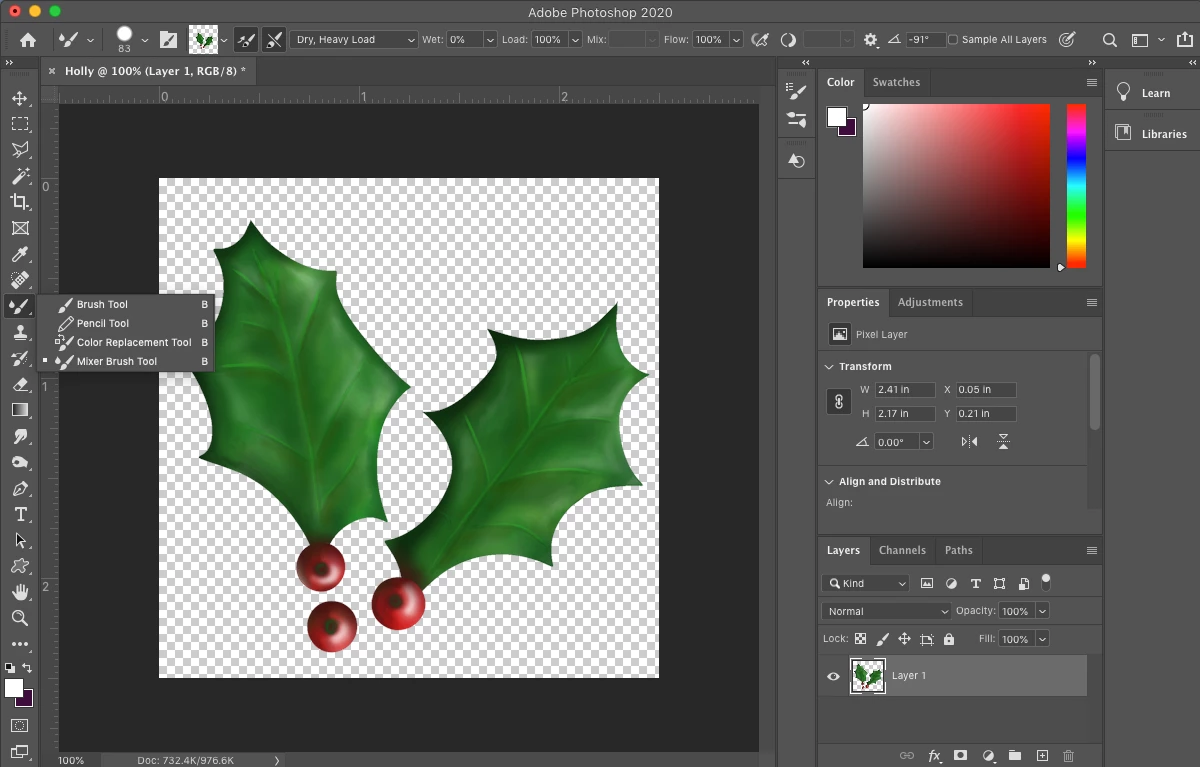


  • Choose the hard round default brush


  • Set the options to Dry, Heavy Load, Wet: 0%, Load 100%, Flow 100%
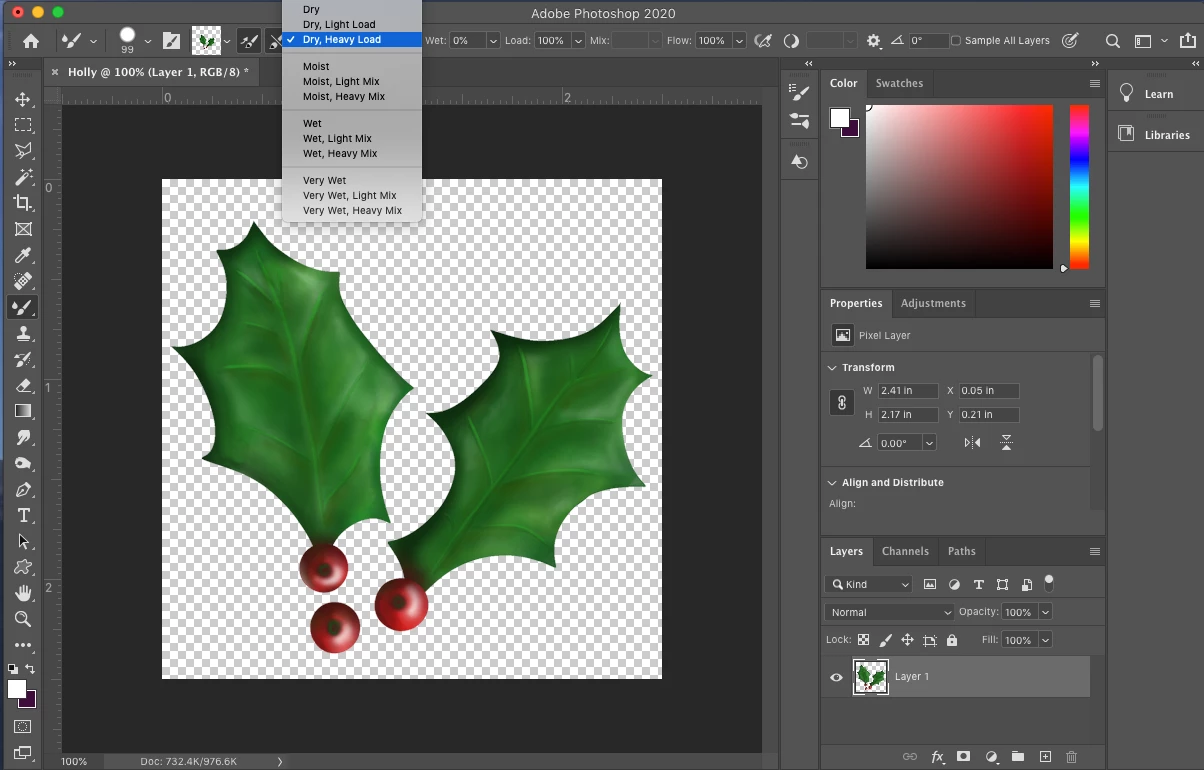


Capture the brush image

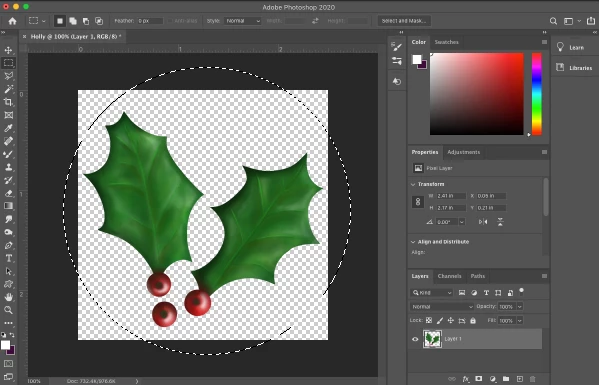
  • Set the brush size large enough that your image fits inside of it (shortcut: Use the bracket keys to adjust the size)

  • Hold down the Alt/Option key and click in the center of your image to capture the brush

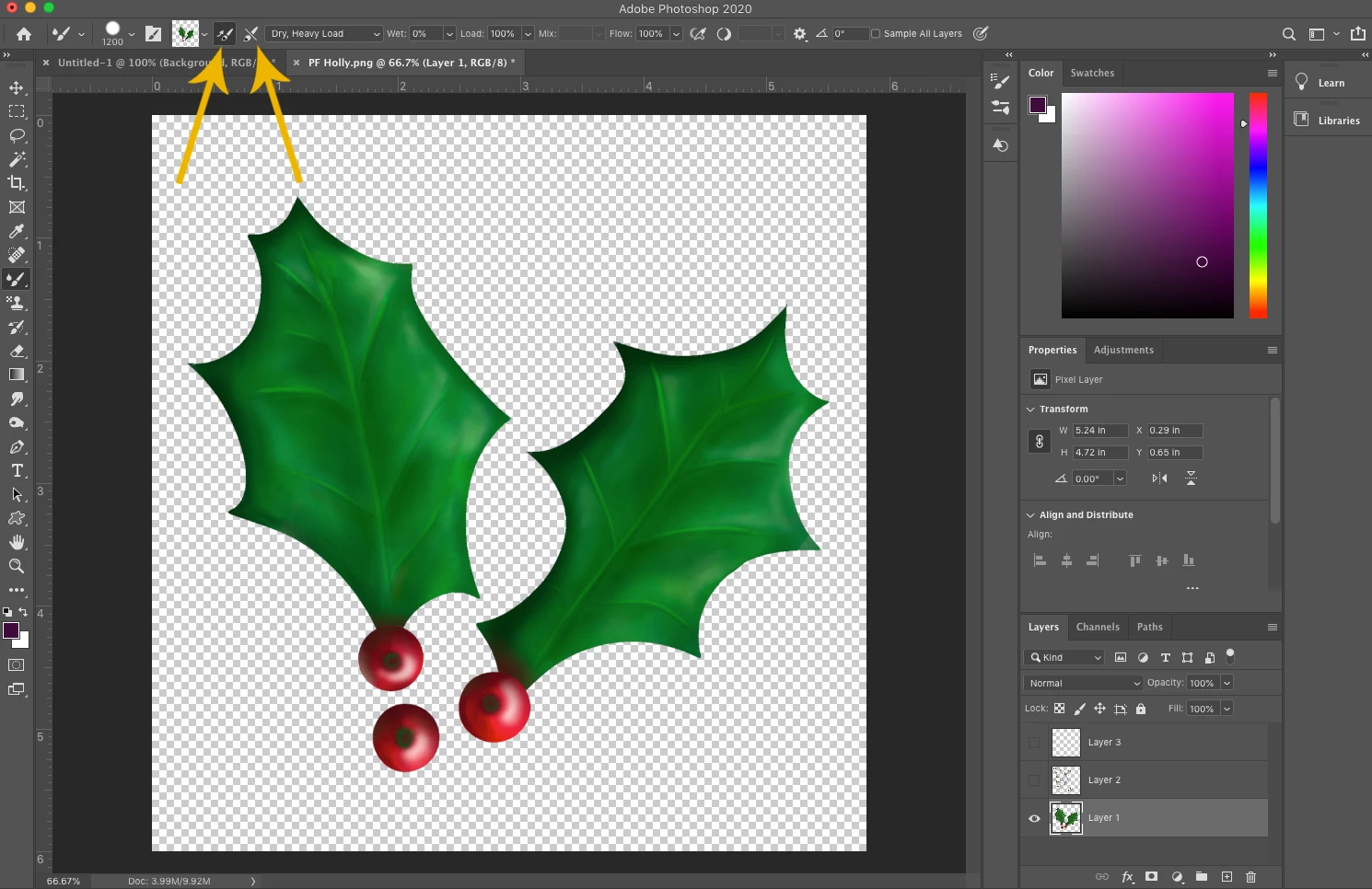
  • You will see the image appear in the Current Brush Load swatch at the top


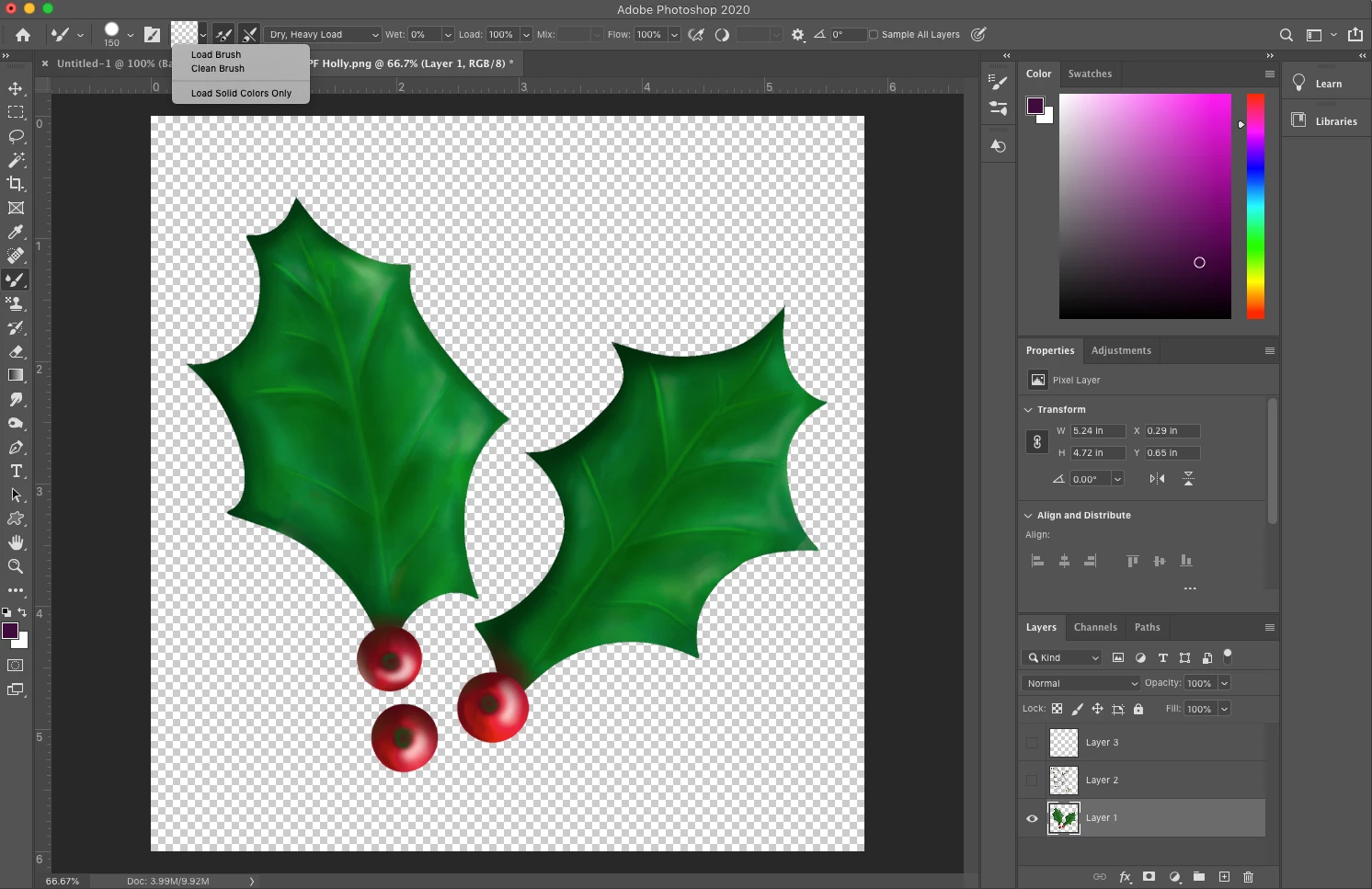
  • Tap the > to the right of the brush image preview box
  • Ensure load solid colors only is not checked


  • Enable Automatic Load and ensure Clean is not enabled 


❺ Adjust the brush settings

  • From the main menu, choose Window>Brush Settings to bring up the brush options (or click on the icon of the brush on the folder next to the brush size setting)
  • Tap on Brush Tip Space and move the slider to the right until it looks like bouncing circles with space between them
  • This will space your image out and keep your brush from looking like a long tube
  • You can play with this setting to see how different spacings look
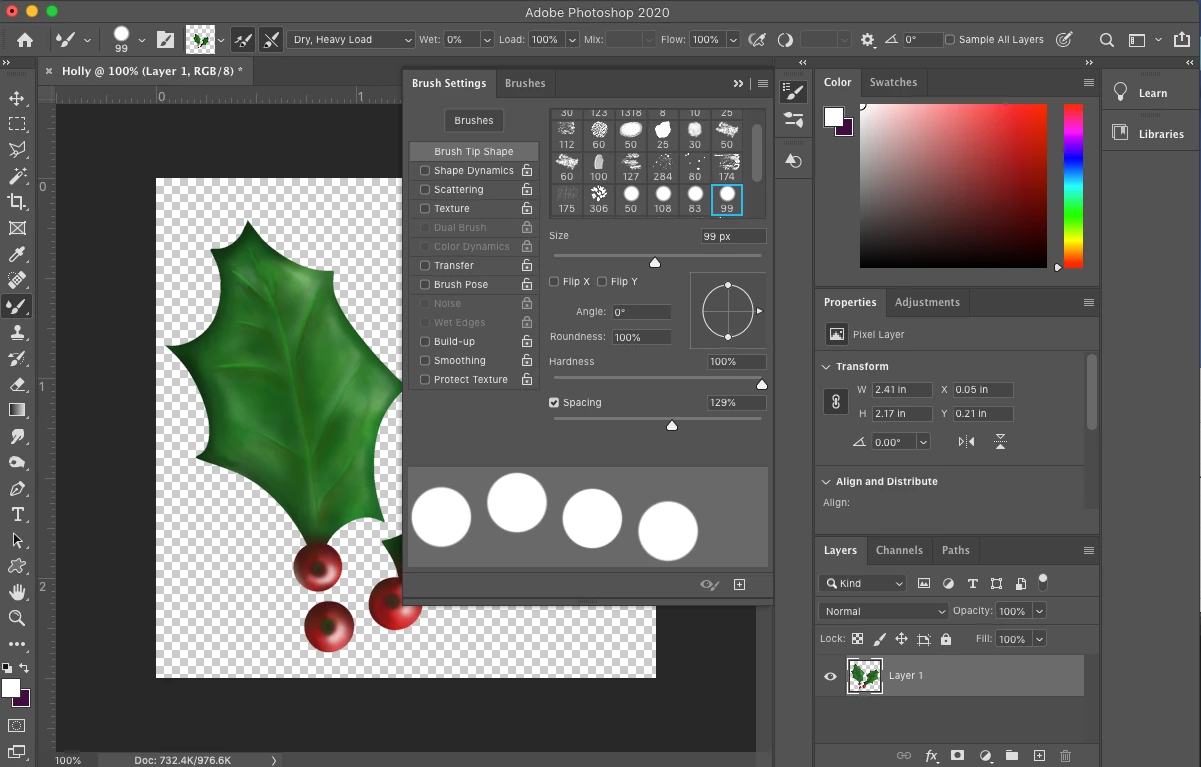


  • Now click on Shape Dynamics

  • Change the Angle Jitter Control option to Direction
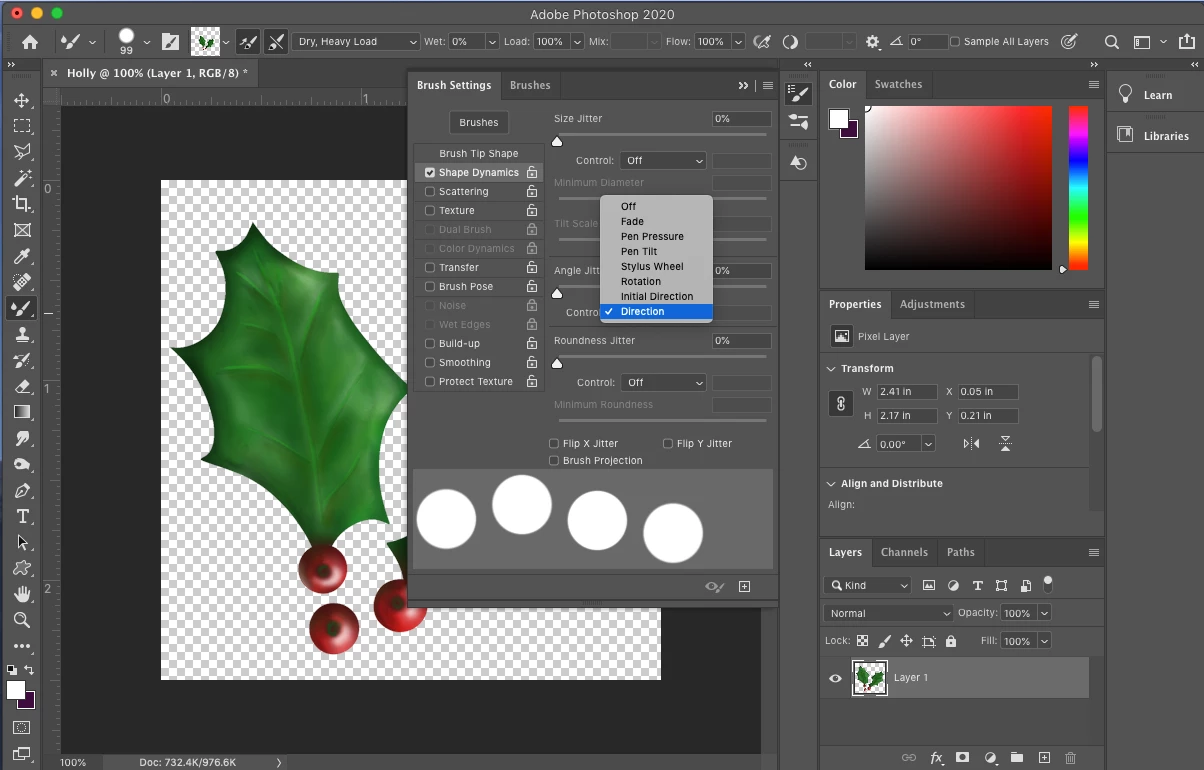


  • If you have a pressure sensitive pen and you want the size to vary with pen pressure, you can also change the Size Jitter control option to Pen Pressure
  • Close the Brush Settings panel


Save and name your brush settings

  • Tap on the + symbol at the bottom right of the brush settings 
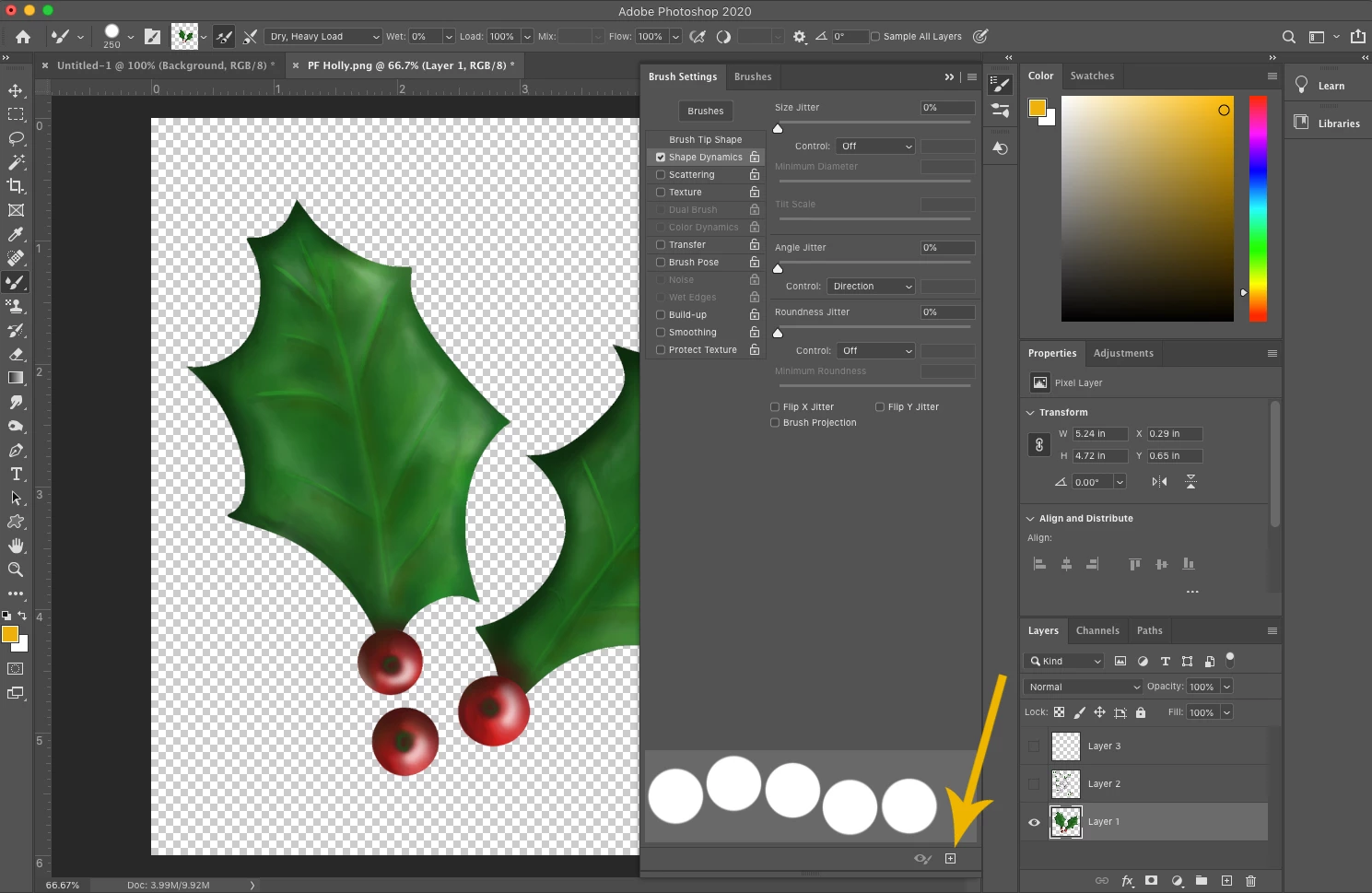


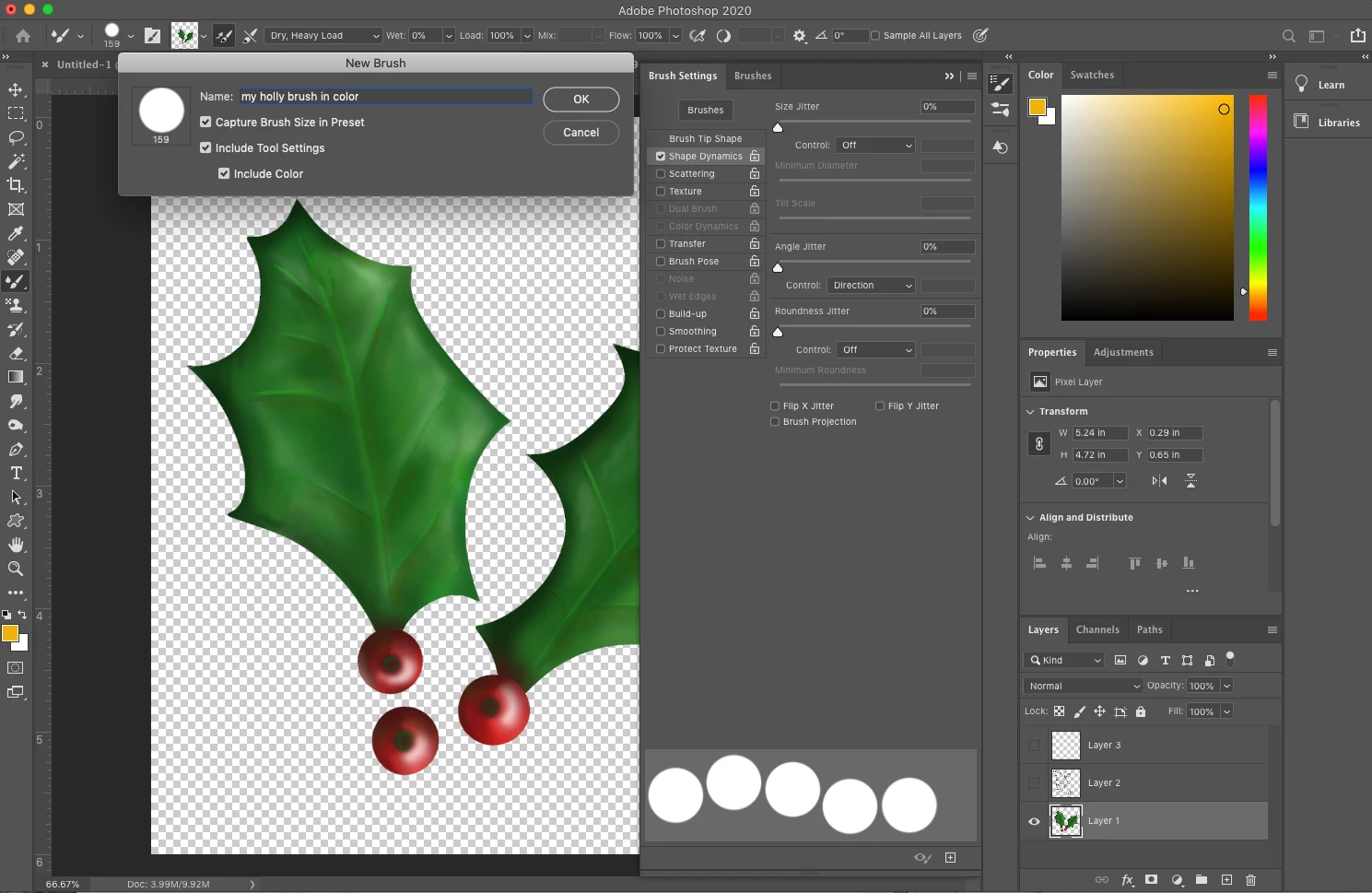
  • Check the option Include Color and if desired, Capture Brush Size in Preset and Include Tool Settings
  • Name your brush and click on OK to save it


Use your new brush

  • Create a new file or add a new layer and give your new brush a try!
  • If you want to make a border, you can stamp the brush once, hold down the shift key, and then stamp where you want the last one. Photoshop will line them all up in a straight line. 
  • Clicking the brush once will work like a stamp. 
  • Painting with the brush will make a series of stamps that follow your brush stroke with the spacing you set before


Related Links:

Create and modify brushes in Adobe Photoshop

Photoshop brush presets


You can use this to create borders for a holiday newsletter or any other number of projects you can imagine!



15 replies

Participant
January 23, 2024

Hi! I'm wondering if there is a way to have any color variation settings on the stamp brush, does anyone know? Like being able to have a colored stamp but being able to change the hue/saturation/brightness when you use it. I'm trying to make a plant brush with those properties!

Participant
August 25, 2023

I only just found this tutorial so not sure if anyone will answer this - but I am having issues with a newly created stamp brush (using the technique here) just overwrites the previous stamp brush I made (again, using the technique here). Any idea what I am doing wrong? I am using PS 2023 so perhaps thats part of it. thanks!

Participant
September 4, 2023

I'm having the same issue- can someone advise?

PintoSixty
Known Participant
November 29, 2022

Thank you for this!!! Good lord, I spent 8 hours trying to accomplish this after watching a 3-year-old YouTube tutorial that took me a couple of hours to find while searching. I could not recreate the technique on PS CC 2023 to save my neck. But, thanks to the queen, Miss Patti-F, this worked, dadgummit!

Participant
March 8, 2022

This is a very cool app

Participant
November 23, 2020

Cool tut! I got to it from the Create and Modify Brushes page, in which they say the brush preview panel has been discontinued in the Jan 2020 update. How do you make this brush, especially since you say look at the brush preview panel in some of your instructions, without a brush preview panel? It seems like modifying any brush would be a serious PITA without a preview panel! Any tips would be appreciated! TY!

Participant
April 22, 2020

Thanks for sharing. Are you want to learn more tutorials, visit my website and improve your skills.

 (link removed by moderator) Have a nice day.


Participating Frequently
November 7, 2020

Is there any way to make the full color brush follow the stroke direction? Angle Jitter->Direction won't work here.

Pattie-F
Pattie-FAuthor
Legend
November 17, 2020

This type of full color stamp brush will remain the same direction and won't rotate as you paint with it.

Known Participant
April 8, 2020

This initially seemed ideal for what I was trying to do, but I can't get the sampled image to rotate. In step 5 you mention setting angle jitter to 'direction' but that doesn't affect the image, only the brush tip. If using a round brush like suggested, why mention the 'direction' option as it doesn't seem to change anything visibly? I've looked everywhere and tried various settings, but how can I get the sampled image to rotate with the direction my pen is travelling?

Apart from that issue, everything else was very helpful.

Jeff Arola
Community Expert
Community Expert
March 17, 2020

A really cool addition would be if the brush preset picker showed the actual image of the brush like is shown in the Mixer Brush current brush load window instead of just a solid color brush.


January 13, 2020

Thank you, I am going to try this as soon as possible


Participating Frequently
January 7, 2020

Thanks for sharing, I'm learning from it.