



🔎 Quick Tip: Remove backgrounds with a simple click

How to remove a background quickly
Did you know there’s a Remove Background Quick Action that removes the background from your image in one click? Head over to Photoshop and give it a try!

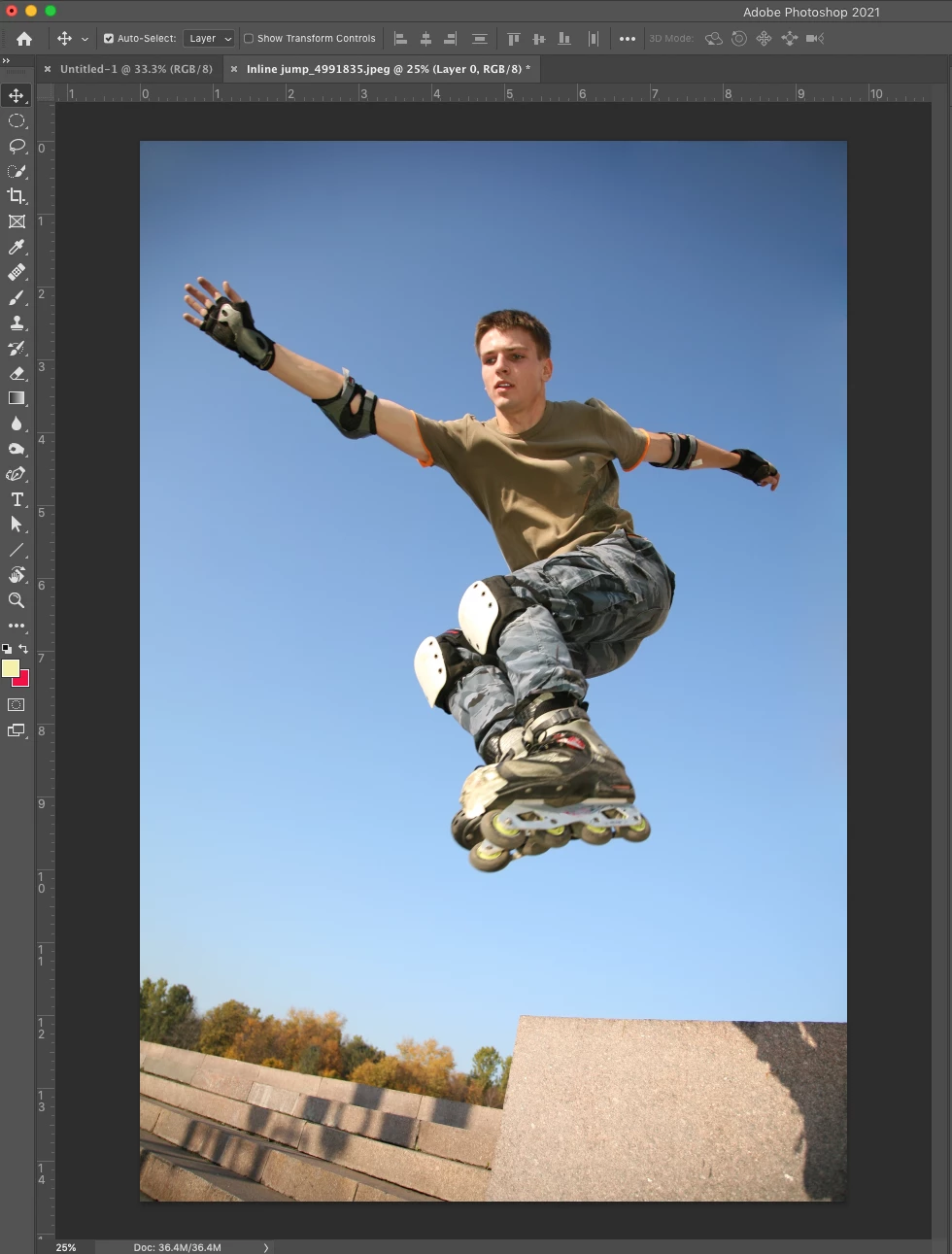
❶ Open an image in Photoshop
❷ Open the Discover Panel
Open the Discover Panel by clicking the magnifying glass icon at the upper right of the app workspace, selecting Help > Photoshop Help from the main menu, or by typing the keyboard shortcut Cmd/Ctrl + F.
❸ Choose the Remove Background Quick Action
Navigate to the Browse section, expand the Quick Actions list, and select Remove background.
❹ Optional: Edit the layer mask
You should now see your image on a transparent background. If you are happy with the selection, you can skip this part. However, if you want to bring back some areas of the image or hide other areas, you can modify the layer mask.
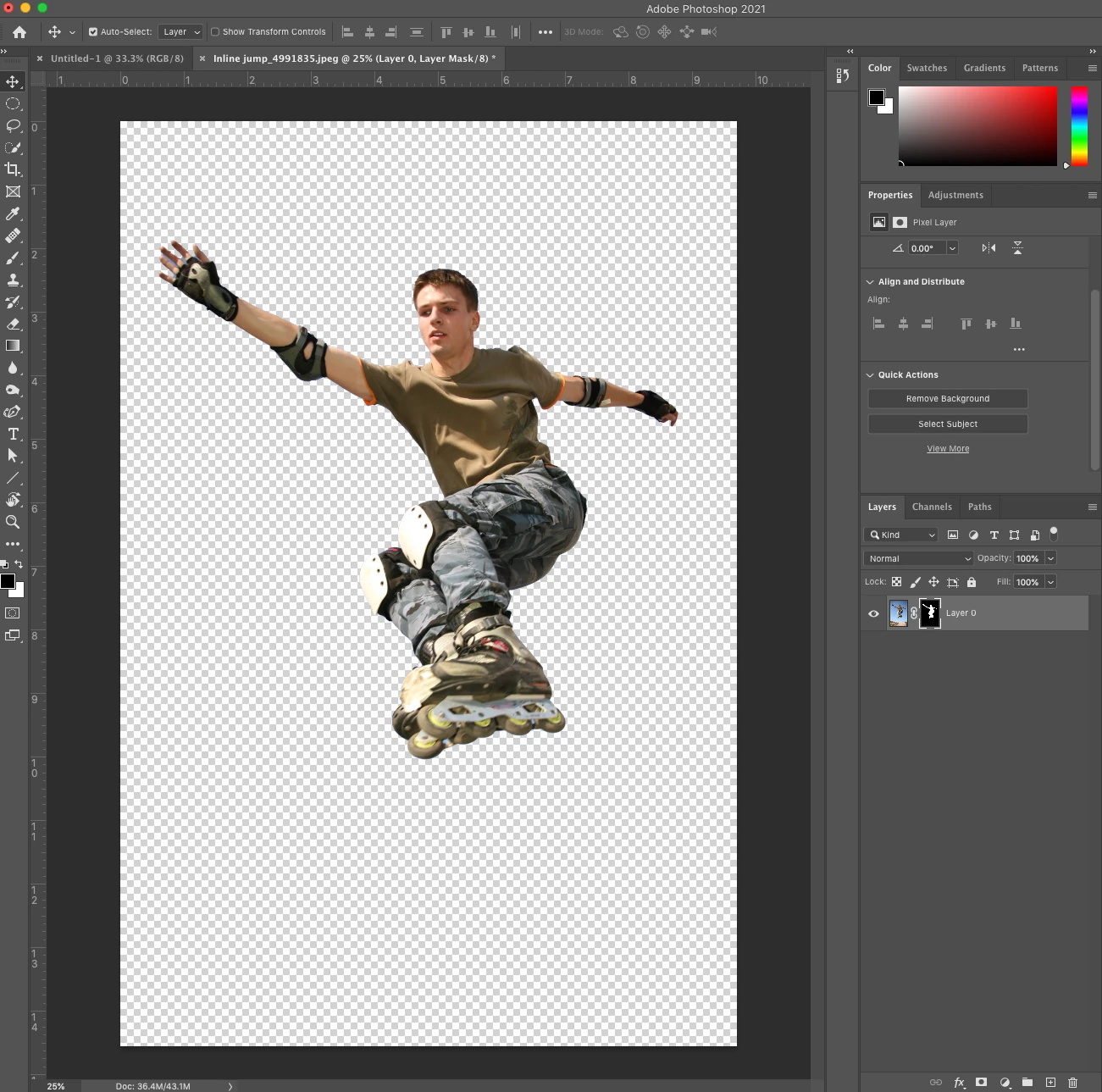
- Click on the layer mask thumbnail in the Layers Panel.

-
Use the brush tool to paint black on any additional areas of the image that you want to hide. Then, paint white on any additional areas of the image that you wish to reveal.
Remove Background is also available for Photoshop on the iPad. Check it out:
Remove Background in Ps on iPad
Related links:
Quick action - Remove the background from your image
Discover one-click workflows and more
How to remove a background in Adobe Photoshop
Learn how to search faster with the Photoshop Discover Panel
Refine a selection in the Select And Mask workspace
Quickly select people or objects
Check out other Photoshop Quick Tips
 AdChoices