Inspiring
June 26, 2017
Answered

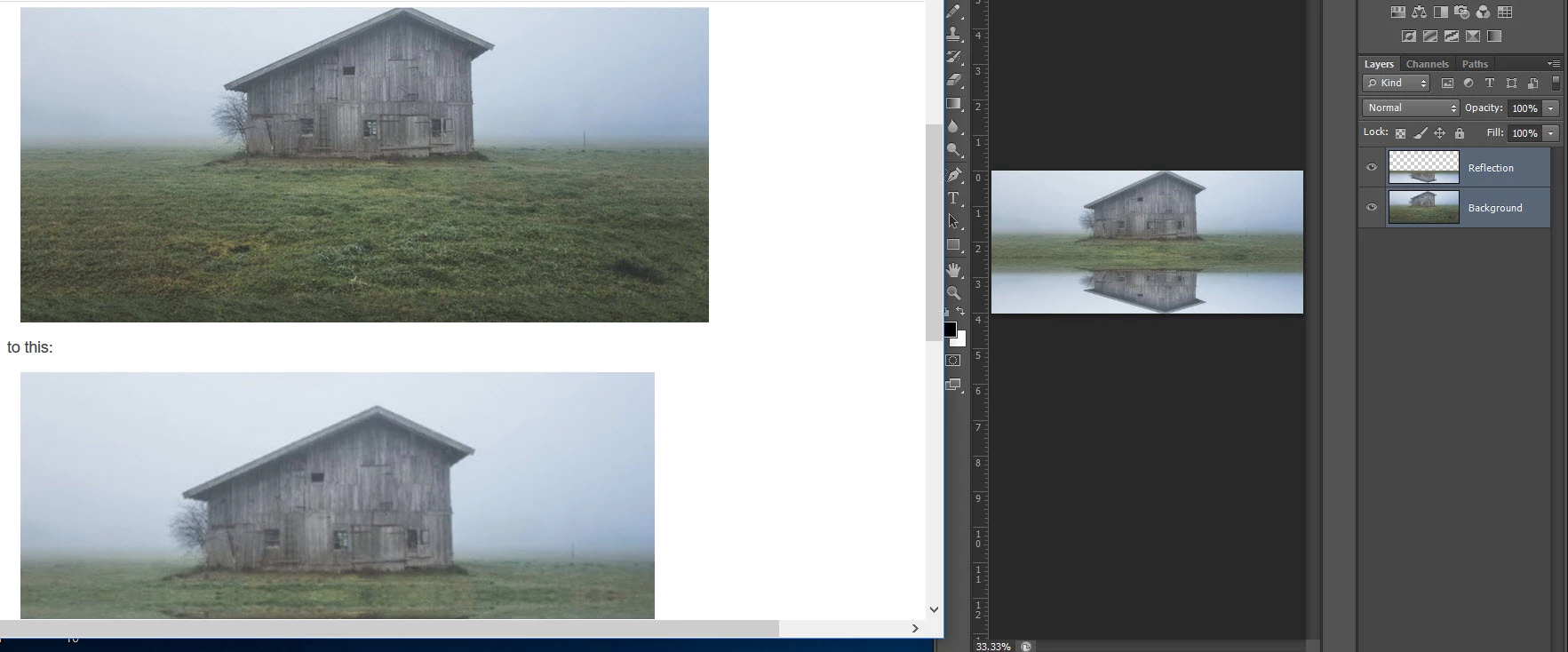
Reposition the two layers to fit the height and width of the canvas

  • June 26, 2017
  • 1 reply
  • 332 views

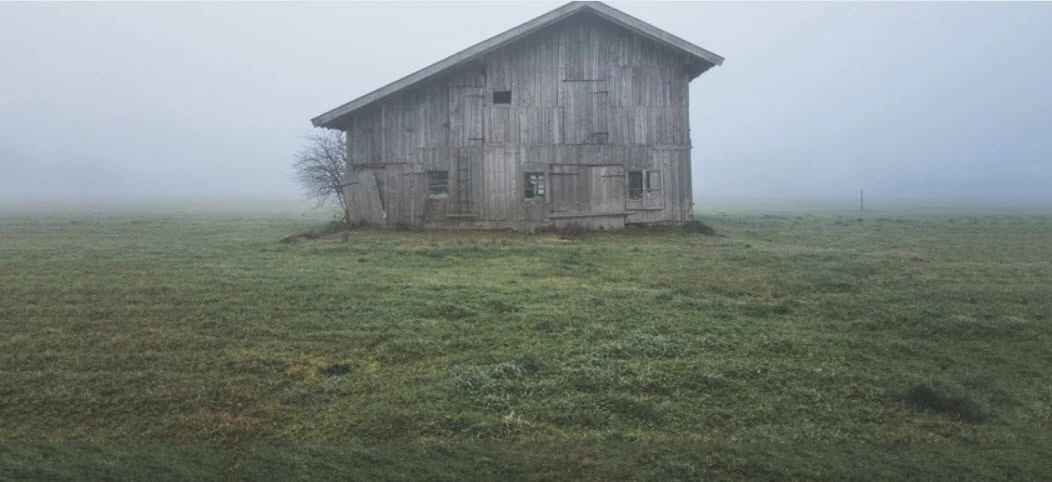
From this:

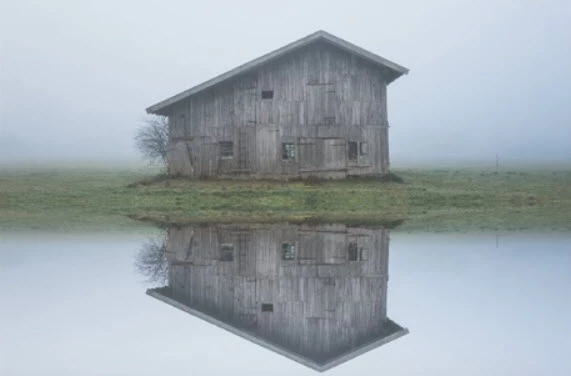
to this:

My current screen:
Thanks for looking, Lucie.

This topic has been closed for replies.
Correct answer Barb Binder

Are you asking how to change the canvas size to make room for the reflection?

  1. Image > Canvas Size.
  2. Enable relative, click the top center anchor, then go back up to height and increase the size. Go bigger that you think—you can always crop later.

Relative means that you are adding the exact amount of space you need, i.e., 2 inches or 4 inches and the anchor at the top means the original image stays at the top, and the new canvas is added below.

1 reply

Barb Binder
Community Expert
Barb BinderCommunity ExpertCorrect answer
Community Expert
June 26, 2017

Are you asking how to change the canvas size to make room for the reflection?

  1. Image > Canvas Size.
  2. Enable relative, click the top center anchor, then go back up to height and increase the size. Go bigger that you think—you can always crop later.

Relative means that you are adding the exact amount of space you need, i.e., 2 inches or 4 inches and the anchor at the top means the original image stays at the top, and the new canvas is added below.

~Barb at Rocky Mountain Training