Michael_Graubart
Inspiring
June 3, 2017
Answered

Resolution and pixel number in photos from iPhone

  • June 3, 2017
  • 4 replies
  • 18922 views

I have an iPhone SE with a 12 Mp camera and am concerned with the quality of printed photos taken with the phone.

I downloaded some photos from the iPhone to the Photos app on the Mac, then exported them as JPEGs and, later, as TIFFs. I then opened one of the TIFFs in Photoshop CS6, and I attach what is shown under 'Image Size'.

Screen Shot 2017-06-03 at 15.53.40.png

If I multiply 3024 and 4032, I obtain approximately 12.2 Mp as the total number of pixels, which corresponds very satisfyingly with the specifications of my phone's camera. ('Pixel Dimensions 69.8 M' presumably refers to the actual size of the pixels, does it not?) But if I multiply 42" x 56" x 72 ppi, which, as far as I can see, should yield the same answer, I obtain a mere 169,344 pixels.

At this stage I have two questions.

Firstly, why this discrepancy between 12.2 Mpixels and 169,344 pixels?

And secondly, will I get sharper prints if I type 250 or 300 in place of 72 into the 'Resolution' box?

I should be very grateful for answers, and for advice as to how to make the sharpest prints of these photos.

This topic has been closed for replies.
Correct answer Conrad_C

You don't need to do your own calculations, because the Image Size dialog box is already a calculator and can answer all your questions. The key is to turn off the Resample Image option. If you do that, you will easily see how size and resolution interact if the number of pixels is kept constant (that is, if pixels aren't deleted or added).

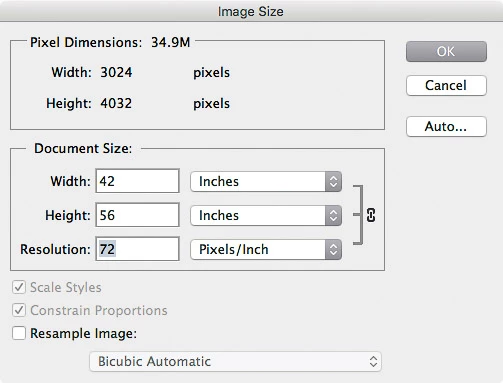
Here's where you start out: A 3024 x 4032 pixel (12 megapixel) image from your iPhone listed as 72 ppi. We turn off Resample Image.
Now let's find out what kind of print quality you're going to get, at least in terms of resolution. How about if you want an 8 x 10 inch print? Let's type 8 into Width.
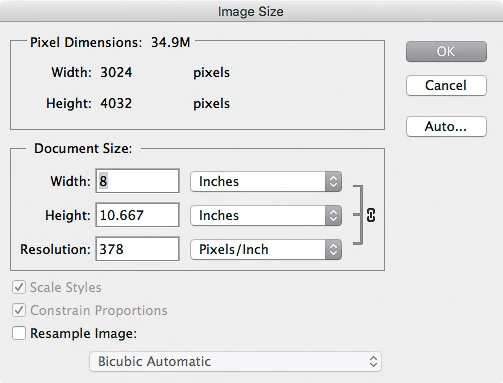
The Image Size dialog box does the math and says, if you want 8 inches wide, then the width in pixels (3072 pixels) divided by the width in inches (8 inches) equals 378 pixels per inch. If your printer needs 300 ppi for a quality print, obviously your iPhone image has more than enough resolution for this print size.

Now try this another way: How big can you print at 300 ppi? Type "300" into the Resolution field.
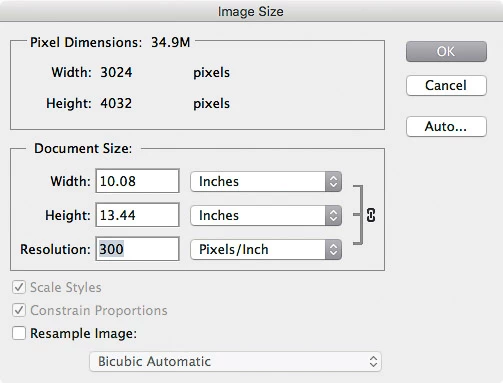
OK. At 300 ppi, 12 megapixels gets you a little more than 10 x 13 inches. If you wanted a more standard 11 x 14 inch print, that's close enough and would actually look just as good.

The point is that just seeing 72 ppi in the resolution field is not cause for alarm as long as all the pixels are still there. They are, that's why the original dialog box says if you set that 12 megapixel image to 72 ppi the print would be a massive 42 by 56 inches. When you shrink that same 12 megapixel image down to a more realistic print size like 8 x 10 inches, the same 12 megapixels becomes a more dense 378 ppi and the print looks great.

P. S. One more thing about the Pixel Dimensions number. It's badly labeled because that is not the number of pixels, it's the file size resulting from those pixel dimensions. Because 3024 * 4032 isn't 34.9 of anything; it's actually 12,192,768, or 12 million pixels, or 12 megapixels. Where does the 34.9 M come from? Each pixel is 8 bits per channel, and if you have 12 million of them you'll need about 35 megabytes of storage for the image (if not compressed). So the 34.9 M number is the estimated uncompressed file size. Unlike the CS6 version, the current Image Size dialog box in Photoshop CC properly labels these numbers.

4 replies

Derek Cross
Community Expert
Community Expert
June 2, 2021

Those of us who want to learn more about Photoshop might like to have a look at Conrad C's wonderful book:

https://www.peachpit.com/store/adobe-photoshop-classroom-in-a-book-2021-release-9780136904731


Silkrooster
Legend
June 4, 2017

I think you misinterpreted the math a bit.

42 x 72 = 3024 pixels wide

56 x 72 = 4032 pixels high

Michael_Graubart
Inspiring
June 4, 2017

I think you misinterpreted what I said a bit, Silkrooster.

Silkrooster
Legend
June 4, 2017

Possibly, done that before. This is what I took from your post.

But if I multiply 42" x 56" x 72 ppi,

Conrad_C
Community Expert
Conrad_CCommunity ExpertCorrect answer
Community Expert
June 3, 2017

You don't need to do your own calculations, because the Image Size dialog box is already a calculator and can answer all your questions. The key is to turn off the Resample Image option. If you do that, you will easily see how size and resolution interact if the number of pixels is kept constant (that is, if pixels aren't deleted or added).

Here's where you start out: A 3024 x 4032 pixel (12 megapixel) image from your iPhone listed as 72 ppi. We turn off Resample Image.

Now let's find out what kind of print quality you're going to get, at least in terms of resolution. How about if you want an 8 x 10 inch print? Let's type 8 into Width.

The Image Size dialog box does the math and says, if you want 8 inches wide, then the width in pixels (3072 pixels) divided by the width in inches (8 inches) equals 378 pixels per inch. If your printer needs 300 ppi for a quality print, obviously your iPhone image has more than enough resolution for this print size.

Now try this another way: How big can you print at 300 ppi? Type "300" into the Resolution field.

OK. At 300 ppi, 12 megapixels gets you a little more than 10 x 13 inches. If you wanted a more standard 11 x 14 inch print, that's close enough and would actually look just as good.

The point is that just seeing 72 ppi in the resolution field is not cause for alarm as long as all the pixels are still there. They are, that's why the original dialog box says if you set that 12 megapixel image to 72 ppi the print would be a massive 42 by 56 inches. When you shrink that same 12 megapixel image down to a more realistic print size like 8 x 10 inches, the same 12 megapixels becomes a more dense 378 ppi and the print looks great.

P. S. One more thing about the Pixel Dimensions number. It's badly labeled because that is not the number of pixels, it's the file size resulting from those pixel dimensions. Because 3024 * 4032 isn't 34.9 of anything; it's actually 12,192,768, or 12 million pixels, or 12 megapixels. Where does the 34.9 M come from? Each pixel is 8 bits per channel, and if you have 12 million of them you'll need about 35 megabytes of storage for the image (if not compressed). So the 34.9 M number is the estimated uncompressed file size. Unlike the CS6 version, the current Image Size dialog box in Photoshop CC properly labels these numbers.

Michael_Graubart
Inspiring
June 4, 2017

That's absolutely wonderful, Conrad C. It answers my question, and answers any questions about this sort of topic that I am ever likely to want to ask in the future! I can now forget about all this stuff and get on with taking photos and printing them. Thank you very much for taking the trouble to answer so fully, precisely and clearly.

Michael_Graubart
Inspiring
June 3, 2017

PS: Replying to myself with my own answer to the first question, I have just realized that I should have multiplied by 72 squared, not plain 72! But that leaves the much more practically important second question, so I should still be very grateful for answers.

D Fosse
Community Expert
Community Expert
June 3, 2017

Ppi is something else entirely. It's a print parameter - an instruction to the printer how densely the file's pixels should be distributed on paper. In other words how big the print will be given the number of pixels you have in the file.

Ppi is not a file property. It's metadata, which can be changed arbitrarily without affecting the file.

Participant
June 2, 2021

I don't think you understand ppi verse resolution