
Kbirch
Participant
October 15, 2018
Answered

Scaling Images with shift no longer works after update (20.0)

  • October 15, 2018
  • 75 replies
  • 264293 views

After updating to CC 2019, I am not longer able to scale images evenly simply by holding shift.

I went to keyboard shortcuts and found a "scale" shortcut that was unassigned, so i assigned it to "S" as it simply wouldn't let me assign shift:
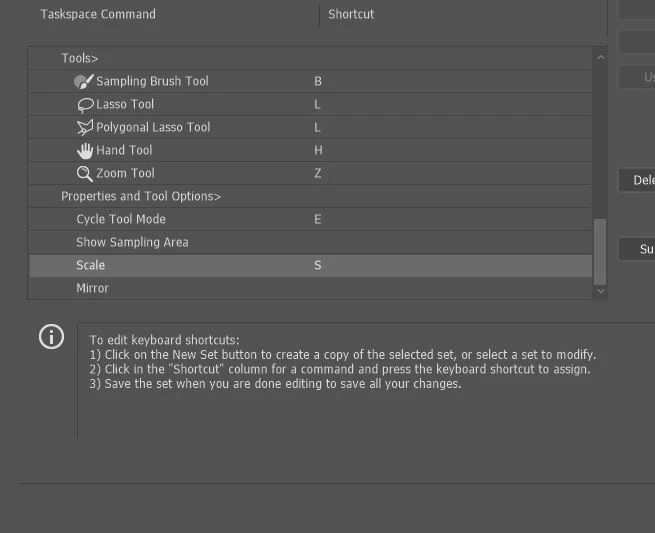
Now it seems to only want to scale evenly and won't let me scale however I want simply by dragging the corner of the image. Sometimes it doesn't go evenly when I transform with Ctrl+T and scales evenly after I press S, but wont let me go back to scaling unevenly.

Any Ideas?

Correct answer John Waller

It's a new feature. The old behaviour has been reversed. Default = proportional (constrain). Shift for non-proportional. Few people see any logic in this change.

Plenty of forum posts on this

Scaling Images with shift no longer works after update (20.0)

CC20 transform tool: Shift doesn't keep Aspect ratio

The new behaviour can be disabled.

To revert to the legacy transform behavior, do the following:

  1. Use Notepad (Windows) or a text editor on Mac OS to create a plain text file (.txt).
  2. Type the text below in the text file:

    TransformProportionalScale 0

  3. Save the file as "PSUserConfig.txt" to your Photoshop settings folder:
    • Windows: [Installation Drive]:\Users\[User Name]\AppData\Roaming\Adobe\Adobe Photoshop CC 2019\Adobe Photoshop CC 2019 Settings\
    • macOS: //Users/[User Name]/Library/Preferences/Adobe Photoshop CC 2019 Settings/

75 replies

KickerWeston
Participant
November 15, 2018

This is so frustrating. Why on earth would Adobe disrupt the habits of millions of users? Shift + proportional scale is BAKED INTO MY DNA at this point. DUMB. Did you even check with you users to see if they wanted this change??? Completely unnecessary. No wonder Sketch is gaining in popularity.. Smarten up Adobe!!!

Participant
November 9, 2018

Been using Shift to scale proportionally since Photoshop 2.5 (1993) Why change now? It took me hours to figure how to get to my Library folder to save that text file. Why isn't there a preference check box to scale objects the traditional way?

Not happy with Adobe for wasting so much of my time.

nicodascorpio
Participating Frequently
November 5, 2018

Adobe recommended I update to 2019 after upgrading to Mojave. I cannot tell u how pissed off I am right now. I've already lost an hour on this project i'm working on trying to find solutions to undo all these bad ideas. Almost all of the small but important functions that have literally become a part of my design muscle memory have been changed. You remove the ability to drag guides while transform is active on a layer. Instead you allow the use of holding down Cmd to drag guides instead but after you commit the action the guides disappear. Also who asked for auto-commit to not be toggle-able?? And now this Shift key foolishness? I have literally used this program for 20+ years with this being as natural as scratching an itch, and now I have to hack photoshop? You're losing touch Adobe.

Carola_BHG
Inspiring
November 5, 2018

I had to switch to a different computer, so I tried my best to learn the new command again but I really don't have time for this. Specially when it's just for some kind of layers and all other apps work differently. I had to come back here and create the config file in this computer as well.

This change really makes no sense at all from all points of view. Please Adobe, change it back or at least make it optional for Photoshop-only users or some people that would rather use it this way.

Participating Frequently
November 2, 2018

I have to admit, for the most part I tend to make a genuine effort at "adapting" to new functionality in Adobe products, and I'm usually glad I did. I can't imagine my life without smart objects and a completely non-destructive workflow in a mostly raster software package. I've been using Adobe products since I was 15 and I'm now ... 37. This is the very first post I've made, in over two decades of use (it's been my career for almost that entire duration, for what it's worth). So, naturally, I *wanted* to like this feature, because frankly, from early on it always felt weird that proportional scaling wasn't the default, where a *modifier* makes sense to distort what would otherwise be proportional.

It's been weeks now, attempting to adapt vs. using the annoyingly inaccessible workaround (Vs. a simple checkbox in the UI? Really?), but I finally found the "hole" in the logic of this new functionality (and, for all I know, perhaps why it was the way it was all these years): just as often, one typically needs to incrementally control the ROTATION of an object in a strict manner as well (i.e., 15, 30, 45, etc. degrees), and ... how do we do this? By holding SHIFT, very similar to the way we hold shift to control the SHAPE of an object. Now? We let go of Shift to control shape, but must then HOLD Shift to control rotation.


It's a real treat, and makes no logical sense, from a UX standpoint. If you're going to adopt this logic, remove the need to hold Shift to control rotation in the same way.

Or, you know, ditch the feature because it's an obvious dud.

Inspiring
November 1, 2018

This is simply a stupid change. I can somewhat understand doing this for the corner handle when scaling, but not for the top, bottom, and side handles!! If I use those I am wanting to change the width or height. NOT the total size!!

michaeld32543196
Participating Frequently
October 30, 2018

From the "New and Enhanced Features" Page:

How do I turn off the new proportional scaling by default behavior while transforming layers?

To revert to the legacy transform behavior, do the following:

  1. Use Notepad (Windows) or a text editor on Mac OS to create a plain text file (.txt).
  2. Type the text below in the text file:

    TransformProportionalScale 0

  3. Save the file as "PSUserConfig.txt" to your Photoshop settings folder:
    • Windows: [Installation Drive]:\Users\[User Name]\AppData\Roaming\Adobe\Adobe Photoshop CC 2019\Adobe Photoshop CC 2019 Settings\
    • macOS: //Users/[User Name]/Library/Preferences/Adobe Photoshop CC 2019 Settings/

Really Adobe?? You couldn't just make this a toggle that we could turn off? Like the Auto-Select Layer option?

bickitysnow
Participant
October 30, 2018

In reading the forums and working more with PS 2019 I think its a bug, not a feature. This still feels like a bug to me because now if you turn on "Reference Point when using Transform" it doesn't scale from that point.

Something really feels off about this behavior and now Photoshop behaves differently from Illustrator and InDesign. So I am hoping for a bug, not a feature because this feature sucks.

Participant
October 29, 2018

Why, why, why? I don't necessarily know the reason for the change however, it's hard to believe It adds to the experience or performance. Such a nuisance of a revision. #wishSteveJobswashere