
Participant
December 15, 2023
Question

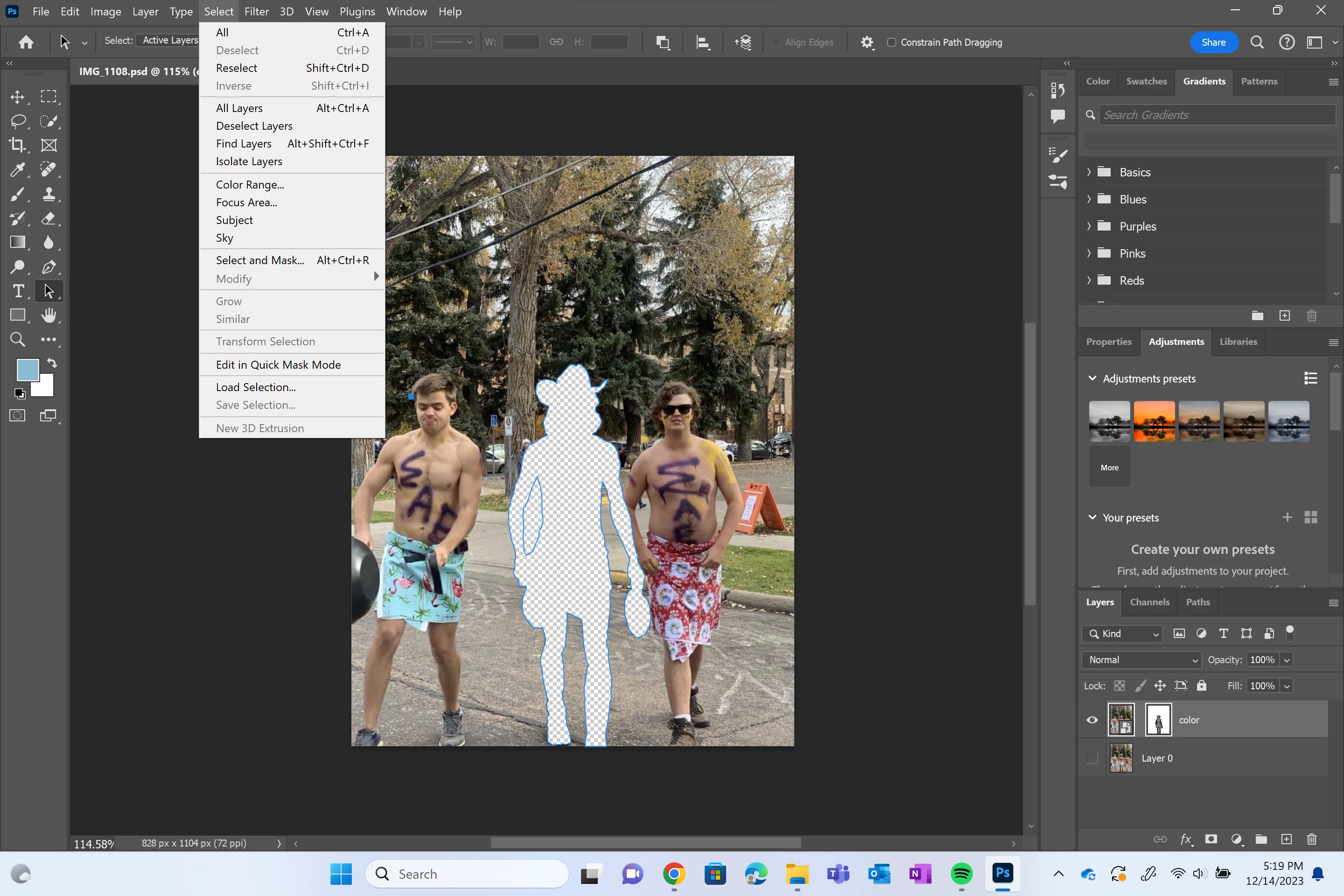
select inverse option is greyed out

  • December 15, 2023
  • 3 replies
  • 3185 views

ive looked everywhere trying to solve my problem and cant find anything that works. im trying to select a person from an image using the pen took after I select the person creat a vector mask and hide the background layer the person is deleted and all I have is the background. i need it to select the person and grey out the background but the inverse option is greyed out. 
This topic has been closed for replies.

3 replies

mglush
Community Expert
Community Expert
December 16, 2023

Hi!

Along with what Jeff said above, you can turn your path into a selection and then the Inverse Selection option would be available under the Select menu. Go to the Paths Panel, and click the "Make Selection" icon at the bottom to turn it into a Selection.

Michelle

Jeff Arola
Community Expert
Community Expert
December 15, 2023

Go to Path Operations in the tool options bar and try the different options.


Items under the Select menu are for when you have a Selection made with, for example, the Lasso Tool, which gives you the "marching ants"


Bojan Živković11378569
Community Expert
Community Expert
December 16, 2023

"Go to Path Operations in the tool options bar and try the different options."

Do not forget to click on vector mask before changing path operations and ensure path is selected.

hatstead
Inspiring
December 15, 2023

It would appear that you are working with Photoshop. This forum is for Photoshop Elements. Suggest that you head over there.

Image Adjustments Not Showing Up - Adobe Community - 14299892