Participant
May 8, 2018
Answered

Shadows in grid layout

  • May 8, 2018
  • 2 replies
  • 493 views

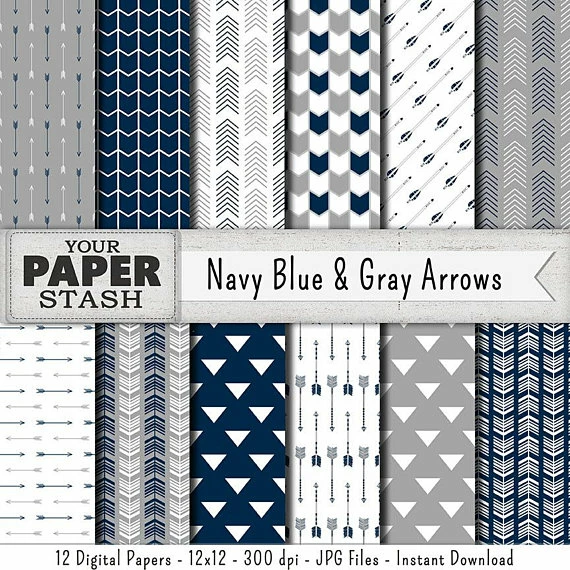
How can I add shadows to each grid column as seen in the sample grids below?

    This topic has been closed for replies.
    Correct answer Norman Sanders

    Perhaps this will help.

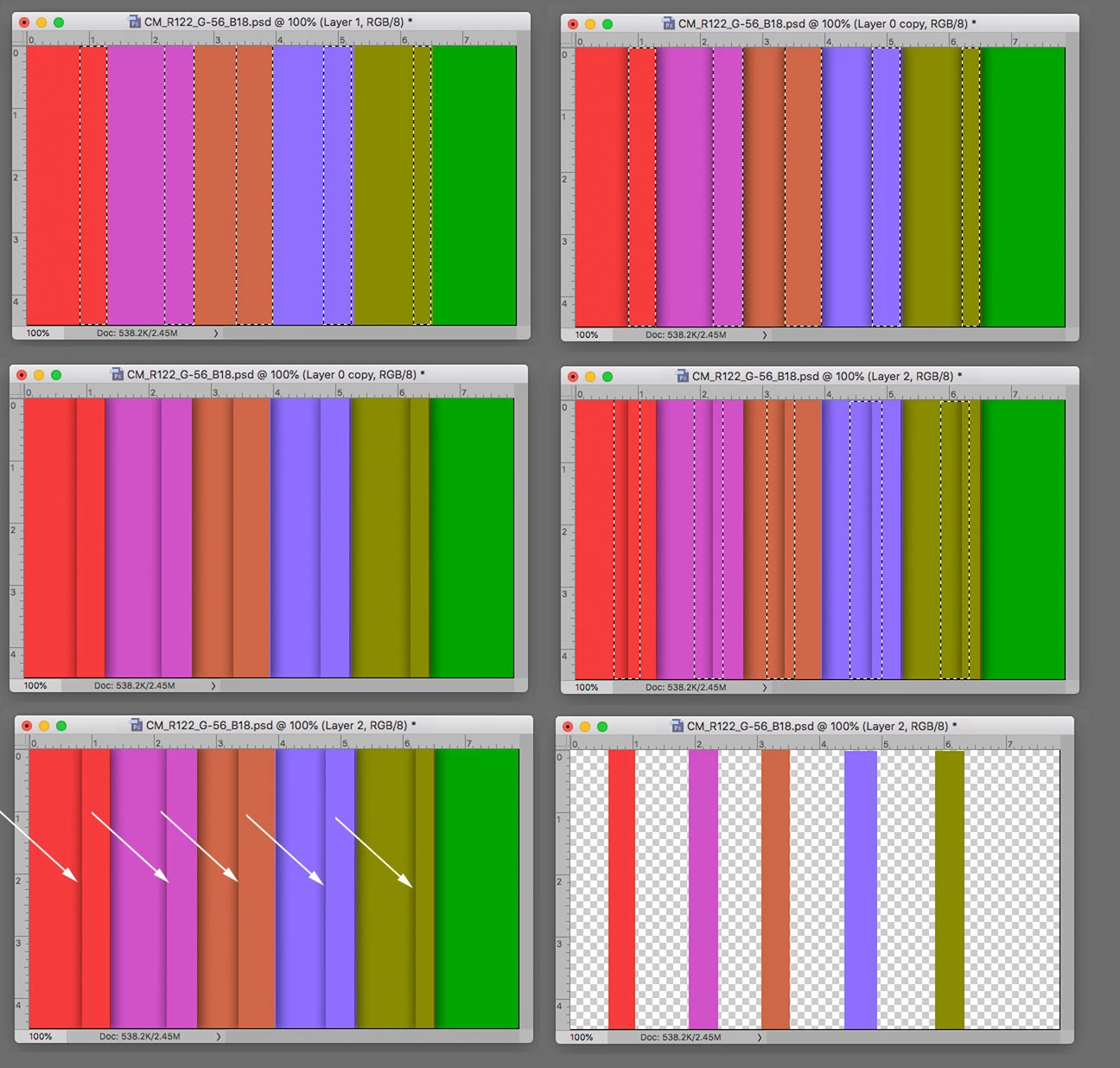
    Fig 1 A selection of the right edge of each column.

    Fig 2 The selected area placed on a separate layer and drop-shadow applied. Still showing marching ants

    Fig 3 Marching ants removed to show unwanted left-side shadows

    Fig 4 A selection of the unwanted left-side shadows. We move the marching ants to the Background image and Cmd+J to create a layer of it.

    Fig 5 The unwanted drop-shadow

    Fig 6 The section of the Background image (See Step 4) which is placed as a top layer

    Fig 7 The result

    2 replies

    Norman Sanders
    Legend
    May 9, 2018

    Duplicate the bottom layer for safety, (Layer 0 copy)

    Selection of the right half of each color strip and Cmd +J to place on another layer (Layer 1)

    Layer Style > Drop Shadow … 180 degrees

    Fill in the Layers Panel reduced to zero percent

    Selection of left drop shadow, move selection to Layer 0 copy

    Cmd+J and move Layer to the top of the stack

    AngelK81Author
    Participant
    May 10, 2018

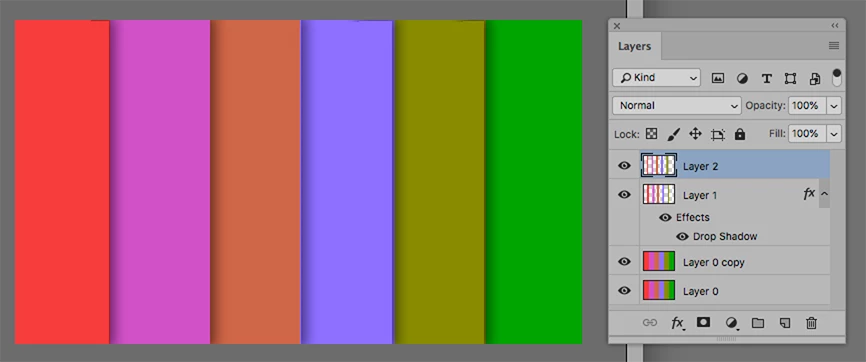
    Thanks @norman.sanders.  I'm not sure I understand the steps beyond "Fill in the Layers Panel reduced to zero percent".  This is how my layers panel currently looks.  Can you provide a bit more detail on completing the final 2 steps?

    Norman Sanders
    Norman SandersCorrect answer
    Legend
    May 10, 2018

    Perhaps this will help.

    Fig 1 A selection of the right edge of each column.

    Fig 2 The selected area placed on a separate layer and drop-shadow applied. Still showing marching ants

    Fig 3 Marching ants removed to show unwanted left-side shadows

    Fig 4 A selection of the unwanted left-side shadows. We move the marching ants to the Background image and Cmd+J to create a layer of it.

    Fig 5 The unwanted drop-shadow

    Fig 6 The section of the Background image (See Step 4) which is placed as a top layer

    Fig 7 The result

    Sahil.Chawla
    Adobe Employee
    Adobe Employee
    May 8, 2018

    Hi AngelK,

    You can use the Layer styles panel to add shadows to each layer.
    Please check out this article and let us know if you find it helpful: Layer effects and styles in Adobe Photoshop

    Regards,

    Sahil

    AngelK81Author
    Participant
    May 10, 2018

    Thank you Sahil.Chawla​.  I will check this out.