
Participating Frequently
December 9, 2022
Answered

Should I tick “Use Windows display calibration” in Windows Color Management?

  • December 9, 2022
  • 1 reply
  • 3876 views

I have an Adobe RGB monitor. Recently, I used a color calibrator to generate an icc profile and installed it following the steps below:


https://support.microsoft.com/en-us/windows/about-color-management-2a2ed8fa-cf09-83c5-e55c-d1428519f616


After installing the icc profile, Photoshop seems to be able to manage color correctly. Specifically, when I open a sRGB picture, it looks less saturate than before. I think what I see in this case is the correct color.


However, I encountered a problem. Some articles on the Internet tell me that I should tick “Use Windows display calibration” in Windows Color Management after installing the icc profile.
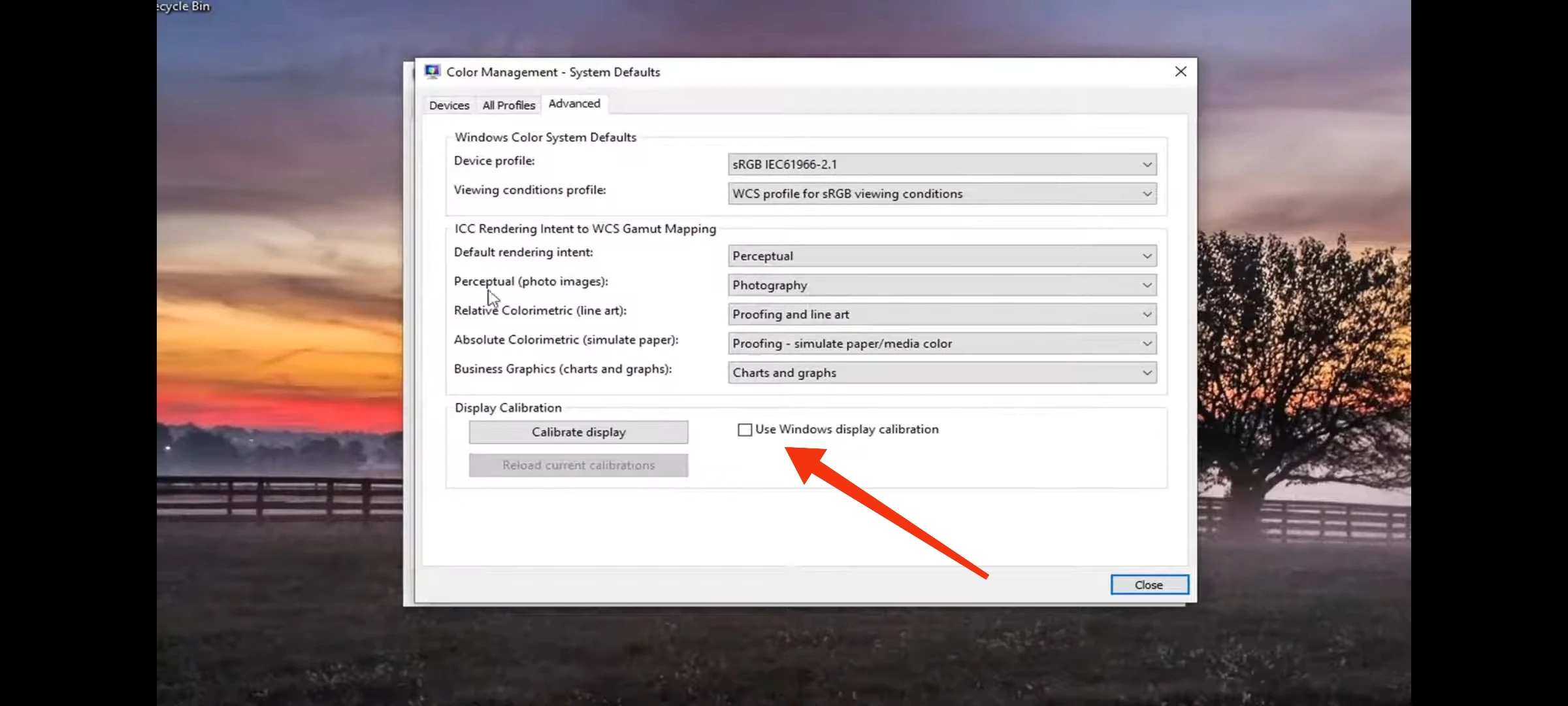


When I tick it, the color of the whole screen  will change a little, including Photoshop. So the color displayed in Photoshop seems to be calibrated twice.


In short, whether tick “Use Windows display calibration” or not will generate different colors. I don't know which one is correct.


Please help me. Thank you.

This topic has been closed for replies.
Correct answer D Fosse

No, don't do anything! The software will set it all up automatically. Run the calibrator, at your chosen calibration parameters, done.


You are specifically not using Windows display calibration. You do not need to go into the Windows color management dialog at all.


BTW, "Adobe RGB monitor" is just a marketing term. It does not match Adobe RGB exactly, and it doesn't have to. The monitor doesn't need to match any standard color space.  Leave it at "native" response, don't use the ARGB preset. From a color management perspective, you could just as well have a monitor half way between standard and wide gamut.

1 reply

D Fosse
Community Expert
D FosseCommunity ExpertCorrect answer
Community Expert
December 9, 2022

No, don't do anything! The software will set it all up automatically. Run the calibrator, at your chosen calibration parameters, done.


You are specifically not using Windows display calibration. You do not need to go into the Windows color management dialog at all.


BTW, "Adobe RGB monitor" is just a marketing term. It does not match Adobe RGB exactly, and it doesn't have to. The monitor doesn't need to match any standard color space.  Leave it at "native" response, don't use the ARGB preset. From a color management perspective, you could just as well have a monitor half way between standard and wide gamut.

Participating Frequently
December 9, 2022

Thank you for your reply.


There's something I still don't understand. You said "The software will set it all up automatically." What is "the software" exactly means? Is it Photoshop or the software which runs the color calibrators?


After getting the icc profile from calibrator, I uninstalled the software which runs the color calibrators. So I have to go into the Windows color management dialog to install and select the icc profile like this picture:


You said"Do not need to go into the Windows color management dialog at all." However, if I don't go into there, how can I install and select my icc profile?

D Fosse
Community Expert
Community Expert
December 9, 2022

We need to get something clear: when you say "After getting the icc profile from calibrator", I assumed you meant a proper calibrator with a colorimeter and software, like an i1 Display Pro, Spyder or similar.


Did you mean something else? Where exactly does the profile come from?